Tag Management Questions

Hello, I just have some questions about the Tag Management window. In the "colors" section there is a "match mode" dropdown which defaults to "exact match" but has other options like "starts with", "ends with", etc. How does this setting impact the tag behavior - is it when we search for tags, it will attempt to match our search term against this tag using the match mode selected here? Or does the match mode specifically pertain to the "color" settings somehow (since it is in the "color section" of the settings, as seen in the screenshot)? But if so - how?
Also, I noticed a "delete" button appears next to "apply" once we click "apply" to change some settings. But for tags where we've never done this, there is no "delete" button. Is that button just to clear any tag-specific settings/to revert the tag to defaults?
Another thing I'm wondering, how do the color settings here work? Would this be to auto-colorize tabs for sessions that have these tags? Or something else?
Screenshot below shows what I am referring to for my above questions: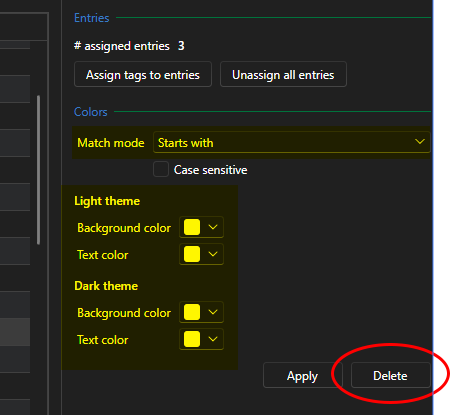
Also, I've noticed the UI seems to be a little inconsistent with the columns...like for example if I click "apply" for some settings on a tag, and then after that I switch tabs to User Vault and back to Shared Vault, the column widths are messed up so I can't see any tags. Even if I fix the column - if I go to another tab and back again, the column widths are messed up again. So it seems to not be saving column settings in this dialog.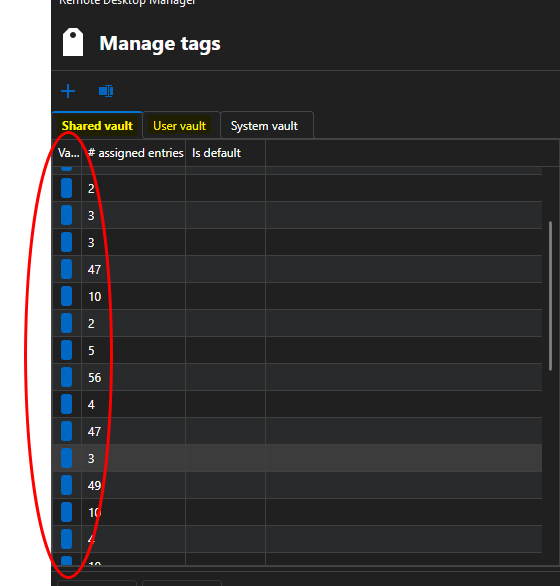
Note I am on v2026.2.19 (data source is SQL Server); I know the UI was revamped in v2026.3 but I also saw that maybe still had some UI issues , so I am debating on whether to update now or wait a bit. But if these issues are resolved already in the v2026.3 line then please let me know. This is a minor issue for me, so not urgent.
Any help is appreciated.
Best regards,
David Willis
f18a89c3-811c-4922-bbdb-c0f1146a2375.png
5c8ec763-3427-4425-9659-8fca4c0b738f.png
All Comments (1)
Hi David,
For starter the menu you are looking at is a way to create what we call a "Tag color rule" depending of the mode you select it will change the color of the entry tags accordingly.
One thing to know this menu allows you to add a new rule to your file settings. That's important because there is also rules in system setting and those take priority.
(These colors affect only the tags)
Now regarding your questions the apply button creates the "rule" and the delete as you can guess deletes it.
(This affect only the colors not the tags themselves)
Due to the multiple issues we currently have in 2026.3 i would recommend waiting 2 more weeks before updating, at the very least i would wait for 2026.3.11.
We made major changes to the app and had some shortcomings.
If you have anymore question let me know, i'm currently working on "Tag color rules" and will be happy to answer.
Regards,
Jean-Francois Duchesne