"Sync to the Cloud" not working after getting it setup

So interesting issue, I setup this option here with my Devolutions account and the newly designed version of RDM, everything worked great, I configured all the security options and everything in the portal, but then I closed RDM and reopened it, and ever since it just says this every time: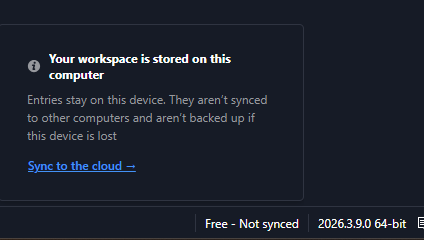
Clicking sync to the cloud does nothing, and everything relating to backing up to the cloud seems to be greyed out, not sure if I broke something while configuring security, but it did backup, and it is in the cloud, it's just not syncing anything new anymore.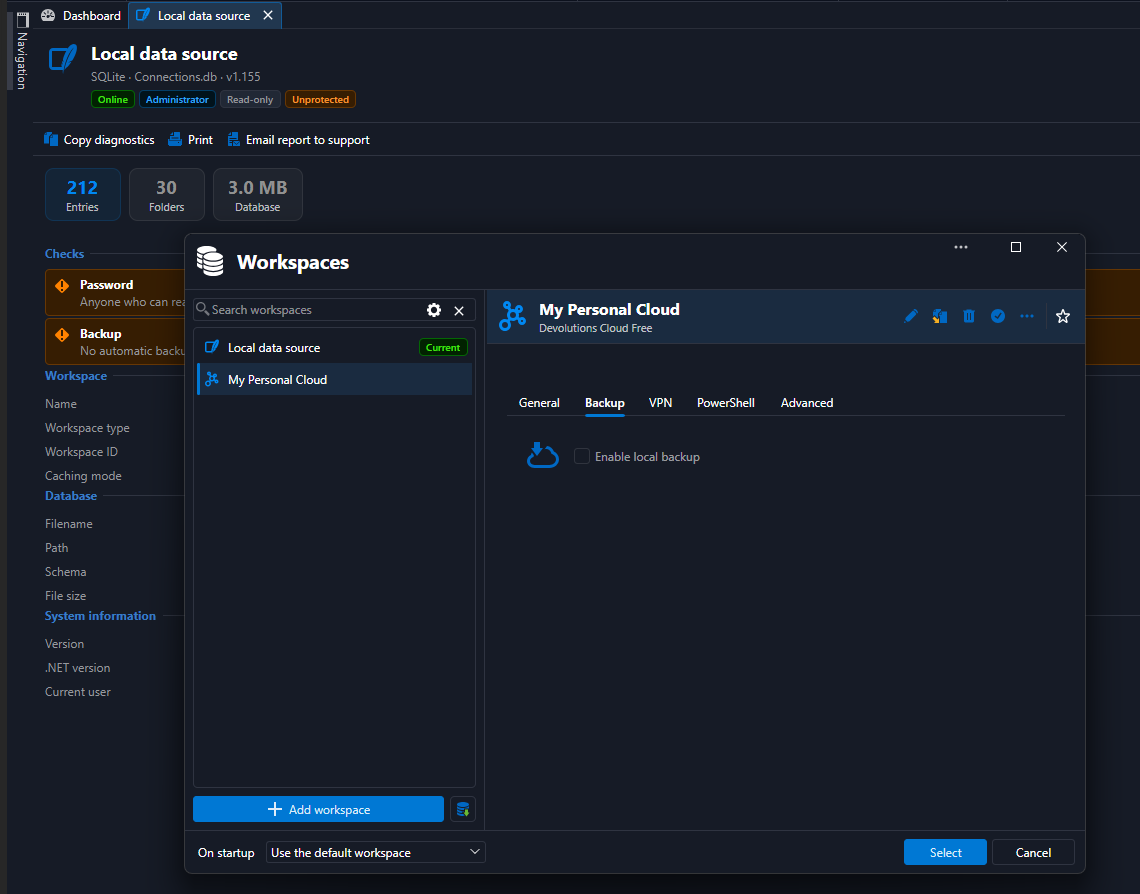
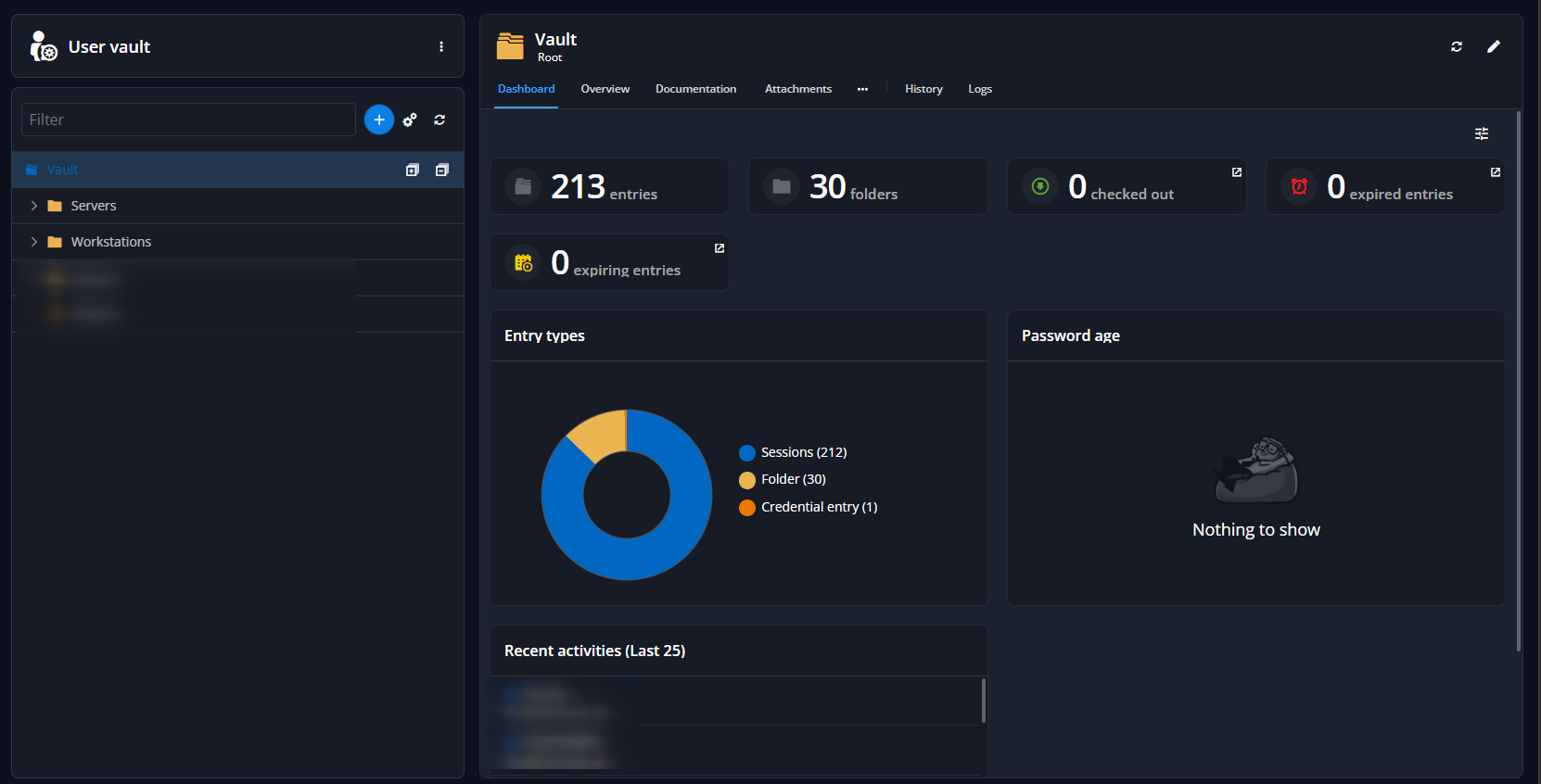
I just updated to the latest version and no change, any advice?
2d33c3a9-778b-42a7-891a-55dba08b637a.png
b2480312-8ff5-4c23-b142-8d472f4f7ede.png
53ebf7c8-bd7a-4ac1-98d4-f2e7cb938e87.png
All Comments (4)
Hello,
I suspect that what is happening here is only an issue of confusion. I'll try to explain what happened, and please correct me if I'm wrong.
When you did "sync to the cloud", you started the process to migrate your local data to our Cloud workspace. You went through the wizard and since you mentioned this worked great (which your final screenshot shows as well), I believe it worked perfectly.
The confusion here comes with what happens to your local workspace. When you go through the migration process, it sets your existing local workspace to read-only. The reason for that is that we didn't want to delete the user's local data, both in case the migration goes wrong, or in case they wanted to continue on their local workspace for whatever reason. Because of this, we don't want the user to keep writing in their local workspace, as it then wouldn't be saved to the cloud.
If you go to the root of your local workspace, you should see the read-only warning: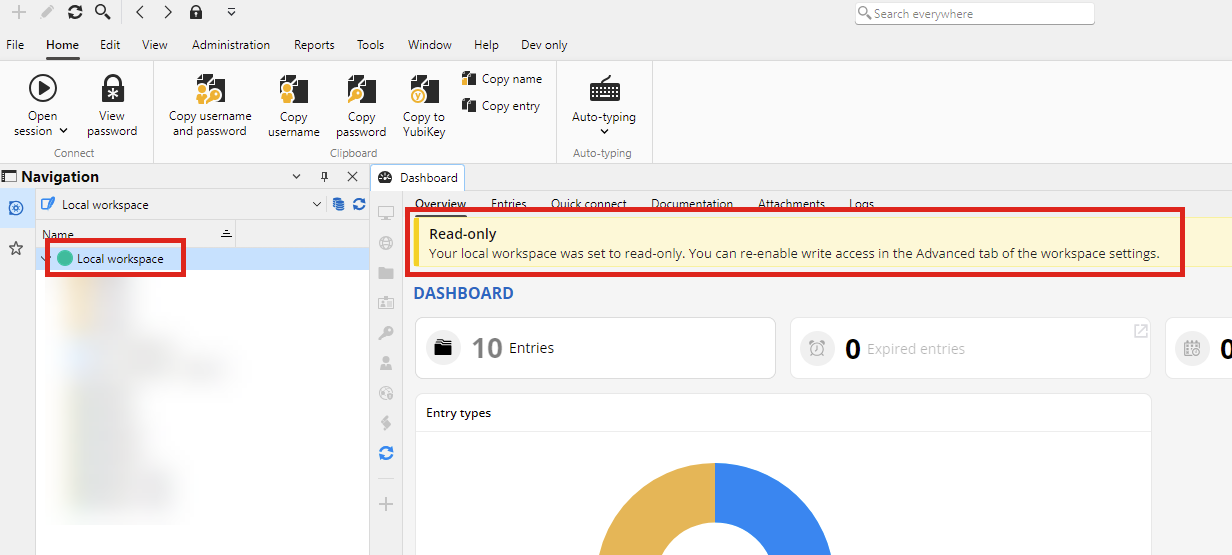
The "fix" here should be as simple as ensuring that in RDM you have selected your cloud workspace in your workspace selection dropdown. By default it's located in your navigation pane: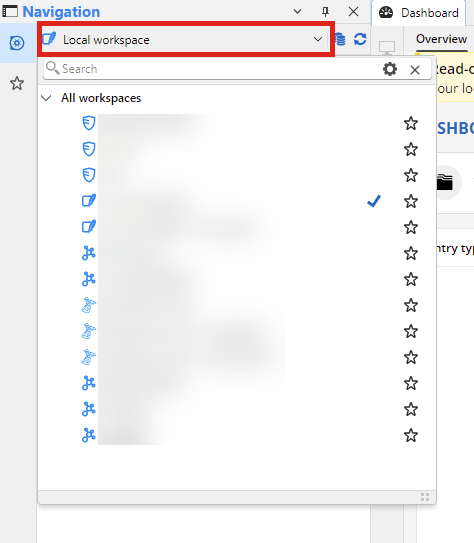
You could also remove the local one if you don't need it any longer. As I mentioned, we just didn't want to remove the user's data before they were sure the migration worked properly, but we also didn't want the user to keep using their local workspace and wonder why it's not in the cloud.
Let me know if anything is unclear or if I missed the mark with what's going on here.
Regards,
Hubert Mireault
5ea038de-722a-48dd-81bd-ffb655d25f53.png
02cba80b-ae39-4b8f-bafd-1734e315b3d3.png
This makes sense, but I'm pretty sure when I first did enabled cloud sync, this down here:
Was replaced with like a green icon or something indicating that it was syncing, and now it seems to not be there anymore? I might just not be getting it still.
da6cb7aa-fd79-4894-bed3-493d071f233e.png
Never mind I understand now, thanks!
5d6f91a3-a0ec-4cbb-8f80-880959e9ab9c.png
The green planet icon is what shows you at a glance whether you're online (green) or offline (orange). It makes sense you didn't see this before, as you were on your local workspace, which does not have a distinction between an online or offline mode.
In online mode, changes you make will be automatically saved to the workspace, while in offline mode, it will be synchronized back to it whenever you go back online. If you end up working in offline mode for a long time, it's good practice to periodically sync back to the cloud to ensure it's up-to-date, in case anything happens to your local offline changes.
I'm glad to hear I could clarify the behavior and you're back on track. We'll have to check if we can make the behavior clearer for users who migrate, as the goal is for the migration to be as seamless as possible. Your feedback is important here so thank you for sharing this.
Regards,
Hubert Mireault