RDM v2026.3.5: top and bottom of Navigation Pane flyout is cut off when set to "Auto-Hide"
RDM v2026.3.5: top and bottom of Navigation Pane flyout is cut off when set to "Auto-Hide"

When I set the Navigation Pane to Auto-Hide, it collapses as it should:
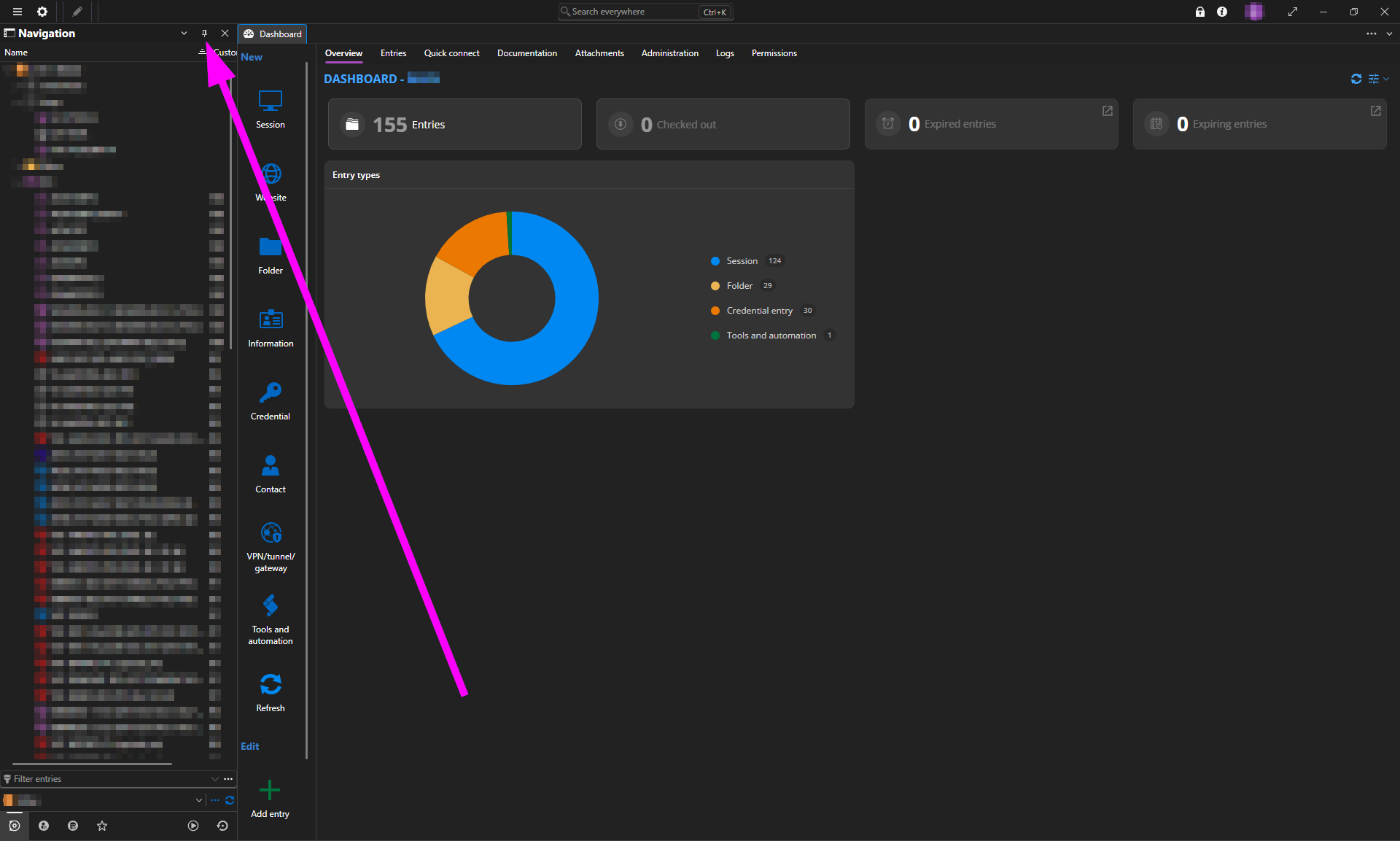
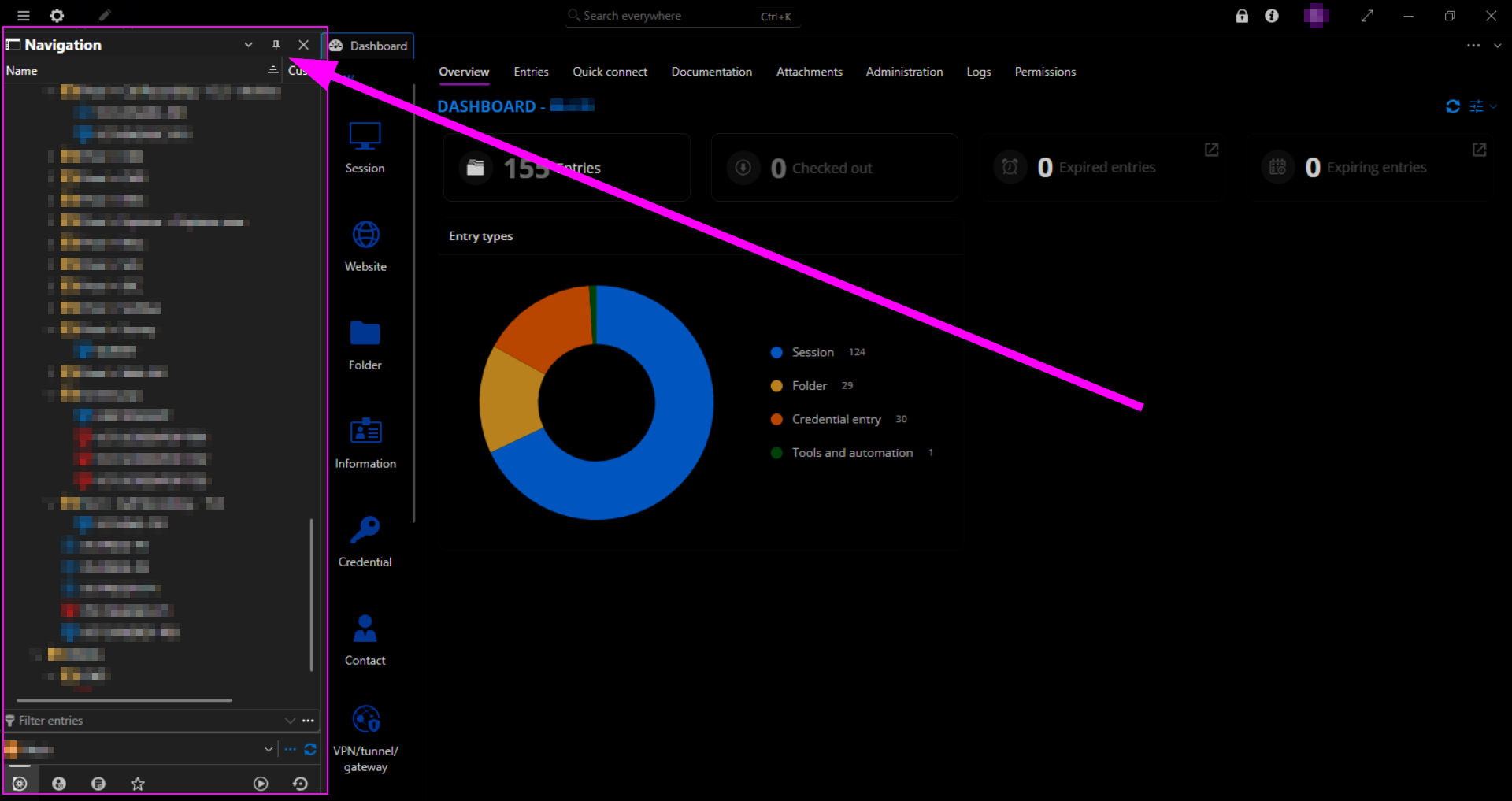
But then when clicking the Navigation Pane, the top and bottom is cut off.
As you can see in these two images, I'm scrolled all the way to the top and bottom within the Navigation Pane:
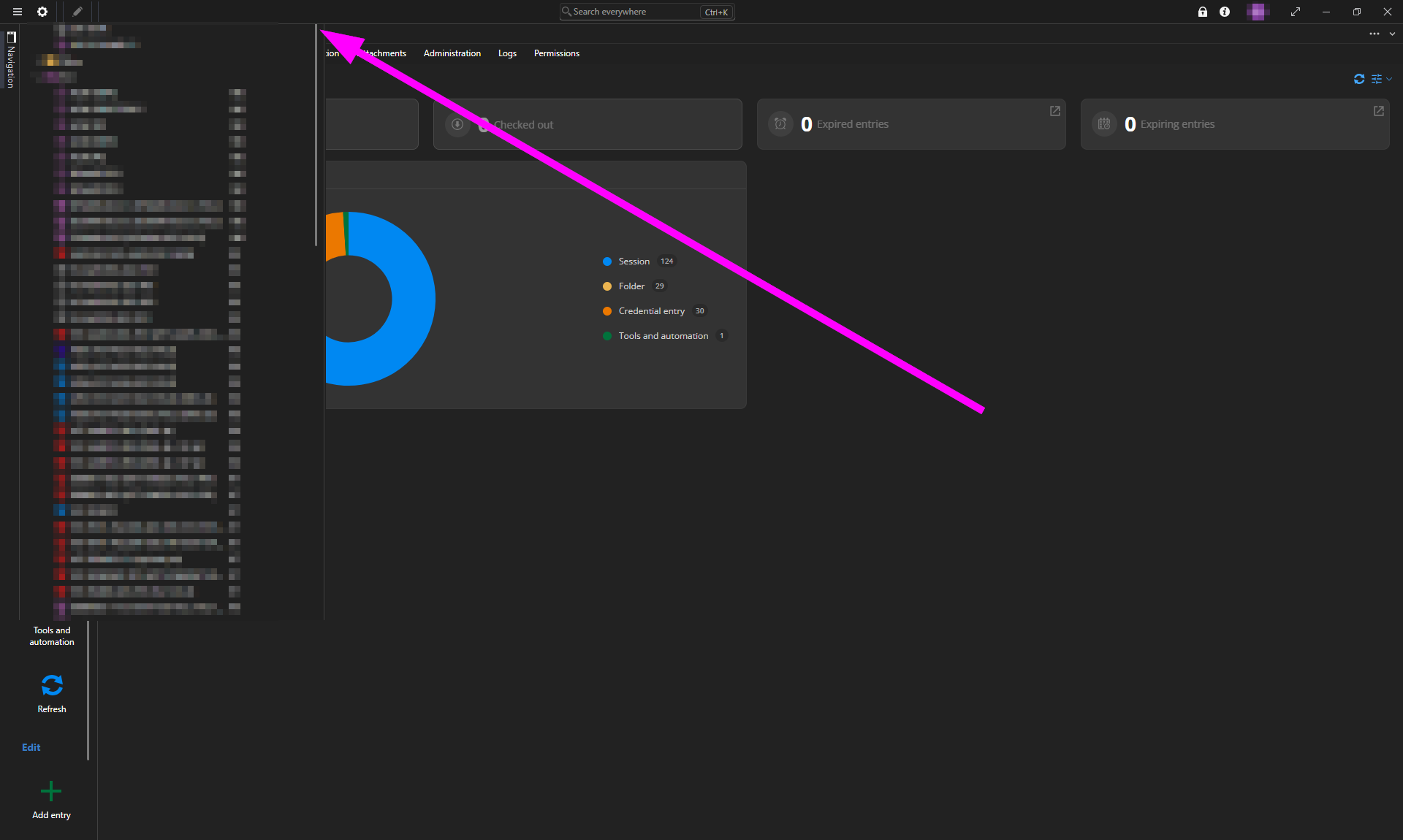
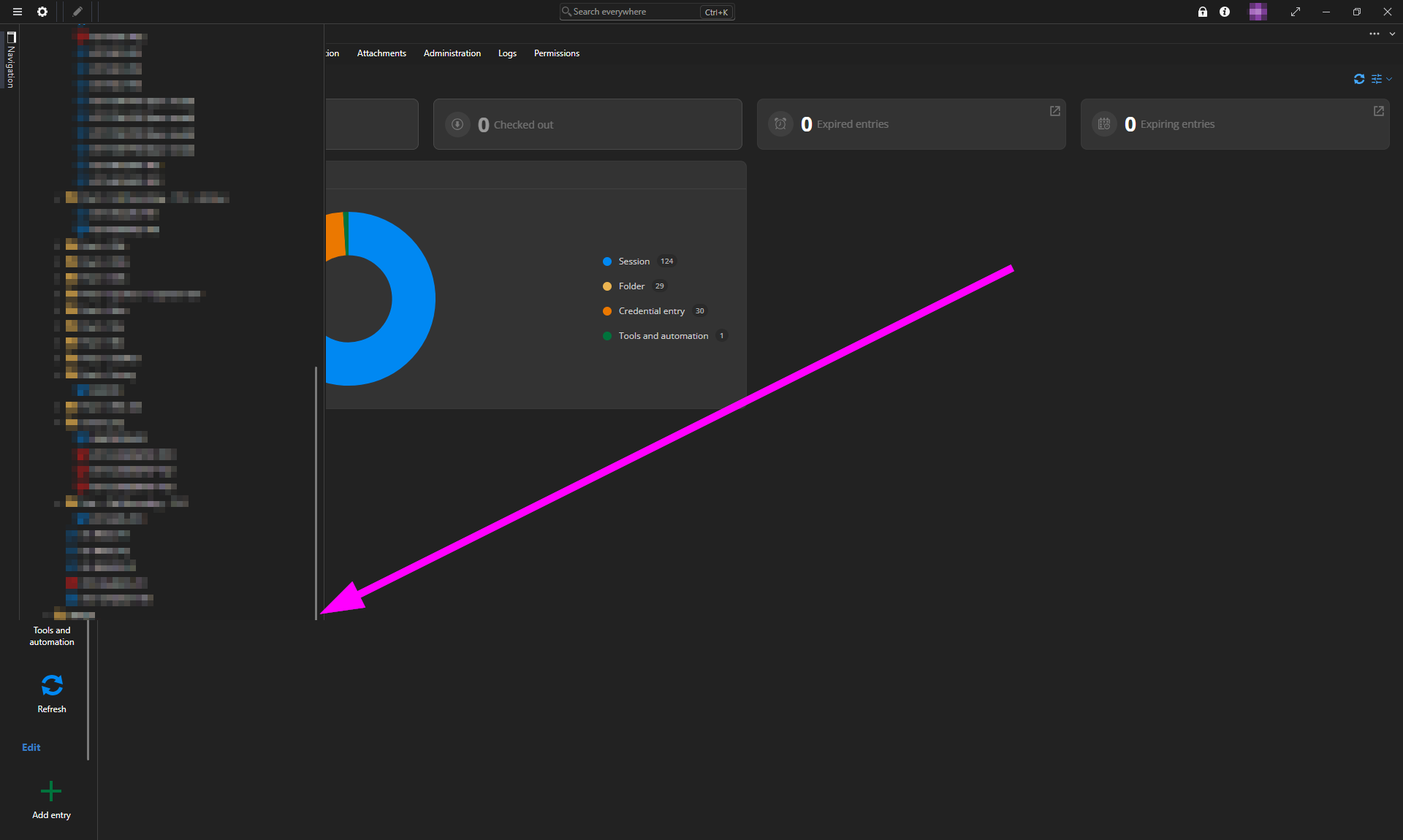
Notice that the top has enough cut off to prevent me from accessing the button to Pin the Navigation Pane again. Fortunately, restarting RDM does pin the Navigation Pane again upon launch.
Now what I discovered before I finished typing this up is that this issue only occurs on my two external displays—if I move RDM to my laptop's display (which is set as the main display in Windows Settings > System > Display), then the Navigation Pane's visibility is perfectly functional and normal. As you can see in the below image, no part of the Navigation Pane is cut off when I have RDM on my laptop's display:
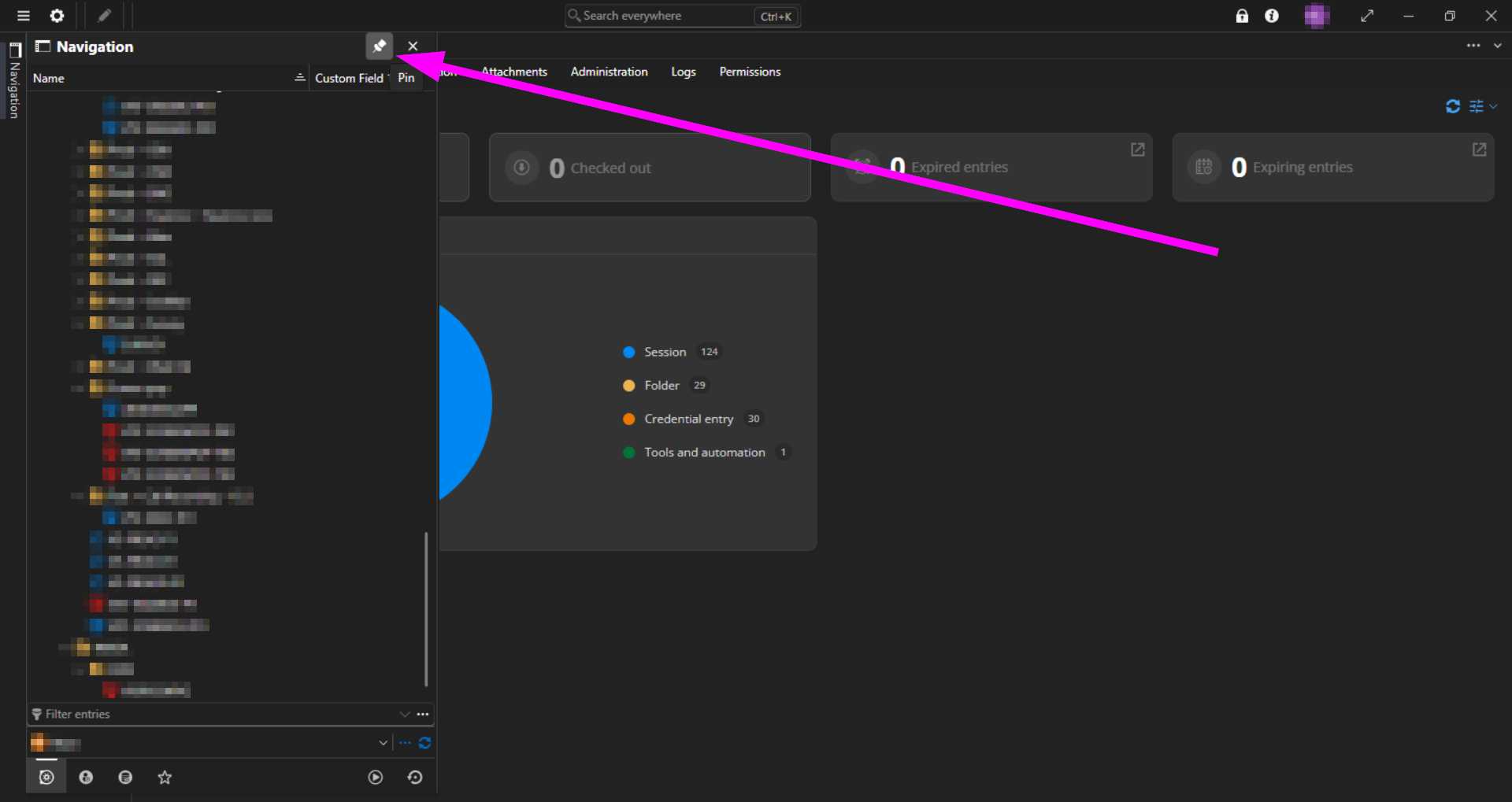
And this is after having just clicked the Pin button there:
No amount of moving RDM between my displays, toggling the Navigation Pane off and on, setting it to Float and back again, or restarting RDM has solved the issue—at this point, I have no other option but to move RDM back to my laptop's display in order to Pin the Navigation Pane again after setting it to Auto-Hide on either of my external displays.
——————————
I was just about to submit this post when I decided to try changing one of my external displays to be the Main Display in Windows Settings > System > Display. What I found is that as long as my laptop's display is not set as the Main Display, then the visibility of the Navigation Pane—including the Auto-Hide/Pin buttons—works correctly regardless of which display RDM is on and regardless of application restarts.
But when I set my laptop's display back to being the Main Display again, the problematic behavior returned, i.e. the top and bottom of the Navigation Pane is cut off while set to Auto-Hide while RDM is on either of my external displays.
90e8e00b-d224-49ce-90fc-859046de92e9.png
ddffc45a-dd03-4138-a7e4-15d3038f7801.png
b2dc07cb-dfed-4947-9fc9-724c8af24cb1.png
ae0af6f6-f3b7-4fd1-bd55-4c82209e8359.png
64cb732c-4f9d-4744-b279-12a292280032.png
All Comments (3)
Hello,
Thanks for reporting this issue. I was able to reproduce the problem and have created a bug ticket for our team to investigate. We’ll keep you updated on any progress.
In the meantime, I found that the Pin button becomes visible when the ribbon is expanded. You can expand it by double-clicking any ribbon tab, then pin the Navigation Pane again. I’ll add a screenshot below for reference.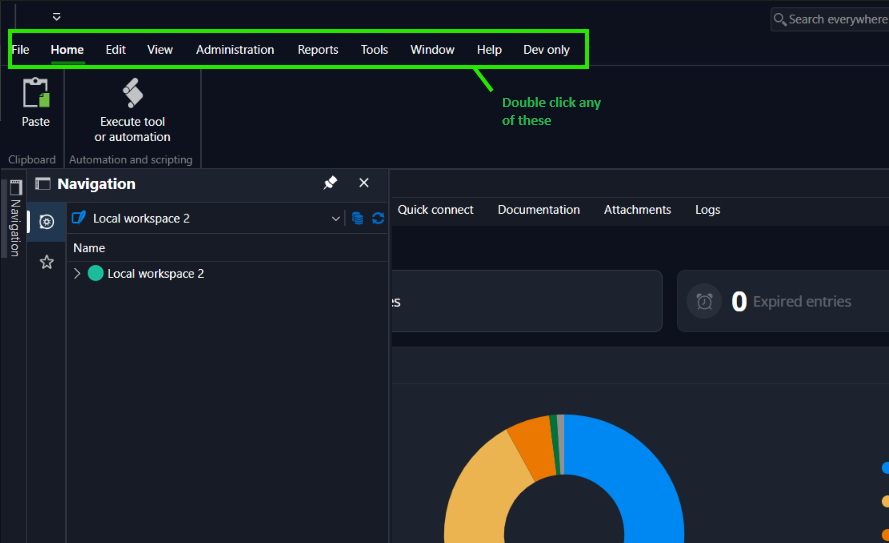
Best Regards,
Léon Le Brun
6a2af4c4-9e5d-4fef-947c-9d5fa88d5061.png
Great, thank you so much
Hello,
The fix for the Navigation Pane sizing issue is complete and will be included in the next minor release, RDM 2026.3.9.0.
Best Regards,
Léon Le Brun