Type Clipboard: Enhancements
1 vote

Hello,
not often, but every now and then, my colleagues need to type a username/password.
This is mainly needed in external applications/windows where Ctrl+V does not work.
I'm testing macros, especially:
File → Settings → User Interface → Keyboard → Shortcut macros
I want to avoid every user having to configure this in their own RDM. I would also like to avoid setting the Allow password in variable flag in every RDM entry for every user.
Is there a way to enhance the existing possibility of typing clipboard text by adding a configurable delay?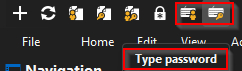
With a default delay, the RDM user could switch the focus to another application or shell, so RDM could type the text there.
Regards,
Daniel
e174f61e-4684-4ac7-8d37-b83713c2fd76.png
All Comments (11)
Well, I think a colleague already found the solution, so i'll post it here: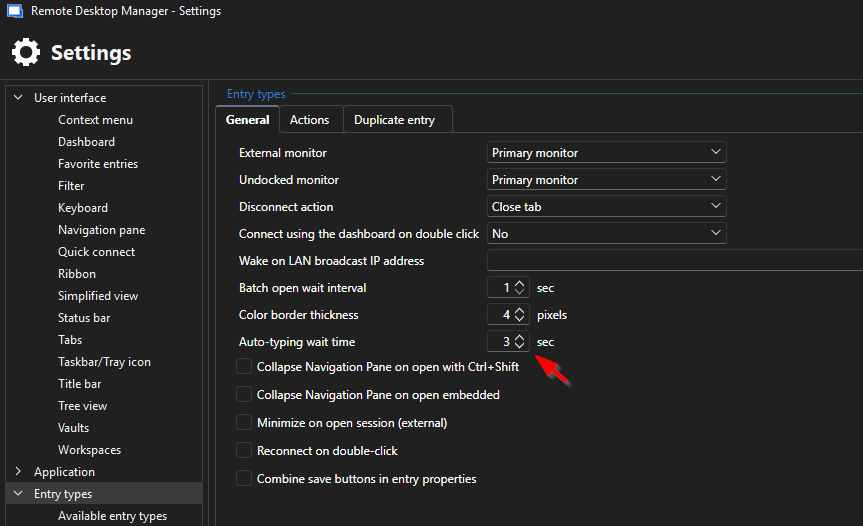
If I'm wrong, please correct me.
Regards,
Daniel
794e9edb-eeff-40da-906f-5f1e0b7b3e0e.png
Hello Daniel,
If I understand correctly, your goal is to easily type credentials into an opened entry, for an entry where the automatic filling of credentials doesn't work, for example with RDP lock screens, is this correct?
If so, then you're using exactly the correct feature, this is why we made these "Auto typing" buttons. The wait time configuration you found is specific to this feature as well.
If you're not satisfied with this solution, let me know and we'll see what other alternatives we might be able to find.
Regards,
Hubert Mireault
Hello Hubert,
If I understand correctly, your goal is to easily type credentials into an opened entry, for an entry where the automatic filling of credentials doesn't work, for example with RDP lock screens, is this correct?
Yes, or at least into an external Windows console or shell.
It took me quite some time to find the relevant settings, as they are spread across different areas of the RDM configuration. In the future, an AI-powered search could be helpful—not just a standard settings search, but one that understands the context of a request.
I tried the RDM AI assistant, but it could not help. An external LLM also struggled and mainly pointed me toward using macros.
I may be mixing several feature requests here, but they are a logical consequence of the same issue: with the large number of settings in RDM, it can be difficult to find the right option without knowing its exact name or location.
If you're not satisfied with this solution, let me know and we'll see what other alternatives we might be able to find.
Back to topic:
In general, we are satisfied, but one problem still exists:
When opening a VMware console through web (browser), we see the VM embedded in the website.
It is still not possible, to let RDM type the clipboard/credentials. It works in nearly all other apps/notepad/websites, but not, when using a VMware console through web: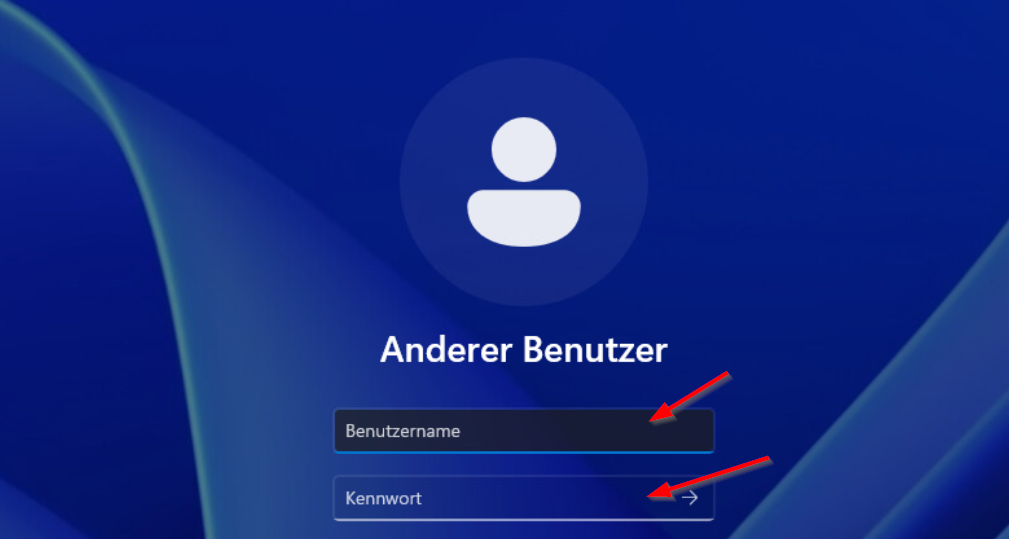
Do you have any ideas regarding this?
Regards,
Daniel
44e1cbee-3719-4091-ab39-5f785f9ce5a9.png
Hello Daniel,
For your first point regarding improving the search of settings with AI, I will forward this to our AI development team. They're constantly working on improving the integrations in our products, and we'll make sure that this aspect of the application is considered in future improvements. Remote Desktop Manager is a massive application and no one person knows where to find every single setting (even after working here for 12 years, which I think you can understand, since you've been using our products for a long time 😉).
Additionally, we're also continually working on our documentation, and we're looking into ways to populate documentation based on our codebase, which we're hoping would make our help topics more complete and more up-to-date.
As for the VMWare console embedded through a website entry, I will forward this to our QA department to see if they can reproduce, and from there, how we can improve this so our auto-typing/macros work properly with it. I'm not sure whether it's as simple as a focus issue, or if there's an actual limitation with how we send these keys, but as far as I know we simulate keyboard inputs which should work with pretty much any application or context that can be 'traditionally' typed in.
Regards,
Hubert Mireault
Hello,
We have been able to reproduce the auto-typing issue, and a ticket has been sent to the Engineering Team.
Best regards,
Antoine Mauger
Back to topic:
In general, we are satisfied, but one problem still exists:
When opening a VMware console through web (browser), we see the VM embedded in the website.
It is still not possible, to let RDM type the clipboard/credentials. It works in nearly all other apps/notepad/websites, but not, when using a VMware console through web:
@dcapilla
I believe I can help here. As a diagnostic step, can you please try the following:
- Close RDM
- Locate your RemoteDesktopManager.cfg file (typically in %localappdata%\Devolutions\RemoteDesktopManager)
- Back up the file before editing it
- At the end of the file, before the closing
</Option>tag add, add the following line
<KeyboardSimulatorTranslateUnicodeToScanCode>true</KeyboardSimulatorTranslateUnicodeToScanCode>
- Save the file and launch RDM
- See if you can now successfully auto-type in a VMWare web console session
Let me know if it helps. It's not an ergonomic fix in that form, but I just want to understand if it fixes things before giving further recommendations.
Let me know if something isn't clear
Thanks and kind regards
Richard Markievicz
@Hubert Mireault
Thanks for your feedback. Yes, RDM really is “Beauty and the Beast” all in one :D
Your documentation is great, but overall there is simply too much of everything. Not too complex—just too much. I completely understand that finding the right place for settings and documentation is a challenge. Often, there simply is no single right place.
With the help of (personalized) LLMs/AI, searching can at least be made much easier - at least in my experience.
Your bot has also been helpful before, it would just need to be less verbose for my taste. ;-)
@Richard Markiewicz
Thanks — it worked.
Some kind of setting in a future update would be great, even though this isn’t a frequently used feature, including in our case.
Best regards, and thank you as always for your kind support,
Daniel
@dcapilla
Thanks for confirmation. I won't bore you with the technical reason to need this setting for VMWare. I agree we should expose the setting in the UI, but the question is if we need to make it session-specific or global. I also worry about discoverability (it's not obvious you need this for VMWare, and in the web context we can't really detect that we're inside VMWare). What it boils down to is: does this setting being enabled cause issues anywhere else? It's possible, but I haven't had much feedback either way from users.
We have a ticket open about improving this, but what I'd appreciate is if you let us know if you run with this setting enabled and experience other weirdness with the auto typing features.
Thanks and kind regards,
Richard Markievicz
@Richard Markiewicz
I will give you feedback, but it may take some time, as I do not work with VMware myself - my colleagues do.
It could take a few weeks, and I will be on vacation in August, but rest assured that I will post an update in this thread.
Best regards,
Daniel
Hello,
I got the feedback faster than expected. In short: It works!
Thanks again!
Daniel
Hi Daniel
Excellent, thank you.
I have a ticket open and linked to this thread to improve the experience around this setting. I'll be out on vacation myself in the coming weeks, but will come back to it a bit later and update this thread once we have something. In the meantime don't hesitate with further questions or comments.
Kind regards,
Richard Markievicz