Setting SCCM drive in Universal Dashboard

Product: PowerShell Universal
Version: 3.7.6
New-UDDashboard -Title 'PowerShell Universal' -Content{
    Import-Module ActiveDirectory

    # Site configuration
    $SiteCode = "MySite"
    $ProviderMachineName = "Server"

    # Customizations
    $initParams = @{}

    # Import the ConfigurationManager.psd1 module
    if($null -eq (Get-Module ConfigurationManager)) {
        Import-Module "C:\Program Files (x86)\Microsoft Endpoint Manager\AdminConsole\bin\ConfigurationManager\ConfigurationManager.psd1" @initParams
    }

    # Connect to the site's drive if it is not already present
    if($null -eq (Get-PSDrive -Name $SiteCode -PSProvider CMSite -ErrorAction SilentlyContinue)) {
        New-PSDrive -Name $SiteCode -PSProvider CMSite -Root $ProviderMachineName @initParams
    }

    # Set the current location to be the site code.
    Set-Location "$($SiteCode):\" @initParams
I’ve found a couple forum posts regarding SCCM integration but have found none with any solutions being posted; has anyone found a way to integrate SCCM into Universal Dashboard, and if so, could you provide an example?
I cannot get the location to set no matter where I place the code in the dashboard’s script, whether before New-UDDashboard or nested within the contents. I’ve tried running the script in the default environment, Windows PowerShell, and 5.1.19041.1023.
Recommended Answer
Going off your suggestion of using an environment/startup script for this, it appears that does not work.
Here’s my setup: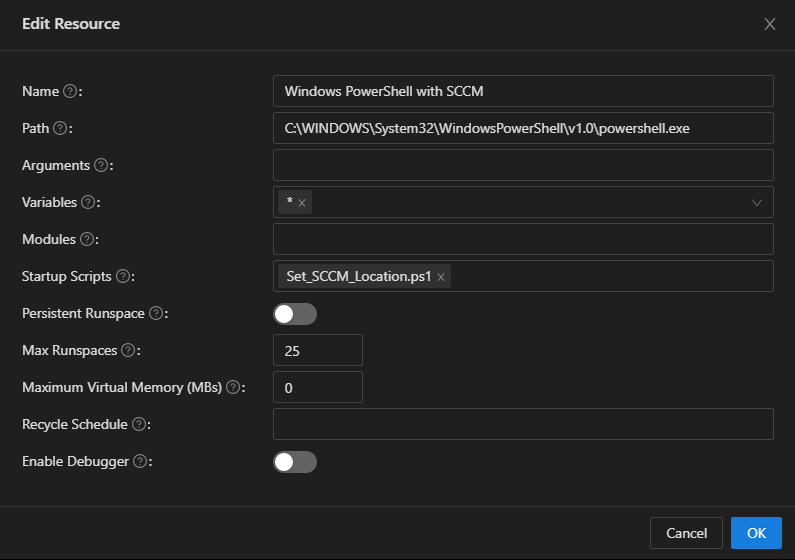
The Set_SCCM_Location.ps1 contains:
# Site configuration
$SiteCode = "MySite" # Site code
$ProviderMachineName = "MyServer" # SMS Provider machine name

# Customizations
$initParams = @{}
#$initParams.Add("Verbose", $true) # Uncomment this line to enable verbose logging
#$initParams.Add("ErrorAction", "Stop") # Uncomment this line to stop the script on any errors

# Do not change anything below this line

# Import the ConfigurationManager.psd1 module
if($null -eq (Get-Module ConfigurationManager)) {
    Import-Module "C:\Program Files (x86)\Microsoft Endpoint Manager\AdminConsole\bin\ConfigurationManager\ConfigurationManager.psd1" @initParams
}

# Connect to the site's drive if it is not already present
if($null -eq (Get-PSDrive -Name $SiteCode -PSProvider CMSite -ErrorAction SilentlyContinue)) {
    New-PSDrive -Name $SiteCode -PSProvider CMSite -Root $ProviderMachineName @initParams
}

# Set the current location to be the site code.
Set-Location "$($SiteCode):\" @initParams
Dashboard loads fine, but the location is not set. (Get-Location).Path returns C:\ProgramData\UniversalAutomation\Repository.
4ca763e5c1605798f39a47abd6b3519a22b132b2.png
All Comments (10)
Have you tried this in an environment startup script?
docs.powershelluniversal.com
Also, what’s the behavior? Does it throw errors or doesn’t set the location properly?
Adam Driscoll
PowerShell Expert and Software Architect at Devolutions
Here’s the log output on the dashboard, it doesn’t change in either scenario:
Waiting for dashboard information…
Dashboard information received. Starting dashboard.
Creating services.
C:\Program Files (x86)\Universal\Modules\Universal\Universal.psd1
Starting scheduler.
Dashboard configuration complete.
I have not tried it in an environment startup script. As near as I can tell it doesn’t even run the lines of code in the script. I attempted to use wait-debugger, but the dashboard does not show in the debugging section even though the page appears to be waiting.
If I do a get-module in the console I can see that the module is imported, but it doesn’t appear to like to set the location, nor does it recognize any of the module’s commands.
Since it doesn’t seem to be throwing errors, can you try this?
    # Set the current location to be the site code.
    Set-Location "$($SiteCode):\" @initParams
    Show-UDToast (Get-Location).Path
Adam Driscoll
PowerShell Expert and Software Architect at Devolutions
So the toast shows our site, however when attempting to run a command from the module we get this error:
This command cannot be run from the current drive. To run this command you must first connect to a Configuration Manager drive.
An error occurred: This command cannot be run from the current drive. To run this command you must first connect to a Configuration Manager drive.
Endpoint: bd2d171f-11f8-4900-9f61-d844573b6d2b
Session: , User:
Which indicates that the location isn’t set properly.
@Adam Driscoll Did you have any other ideas, or have you heard of anyone else running SCCM integration into a dashboard?
Going off your suggestion of using an environment/startup script for this, it appears that does not work.
Here’s my setup:
The Set_SCCM_Location.ps1 contains:
# Site configuration
$SiteCode = "MySite" # Site code
$ProviderMachineName = "MyServer" # SMS Provider machine name

# Customizations
$initParams = @{}
#$initParams.Add("Verbose", $true) # Uncomment this line to enable verbose logging
#$initParams.Add("ErrorAction", "Stop") # Uncomment this line to stop the script on any errors

# Do not change anything below this line

# Import the ConfigurationManager.psd1 module
if($null -eq (Get-Module ConfigurationManager)) {
    Import-Module "C:\Program Files (x86)\Microsoft Endpoint Manager\AdminConsole\bin\ConfigurationManager\ConfigurationManager.psd1" @initParams
}

# Connect to the site's drive if it is not already present
if($null -eq (Get-PSDrive -Name $SiteCode -PSProvider CMSite -ErrorAction SilentlyContinue)) {
    New-PSDrive -Name $SiteCode -PSProvider CMSite -Root $ProviderMachineName @initParams
}

# Set the current location to be the site code.
Set-Location "$($SiteCode):\" @initParams
Dashboard loads fine, but the location is not set. (Get-Location).Path returns C:\ProgramData\UniversalAutomation\Repository.
4ca763e5c1605798f39a47abd6b3519a22b132b2.png
I have a page that I’ve built to allow people to add MAC address exceptions using the ConfigMgr module. I have a script that I wrote to do the actual work and call it from the dashboard via Invoke-PSUScript.
Script:
param (
    [Parameter(Mandatory = $false)]
    [string]
    $SiteServer = 'SCCM.domain.com', ## Set default site server
    [Parameter(Mandatory = $false)]
    [string]
    $SiteCode = 'ABC', ## Set default site code
    [Parameter(Mandatory = $false)]
    [string]
    $MACAddress
)


$CMModulePath = "C:\Program Files (x86)\Microsoft Endpoint Manager\AdminConsole\bin\configurationmanager.psd1"

Unblock-File -Path $CMModulePath

Import-Module $CMModulePath


try {
    New-PSDrive -Name $SiteCode -PSProvider 'CMSite' -Root $SiteServer -Description 'ConfigMgr PSDrive'
    Set-Location 'EG1:'
    if ($MACAddress -match '^[0-9A-Fa-f]{2}([:-]?)(?:[0-9A-Fa-f]{2}\1){4}[0-9A-Fa-f]{2}$') {
        if ($MACAddress -match '^(?![A-Za-z]+$)[0-9A-Za-z]+$') {
            $NewMAC = ($MACAddress -split '([A-Z0-9]{2})' | Where-Object { $_ }) -join ':'
        }
        else {
            $NewMAC = $MACAddress -replace ('-', ':')
        }
    }
    else {
        $CharLength = $MACAddress.Length
        if ($MACAddress -match '^[a-zA-Z0-9]*$' -and $CharLength -ne '12') {
            [PSCustomObject]@{
                'Valid'   = 'Error'
                'Message' = "$MACAddress is $CharLength characters, it must be 12"
            }
        }
        else {
            [PSCustomObject]@{
                'Valid'   = 'Error'
                'Message' = "$MACAddress is not valid, must be like 606D3CFAAFE0 (12 char) / 60-6D-3C-FA-AF-E0 / 60:6D:3C:FA:AF:E0"
            }
        }
    }

    $CheckMAC = Get-CMDuplicateHardwareIdMacAddress | Where-Object { $_.MacAddress -eq $NewMAC }
    if ($CheckMAC.Count -eq '0') {
        New-CMDuplicateHardwareIdMacAddress -MacAddress $NewMAC -ErrorAction 'Continue' > $null
        $GetResult = Get-CMDuplicateHardwareIdMacAddress | Where-Object { $_.MacAddress -eq $NewMAC }
        if ($GetResult.Count -eq '1') {
            [PSCustomObject]@{
                'Valid'   = 'Added'
                'Message' = "$NewMAC added successfully"
            }
        }
        else {
            [PSCustomObject]@{
                'Valid'   = 'NotAdded'
                'Message' = "$NewMAC NOT added succsesfully"
            }
        }
    }
    elseif ($CheckMAC.Count -eq '1') {
        [PSCustomObject]@{
            'Valid'   = 'Already'
            'Message' = "$NewMAC is already in exceptions list"
        }
    }
}
catch [System.ArgumentException] {
    [PSCustomObject]@{
        'Valid'   = 'Error'
        'Message' = "Failed, not sure why. Please reach out to Engineering."
    }
}
catch {
    Write-Host "Error: " -ForegroundColor 'White' -NoNewline
    Write-Host "$_" -ForegroundColor 'Red'
    $line = $_.InvocationInfo.ScriptLineNumber
    Write-Host "Line: " -ForegroundColor 'White' -NoNewline
    Write-Host "Line $line" -ForegroundColor 'Red'
}
finally {
    Set-Location -Path 'C:'
    Remove-PSDrive -Name 'EG1' -Force -ErrorAction 'SilentlyContinue' > $null
}
Dashboard:
New-UDStack -Direction 'column' -Content {
    New-UDTypography -Text 'Add a new MAC' -Variant h3
    New-UDCard -Content {
        New-UDForm -Content {
            New-UDTextbox -Label 'MAC Address' -Id 'MacAddress'
        } -OnSubmit {
            $Result = Invoke-PSUScript -Name 'AddMAC.ps1' -MACAddres $EventData.MacAddress -Integrated -Wait -Credential $Secret:svc_CM_Automations
            if ($Result.Valid -eq 'Added') {
                $Parameters = @{
                    'Message'         = [string]$Result.Message
                    'Position'        = 'center'
                    'Duration'        = '5000'
                    'BackgroundColor' = 'Green'
                    'MessageColor'    = 'Black'
                    'IconColor'       = 'Black'
                    'Icon'            = 'Check-Circle'
                }
                Show-UDToast @Parameters
            }
            elseif ($Result.Valid -eq 'NotAdded') {
                $Parameters = @{
                    'Message'         = [string]$Result.Message
                    'Position'        = 'center'
                    'Duration'        = '5000'
                    'BackgroundColor' = 'Red'
                    'MessageColor'    = 'Black'
                    'IconColor'       = 'Black'
                    'Icon'            = 'exclamation-triangle'
                }
                Show-UDToast @Parameters
            }
            elseif ($Result.Valid -eq 'Already') {
                $Parameters = @{
                    'Message'         = [string]$Result.Message
                    'Position'        = 'center'
                    'Duration'        = '5000'
                    'BackgroundColor' = 'Yellow'
                    'MessageColor'    = 'Black'
                    'IconColor'       = 'Black'
                    'Icon'            = 'exclamation-triangle'
                }
                Show-UDToast @Parameters
            }
            elseif ($Result.Valid -eq 'Error') {
                $Parameters = @{
                    'Message'         = [string]$Result.Message
                    'Position'        = 'center'
                    'Duration'        = '5000'
                    'BackgroundColor' = 'Red'
                    'MessageColor'    = 'Black'
                    'IconColor'       = 'Black'
                    'Icon'            = 'exclamation-triangle'
                }
                Show-UDToast @Parameters
            }
        }
    }
}Thanks!!!
I’ll give this a try and get back.
@AnonymousUser Thanks again for the response, I was able to get our dashboard working with some tweaking.
It seems like you’re working on integrating SCCM into Universal Dashboard, and you’re facing some challenges with setting the SCCM drive location. This can indeed be a bit tricky.For more specific guidance on integrating SCCM into your Universal Dashboard, you might find valuable insights and examples on https://learnmesccm.com. They often provide detailed resources related to SCCM that could help you overcome this issue. Additionally, when dealing with script placement and environment configurations, it’s essential to ensure that everything is set up correctly. Don’t hesitate to seek assistance on relevant forums or communities if you continue to face difficulties.