Password List improvements
1 vote

Hi team,
I'd like the following improvements to password list (the credential type "password list"):
- The ability to easily add/edit multiple password entries in password list. There are scenarios when some credentials are generated in bulk for many machines/services etc. for example by using the RDM's Password Generator. I'd like to be able to add them all to the single Password list entry (while preserving entries already existing in the password list). Maybe an editable table would do. Adding ~40 passwords by opening dialog window for every single one of them is extremely ineffective. It feels like using ERP software from '90s.
- The ability to easily bulk import password list data from CSV/XLS etc. Currently by importing "credentials" it wants to create 40 separate entries for me, not a single password list with 40 password entries. [Update]: I discovered the feature to convert individual passwords into a password list, that may be a solution for the time being.
- A documentation and examples for handling Password List from PowerShell. Missing the above abilities, I tried to invent a PowerShell way of doing that. Unfortunately I could not come up with my own solution, and all the greatest AIs hallucinated so much that the code was unusable :-) I got the existing Password List entry using
Get-RDMEntry, but there was no easy way of managing the embedded password entries. [Update] I found out that it's hidden in the$entry.Credentials.PasswordList... Please document it better with an example... All I could find was the official doc for the UI and the old blog post, nothing for PowerShell. [EDIT] Please also add in the example how to extract password from a password list entry. The following doesn't work:
get-rdmEntryPassword $entry.credentials.passwordlist[1]
Get-RDMEntryPassword: Cannot bind parameter 'InputObject'. Cannot convert the "RemoteDesktopManager.PowerShellModule.PSOutputObject.PSPasswordListItem" value of type "RemoteDesktopManager.PowerShellModule.PSOutputObject.PSPasswordListItem" to type "RemoteDesktopManager.PowerShellModule.PSOutputObject.PSConnection".
Same for removing password list entry:
$entry.credentials.passwordlist.RemoveAt(0)
MethodInvocationException: Exception calling "RemoveAt" with "1" argument(s): "Collection was of a fixed size."
Thanks.
All Comments (8)
Hello,
Thanks for the feedback. I'll go over your points in order:
The ability to easily add/edit multiple password entries in password list. There are scenarios when some credentials are generated in bulk for many machines/services etc. for example by using the RDM's Password Generator. I'd like to be able to add them all to the single Password list entry (while preserving entries already existing in the password list). Maybe an editable table would do. Adding ~40 passwords by opening dialog window for every single one of them is extremely ineffective. It feels like using ERP software from '90s.
I'd like to understand your workflow a little more before we figure out a solution for this.
When adding new credentials, do you, for example, generate 30 passwords through the password generator in one go, and would like to store them all at the same time? Or are you generating them one by one and want to make these steps quicker?
The same questions apply when editing passwords of existing data in your password list. Do you want to regenerate all of them in a batch, or do it one by one?
The possible solution of an editable table is interesting, but we would have to see how best to allow this mode, as not all fields allowed in the password list would work well in such a table.
The ability to easily bulk import password list data from CSV/XLS etc. Currently by importing "credentials" it wants to create 40 separate entries for me, not a single password list with 40 password entries. [Update]: I discovered the feature to convert individual passwords into a password list, that may be a solution for the time being.
It doesn't look documented, so I've asked our documentation team to improve our current documentation to mention the process to import password lists. The way to achieve this right now is by setting the connection type column to Password List, and ensuring that the name and folder of the entry are the same for all the entries you want to belong to the same password list. Every row in the CSV with matching name+folder will become part of the same password list entry. Let me know if you need a concrete example and I can whip one up to get you started.
A documentation and examples for handling Password List from PowerShell.
I've also asked our documentation team and Powershell team lead to see about correcting and adding more resources to our documentation for the Powershell module. It's good to have examples that are used in real life scenarios so your feedback is appreciated.
Regards,
Hubert Mireault
Hello,
Thanks for the feedback. I'll go over your points in order:
The ability to easily add/edit multiple password entries in password list. There are scenarios when some credentials are generated in bulk for many machines/services etc. for example by using the RDM's Password Generator. I'd like to be able to add them all to the single Password list entry (while preserving entries already existing in the password list). Maybe an editable table would do. Adding ~40 passwords by opening dialog window for every single one of them is extremely ineffective. It feels like using ERP software from '90s.
I'd like to understand your workflow a little more before we figure out a solution for this.
There are 2 scenarios, the second one emerged during RDM presentation/training, after I wrote this post:
- There is a single application installed on 40 computers. It needs to authenticate to some remote resource (call it a database for simplicity). For valid reasons (let them remain non-public), we cannot use Windows Integrated Authentication / Auth0 / any other authentication that is related to user's identity. Therefore all 40 computers need a separate user name and password to authenticate to the remote resource. They are stored on the computer in such a way that it is (hopefully) very hard for malicious user to make use of them. We want to store all of them in RDM under a single umbrella - and the "Password List" entry type seems great for that. That way we can recover them when e.g. reinstalling the affected computer.
- The second scenario is storing hundreds of credentials (user name/password) where it is important that we also know and display creation datetime, and last modification datetime, and are able to sort using those attributes so that we can easily determine the entries added/modified the latest. We again saw "Password List" entry type as the great way of doing that - but now it doesn't expose creation/last modification timestamps in the table, which I think is an easy fix.
When adding new credentials, do you, for example, generate 30 passwords through the password generator in one go, and would like to store them all at the same time? Or are you generating them one by one and want to make these steps quicker?
The same questions apply when editing passwords of existing data in your password list. Do you want to regenerate all of them in a batch, or do it one by one?
On the initial deployment we need those 30 passwords in one go. The Password Generator in RDM is a great tool and you can tell it to generate 30 passwords, and it can copy them to the clipboard. Up until now I just pasted them into a spreadsheet of some sort, then added user names and other attributes, and then I made use of that (configuring the target machines). Therefore my idea of a editable table, akin to a spreadsheet, as it worked great for me.
When editing such setup it, it may be
- done in bulk (e.g., it is decided that we need to rotate all those credentials for some reason), or
- edit only a few (for example we want to change only a single password)
- add few entries or more (e.g. new devices are deployed).
The possible solution of an editable table is interesting, but we would have to see how best to allow this mode, as not all fields allowed in the password list would work well in such a table.
I think OTP column could be read-only, as it is hard to edit that inline, but all others: name, host, user, domain, password, description, expiration seem to be simple information that could be editable in the table (but I may not have the full picture of the internals, so it's up to you).
The ability to easily bulk import password list data from CSV/XLS etc. Currently by importing "credentials" it wants to create 40 separate entries for me, not a single password list with 40 password entries. [Update]: I discovered the feature to convert individual passwords into a password list, that may be a solution for the time being.
It doesn't look documented, so I've asked our documentation team to improve our current documentation to mention the process to import password lists. The way to achieve this right now is by setting the connection type column to Password List, and ensuring that the name and folder of the entry are the same for all the entries you want to belong to the same password list. Every row in the CSV with matching name+folder will become part of the same password list entry. Let me know if you need a concrete example and I can whip one up to get you started.
That'd be really great. Please document it in the official docs. I tried the CSV structure
ConnectionType,Name,Host,UserName,Password,Description
PasswordList,This User's Name,,myusername,myuserspassword,
And I failed. So I'd need a concrete example of the CSV structure + 1 row, like the above, because I don't know how to reach "the name and folder of the entry are the same for all the entries" while also be able to specify the User's name (Caption) as in the below screenshot. Also the arbitrary date 01.03.2019 seems not the greatest fit for the default value of expiration date ;-)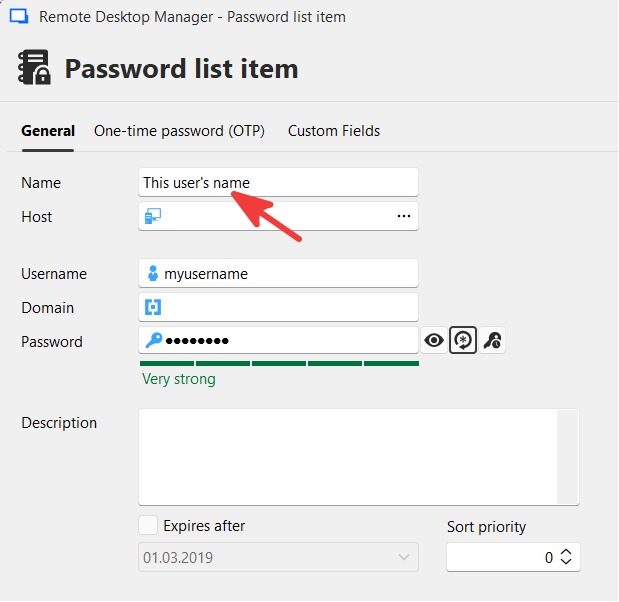
A documentation and examples for handling Password List from PowerShell.
I've also asked our documentation team and Powershell team lead to see about correcting and adding more resources to our documentation for the Powershell module. It's good to have examples that are used in real life scenarios so your feedback is appreciated.
Oh so the PowerShell module is so much underdocumented. It provides tremendous power, but discovering stuff in it is painful. I had to use Object Browser in Visual Studio to finally discover the $entry.Credentials.PasswordList property. I hoped to find official reference of all types, but failed. But then I was unable to get passwords from it and delete password entries programmatically, as shown earlier. The relations between types is not trivial and the big object model is also not always very intuitive, so some examples and reference would be great.
Regards,
@Hubert Mireault
Thank you very much.
ff378d64-be1e-4488-b759-e2dd6bdc55da.png
Thank you for the details, this is much appreciated. I'll open an internal ticket for this, though at the moment I can't give you an estimate on when we will be able to work on this.
For the other points you brought up:
So I'd need a concrete example of the CSV structure + 1 row, like the above
Here's one I made from a base (exporting an entry in CSV format), and modified the names to match. I tried it and it works well on my end.
ConnectionType,ConnectionSubType,SubMode,Name,Group,Description,Keywords,Expiration,Parent,OTPSecret,Host,Username,Domain,Password,WebUrl
Password list,,0,MyPasswordListName,,,,,,,,userA,domainA,passwordA,
Password list,,0,MyPasswordListName,,,,,,,,userB,domainB,passwordB,
Password list,,0,MySecondList,,,,,,,,userA,domainA,passwordA,
Password list,,0,MySecondList,,,,,,,,userB,domainB,passwordB,
Password list,,0,MySecondList,,,,,,,,userC,domainC,passwordC,
The result here should be two new Password List entries, one with two values inside, and one with three. It's not the most versatile since not all "sub fields" in the Password List entry are supported, but it might be good enough to improve your flow.
Also the arbitrary date 01.03.2019 seems not the greatest fit for the default value of expiration date
I'll open a bug ticket for this, it doesn't sound normal to me.
As for your feedback on Powershell, let me know if you need help for a specific script, our Powershell lead offered to help out if what's currently available is unclear or doesn't seem to work right. He will also be working on adding cmdlets to simplify these manipulations as well, as well as adding this information to our documentation.
Regards,
Hubert Mireault
Oh just one small thing, the issue with the expiration date should be fixed with our 2026.2 release. We are migrating a lot of our UI to a different framework (Avalonia). This window was reworked and this was fixed at the same time, from what I can tell from my tests.
Regards,
Hubert Mireault
Thank you for your responses. I tried the CSV verbatim as you pasted it, and unfortunately the first attempt was the following: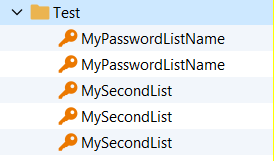
I used File->Import->Import from CSV->Import generic CSV wizard. It was because I chose "Header format instruction" = "Credential" - it was natural to me that I'm importing credentials.
On the second attempt i chose "Session" (very counterintuitive), and it worked correctly - created 2 password lists.
The issue with this import is that these Header format instructions are very obscure, some kind of inline help would be very helpful (the blue "?" icon with some tooltip explanation).
The other issue was the meaning of "Generate direct mapping" option. I don't seem to understand when it's going to be helpful. Either the caption is not correct (doesn't mean anything to me) or it also needs the "?" icon with more information.
===
Regarding PowerShell, a new version got released in the meantime and it solved my exact issue with fetching passwords from the entry of the PasswordList. Now it works, so thanks. Still, some newbie examples in docs would help other users in the future (and hopefully reduce toil on you). AI will also learn better from the docs and hopefully also help people with coding RDM stuff ;-)
Thanks!
cefa8ec6-3147-4b8c-9b8e-19766c4d6136.png
One more tiny FR related to the topic: when using Quick Actions -> Convert to a password list, please fill in the folder in the dialog to be the same folder I chose entries from, or other "sane" default, otherwise when left empty as it is, the password list is created (unexpectedly) at the root of the tree, which may be very distant to the position of the entries being moved.
Thanks!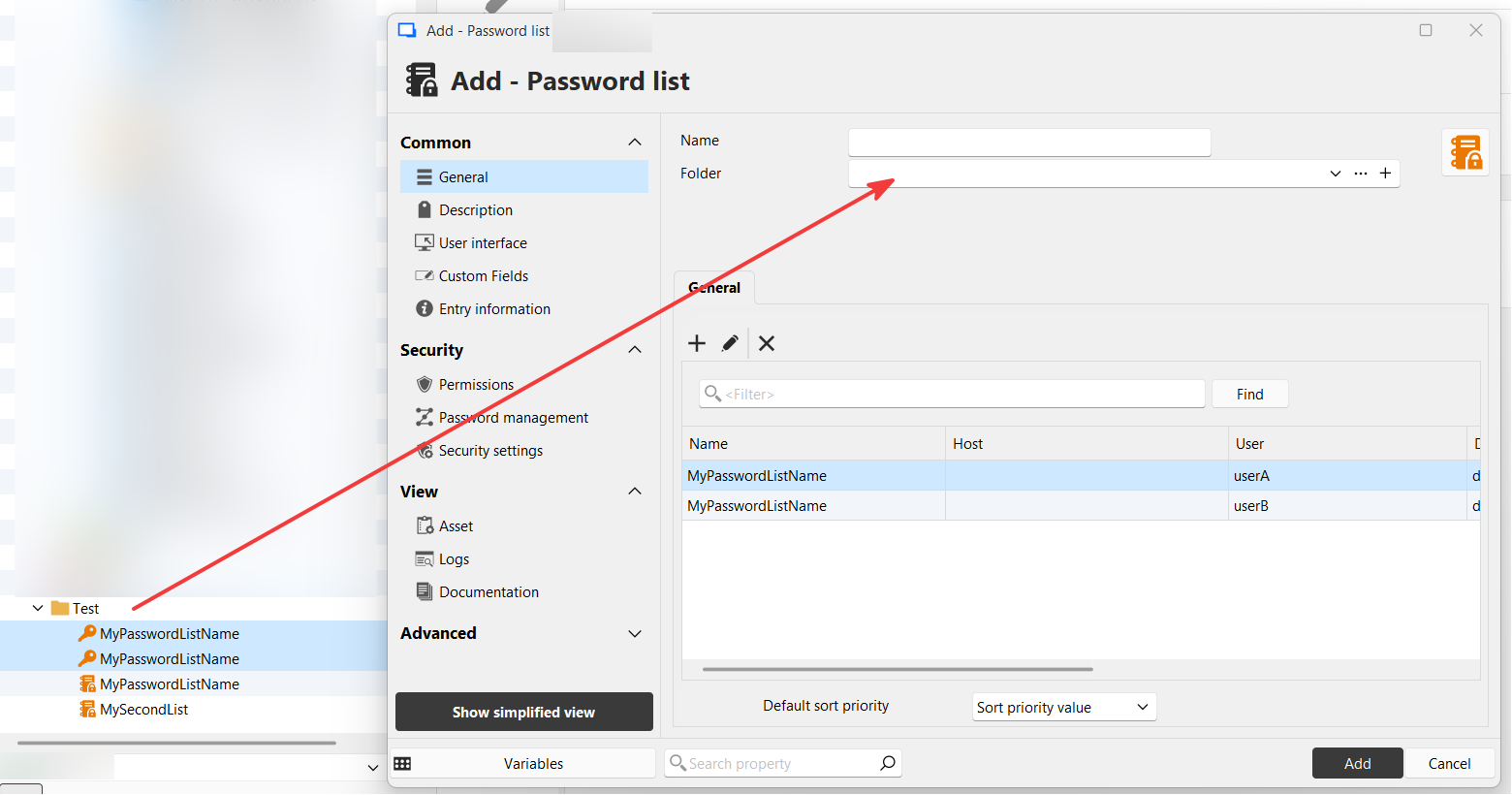
8d3c0514-0de0-4a27-a65d-67a9735ba976.png
One more comment while testing. The CSV structure and object model for Password List must take into account that there are 2 "Name" fields, and allow preserving them both. For now your CSV example doesn't have the name of the entry within the Password List.
Thanks!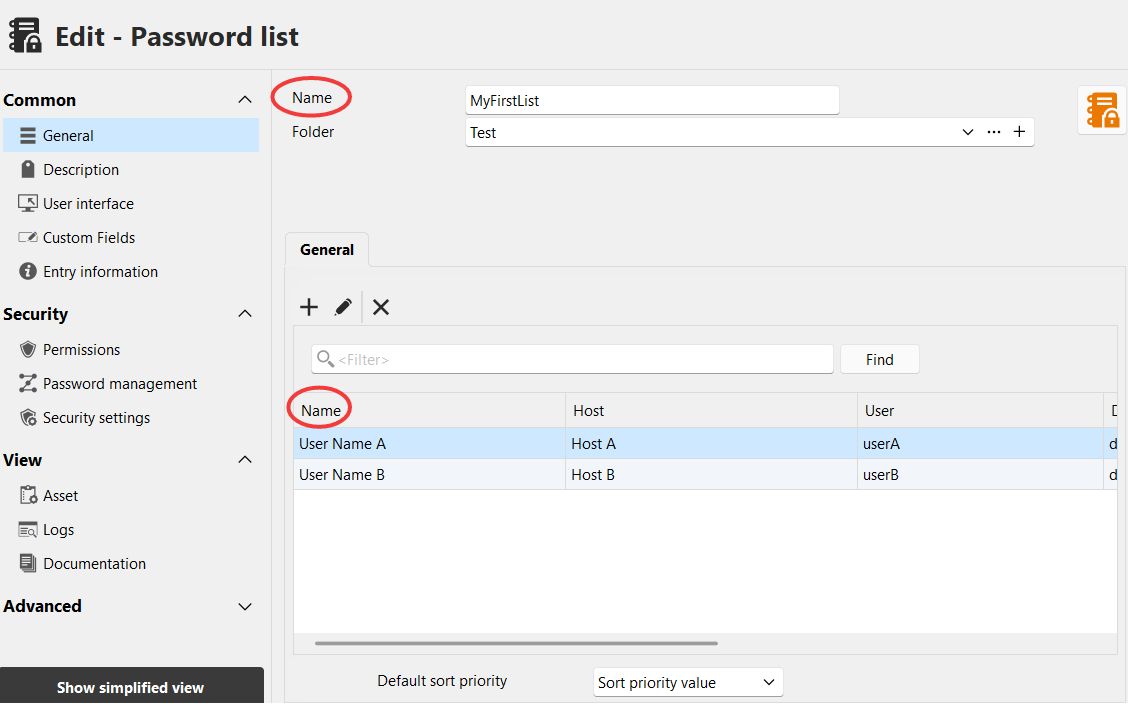
59756cd0-b57c-4008-9338-5b84febaf905.png
Hello,
I used File->Import->Import from CSV->Import generic CSV wizard. It was because I chose "Header format instruction" = "Credential" - it was natural to me that I'm importing credentials.
On the second attempt i chose "Session" (very counterintuitive), and it worked correctly - created 2 password lists.
The issue with this import is that these Header format instructions are very obscure, some kind of inline help would be very helpful (the blue "?" icon with some tooltip explanation).
The other issue was the meaning of "Generate direct mapping" option. I don't seem to understand when it's going to be helpful. Either the caption is not correct (doesn't mean anything to me) or it also needs the "?" icon with more information.
[...]
One more comment while testing. The CSV structure and object model for Password List must take into account that there are 2 "Name" fields, and allow preserving them both. For now your CSV example doesn't have the name of the entry within the Password List.
I agree that the generic CSV importer is in need of a revamp to be clearer and more fully-featured for users. It's currently a mix of legacy handling and a try at harmonizing the behavior, which isn't very easy to use at the moment. Additionally, there's limitations as to how certain things work like the password list import, as you've noted. From what I remember, it's mostly when we save things as arrays in the backend, causing us to have to work around this since CSV as a format doesn't natively support arrays, unlike a format like JSON.
I'll open a ticket so we can investigate how best to rewrite this feature, as I don't think simply adding on top of it would fix the core design issues with it. There may still be limitations at the end of the day just due to how the data structure is saved for certain fields, but we'll do our best to improve it.
One more tiny FR related to the topic: when using Quick Actions -> Convert to a password list, please fill in the folder in the dialog to be the same folder I chose entries from, or other "sane" default, otherwise when left empty as it is, the password list is created (unexpectedly) at the root of the tree, which may be very distant to the position of the entries being moved.
That's a good point, I'll open a ticket for this as well. This should be a much simpler change.
Again, thank you for the feedback. I understand it can be frustrating hitting these walls while trying to do something that should be, if not simple, better documented.
Regards,
Hubert Mireault