Unhide Username for SSH Connections

I'm trying to find out how to change a setting to unhide usernames by default. Every time I start a quick connect or saved SSH Session, the username is hidden by default. How do I change this? This is a change that has happened recently.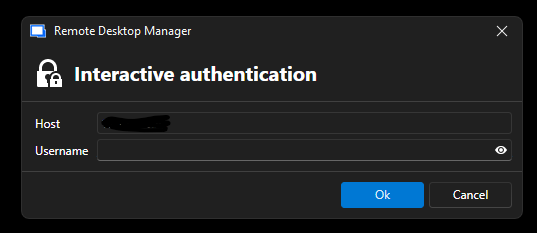
91ee0e91-82b8-484e-95b7-645f99850bf7.png
All Comments (5)
Hi stewartconradi,
Thanks for reaching out to us.
That dialog appears because the SSH entry (or quick connect) has Interactive authentication in the terminal set to No, so RDM handles the prompt itself instead of letting the terminal handle it. The username masking on it is new, and there's no checkbox for it in the regular settings.
Two things worth trying:
If you want to keep the dialog but unmask the username, open File → Settings, then hold Ctrl + Alt and type NOUI. That opens the Hidden Settings panel. Search for something like MaskUsername or Obfuscate and toggle it off.
If you'd rather skip the dialog entirely, open the SSH entry, go to the Advanced tab, and set Interactive authentication in terminal to Yes. The terminal will then prompt you directly, the way it used to. You can also flip this globally under File → Settings → Types → Terminal.
Please give that a try and let us know if it delivers the expected results. If not, please share your RDM version and the data source type you're using so we can dig deeper.
Best regards,
Eduard Sepulveda Lopez
Hello,
I'm not seeing either of the options that you listed above in my my hidden UI or in the Advanced Tab within the Properties of any SSH Entry. I'm on version 2026.1.20.0 64-bit.
Thanks,
Stewart Conradi
Hey stewartconradi,
Thanks for confirming. Sounds like this might be a 2026.1 UI change without a public toggle to revert it.
To dig in further, could you share:
Your data source type (SQLite, SQL Server, Devolutions Server, Hub, etc.)?
A screenshot of the Advanced tab on one of your SSH Shell entries? The "Interactive authentication in terminal" option should sit at the bottom of that tab, so if it's missing we'd like to see it.
Thanks in advance and best regards,
Eduard Sepulveda Lopez
Hello,
My data source is a local connections.db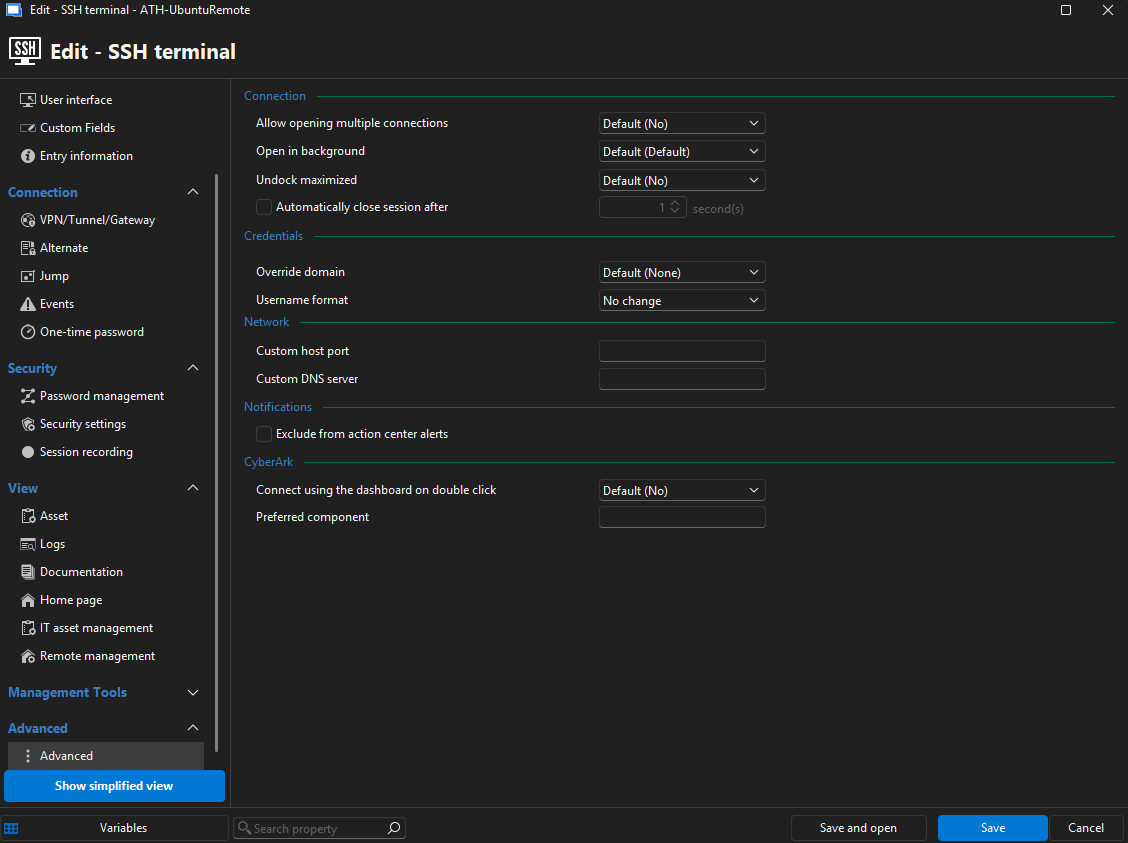
Thanks,
Stewart Conradi
cfcf35a5-29a6-4bfd-b3fc-e6fdf5a4c349.png
Hi stewartconradi,
Thanks for the details. With a local connections.db we can rule out anything coming from the data source side.
One quick thing to try from your screenshot. See the "Search property" box at the bottom of the entry editor? Type interactive in there. If the "Interactive authentication in terminal" option still lives in 2026.1.20.0, it should jump right into view. The layout was reshuffled in this release, so it may just have moved.
If nothing comes up, it looks like this is the dialog's new default behavior in 2026.1 with no user-facing toggle. In that case, leave it with us and we'll raise it internally with the product team to see if an option can be added.
Thanks in advance and best regards,
Eduard Sepulveda Lopez