High CPU usage after Update tor Version 2026.1.12.0

Hi
We've noticed that since the update, Remote Desktop Manager's CPU usage is significantly higher.
This is resulting in network interruptions on our Windows 365 clients when using Remote Desktop Manager.
Is anything known about this?
Regards,
Oliver
All Comments (6)
Hello,
Thank you for reporting this.
At the moment, we do not have any known issues reported regarding increased CPU usage with version 2026.1.12.0. If possible, could you provide a bit more information so we can investigate further?
For example:
- The exact CPU usage observed for the RDM process
- Whether it happens constantly or only during specific actions
- If the issue persists after restarting Remote Desktop Manager
- The number of sessions or entries open when the CPU usage increases
Additionally, if you are able to capture a process dump or logs, that could help us analyze what is consuming the CPU.
Looking forward to your feedback.
Best regards
Carl Marien
We see same issue!
35-40% of CPU utilization in RDM without doing anything in the application. This is on a shared jumphost running Windows server 2022.
Hello,
Thank you for your follow-up and for confirming that you are experiencing the same behavior.
At this time, we are still unable to reproduce the issue on our end. We are continuing our investigation based on the information previously requested.
Additionally, if you are able to provide application logs, this would greatly help us identify what may be causing the increased CPU usage.
We appreciate your collaboration and look forward to your feedback.
Best regards,
Carl Marien
Hello
We had a somewhat similar issue recently that only affected older versions of Windows, but it will be worth checking if the same fix applies in your situation.
In Settings > Performance > Avalonia, uncheck the following options
- Enable WinUI composition mode
- Enable direct composition mode
So the settings should look like this: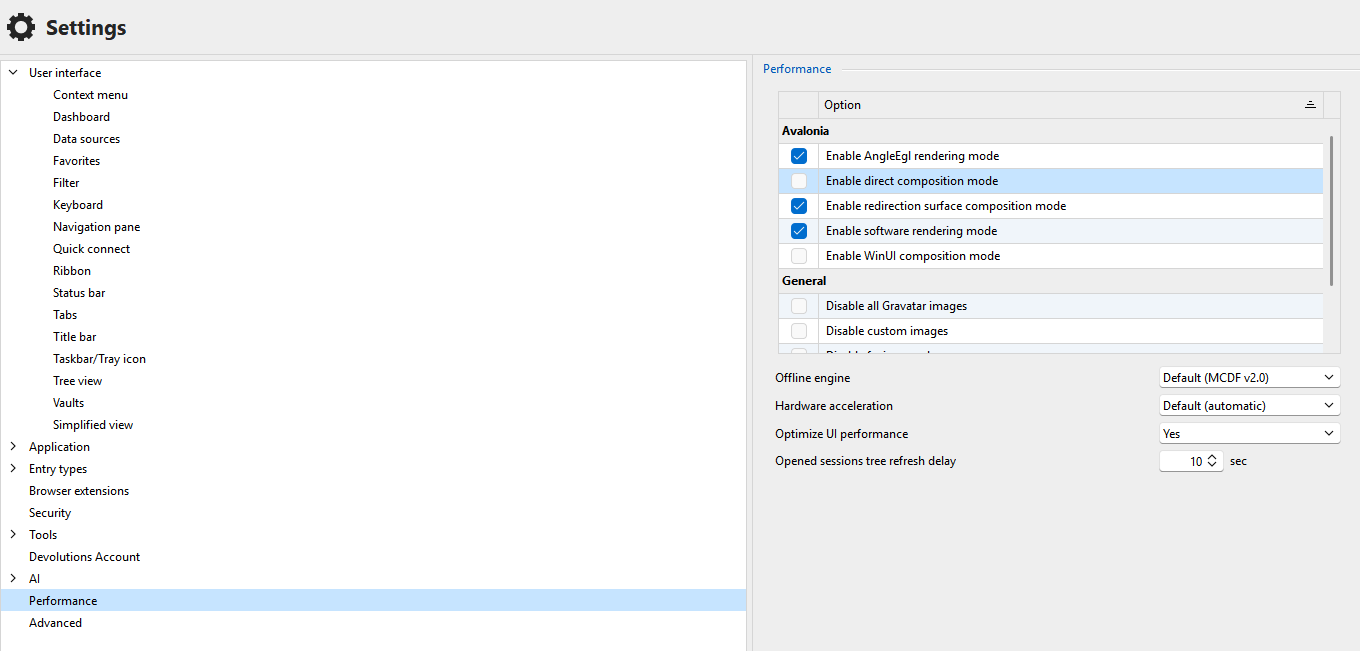
Save the changes and restart RDM. Does it help?
If not, further uncheck "Enable AngleEgl rendering mode". So now the settings look like this: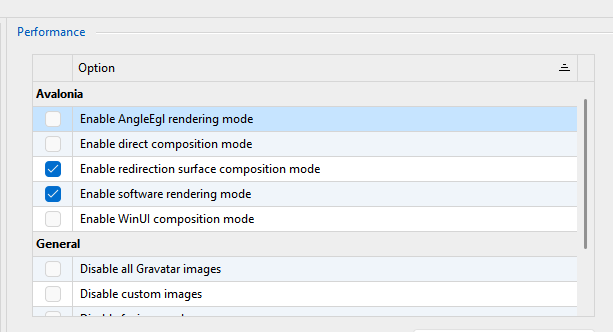
Save the changes and restart RDM. Does it help?
If not, in terms of concrete next steps: you can re-enable all those settings and once more save changes and relaunch RDM. Then the following steps might help us to identify the problem:
- Download procdump from Microsoft / SysInternals
- Extract the download to a location on disk
- From an administrative command prompt, `cd` to the extracted procdump directory
- Run RDM (if it's not running already) and let it idle. We want it to be already running so we're capturing the idle state, not the startup cost.
- Back in the command prompt run `procdump64.exe RemoteDesktopManager.exe -c 10 -s 5 -n 10`. You may need to accept the license agreement which pops up.
This will instruct procdump to generate a minidump from RDM every time processor utilization exceeds 10% for 5 seconds, exiting after capture 10 minidumps. The command prompt will give some feedback as it generates the mini dumps. Based on your post I believe this should be an appropriate configuration.
procdump will write the dump files to the current directory and they'll be named like "RemoteDesktopManager.exe_{date}_{time}.dmp".
Once you've gathered these files please let us know and the support team can provide you an avenue to upload them to us. Do not post them here on the public forum. I encourage you to read the security disclaimer around dump files.
Please let me know if you have any questions
Kind regards,
Richard Markievicz
Screenshot 2026-03-17 at 14.46.26.png
Screenshot 2026-03-17 at 14.46.11.png
Hi
I worked with Windows 365 all day. Remote Desktop Manager was always open in the background with a session. I had no problems all day.
After I closed (sleep) the Windows 365 session and reopened it, the problem with high CPU usage occurred.
The CPU usage of Remote Desktop Manager constantly fluctuates between 40 and 70%.
As a side effect, Windows 365 keeps losing its network connection and closing the session.
When Remote Desktop Manager is closed, the Windows 365 client recovers.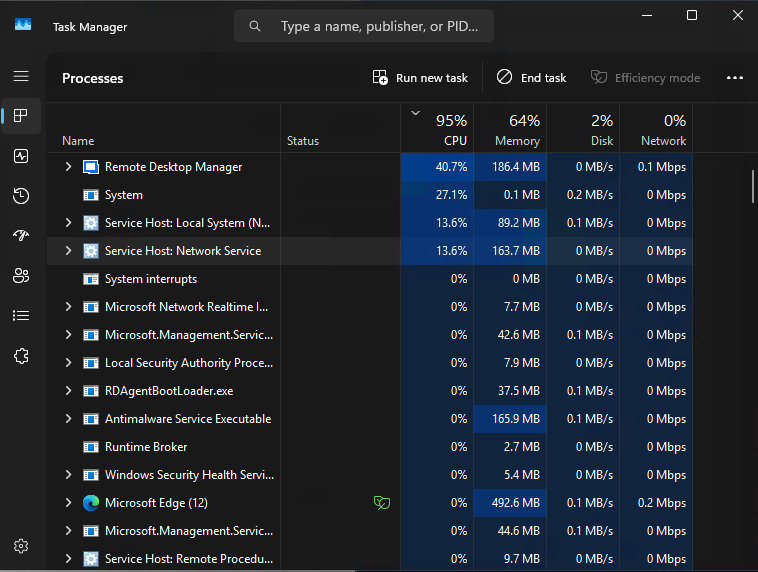
I adjusted the settings according to your suggestion, but the error occurred again.
I my case, I can reproduce the failure now.
Kind regards,
Oliver
53a97027-ab3e-4054-8b37-07c6c488d07e.png
Hello
The next step is to generate diagnostic information as in the second part of my post. Please let me know if you have some questions.
Kind regards,
Richard Markievicz