Unable to load PowerShell 7 Profile In Terminal Session ?

Hi,
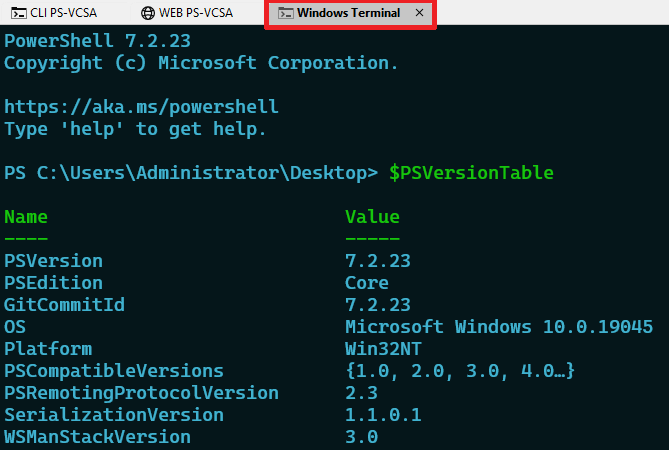
I have setup PowerShell 7 and am able to load the profile for PowerShell 7 when launching Terminal from Tools > Windows Terminal..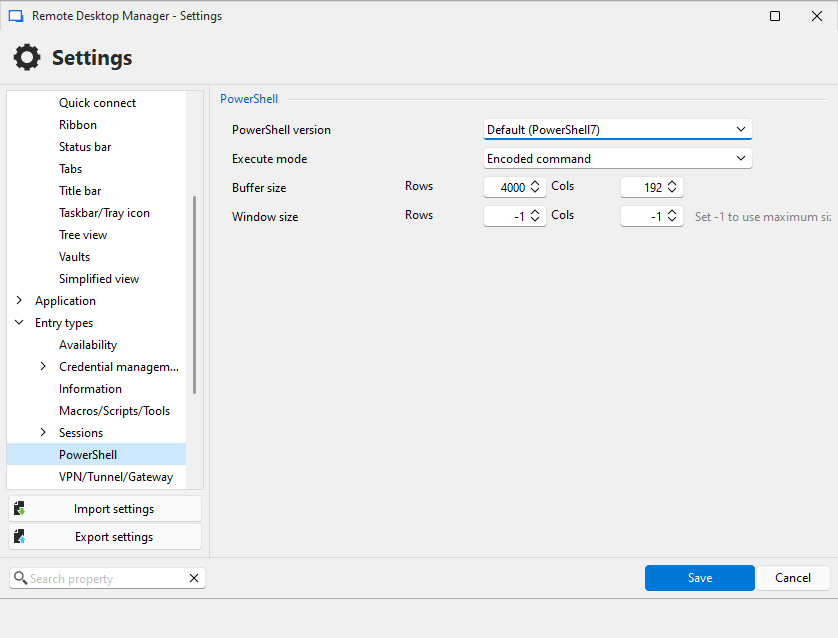
But when setting up a new Entry, and opening it, I see the the profile is still for PowerShell 5..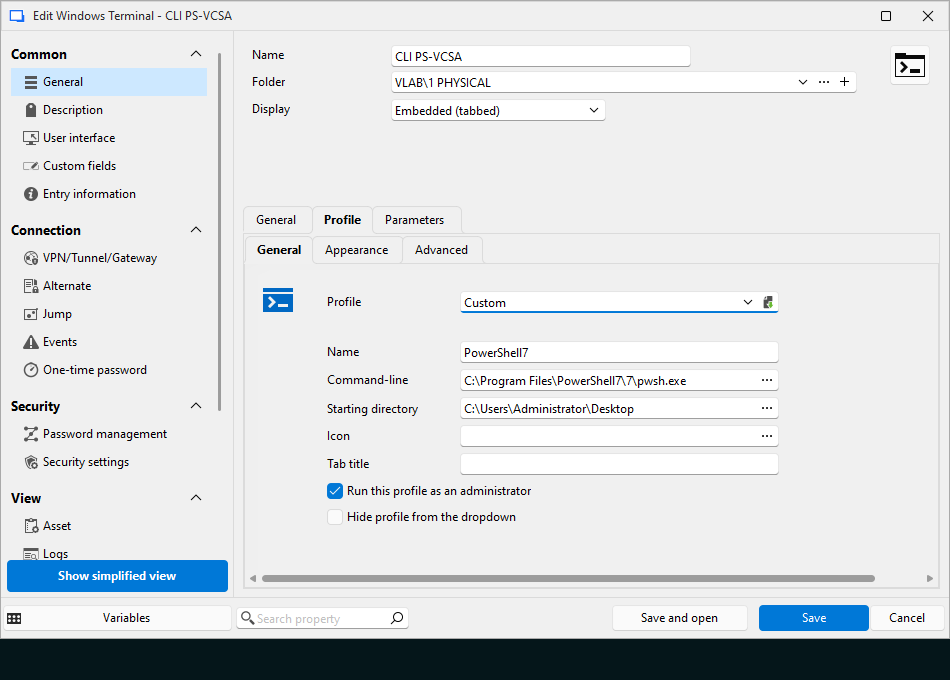
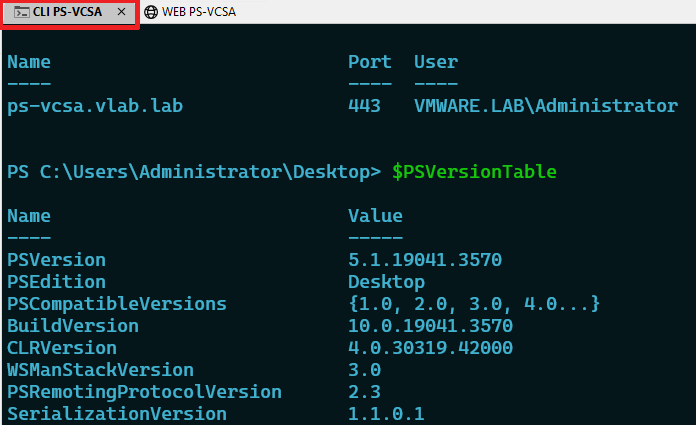
Any thoughts on what I'm doing wrong, or what needs to change..
Thank You
239de80e-66d5-4f49-af07-6c1f5424fb8f.png
a97aaf94-d431-41c9-8b3e-3ca9dc09e458.png
74071958-4716-4a1f-9463-fbeb9f7e3d23.png
15828bde-3dc7-4f8e-a95c-fc0bcd5ea1a6.png
Recommended Answer
Hello Tryllz,
I’m glad to hear that installing Windows Terminal locally resolved the issue.
Best regards,
Alexis Geller Peiro
All Comments (5)
This was due to spacing issue in the address highlighted in Red, changed it to "C:\PowerShell7\pwsh.exe" and it works as expected..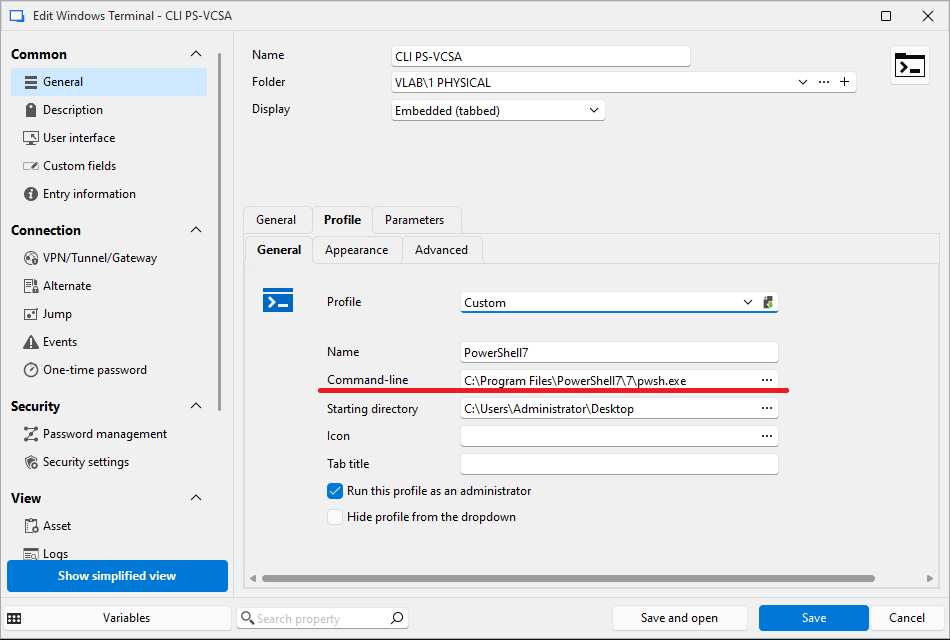
Now there seems to be a different issue, even after creating different entries I see the below error..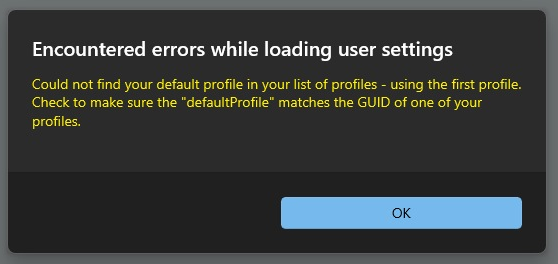
I tried adding multiple profiles manually to the settings.json file in C:\Users\Administrator\AppData\Local\Devolutions\RemoteDesktopManager\WindowsTerminal then too I see this error. On this error appears, the configuration in settings.json resets again..
Any ideas on how to resolve this..
Thank You
15889b37-0f5d-42a1-b655-6c942aa24453.png
b97838b7-86ee-401f-9ce3-df52859565a6.png
I'm seeing this error for the Terminal Profile, tried the latest version, and PowerShell 5 as wll, in all cases this error appears, unsure if its related to my issue..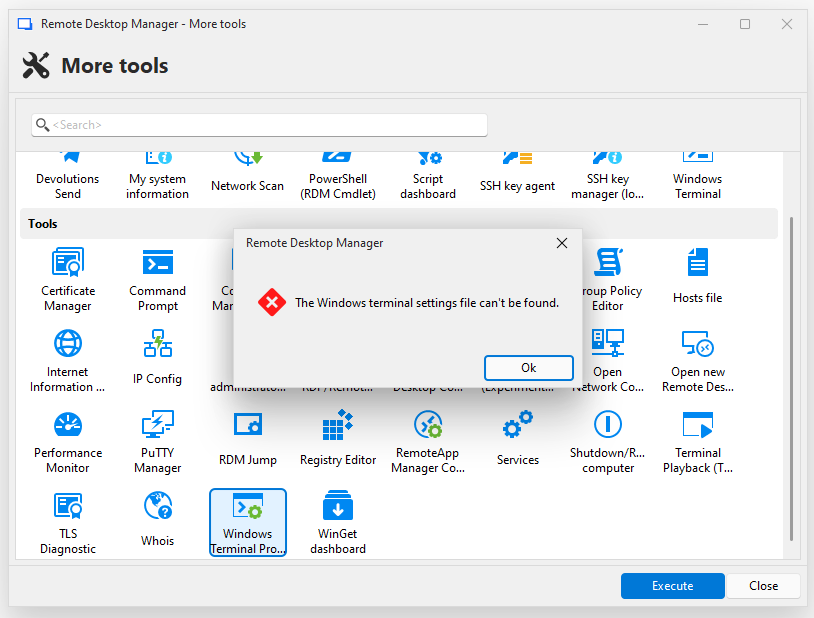
edbedbd0-2dcd-4c14-914b-c64587668ee5.png
Hello,
Thanks for the screenshot, This error typically occurs when Remote Desktop Manager can’t locate the Windows Terminal settings file (profiles/settings). To help us narrow this down, could you please review the checks below and send us the requested details?
Info needed
- What type of data source are you using in RDM?
- Which exact version of Remote Desktop Manager are you running? (including build number)
Most important checks
- Confirm Windows Terminal is installed for the same Windows user (Start menu → search “Windows Terminal”).
- Launch Windows Terminal once, then close it and retry the Windows Terminal tool in RDM (this can generate the required settings file).
- Verify the Windows Terminal settings file exists (depending on install type):
- %LOCALAPPDATA%\Packages\Microsoft.WindowsTerminal_8wekyb3d8bbwe\LocalState\settings.json
- %LOCALAPPDATA%\Microsoft\Windows Terminal\settings.json
Additional tests
- Test with Portable RDM (to rule out install/profile-related issues):
- Please follow this procedure: https://docs.devolutions.net/rdm/kb/how-to-articles/portable-rdm-installation/
- Connection type test in the entry:
- In the session/entry configuration, instead of using Custom, could you test selecting PowerShell (not Windows PowerShell) from the list and let us know what happens?
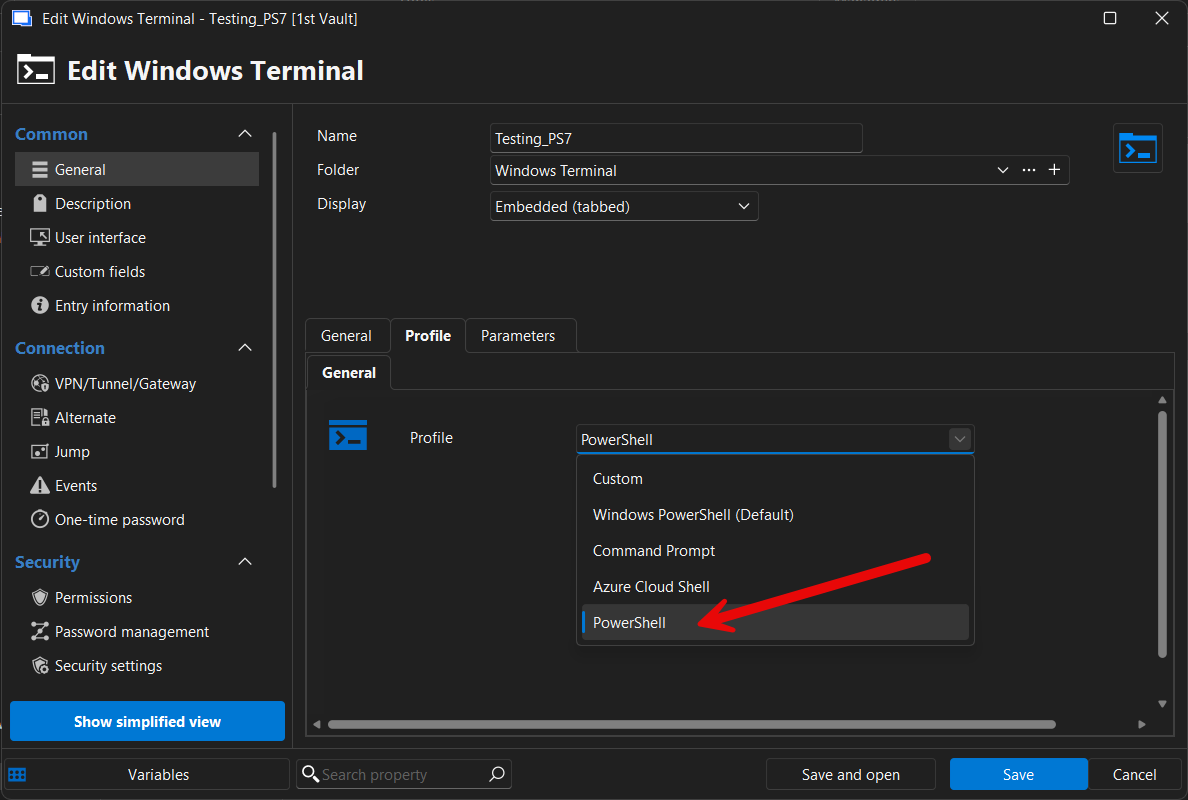
We look forward to your feedback.
Best regards,
Alexis Geller Peiro
eafc33fd-2fed-499f-9df3-95d1b049f903.png
Thanks Alexis,
I found that I was using a portable version of Terminal which is why it was not appearing in RDM, %LOCALAPPDATA%\Packages\Microsoft.WindowsTerminal_8wekyb3d8bbwe\LocalState\settings.json
did not exist, after installing Terminal I can now see the Terminal profile options in RDM, and the other settings configured are working as well..
Appreciate the help..
Hello Tryllz,
I’m glad to hear that installing Windows Terminal locally resolved the issue.
Best regards,
Alexis Geller Peiro