Applications Maximized But Not Full Screen After Reconnect

Version: 2025.3.28.0
Since upgrading from Windows 10 to Windows 11 I have experienced an issue where applications will not be properly full screened after reconnecting to a remote desktop via RDP.
After reconnecting, all applications that were left opened and maximized will still behave as if they are maximized (the windows can’t be moved on the screen, the maximize button when clicked minimizes the app as if it was already maximized, etc.) but the applications are not taking up the full screen.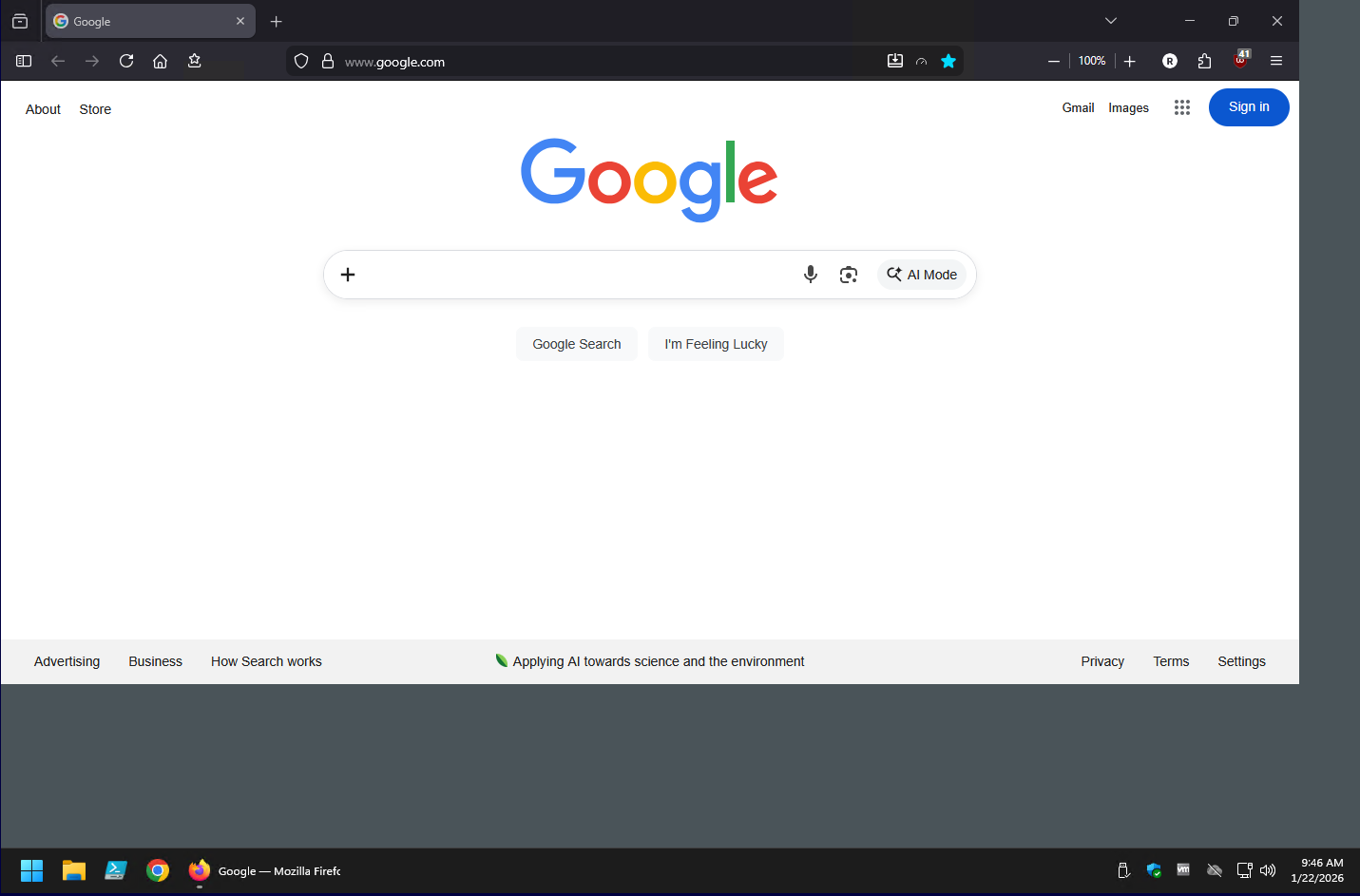
To truly maximize the applications and get them to take up the full screen you can either minimize and re-maximize the window OR adjust the size of the Remote Desktop Manager application itself (any adjustment). Also, after connecting all future opening of new apps and maximizing is performed as expected.
Over the last several months I have tried every troubleshooting and config test I can think of and scoured the forum for and have not discovered a work around. I have tried the various options for Screen Sizing, Remote Desktop Size, Reconnect Mode, manually setting working size and switching back, etc. I have also tried from the OS side, disabling window management, snapping, etc. I even tried changing settings on the virtual desktop itself.
Additional information:
- This issue did not exist on Windows 10 and has only been an issue on Windows 11 desktops
- This happens on all Windows 11 desktops that I have access to
- This is a corporate environment meaning several GPOs and misc. security hardening configurations are in place (same ones that existed on Windows 10 machines with no issue)
- The remote computers are virtual desktops
Happy to try/retry any suggestions and do what I can to help resolve this issue. Hopefully finding a resolution can help others as well!
c521246d-5815-4803-9954-da59b3aee463.png
Recommended Answer
I can confirm the issue isn't occurring on Windows 11 Enterprise, 24H2, 26100.7623!!!
Still a slight chance it's because this test workstation doesn't have all of the same policies in place, but given what you observed I'm guessing this was an issue with the OS. I just needed to be a bit more patient and wait a couple more months for the newer release to get pushed out :)
Thank you again for your assistance in looking at this from a different perspective and finding an answer!
All Comments (7)
Hi,
Thank you for the clear explanation.
I tried on both Windows Server 2025 and Windows 11. I do not get this behaviour. I tested with different screen sizes and Remote Desktop Size combinations with no difference.
Can you send me the XML values of your RDP entry? I wonder if I'll get better results by copying your entry structure. Read: https://docs.devolutions.net/powershell/rdm-powershell/powershell-scripting/tips-tricks/#reverse-engineering-an-entrys-structure
Please make sure there's no sensitive information before posting it. Feel free to send me a PM if you prefer.
Best regards,
Marc-Antoine Dubois
Marc-Antoine, I sent you the XML as requested in a direct message, please let me know if I can provide anything else!
Unfortunately, I do expect that this is going to be a fairly narrow edge case otherwise there would have been a lot more people impacted. I've hopefully waited for several Windows 11 and Remote Desktop Manager updates to roll out hoping that whatever the root cause is would be fixed by some other fix along the way, but no such luck :D
My suspicion is that it's some kind of interference with some security hardening/Group Policy setting that is interfering during the logon process, but that's just a gut feeling. I don't have an easy way to prove this as I can't experiment given the environment. The two most obvious 'things that occur during logon at least visually' that I could see interfering with Remote Desktop Manager properly detecting and negotiating the screen resolution dynamically are:
1) We use an Interactive Logon Banner that you have to 'Accept' before actually logging into the desktop. This can be set in local group policy under "Local Computer Policy -> Computer Configuration -> Windows Settings -> Security Settings -> Local Policies -> Security Options", and there are two entries "Interactive logon: Message title....." and "Interactive logon: Message text....."
2) We also set a custom logon/lock screen image as the background that gets displayed during logon. This can be set via group policy under "Local Computer Policy -> Computer Configuration -> Administrative Templates -> Control Panel -> Personalization" via the entry "Force a specific default lock screen and logon image" and set a path to the image you want used. We are setting this to a very high resolution 10667 x 6000 image so that it will scale down and look good on just about any screen size.
Again I don't have any evidence that either of this is involved, but they're the two things I can think of where the OS is 'dynamically' resizing resolutions of things before the desktop itself gets loaded and maybe there is some kind of conflict with Remote Desktop Managers ability to dynamically scale things?
Appreciate the help and attention to this issue!
Hi,
I wanted to let you know I've received the XML.
I read and understood what you meant regarding the GPO/Hardening and logon/lockscreen image. However, my knowledge on this subject (How it ties inside of RDM) is limited, so I sent a poke to my colleagues, hoping someone has pointers.
In the meantime, I'll do some tests with the XML.
Thanks!
Best regards,
Marc-Antoine Dubois
Okay, here's an update:
I copied your XML. I highly doubt it's a setting issue in RDM. I tried the mouse jiggler, custom display, and everything that stood out; nothing changes the behaviour.
I found this when trying another server:
The issue occurs on one of my test domain controllers that's on Windows Server 2025 24H2 26100.4349, but not on my Windows Server 2025 24H2 26100.7462 (Screenshots)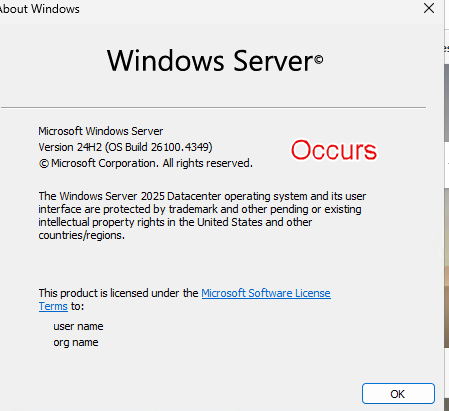
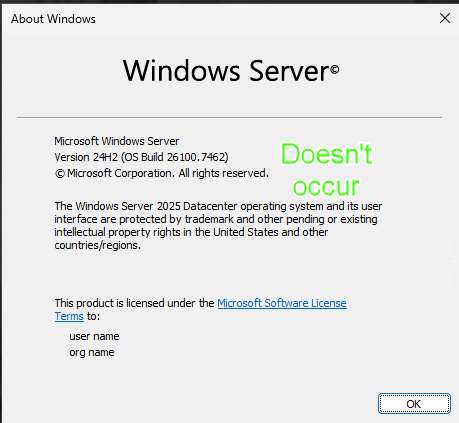
To further prove it's not a configuration/setting issue on the entry, I simply changed the hostname on the entry to a 2025 server using version 7642, and no issue.
What's your Windows 11 version?
Best regards,
Marc-Antoine Dubois
3ae216e8-9d9b-47d6-b622-902afa35cc52.png
c80b2461-9b22-4dc1-a0b4-fb3016f21b3a.png
A result!!!
I confirmed that all of my workstations are on:
Windows 11 Enterprise
Version 23H2
OS Build 22631.6491
I can confirm the issue isn't occurring on Windows 11 Enterprise, 24H2, 26100.7623!!!
Still a slight chance it's because this test workstation doesn't have all of the same policies in place, but given what you observed I'm guessing this was an issue with the OS. I just needed to be a bit more patient and wait a couple more months for the newer release to get pushed out :)
Thank you again for your assistance in looking at this from a different perspective and finding an answer!
Hi,
That's good news!
As you wrote to me in PM, we'll consider this resolved. I've marked your latest message as the answer in case someone else stumbles on this thread. I also tagged the thread as "Resolved."
Of course, feel free to further interact if needed.
Have a great day!
Best regards,
Marc-Antoine Dubois