SOTI MDM Managed App Config

Hello,
I´m trying to configure the Remote Desktop Manager app for Android in the SOTI Managed App Config. My purpose is to create a configuration and share it with our devices.
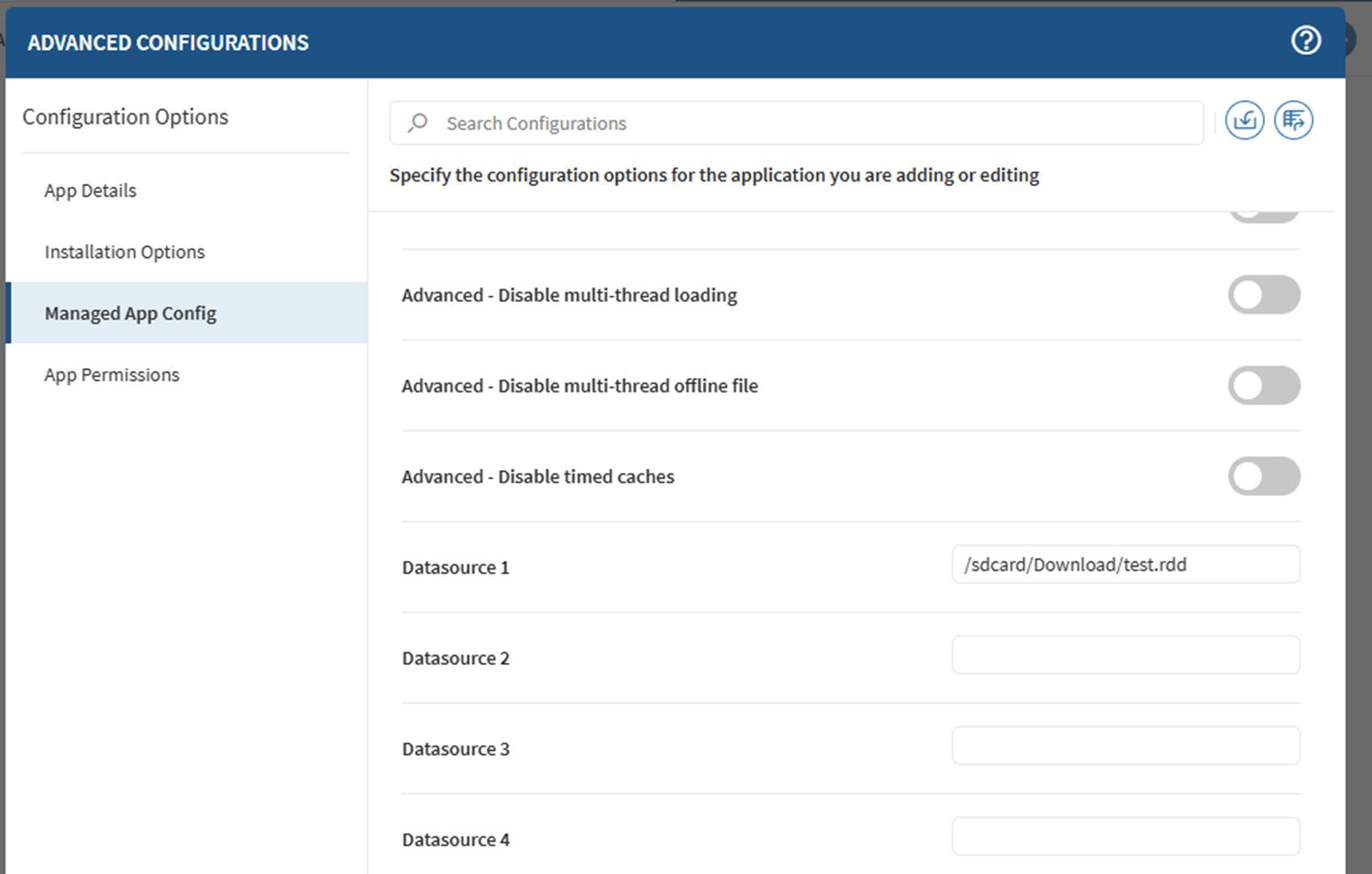
I created a test configuration on one device, exported it as rdm and rdd file and copied it to another device. I assigned a Managed App Config in Soti and tried different variations in the field “Datasource 1”, but when I start the app I got the message “An error has occurred”.
What steps are required to use the Managed App Config?
The article at https://docs.devolutions.net/rdm/kb/how-to-articles/mobile-device-management-configuration/?tab=android doesn´t help me. I can’t find the option mentioned there.
Thank you very much for your help.
All Comments (11)
Hello,
To create and deploy a Managed App Configuration for Remote Desktop Manager, please follow these steps:
Install RDM on a device and configure it exactly as you want it to be for your users — including all desired options and datasources.
Once your configuration is ready, go to Advanced → Generate Managed App Configuration File (XML, plist).
This will create a configuration file containing all your settings and datasources.
You can then upload this file directly into your MDM system (in your case, SOTI).
From your screenshot, it looks like you are already in the right place — under Advanced Configurations → Managed App Config — and there should be an Upload button allowing you to import the generated configuration file.
This will automatically populate all fields in your Managed App Config.
Please let us know if any step is unclear or if you encounter any errors during the process.
Best Regards,
Johann Dufaud
Hello Johann,
where in the app can I find the option "Advanced → Generate Managed App Configuration File (XML, plist)"?
I have searched all options in the Android app, but cant find the option you descripted.
Thank you very much.
Kind regards
Sebastian
Hello,
Sorry about that. I forgot that this section is currently hidden by default. You can still access it by enabling developer mode. Here’s how:
Go to the About section.
Tap 6 times on the RDM icon.
A short message will confirm that Developer Mode is enabled.
The Advanced section will then appear in the settings.
Please note that Developer Mode is not recommended to keep enabled, as it may cause instability by exposing features that are not fully tested yet. Once you're done, I suggest disabling it again.
Let me know if you need any help!
Best regards,
Johann Dufaud