SOTI MDM Managed App Config

Hello,
I´m trying to configure the Remote Desktop Manager app for Android in the SOTI Managed App Config. My purpose is to create a configuration and share it with our devices.
I created a test configuration on one device, exported it as rdm and rdd file and copied it to another device. I assigned a Managed App Config in Soti and tried different variations in the field “Datasource 1”, but when I start the app I got the message “An error has occurred”.
What steps are required to use the Managed App Config?
The article at https://docs.devolutions.net/rdm/kb/how-to-articles/mobile-device-management-configuration/?tab=android doesn´t help me. I can’t find the option mentioned there.
Thank you very much for your help.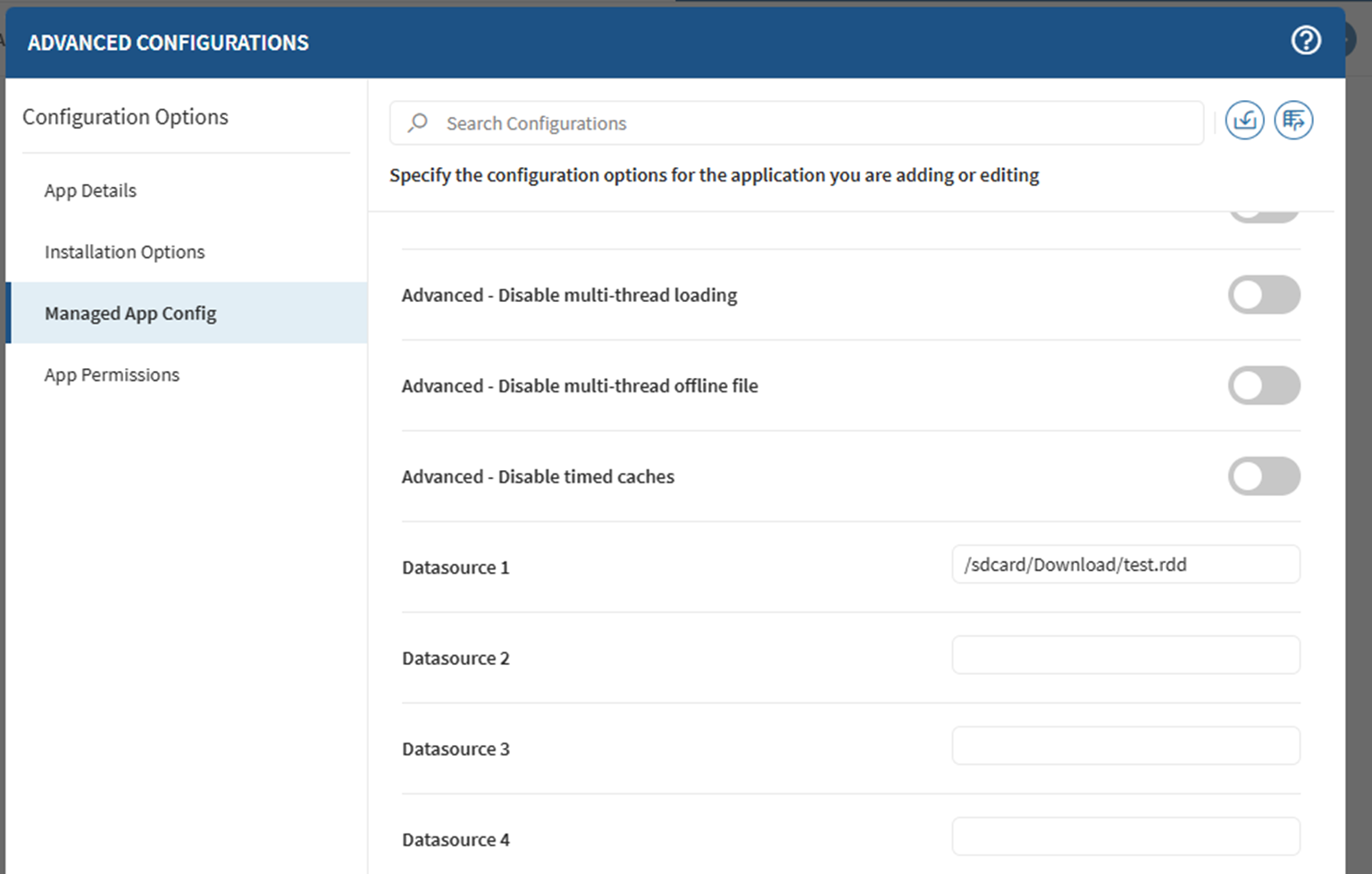
541e095c-c003-4b01-ba74-75bdf3a92f69.png
All Comments (9)
Hello,
To create and deploy a Managed App Configuration for Remote Desktop Manager, please follow these steps:
- Install RDM on a device and configure it exactly as you want it to be for your users — including all desired options and datasources.
- Once your configuration is ready, go to Advanced → Generate Managed App Configuration File (XML, plist).
- This will create a configuration file containing all your settings and datasources.
- You can then upload this file directly into your MDM system (in your case, SOTI).
From your screenshot, it looks like you are already in the right place — under Advanced Configurations → Managed App Config — and there should be an Upload button allowing you to import the generated configuration file.
This will automatically populate all fields in your Managed App Config.
Please let us know if any step is unclear or if you encounter any errors during the process.
Best Regards,
Johann Dufaud
Hello Johann,
where in the app can I find the option "Advanced → Generate Managed App Configuration File (XML, plist)"?
I have searched all options in the Android app, but cant find the option you descripted.
Thank you very much.
Kind regards
Sebastian
Hello,
Sorry about that. I forgot that this section is currently hidden by default. You can still access it by enabling developer mode. Here’s how:
- Go to the About section.
- Tap 6 times on the RDM icon.
- A short message will confirm that Developer Mode is enabled.
- The Advanced section will then appear in the settings.
Please note that Developer Mode is not recommended to keep enabled, as it may cause instability by exposing features that are not fully tested yet. Once you're done, I suggest disabling it again.
Let me know if you need any help!
Best regards,
Johann Dufaud
Hello Johann,
ok, I have exported the Managed App Configuration, but I can´t import it. SOTI reports an error, that it is not compatible. We use SOTI MobiControl 2025.1. Do you have an idea?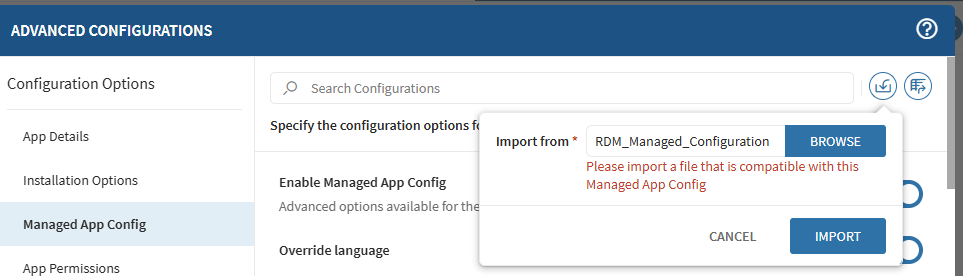
Thank you.
Best regards
Sebastian
dadc54c9-5885-4ada-979f-c4956232c02a.png
Hello,
Thank you for your message. We will look into this and try to obtain a trial version of SOTI MobiControl 2025.1 so we can test the Managed App Configuration on our side and better understand the compatibility issue you’re experiencing.
I’ll get back to you as soon as we have more information.
Best regards,
Johann Dufaud
Thank you. In the meantime, can you tell me in which format the field "Datasource 1" must be filled in? I want to configure the path to the XML connection file.
Best regards
Sebastian
Hello,
Unfortunately, this will not work with an XML-type data source. If you specify a file path, Remote Desktop Manager will automatically create a new empty XML file if the path exists, rather than loading multiple shared connections.
If you want to share or manage multiple connections centrally, you should instead use a Team-type data source such as Devolutions Server or Devolutions Hub, which are designed for this purpose.
Best regards
Johann Dufaud
Hello,
I was able to set up this MDM solution using the JSON file generated by RDM. It seems that they’re using the same MDM file format as iOS, which is a bit unusual, but I managed to get it working.
To make your file work, the best solution I’ve found is to copy and paste the following sentence into ChatGPT, then insert the MDM file generated by RDM (RDM_Managed_Configuration). ChatGPT will then generate a .enc file in the required format, which you can use for the import in your MDM solution.
Please note that the password required during the import process is 123456.
I will upload a file that contains an Android Managed Configuration JSON.
You must:
	1.	Read the uploaded JSON file.

	•	It has a top-level “managedProperty” array.
	•	For each element, map “key” → first non-null value among valueBool, valueInteger, or valueString.

	2.	Create a new JSON object in this format:
{
“bundleId”: “com.devolutions.remotedesktopmanager”,
“appConfiguration”: “{…}”
}

	•	“appConfiguration” must be a JSON string (escaped), containing all key/value pairs built in step 1.
	•	Serialize compactly (no spaces, ensure_ascii=false).

	3.	Save the readable version as output.json.
	4.	Encrypt output.json exactly like this OpenSSL command:
openssl enc -aes-256-cbc -pbkdf2 -in output.json -out “Remote Desktop Manager ManagedAppConfig.enc” -pass pass:123456

	•	Use AES-256-CBC
	•	PBKDF2 with HMAC-SHA256, 10 000 iterations
	•	Random 8-byte salt
	•	Add “Salted__” header like OpenSSL does

	5.	Return download links for both:

	•	output.json
	•	Remote Desktop Manager ManagedAppConfig.enc

The .enc must be decryptable using:
openssl enc -d -aes-256-cbc -pbkdf2 -in “Remote Desktop Manager ManagedAppConfig.enc” -out “check.json” -pass pass:123456
Best Regards,
Johann Dufaud
Hello,
thank you. I will try it next week.
Best regards
Sebastian