Change entry tyoe - OTP to Website

We have hundreds of OTP entries in RDM, but we've discovered that it's much easier to have a website added with the OTP stored in the website entry.
Is there an easy way to convert all the OTP entries to website entry without losing the OTP info?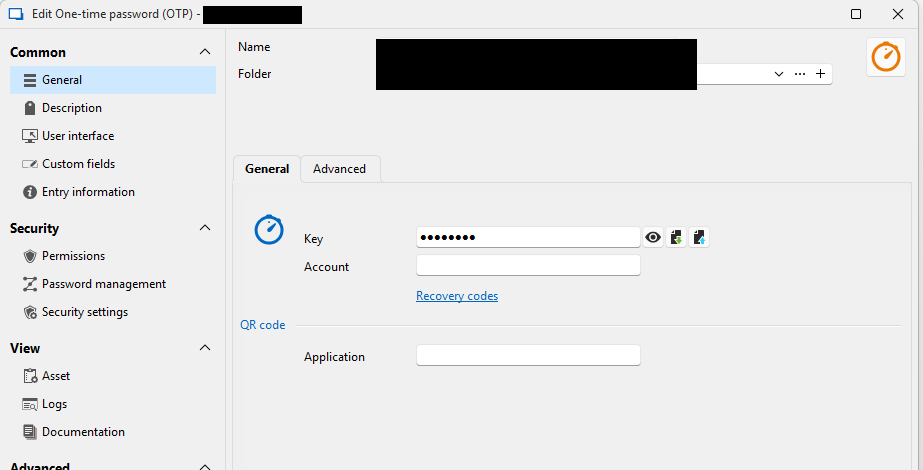
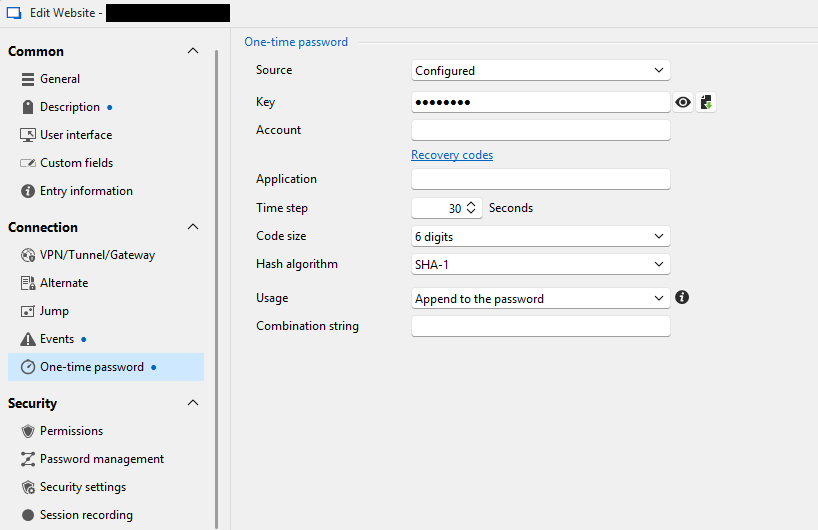
92a6a937-d045-46c9-83aa-da0cfe9c78a3.png
545c6173-ddcf-4ca3-8961-5d215810a4e1.png
All Comments (17)
Hello,
I would like some more information before implementing this in order to make sure it will benefit you. A "Convert to Website entry" action on OTP entries presents a bit of a challenge to acquire URLs (since there are no associated host/url fields in OTP entries).
By any chance, in your current setup, are all your OTP entries already linked to website entries (or other entries with hosts)? Would a special action such as : "Import linked OTP entries as embedded information" be something that is closer to what you're looking for? Or would simply converting an OTP to a website entry without URL be meaningful to you?
It would be simple to add a way during the convert action to input one, or a few URLs, but for hundreds of entries, this isn't very realistic.
Let me know if I'm not being clear. I want to make sure it provides something useful to you.
Regards,
Jafran Majeau
No they aren't linked currently. To be honest, this probably is something we'll only do once and never need to do again now that we understand the power of using type Web/URL.
A powershell script might be easiest and get it to add URL of https://www.url.com when it converts. I can get my team to go back and edit the URLs manually. I've got a stack setup already that cycle through all our folders, I'd just need to know what commands I'd need to issue to an OTP entry to:
- Change type to Web link
- Change OTP to Configured
- Move OTP key to the right property of weblink
- Set usage to append
- Make URL https://www.url.com
Hello SJames,
Thank you for this feedback.
The OTP can be set directly on the entry with SourceMode - CombineMode - ConnectionID.
Here is my script.
Feel free to adapt it at your convenience.
$ds = Get-RDMDataSource | Where-Object {$_.Name -eq "Data source Name"}
Set-RDMCurrentDataSource $ds

$vault = Get-RDMRepository | Where-Object {$_.Name -eq "<Vault Name>"}
Set-RDMCurrentRepository $vault

$sessions = Get-rdmsession | Where-Object {$_.ConnectionType -eq "WebBrowser"}

Foreach ($session in $sessions){
    $session.OTP.SourceMode = "CredentialEntry"
    $session.OTP.CombineMode = "Append"
    $session.OTP.ConnectionID = "<OTP entry ID>"
    Set-RDMSession $session
}
Best regards,
Patrick Ouimet
nope this does not look correct. we need to change OTP to webbrowser, not create a link.
something like
$OTPList = Get-rdmsession | Where-Object {$_.ConnectionType -eq "OTP"}
Foreach ($OTPEntry in $OTPList) {
- Change $OTP.Entrytype to Webbrowser
- Change OTP to Configured
- Move OTP key to the right property of weblink
- Set usage to append
- Make URL https://www.url.com
}
Hello SJames,
Thank you for this feedback.
Unfortunately, I have run into an issue with the cmdlet Set-RDMSessionOTP.
I have linked the internal ticket to this thread and will keep you updated when it is fixed.
The script will look like this:
$ds = Get-RDMDataSource | Where-Object {$_.Name -eq "<data source name>"}
Set-RDMCurrentDataSource $ds

$vault = Get-RDMRepository | Where-Object {$_.Name -eq "Vault name"}
Set-RDMCurrentRepository $vault

$OTPList = Get-RDMSession | Where-Object {$_.Credentials.CredentialType -eq "OTP"}

Foreach ($OTPSession in $OTPList){
    $key = Get-RDMEntryOTPKey $OTPSession -AsPlainText
    $OTPSession.ConnectionType = "WebBrowser"
    $OTPSession.WebBrowserUrl = "https://host.com"
    $OTPSession.OTP.QRCodeAccountName = "email@email.com"
    $OTPSession.OTP.QRCodeApplicationName = "totp"
    $OTPSession.OTP.SourceMode = "SessionSpecific"
    $OTPsession.OTP.CombineMode = "Append"

    Set-RDMSession $OTPsession
    Set-RDMSessionOTP -ID $OTPSession -Key $key
}
Update-RDMUI
I also suggest that you use an entry in RDM for the host or a CSV.
Best regards,
Patrick Ouimet
Thanks Patrick.
Could actually do it another way and create a new entry, then delete existing.
The revised script below is close, but extracting the existing OTP key in to a variable is not working.
PS C:\d\Scripts\Devolutions> $key = Get-RDMEntryOTPKey $a -AsPlainText
PS C:\d\Scripts\Devolutions> $key
{"SourceRepositoryId":"6f71e6a4-a55e-46f1-ae07-03157cbbac31","SourceConnectionId":"9d84f72e-996d-4ed1-8062-0d7015696ed8","PropertyName":"Credentials.OTPKey"}
PS C:\d\Scripts\Devolutions> set-rdmsessionotp -id $NewSession -key $key
Set-RDMEntryOTP: Cannot bind parameter 'ID'. Cannot convert the "RemoteDesktopManager.PowerShellModule.PSOutputObject.PSConnection" value of type "RemoteDesktopManager.PowerShellModule.PSOutputObject.PSConnection" to type "System.Guid".
$OTPList = Get-RDMSession | Where-Object {$_.Credentials.CredentialType -eq "OTP"}
Foreach ($OTPSession in $OTPList){
$key = Get-RDMEntryOTPKey $OTPSession -AsPlainText
$NewSession = New-RDMSession -Name $OTPSession.Name -Group $OTPSession.Group -Type WebBrowser
$NewSession.WebBrowserUrl = "https://host.com"
$NewSession.OTP.QRCodeAccountName = "email@email.com"
$NewSession.OTP.QRCodeApplicationName = "totp"
$NewSession.OTP.SourceMode = "SessionSpecific"
$NewSession.OTP.CombineMode = "Append"
Set-RDMSession $NewSession
Set-RDMSessionOTP -ID $NewSession -Key $key
Remove-RDMSession $OTPSession
}
Update-RDMUI
Any updates here?
Hello,
We've improved the current Edit - Special Actions - Convert to website to include OTP connections as well. This will be available with the upcoming 2025.3 version that will be released this fall.
Regards,
Jafran Majeau
This works well - thankyou
Ok, next problem :)
When doing a batch edit to a stack of entries to add "prepend password", it actually overwrites the key itself as well.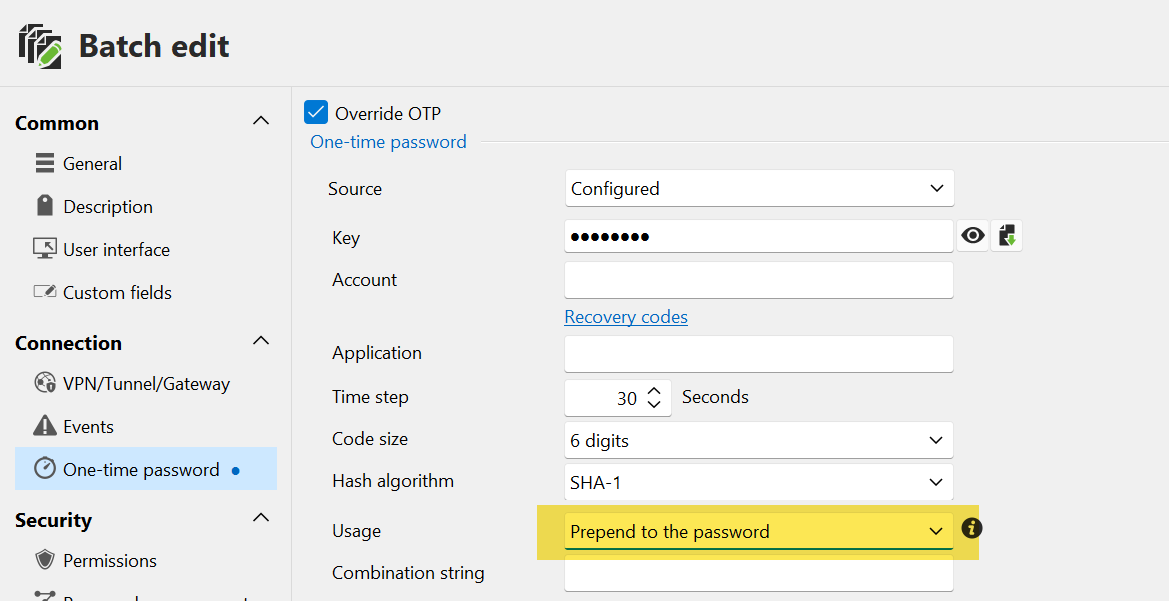
0563c256-d5f3-40ea-a7f6-735d32c824b6.png
Hello,
Due to certain structural limitations, the current Batch Edit feature works in such a way that once you check the Override OTP box, you must enter all the information you want to apply in that window. All corresponding fields will then be overwritten by the new values. This design also allows you to clear fields (by leaving them empty) when needed.
If I understand correctly, you’re using this override to change only the Usage (for example, to Prepend to the password) and not the other fields. Unfortunately, this isn’t currently supported. At this stage, the Batch Edit process assumes that selected entries may not share the same configuration at the Source level, so all OTP-related settings must be applied together in a single operation.
If all the selected entries use the same OTP, you can simply fill out the full OTP information for that configuration and apply it in one go.
However, if what you’d like is the ability to Batch Edit specific OTP settings independently for multiple configurations at once, that isn’t available at this time. I’d recommend submitting a feature request for that functionality.
If I’ve misunderstood your situation, please feel free to clarify — I’ll be happy to investigate further.
Regards,
Jafran Majeau
Will do - thanks
Actually, perhaps we can achieve this via a Powershell special command.
Can you please advise syntax to do a batch edit / special command to change usage to "prepend password" ?
Hello James,
Yes, it could be done easily with PowerShell.
$entry = Get-RDMSession | Where-Object {$_.Name -eq "<entry name>"}
Foreach($e in $entry){
    $e.Otp.combinemode += "Prepend"
    Set-RDMEntry $e
}
Do you need to change them all, or do you need to set another usage for another set of entries?
Best regards,
Patrick Ouimet
Thanks
FYI for those that might come here later - had to change line
$e.Otp.combinemode += "Prepend"
To:
$e.Otp.combinemode = "PrependToUsername"
Thanks
FYI for those that might come here later - had to change line
$e.Otp.combinemode += "Prepend"
To:
$e.Otp.combinemode = "PrependToUsername"
@sjames
Whoops - this is what happens when you do things late at night :)
Correct code, noting = not +=
$e.Otp.combinemode = "Append"
Thanks
FYI for those that might come here later - had to change line
$e.Otp.combinemode += "Prepend"
To:
$e.Otp.combinemode = "PrependToUsername"
@sjames
Whoops - this is what happens when you do things late at night :)
Correct code, noting = not +=
$e.Otp.combinemode = "Append"
@sjames
Thank you for this correction.
Glad this works for you.
Also note that we have the option now, as a special action, to convert OTP to websites and vice versa.
Best regards,
Patrick Ouimet