cannot connect to ultravnc server

On OSX I cannot connect to ultravnc servers that require domain credentials for the authentication of vnc connectionns.
Tigervnc can handle this authentication with ease.
Is it possible to use the tigervnc client for sessions started from devolutions Remote Desktop manager?
All Comments (19)
Hello,
I will make a feature request for your issue so we can study it.
Now, I'm pretty sure integrating TigerVNC (if it is done) won't be in the plans in the short or medium term. But we can try to look for a workaround for MacOs.
We will keep you updated on the situation. In the meantime, if there anything else, don't hesitate to communicate with us.
Best regards,
Michel Lambert
Hello
Actually, I do think this scenario should work because we support both the required authentication types in Remote Desktop Manager. I did a quick test with a non-domain account and the login worked; we'd need to check if you are encountering a bug or a misconfiguration issue.
Can you let me know how things are configured on your side?
I'm interested to see the server configuration and what you have in RDM: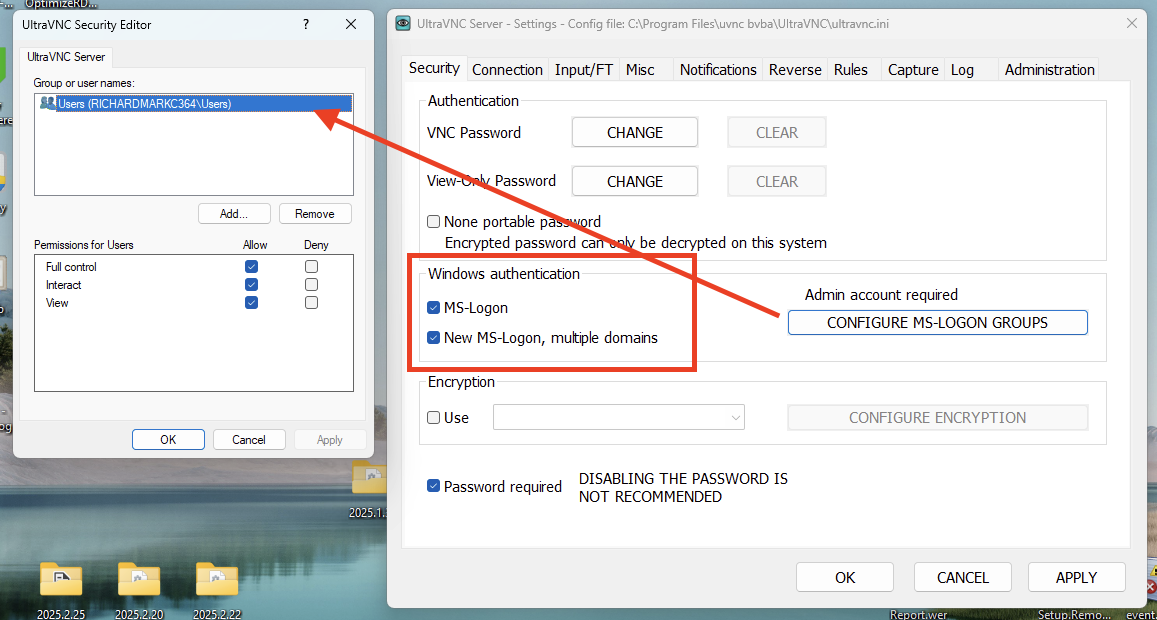
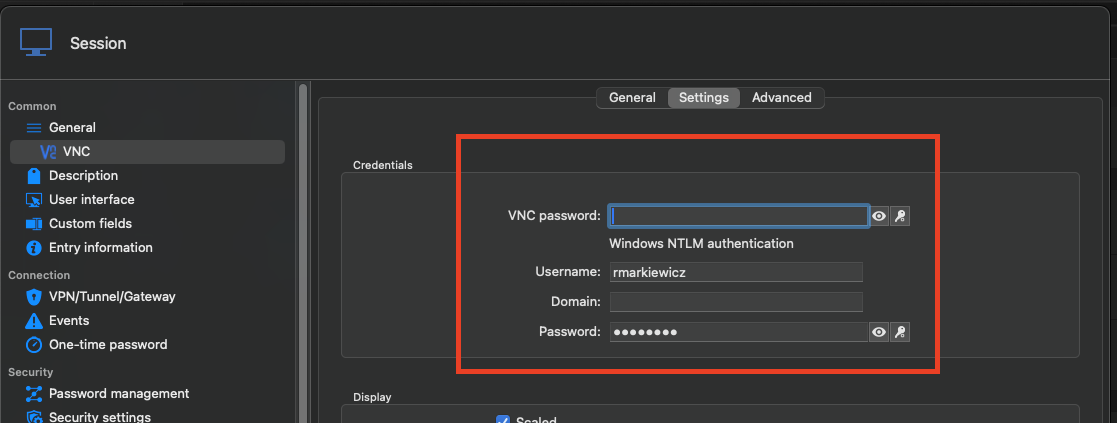
Also, please can you confirm what VNC application you have selected in the "General" tab of the VNC session (it should be "FreeVNC").
Thanks and kind regards,
Richard Markievicz
Screenshot 2025-08-15 at 10.31.43.png
Screenshot 2025-08-15 at 10.31.05.png
My settings are pretty similar to yours. Except I entered a domain at account info.
For the client settings - I only have Default or Realvnc available.
Default tells me: The software on the remote computer appears to be incompatible with this version of Screen Sharing.
Hello
Ok, so in the "General" tab of your VNC session, you're using "Display: External" - is that correct? And your suggestion is to add TigerVNC to the available options?
I don't like to answer a question with another question, but is there a reason for using the "External" display? I think if you use the "Embedded" display with the "FreeVNC" backend / application, your scenario will work. But the session will be hosted inside RDM instead of another application.
Otherwise, it might be possible to suggest a workaround using Tiger, but I think it's tricky. I took a quick look at their man page and I don't see an option to pass the username; except through the environment. A config file might also be possible. We'd need to do some investigation. If you were happy with the embedded mode, it might be the best solution.
Thanks and kind regards,
Richard Markievicz
Hello Richard,
I do not have FreeVNC available as an option on my mac. I do not have it installed. Where do I get it?
External or internal does not matter for me.
But external and default OSX-vnc does not connect.
best regards
Markus
Hi Markus
FreeVNC is built into RDM (it's our own client) and is the default choice when using the Embedded mode. You should also see it listed as a VNC application when using embedded mode.
Let me know if you have any problem
Kind regards,
Richard Markievicz


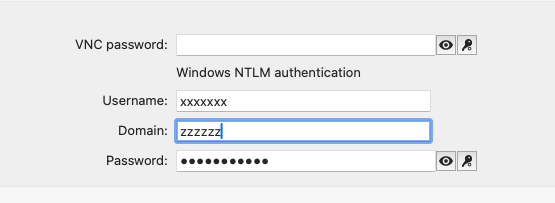 These are my settings. No way. I cannot connect. Am I using the wrong settings?
2266bbfb-480c-426b-bd1e-9a05c9f1c5c5.png
74c6ccae-41fb-406c-81d9-cef27c84871e.png
2f4c2c9f-ed4f-442e-86a0-18672f68cd07.png
Hello
No, your setting on the client look fine. I've tried it on my side with a domain account and found it to work so something else must be happening.
Two things:
First, can you show the configuration in UltraVNC (like in my screenshot above)? You can block out the actual names of the users and groups.
Second, we have some logging here that would tell the issue but an unrelated bug is preventing it from working in the current RDM. You can enable it manually by following these steps:
- Close RDM
- Open Terminal.app
- Enter the following commands, pressing "Enter" after each line:
export WLOG_LEVEL="DEBUG"
export WLOG_APPENDER="FILE"
export WLOG_FILEAPPENDER_OUTPUT_FILE_PATH="$HOME/Desktop"
export WLOG_FILEAPPENDER_OUTPUT_FILE_NAME="freevnc.log"
/Applications/Remote\ Desktop\ Manager.app/Contents/MacOS/RemoteDesktopManager
(This is assuming that RDM is installed in "Applications")
- RDM will open
- Reproduce the problem (try to connect)
- On your desktop, you will find the file "freevnc.log" which you can send to me
Please, let me know if you have some questions or something isn't clear.
Kind regards,
Richard Markievicz
This is the ultravnc server settings: 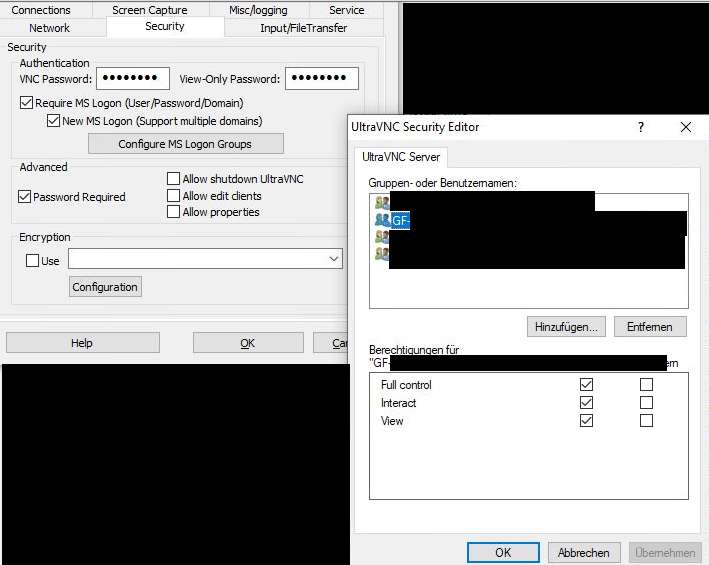
and the log:
[13:55:23:152] [19782:6fe73000] [DEBUG][freevnc.mvs] - [freevnc_mvs_configure_simd]: enabling NEON optimization
[13:55:23:153] [19782:6fe73000] [DEBUG][freevnc] - [freevnc_transport_resolve_host]: getaddrinfo XXXXXX:5900
[13:55:28:156] [19782:6fe73000] [DEBUG][freevnc] - [freevnc_transport_trace_hosts]: [0] IPv4 address: 100.69.1.46
[13:55:28:156] [19782:6fe73000] [DEBUG][freevnc] - [freevnc_transport_tcp_connect]: selected address at index [0]
[13:55:28:201] [19782:6fe73000] [DEBUG][freevnc] - [freevnc_trace_server_protocol_version]: << ServerProtocolVersion: RFB 003.008
[13:55:28:201] [19782:6fe73000] [DEBUG][freevnc] - [freevnc_trace_client_protocol_version]: >> ClientProtocolVersion: RFB 003.008
[13:55:28:228] [19782:6fe73000] [DEBUG][freevnc.auth] - [freevnc_recv_security_types]: numberOfSecurityTypes: 2
[13:55:28:228] [19782:6fe73000] [DEBUG][freevnc.auth] - [freevnc_recv_security_types]: [0] Ultra (17)
[13:55:28:228] [19782:6fe73000] [DEBUG][freevnc.auth] - [freevnc_recv_security_types]: [1] MsLogon (113)
[13:55:28:228] [19782:6fe73000] [INFO][freevnc.auth] - [freevnc_client_authenticate]: Selected security type 17 (Ultra)
[13:55:28:265] [19782:6fe73000] [DEBUG][freevnc.auth] - [freevnc_client_authenticate_ultra]: << AuthStatus: -1
[13:55:28:265] [19782:6fe73000] [DEBUG][freevnc.auth] - [freevnc_recv_security_types]: numberOfSecurityTypes: 1
[13:55:28:265] [19782:6fe73000] [DEBUG][freevnc.auth] - [freevnc_recv_security_types]: [0] MsLogon (113)
[13:55:28:265] [19782:6fe73000] [INFO][freevnc.auth] - [freevnc_client_authenticate]: Selected security type 113 (MsLogon)
b4289f9e-50a5-439b-a7ec-fbc2811b9c62.png
Hello
Thanks for that. The log looks normal to the point that it ends - is that the complete log output? Can you check?
Thanks and kind regards,
Richard Markievicz
This is the updated version from my last try:#
[10:46:28:795] [7519:6e313000] [DEBUG][freevnc.mvs] - [freevnc_mvs_configure_simd]: enabling NEON optimization
[10:46:28:796] [7519:6e313000] [DEBUG][freevnc] - [freevnc_transport_resolve_host]: getaddrinfo PXXXXXXX:5900
[10:46:33:797] [7519:6e313000] [DEBUG][freevnc] - [freevnc_transport_trace_hosts]: [0] IPv4 address: XXXXXXX
[10:46:33:797] [7519:6e313000] [DEBUG][freevnc] - [freevnc_transport_tcp_connect]: selected address at index [0]
[10:46:33:827] [7519:6e313000] [DEBUG][freevnc] - [freevnc_trace_server_protocol_version]: << ServerProtocolVersion: RFB 003.008
[10:46:33:827] [7519:6e313000] [DEBUG][freevnc] - [freevnc_trace_client_protocol_version]: >> ClientProtocolVersion: RFB 003.008
[10:46:33:847] [7519:6e313000] [DEBUG][freevnc.auth] - [freevnc_recv_security_types]: numberOfSecurityTypes: 3
[10:46:33:847] [7519:6e313000] [DEBUG][freevnc.auth] - [freevnc_recv_security_types]: [0] Ultra (17)
[10:46:33:847] [7519:6e313000] [DEBUG][freevnc.auth] - [freevnc_recv_security_types]: [1] Unknown (117)
[10:46:33:847] [7519:6e313000] [DEBUG][freevnc.auth] - [freevnc_recv_security_types]: [2] MsLogon (113)
[10:46:33:847] [7519:6e313000] [INFO][freevnc.auth] - [freevnc_client_authenticate]: Selected security type 17 (Ultra)
[10:46:33:869] [7519:6e313000] [DEBUG][freevnc.auth] - [freevnc_client_authenticate_ultra]: << AuthStatus: -1
[10:46:33:869] [7519:6e313000] [DEBUG][freevnc.auth] - [freevnc_recv_security_types]: numberOfSecurityTypes: 1
[10:46:33:870] [7519:6e313000] [DEBUG][freevnc.auth] - [freevnc_recv_security_types]: [0] MsLogon (113)
[10:46:33:870] [7519:6e313000] [INFO][freevnc.auth] - [freevnc_client_authenticate]: Selected security type 113 (MsLogon)
[10:46:33:922] [7519:6e313000] [DEBUG][freevnc.auth] - [freevnc_client_authenticate_security_result]: << AuthStatus: 0
[10:46:33:922] [7519:6e313000] [DEBUG][freevnc] - [freevnc_trace_client_init]: >> RfbClientInit: SHARED (0x01)
Hello
This is extremely strange. I'm sorry for the inconvenience but the log output still seems incomplete. I can see that authentication is working and we move to the next step of the handshake.
How about this - can you record a short video showing exactly what's happening and share it here?
Thanks and kind regards,
Richard Markievicz
I cannot upload a video here. which format does it have to be?
Hello
My colleagues on the forum team told me you should be able to add as an attachment.
If it doesn't let you upload the file type you have, you could try making it a .zip.
Thanks and kind regards,
Richard Markievicz
image (4).png
Video zipped...
Hello
Thanks for that. I see the problem, but I don't have enough information to understand. One more request since I feel like the log you posted earlier was incomplete: the instructions I gave should've generated a log file on your desktop. Can you just attach that file to the forum? You can .zip it if necessary to add the attachment.
Thanks and kind regards,
Richard Markievicz
Here is the log. I tried 3 times to connect.
We have a 10seconds interaction delay on our ultravnc servers for the user on the target machine to deny the incoming connection. Could it be that the timeout for the login in RemoteDesktopMannager is too short?
freevnc.txt
Hello
You're exactly right, good catch! I had forgotten about that feature until now. We had the same bug a long time ago in RDM Windows and we solved it by letting the user choose the connection timeout.
On RDM Mac the connection timeout is supported but there is no way to set it in the UI. I've made a ticket to fix that. I hope it can be fixed quickly because it's an easy change on our side.
In the meantime, there is a way to fix this, but it won't work well if you have a lot of sessions. But if you just have one or two, it might be ok.
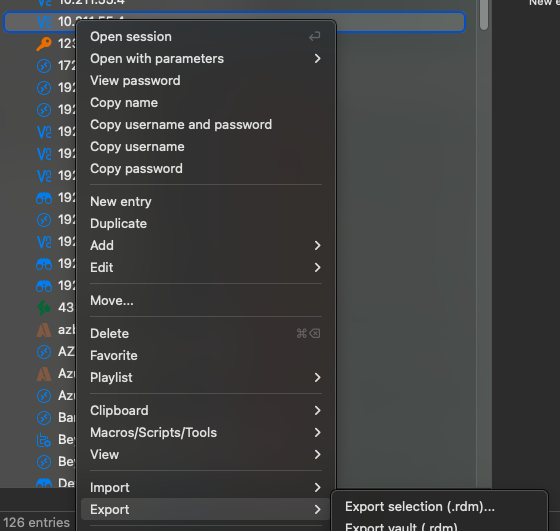
- Right-click on the session(s) and choose "Export" > "Export selection (rdm)..."
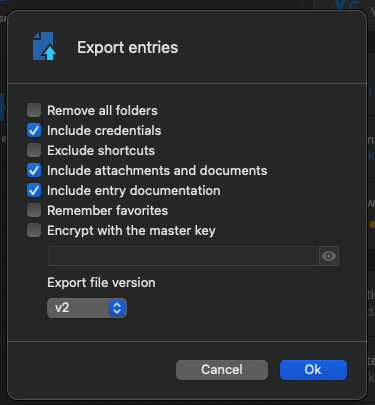
- Choose to include all you want to keep (credentials, attachments, etc)
- Choose a place to save the export
- You'll get an .rdm file with one or more connections saved in it. Open it in a text editor.
- For each connection in the file, find the <VNC> element, and add a <ConnectionTimeout> child to it
- The connection timeout is in milliseconds
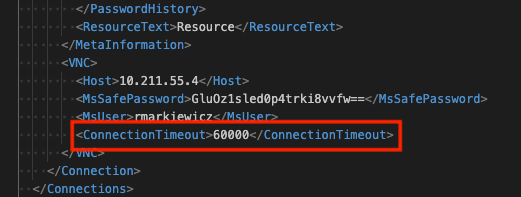
For example: <ConnectionTimeout>60000</ConnectionTimeout>
- Save the file, then back in RDM right-click your vault and choose "Import" > "Import into vault (.rdm)..."
- Choose the .rdm file you just worked with and import the entry(ies) back into RDM
You might also consider altering the connection `Name` in the exported file, or moving your entry(ies) into different folders so you don't have duplicates when you re-import.
Please, let me know if something isn't clear, and I apologize for the inconvenience
Kind regards
Richard Markievicz
Screenshot 2025-08-29 at 15.39.38.png
Screenshot 2025-08-29 at 15.37.20.png
Screenshot 2025-08-29 at 15.35.58.png
Finally - this is the solution. The timeout setting fixed it