Windows Hello

Got a weird situation where a user is connecting to a server with credentials they have stored in their user vault and as soon as they connect Windows Hello pops up and asks for a fingerprint. Any way we can bypass Windows Hello? I think there used to be a CredSSP option which fixed this in the RDP settings, but that's gone, so I guess there's another way now?
All Comments (11)
Hello,
Thank you for reaching out regarding this matter.
I’ve identified a setting that may help with the diagnosis. Could you please try toggling the "WebAuthn" option in the entry properties under General > Local Resources?
Disabling it should prevent the prompt to connect via Windows Hello.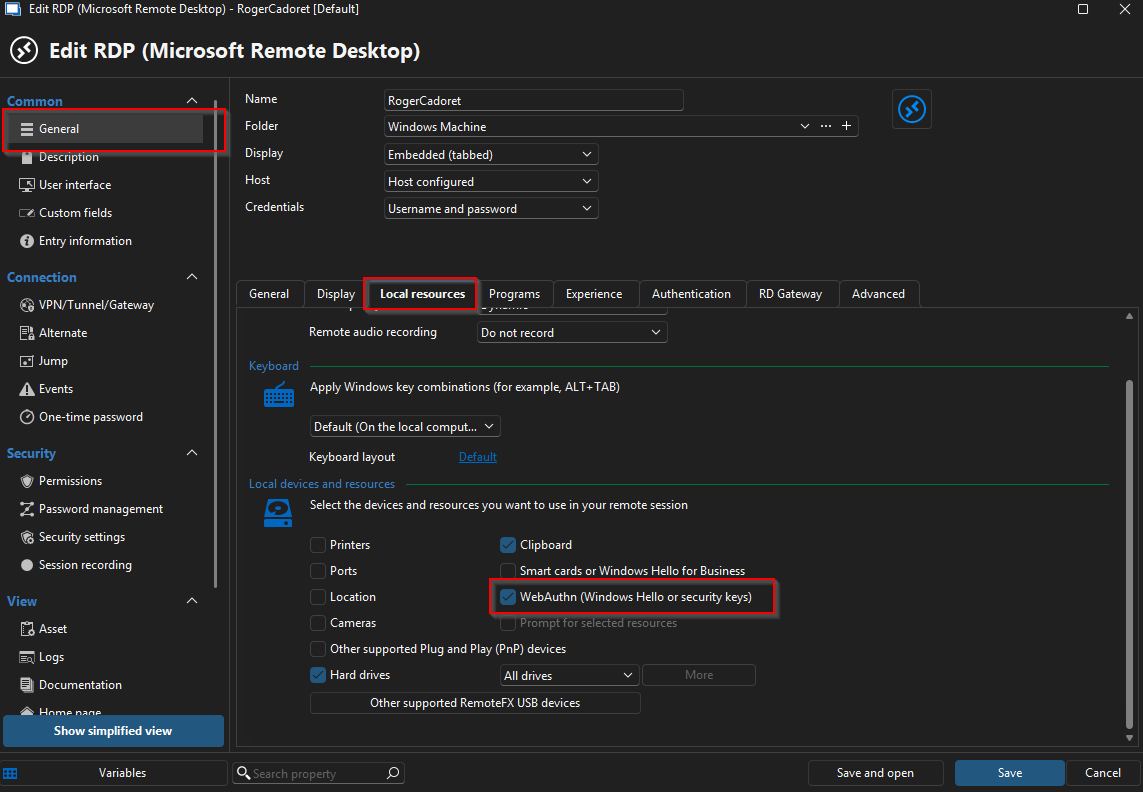
Please let me know if this has any effect on the issue.
Best regards,
Jacob Lafrenière
851acfe2-8bfb-406b-af2a-5776dd3f19de.png
No this setting is turned off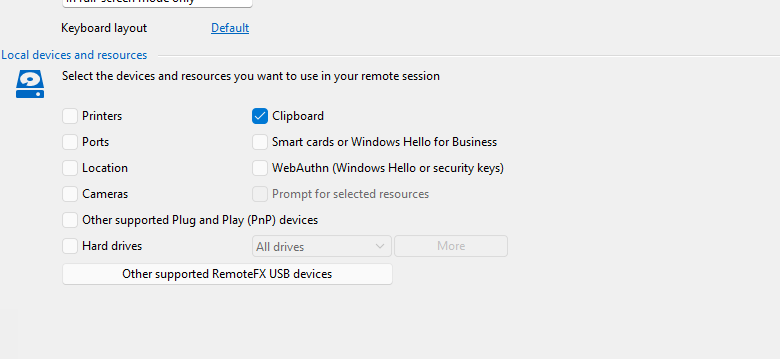
4fcfd443-87f0-43c5-a486-715e77e2254d.png
Hello,
Thank you for the follow-up.
After doing some additional research, I found that if the same user and domain are used on both the local and remote machines, and if Windows Hello is configured on the local machine, it can be used to connect to the remote machine.
If you prefer not to allow users to use Windows Hello, I would recommend disabling the feature either via Group Policy (GPO) or directly through the registry on the local or remote machine.
Could you please confirm whether Windows Hello is configured on the user's local machine?
I look forward to your response.
Best regards,
Jacob Lafrenière
The user has opted to use Windows Hello on his laptop – fingerprint login to his laptop I believe. I don’t have a problem with users using Windows Hello on their computers if they want to, however I don’t want RDMS to use it to log in to servers.
Hello,
Thank you for the follow-up.
Can you try blocking Windows Hello on the remote machine?
Using Registry Editor:
- Open Run dialog: Press the Windows key + R, type regedit, and press Enter.
- Navigate to the key: Go to HKEY_LOCAL_MACHINE\SOFTWARE\Microsoft\PolicyManager\default\Settings\AllowSignInOptions.
- Modify the value: In the right pane, find the value entry (DWORD) and set it to 0 to disable Windows Hello.
- Re-enable: To re-enable, change the value back to 1.
Let me know if this helps.
Best regards,
Jacob Lafrenière
I don’t want to block Windows Hello. If the user wants to use his fingerprint to login to his laptop, that’s fine.
I don’t want RDMS to use it to log in to a server.
Hello,
Thank you for the follow-up.
I completely understand your point. I’d like you to test blocking Windows Hello on the remote server and let me know if this changes the behavior.
I look forward to your reply.
Best regards,
Jacob Lafrenière
I have tested this and, yes, disabling Windows Hello disables Windows Hello from working.
Hello,
Thank you for your follow-up.
I'm glad we were able to resolve this. I’ll go ahead and mark this topic as resolved.
Please feel free to reply here if you have any further questions.
Best regards,
Jacob Lafrenière
What are you talking about?
I have used Devolutions for a very, very long time, and this is by far the worst Support experience I've ever encountered. The team are usually very helpful.
Hello,
I’m truly sorry if anything I said came across as hurtful; that was never my intention.
I had understood that the issue was resolved by disabling Windows Hello on the remote server. Based on what we observed, the behavior you’re encountering does not appear to be related to RDM. You can verify this by testing the connection outside of RDM; for example, using MSTSC with the same user credentials on the same machine. The same behavior will occur.
If your goal is to block the use of Windows Hello on a remote server, the most effective solution would be to disable it directly on the target machine. Alternatively, you could configure a Group Policy Object (GPO) that applies to all the servers your users connect to, which would prevent the use of Windows Hello across those machines.
I’m sincerely sorry if my previous assistance didn’t come across as helpful. Please don’t hesitate to reach out if you have any further questions or concerns.
Best regards,
Jacob Lafrenière