Unable to view the VMware VM from RDM

Folks, after following the steps Spotlight on: VMware synchronizer in Remote Desktop Manager - Devolutions Blog to add the VMware VM entries successfully, I still cannot view the VM.
- I have the VMware Workstation Pro installed on my computer.
- The VMware Synchronizer AD service account has been granted the vCenter Read Only role on the target VCSA. However, when double-clicking the entries, I cannot view the VM console; thus, I must manually right-click Properties and then change it manually using my Admin User account.
There is no error after manually modifying the credential entry on step #2 above, but the VM tab only shows a blank screen, despite the target VM being online and active.
How to fix the issue in accessing the VM console from the RDM ?
Both modes below failed to open the console: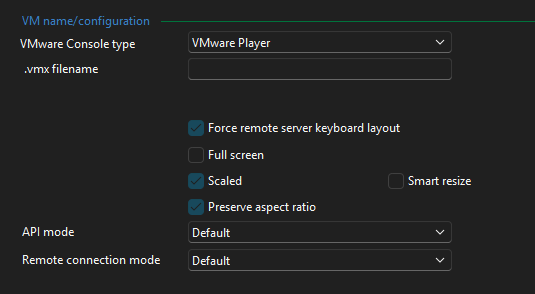
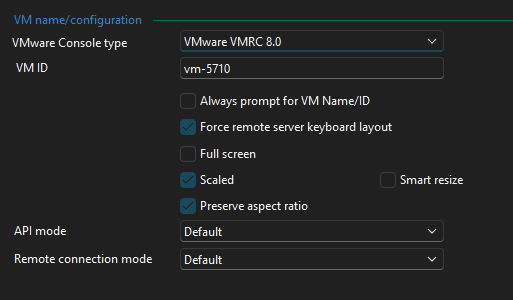
fe9f3976-c144-457f-9c44-edde6ee5c0fb.png
75a6d482-2ef5-4787-8b22-678ef112fff5.png
All Comments (1)
Hello,
Thank you for contacting Devolutions Support.
I see, since you are using VMWare Workstation outside RDM, I suspect the entry type you are looking for in this case would be the "VMWare (Player, Workstation, vSphere)" entry.
In this entry type, you can change the "Application" field to "VMWare Workstation":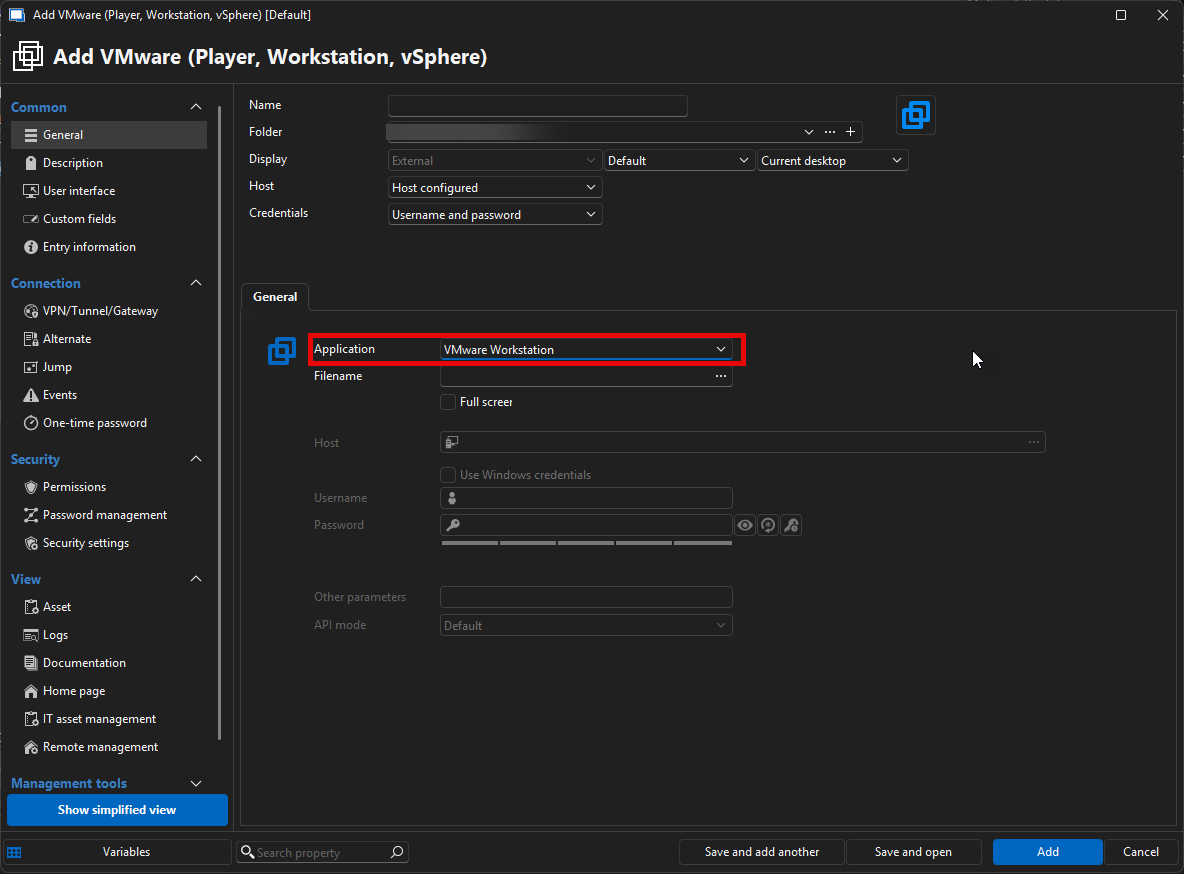
Let me know if this works for you,
Best regards,
Samuel Dery
b2793ea5-bf19-45e1-baaa-17bdd1ca69d8.png