Report 'Save as CSV' option not available anymore ?

Following issues we were experiencing with various reports, I noticed that reports can no longer be exported/saved as CSV?
Export settings File type is chosen for CSV, but in pull-down menu only HTML type is possible ?
Regards, Marcel
Version = 2025.2.14.0 / Azure SQL Datasource
SaveAsCsv.png
All Comments (7)
Hello Marcel,
From what I can tell of your screenshot, you're using the "Expired entry list" report, is that correct? If that's the case, this report never supported the export in CSV format (I went back to a 2022 version to check).
The good news is we're slowly reworking our reports to be in Avalonia as an effort to modernize the application's UI (you can read more about it on our blog here). This includes this report and I confirm that it will include a CSV export now.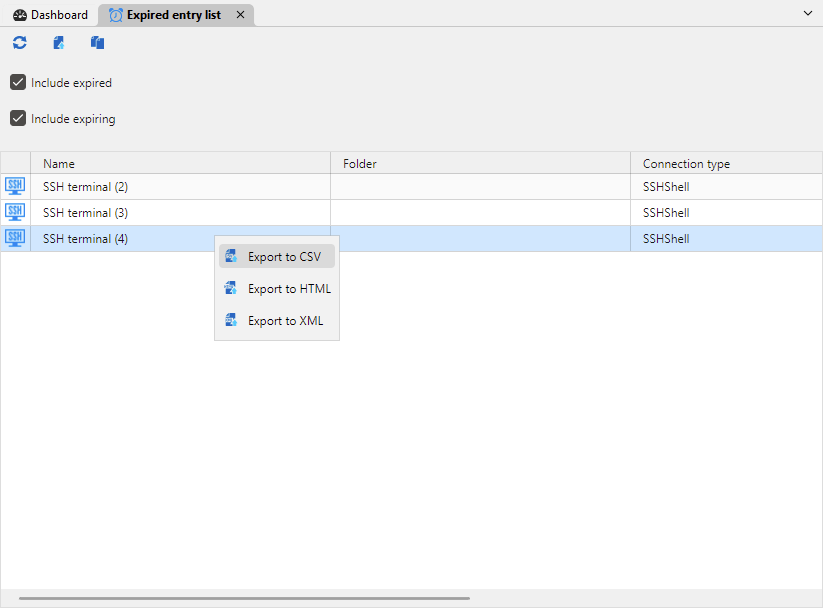
These changes will be available in our upcoming major release of 2025.3 later this year.
Regards,
Hubert Mireault
81f37d19-adab-4115-af28-64c8eaeccff5.png
Hi Hubert,
Thanks for your feedback, but strange is that the default option, export of a report via the command line as described in the Docs page, does not generate an output file after updating to the latest version.
Repro: For example start an export of RDM report Expired Sessions via cmd line/RUN:
remotedesktopmanager.exe /DataSource:*******-****-****-8a20-29d43db262f3 /report:b30f6c4a-****-****-bc4b-3f3253b3ccbd /reportoutput:"C:\Temp\test.csv" /reportsettings:"C:\Temp\test.rdr"
Or do you see a file generated via this functionality?
Regards, Marcel
I performed the test on my end, and through the command line it works properly and the CSV is generated. It does seem inconsistent that the UI doesn't allow it, though, but I can confirm this will be fixed in our next major version with the UI rework.
If the command line doesn't seem to work for you, I'll ask our support team to investigate further with you, as for me it works well, and you can even perform the export in CSV format.
Regards,
Hubert Mireault
Strange, it has always worked fine here before (we use this export file(s) for further processing)
Via debugger I see the logging below passing by, including a notification unrecognized Guid format?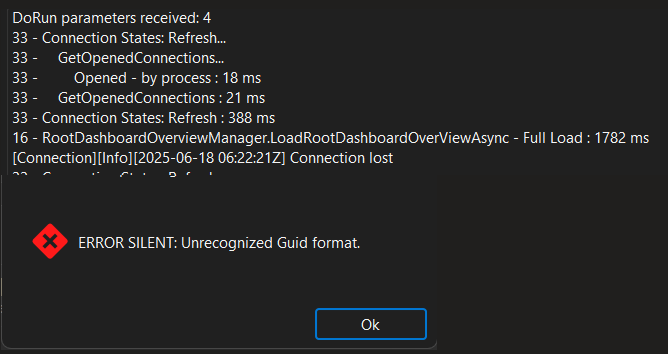
Maybe your support team can find/say something about this.
I would like to hear it, thanks
InfoMessage.png
Hello Marcel,
After a quick look at it, the CSV export could be done by the Web UI.
This is under Report -> Expired entries -> Export (top right)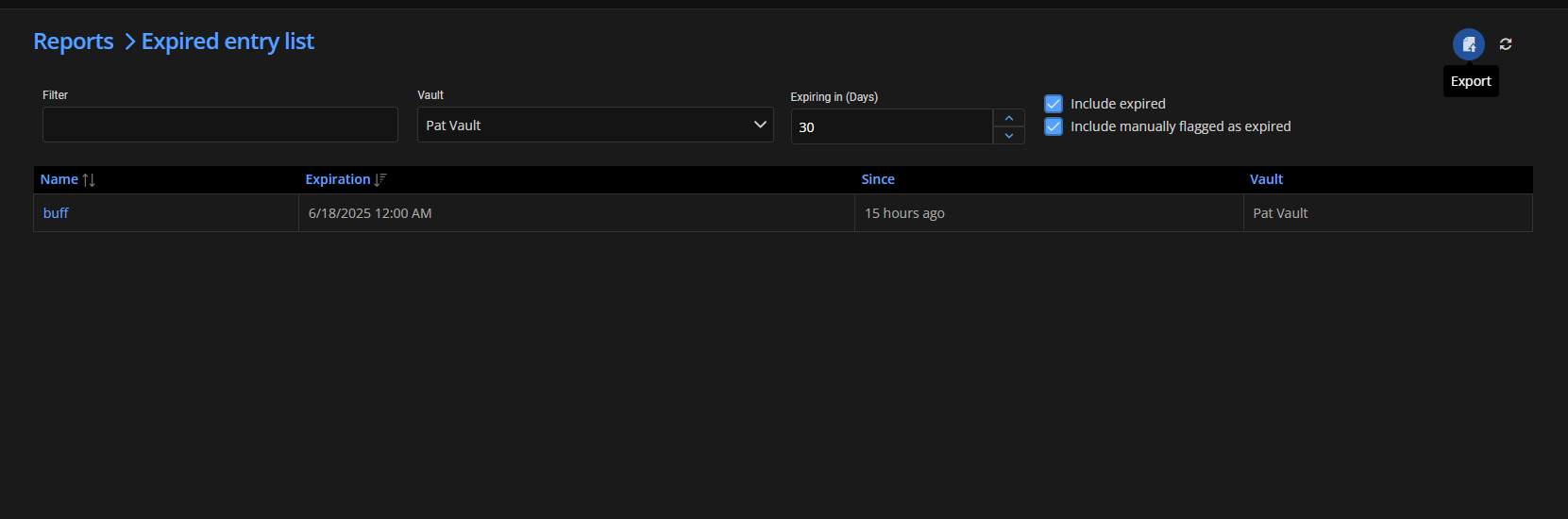
Best regards,
Patrick Ouimet
da475345-21f0-4f6a-9fca-12f6b411856d.png
Hi Patrick,
The export is for/in Remote Desktop Manager : Reports > More Reports > Expiration > Expired Entry List.
Using then for Export file type CSV and save that setting as .rdr in the previously specified command line for execute and export report.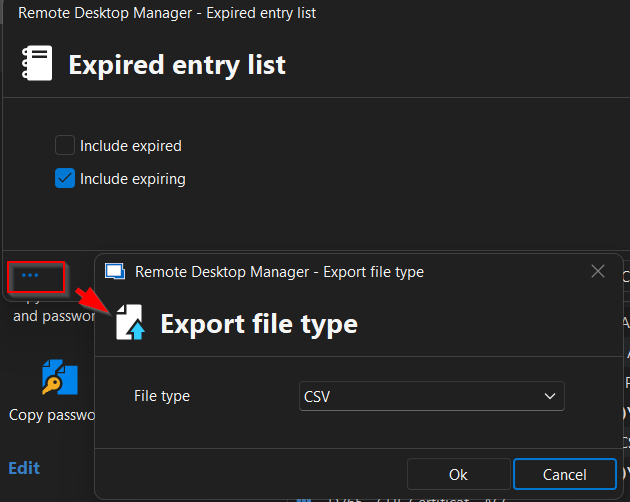
if necessary I could show this via a teams meeting/share. Just send me an invitation.
Regards, Marcel
Export.png
Hello Marcel,
I have reproduced it.
What I did was to provide a workaround to get this report as a CSV.
You can also use the schedule report from DVLS to receive it by email:
Configuration - Devolutions Documentation
Best regards,
Patrick Ouimet