Log homepath that resolves for both PC and Mac

Hello,
I have had a long-running battle trying to come up with a viable configuration that is tolerated across Mac and Windows RDM clients.
On Windows, the following SSH log path does exactly what I am after:
%HOMEPATH%\OneDrive - Company Name\RDM-Logs\$NAME$\$DATE_TEXT$.log
Unfortunately %HOMEPATH% doesn't resolve on mac. Instead you must use the Unix home variable:
%HOME%\OneDrive - Company Name\RDM-Logs\$NAME$\$DATE_TEXT$.log
Conveniently, the Unix home variable doesn't seem to resolve on Windows.
Is there any way I can make this work?
All Comments (16)
Follow on- would also like to handle session recording in a similar way.
%HOMEPATH%\OneDrive - Company Name\RDM-Logs\$NAME$\ - this works on Windows, but not Mac
For some reason it throws an error about Devolutions Gateway though: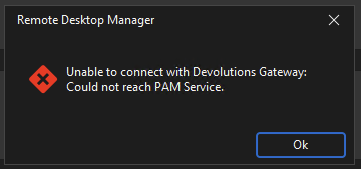
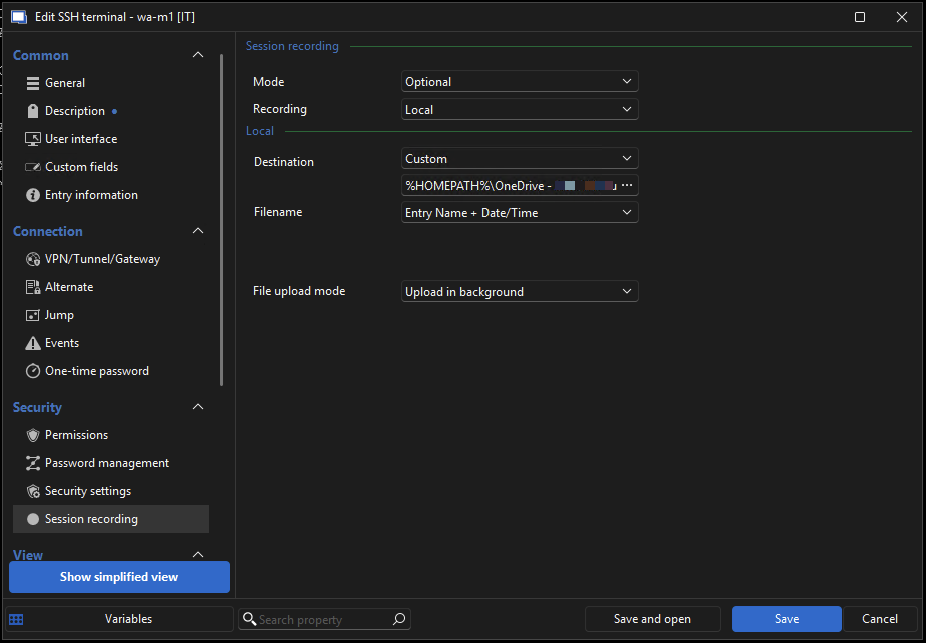
%HOME%\OneDrive - Company Name\RDM-Logs\$NAME$\ - This doesn't work on either. Tried with and without the trailing \ , it simply doesn't create the .trp
So really, I guess I should broaden the ask here -
-I want a config that enables SSH logging to Onedrive on both PC and Mac
-Ideally both would end up in a subfolder named after the RDM connection entry $NAME$
-In both cases, I need this config to not break the ability to launch sessions in RDM Android/iOS
How should I be configuring this?
3255c32f-01cc-47da-a35a-426596fbe505.png
c6cf3a40-f50d-4a63-ac37-962a7ca68c6f.png
Hello,
Thank you for reaching out on this matter.
At the moment, I have two potential workaround ideas, since there is no native solution available:
1, Using Custom Variables in RDM for Windows and Mac
You can configure custom variables to handle environment-specific paths. On my end, I tested setting $HOMEPATH$ to %HOMEPATH% on Windows and to %HOME% on macOS, and this approach seems to work. The same entry can then be opened on both platforms.
That said, you may need to duplicate the entry—perhaps placing it directly under the original one—and either remove logging or modify it for mobile use.
- In Windows, custom variables can be found under File > Settings > Application > Custom Variables
- In macOS, they're located under File > Settings > General > Custom Variables
2, Creating a Duplicate Entry for macOS
Alternatively, you can create a separate entry for macOS with logging configured to the appropriate path. In this case, you’ll also need an additional entry specifically for mobile connections.
Let me know what you think.
Best regards,
Jacob Lafrenière
Yikes - we're at ~6k connections, so this is definitely a non-starter to clone them all. Will see if I can leverage custom variables or otherwise work around this limitation.
If there is a feature request out there for an platform-agnostic home variable, I'd be interested in hearing about it or opening one!
Hello,
Thank you for the follow-up.
I actually have some good news for you! Your message sparked an internal discussion, and it turns out the team was already partially planning to implement something along these lines. Now, they've decided to move forward with it definitively.
You can expect to see a mention of this in future release notes.
Best regards,
Jacob Lafrenière
Extremely cool!
This sorta segways into another question I have -
We are big on "0 standing priviledge" wherever possible. We wrote some internal tooling to grant our user accounts admin prior to RDP connection, and remove it on disconnect. Extremely functional for us!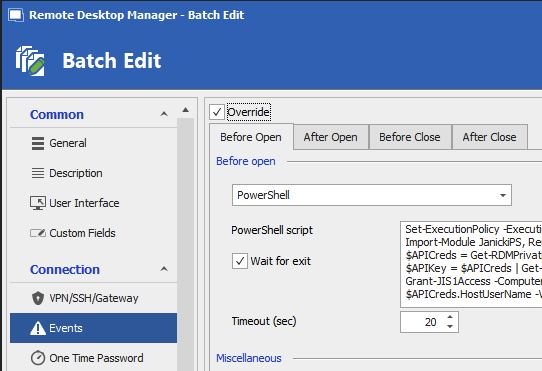
Unfortunately we've ended up with 2 problems here:
1) At first, the "Wait for exit" tick was a thing (see screenshot). This was perfect for our needs - the powershell automation took varying amounts of time to work its magic. Unfortunately, newer versions of RDM have removed this "Wait for exit". Can we get that back?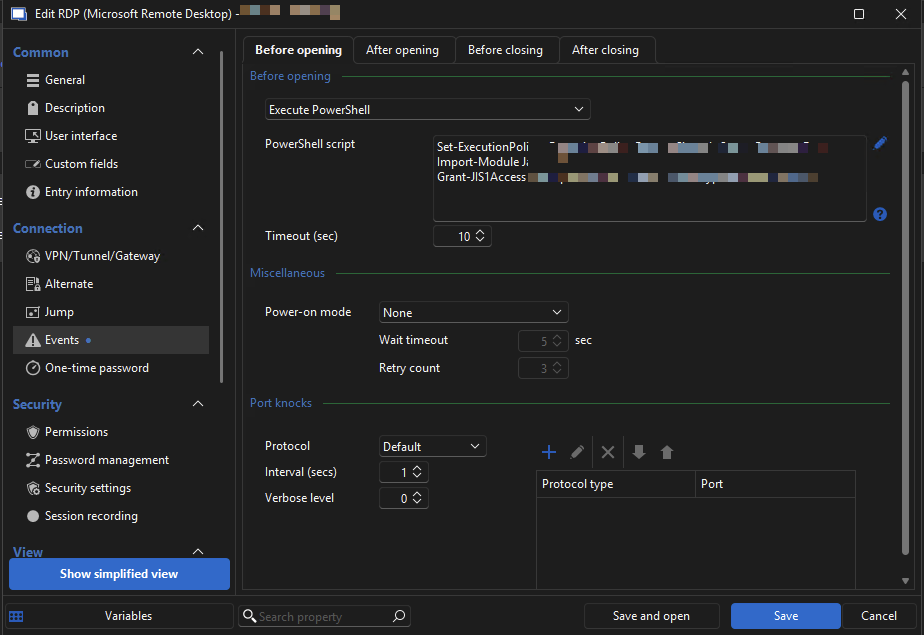
Somehow Mac does have the "Wait" tick still visible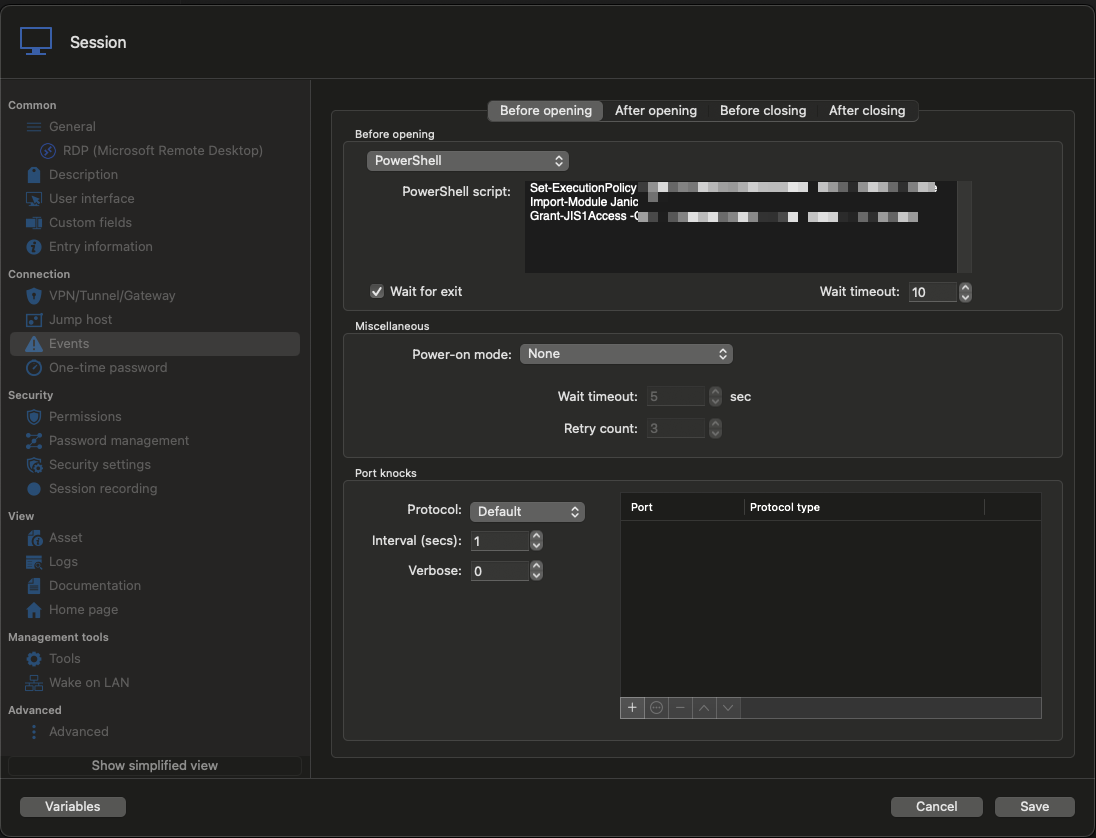
It has no effect on Windows though.
2) When we first implemented this automation, Mac RDM had 0 support for these connection powershell events. That was actually the desired state. Now that there is partial support, launching an RDP session essentially freezes RDM - a terminal window will be hiding somewhere (rarely the foreground) and it will never close on its own. So every connection I have to chase down a terminal window and kill it. In this case, it would be ideal if we could have a global setting to disable these powershell "events" on Mac, or if I could override-->local specific settings and disable these "events" in there on our Macs.
8b77367a-9177-4c4c-a9e7-3e9bcba9ecfe.png
a11a5fed-7b13-4830-bbdd-6d18d62fc9ec.png
158c8fa7-db32-4988-8244-628d94bf59b5.png
Hello,
Thank you for the follow-up.
Regarding the first point, I’ll need to check with the development team to provide you with a definitive answer.
As for the second point, I assume the terminal window that opens is triggered by the Before Open event. If no such event is configured, I believe the terminal window does not appear, and the RDP session doesn’t freeze—correct?
Could you try adding a closing command to the PowerShell script so that the terminal window closes automatically?
Let me know what you think.
Best regards,
Jacob Lafrenière
^Since my boss flamed me for piggybacking unrelated questions - my logic was both could be addressed by expanding the configurable settings in "Edit --> Local-specifc settings" to include "events" and log path / screen recording path. I understand there are other ways this may be addressed that would make this completely unrelated.
Added the described "Exit" to our Powershell.
On Windows: Behavior is unchanged. RDP session launched before the script has completed, resulting in failed login. With and without the "Exit" the window closes when complete and never "locks up" RDM.
On Mac: Behavior is unchanged. RDM "locks up" entirely - a terminal window somewhere (normally in the background) must be found and closed.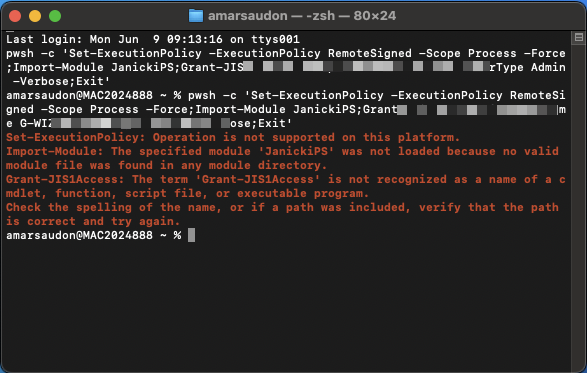
It is unlikely we will pursue making this powershell tooling platform-agnostic, so strangely going back to the "old days" where Mac didn't even try to run powershell would be an improvement. Adding a "Global" setting to disable these scripts on Mac could do the trick too. Alternatively, adding any of these features to the support "Edit --> Local-specifc settings" would be a viable workaround.
Because of the way that mac is wrapping the powershell commands it is unlikely we can trigger the terminal to actually close.
f4a284b6-1032-4a4f-b4a6-be42c278a302.png
Hello,
Thank you for the follow-up.
Just to clarify— is the second point dependent on the first one?
As for the "Wait for exit" checkbox, the development team has confirmed that it is intended to be available, and they will address its implementation in a future update.
I look forward to your reply.
Best regards,
Jacob Lafrenière
Windows - Seems like I am full of sh!t - testing a "sleep" in the powershell it became apparent that RDM is honoring the "Wait for exit" (even though the setting can't be configured on Windows any more). I am able to remedy my issues on that front by introducing a Start-Sleep, so I have a workaround there (just have to use RDM on Mac to configure the "Wait for exit" tick.
Mac - There isn't really a workaround here I can find. Since RDM is wrapping the powershell ( eg pwsh -c 'Set-ExecutionPolicy -ExecutionPolicy RemoteSigned -Scope Process -Force;Import-Module Censored;Revoke-Censored -ComputerName Censored -UserType Admin -Verbose;Start-Sleep -Seconds 3;Exit'
The terminal itself won't receive the "exit" in a way that closes terminal.
Terminal can be reconfigured to close when an "exit" command is given "When the shell exits"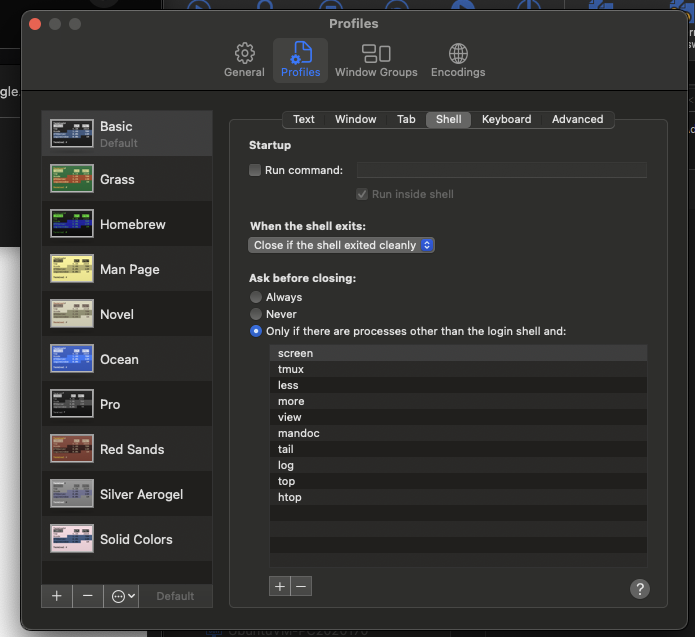
But wrapping the script in pwsh -c means the exit isn't received by the terminal.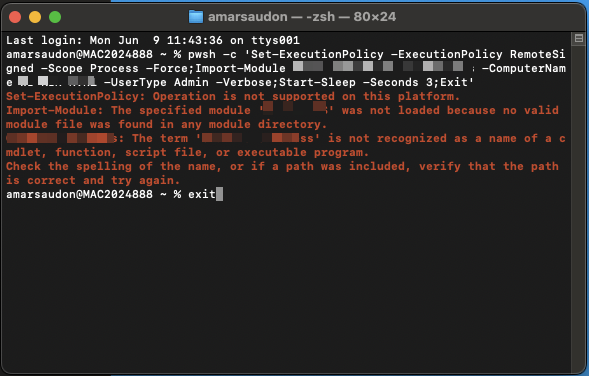
Even if an "exit" is received (eg manually typed in the above screenshot), RDM won't proceed until you right click the terminal icon in the taskbar and "close". RDM seems to be waiting for the entire terminal process to be dead if the "wait" tick is selected.
Ultimately, it would be nice if there was either a global option to ignore powershell events on Mac, or if connection entry "events" could be disabled via "Edit --> Local-specifc settings" on entries.
Happy to hop on a remote session or open a ticket if that is preferable.
7a8c2eb5-9157-416b-9734-1811c4ed3de5.png
6625029b-d176-4870-996f-5eb7f74e3a89.png
Hello,
Thank you for the follow-up and the clear details.
I now have a better understanding of the situation. Unfortunately, there’s no native solution available at the moment.
We do have a Feature Request section on our forum, and I recommend posting your idea there—specifically, the suggestion for a global option or the ability to disable events via local-specific or even user-specific settings. https://forum.devolutions.net/forums/17/remote-desktop-manager--feature-request
While I usually transfer such topics directly to the Feature Request section, in this case, I’d prefer to keep the discussion here to maintain continuity with the "Wait for exit" checkbox issue you reported earlier.
Once you’ve opened the feature request, I’ll paste the link here so others can follow and contribute if they’re interested.
Best regards,
Jacob Lafrenière
I think I stumbled onto a workable solution -
Adding "Stop-Process -Name Terminal -ErrorAction SilentlyContinues" kills the entire terminal process on Mac, resulting in RDM not hanging and carrying on with its life. Windows PCs don't seem to mind the addition, as the "Terminal" application doesn't have a process name of "Terminal".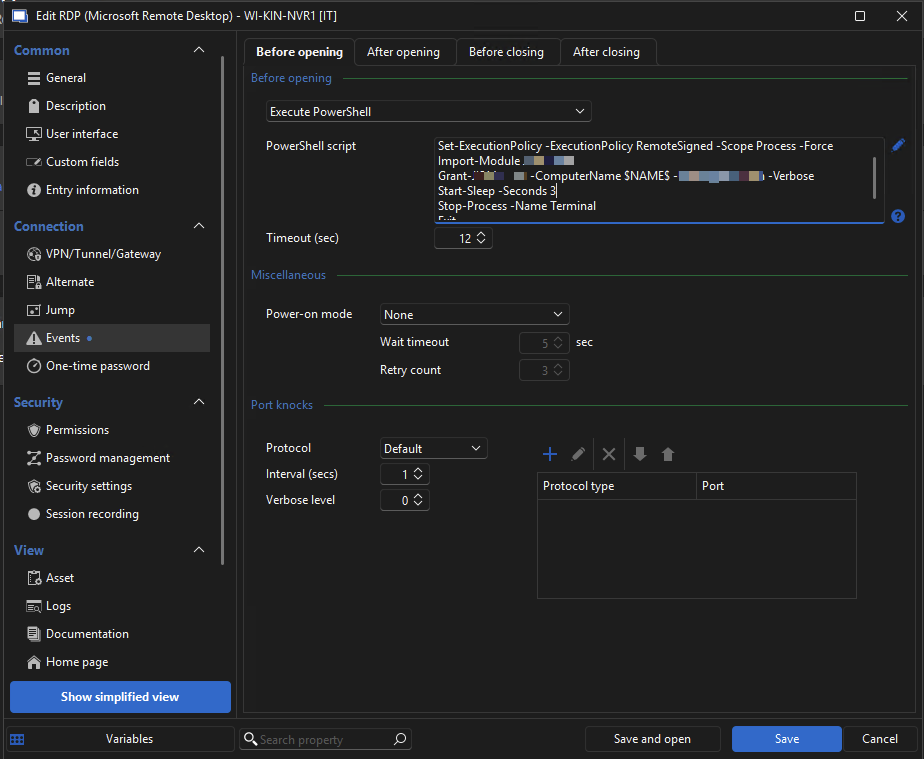
Still would love a global option to disable, but this will work for now!
4048425d-c63a-459b-bfc5-e1f67d4c660f.png
Hello,
Thank you for the follow-up.
Glad that you found a solution!
Best regards.
Jacob Lafrenière
Hello,
Thank you for the follow-up.
I actually have some good news for you! Your message sparked an internal discussion, and it turns out the team was already partially planning to implement something along these lines. Now, they've decided to move forward with it definitively.
You can expect to see a mention of this in future release notes.
Best regards,
@Jacob Lafrenière
Was there ever any headway on this? I see this thread has been flagged as "Resolved", however I am still unable to cobble together any %HOME% variable that plays nice with both Mac and Windows. Fingers crossed I am just missing something and a fix was implemented!
Hello,
Thank you for the follow-up.
At the moment, I can see some progress on our Linux platform; however, it doesn't appear to have been implemented yet for Windows and macOS. I've noted this in our internal case and requested an estimated timeline for the development and rollout.
I’ll follow up here as soon as I have more information.
Best regards,
Jacob Lafrenière
Awesome, thanks Jacob! I took another switch at it over the weekend but was still unable to find a combo that worked.