RDM and RDP login with security key

os : win11 24h2
rdm : 2025.2.6
We have hybrid with EntraID and we enabled RDP login to local servers with security key and that is working via mstsc.exe.
mstsc.exe is working fine, I must only enable Advanced > Use a web account to sign into the remote computer
screenshoot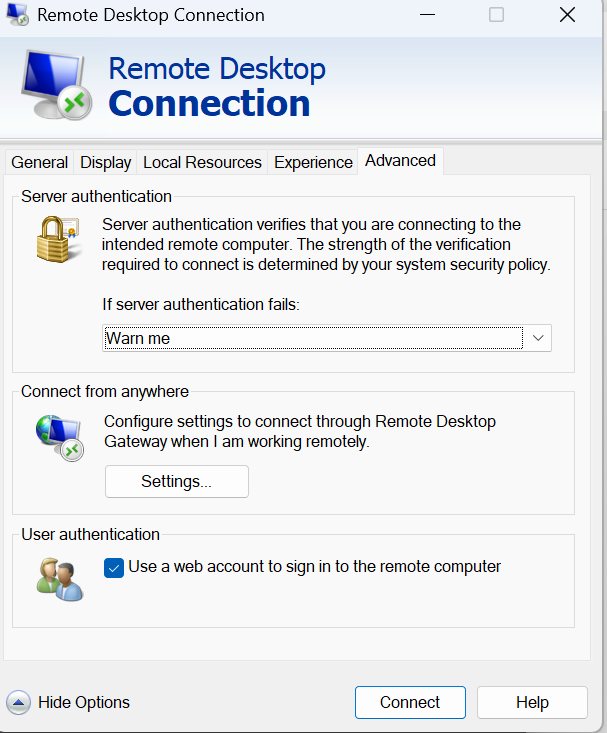
But I can't find this option on RDP entry in RDM.
Regards,
Darko Bazulj
https://triton-grupa.hr
48555de1-cc02-4044-bb65-504ef8ae64fd.png
Recommended Answer
Hi,
Thanks for reaching out!
To get it working in Remote Desktop Manager, try enabling "Enable Entra ID SSO" in the Authentication tab of your RDP entry settings. That should align with the behavior you're seeing in mstsc.exe.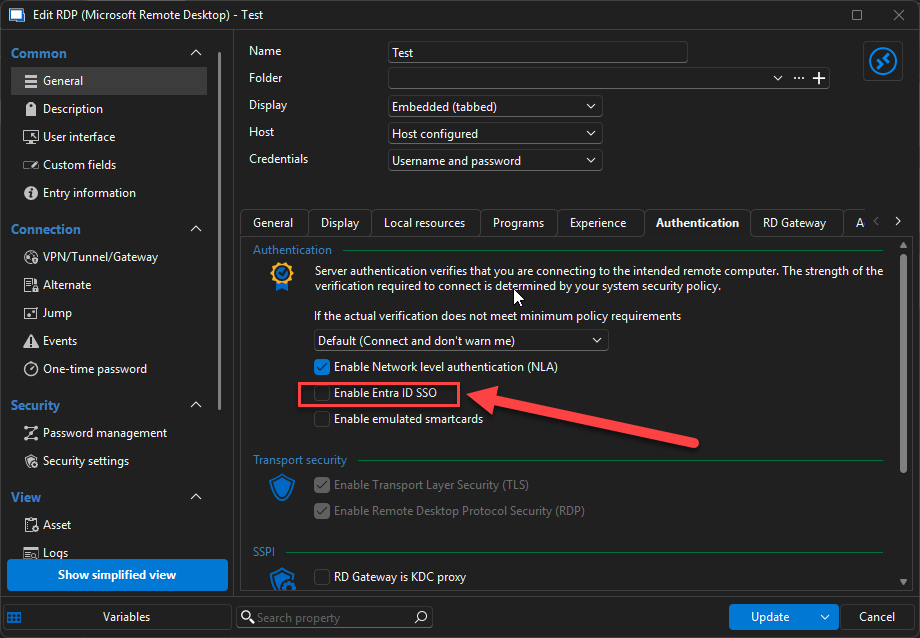
Let me know how it goes or if we need to explore further!
Best regards,
Stephan
abadbf3f-0ab9-4f36-97a8-13e5c8a5f059.png
All Comments (5)
Hi,
Thanks for reaching out!
To get it working in Remote Desktop Manager, try enabling "Enable Entra ID SSO" in the Authentication tab of your RDP entry settings. That should align with the behavior you're seeing in mstsc.exe.
Let me know how it goes or if we need to explore further!
Best regards,
Stephan
abadbf3f-0ab9-4f36-97a8-13e5c8a5f059.png
I’d say that the “Enable Entra ID SSO” option is actually the same as “Use a web account to sign into the remote computer,” as you mentioned.
It might be helpful to include that in parentheses or in the documentation—at least, I wasn’t able to find it myself.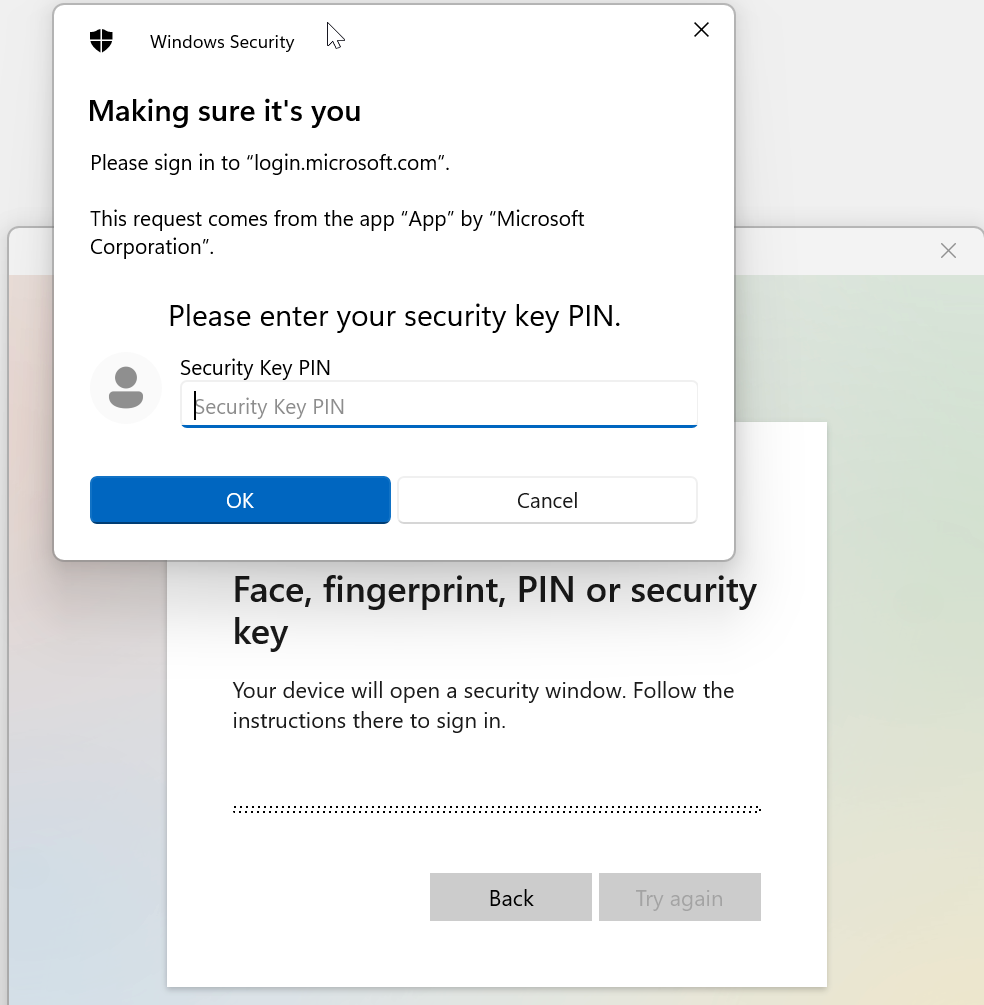
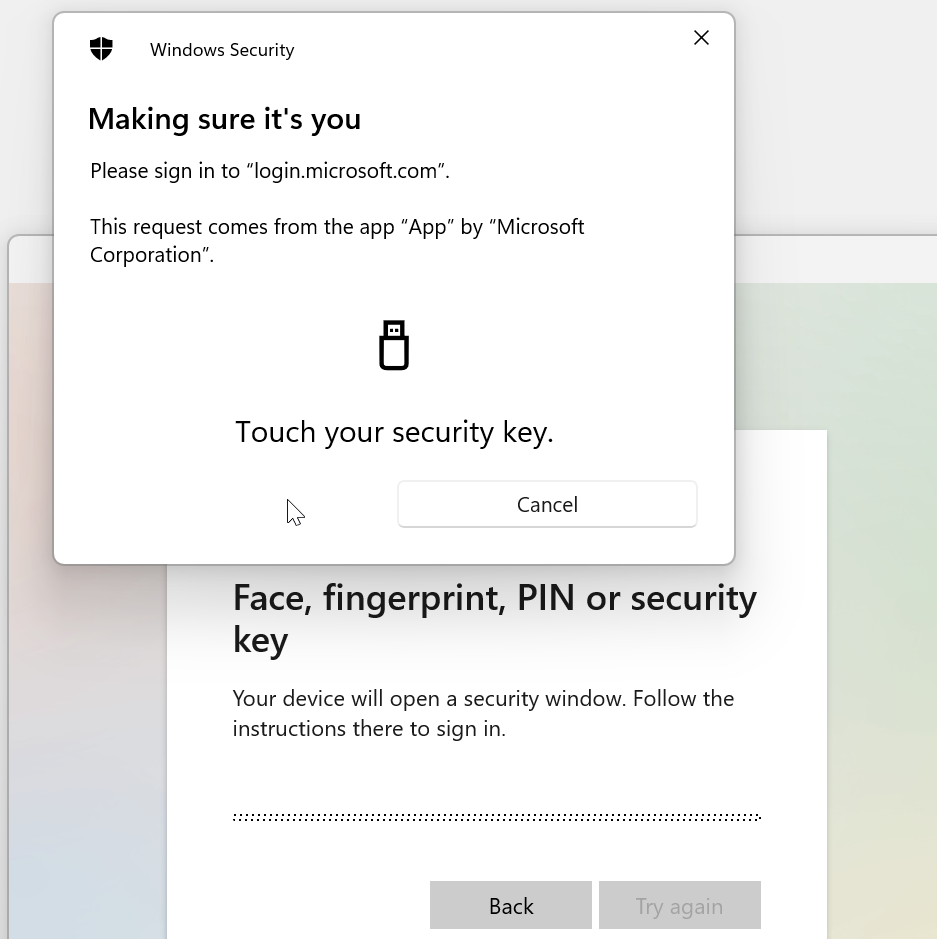
It also seems like RDM is caching the login. The first time, I get the Microsoft login window where I authenticate using the security key and enter the PIN, and the login works. But if I log out and try again, it logs me in automatically.
The same thing happens with mstsc, but at least there I have the option to “Clear all cached web accounts.”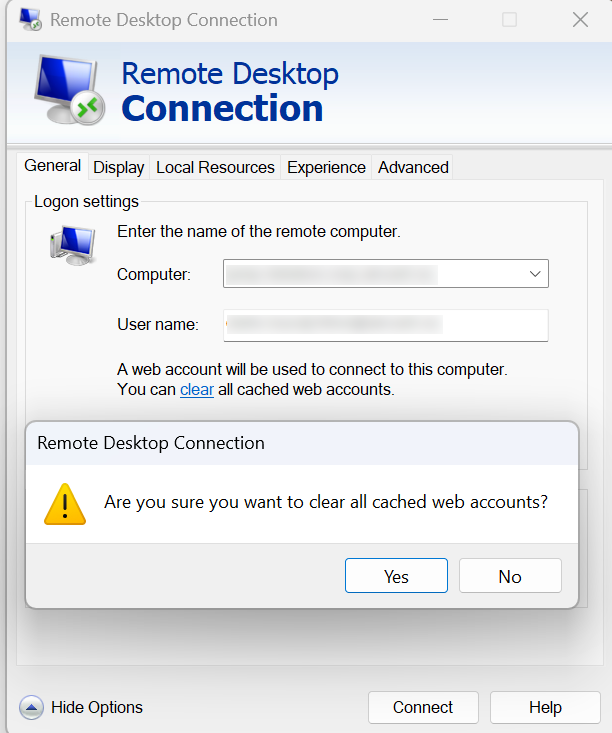
Is this expected behavior? And is there a way to clear this cache manually in RDM like in mstsc, or—better yet—prevent it from being cached in the first place?
After I clicked “Clear cache” in mstsc, I was prompted to authenticate with the security key again when trying to connect via RDM, so that seems to reset it.
Could it be that Windows itself is caching this in the background?
Maybe you’ve already encountered this during development—if so, it would be great to know how to disable or control that caching behavior.
Regards,
Darko Bazulj
https://triton-grupa.hr
27d5da05-5094-4a76-a70e-18d85c185833.png
a812bb27-6597-4e0b-b1a3-41a06a5225f3.png
9777dffc-e520-4b8d-b35d-195cfc0879c2.png
Hello Barko,
Thank you for your feedback—it's much appreciated!
You're absolutely right, and we do mention this feature in the following article:
https://docs.devolutions.net/rdm/kb/knowledge-base/rdp-session-entry/#authentication-tab
That said, I’ll review it and follow up with our Documentation Team to see if a clarification would be helpful.
Regarding the caching behavior you described: you're correct—Windows stores these credentials in the Credential Manager. You can manage or remove them manually by navigating to:
Control Panel > User Accounts > Credential Manager
There, you can delete any saved credentials tied to specific accounts or sessions.
Additionally, in Remote Desktop Manager, there’s a Public Mode option available under the Advanced tab of the RDP settings. When enabled, it prevents credentials from being cached. Depending on your workflow, this might be a useful alternative.
If you have any further questions—we’re happy to help!
Best regards,
Stephan
You probably mean “Public mode,” but what I see here is only the following https://docs.devolutions.net/rdm/kb/knowledge-base/rdp-session-entry/#authentication-tab and from that, it’s hard to conclude that it would block caching.
Maybe it would be a good idea to clarify this a bit more, which would probably result in fewer questions, since things would be clearer.
I’ll test it and see if it helps.
Thanks for the support.
Regards,
Darko Bazulj
https://triton-grupa.hr
Hello Darko,
Thank you for pointing that out! Yes, I did mean “Public mode” — apologies for the confusion, that was a mistake on my part during translation.
If you're interested in understanding exactly how Public mode works, both in Remote Desktop Manager and in RDP connections in general, I highly recommend checking out our blog post from March. It goes into great detail about this feature and covers its behavior and impact thoroughly:
https://blog.devolutions.net/2025/03/using-rdp-without-leaving-traces-the-mstsc-public-mode/
Thanks again for your feedback. We truly appreciate you taking the time to test and share your thoughts.
Best regards,
Stephan