User vault icon missing in navigation pane

The user vault icon is missing in my navigation pane and I'm unable to locate a setting to unhide it. Resetting the layout did not help.
In the picture in the following knowledge base article you can see the icon: User vault - Devolutions Documentation
In the user settings the user vault is not disabled: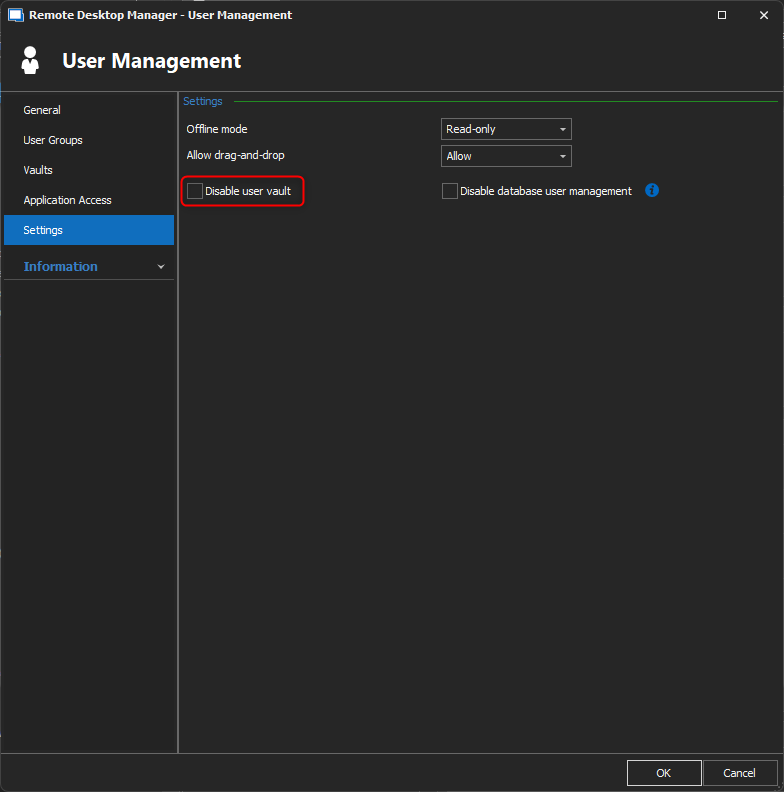
Any help would be greatly appreciated!
2025-05-13_14h20_36.png
Recommended Answer
Hello,
Thanks for the update—glad to hear you were able to find a workaround!
Since importing settings from an environment where the User Vault icon was visible resolved the issue, my first guess is that the User Vault may have been disabled in the Navigation pane. There are two ways this can be done, which are shown in the following screenshots.
Just as a note: resetting the layout won’t impact this specific setting, but importing a configuration where the User Vault view is enabled in the Navigation pane would indeed override it.
File -> Settings: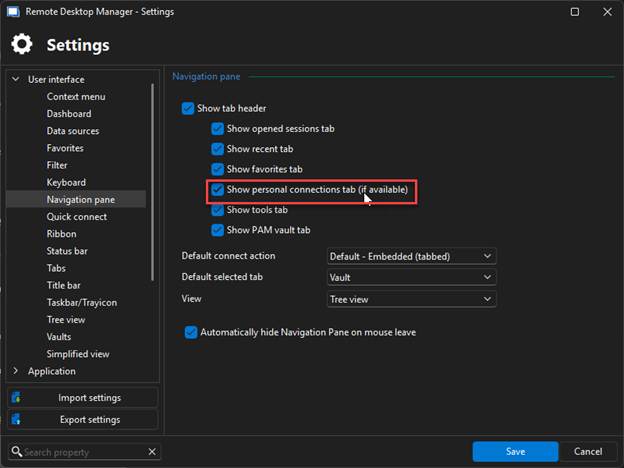
Right-click on the bottom of the Navigation plane: 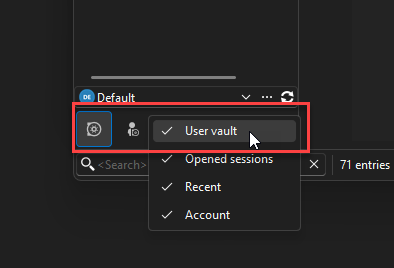
e45ffe07-3ea9-4b2c-a719-c53c176c3356.png
511adeec-6fb0-4639-b2e9-3e94f38940aa.png
All Comments (8)
Hey,
Thanks for posting!
Could you share which data source you're using, and which version of RDM you're currently on? That'll help get a better idea of what's going on and how to assist you.
Looking forward to your reply!
Hi Stephan,
It's an Azure SQL data source and it concern version 2022.2.29.0. We were able to workaround the issue using an export of the settings from an installation where the user vault icon was displayed. Still wondering which setting causes it.
Hello,
Thanks for the update—glad to hear you were able to find a workaround!
Since importing settings from an environment where the User Vault icon was visible resolved the issue, my first guess is that the User Vault may have been disabled in the Navigation pane. There are two ways this can be done, which are shown in the following screenshots.
Just as a note: resetting the layout won’t impact this specific setting, but importing a configuration where the User Vault view is enabled in the Navigation pane would indeed override it.
File -> Settings:
Right-click on the bottom of the Navigation plane:
e45ffe07-3ea9-4b2c-a719-c53c176c3356.png
511adeec-6fb0-4639-b2e9-3e94f38940aa.png
Thanks!
The Show personal connections tab option is enabled, so I would guess it would be caused by the other option. When I right click on the bottom navigation pane nothing happens. Could it be that the right click option is disabled? Of is that introduced in a later version of RDM?
Hey,
You're correct—the option to right-click on the bottom navigation pane to show personal connections wasn't available in the 2022 version of RDM.
If you've imported settings from another installation where the feature was already active, that could explain why it's now showing up for you.
If there's anything else we can help you with, just let us know!
Stephan, I've tried to locate the setting in the export but I'm unable to locate it. Do you have an idea? See attachment.
RemoteDesktopManager.cfg
Hey,
The setting will only appear in the export file once the flag has been removed.
After that, it can be found in the <UILayoutOption> section and looks like this:
<ShowTabPersonalConnections>false</ShowTabPersonalConnections>
Please note that I retrieved this from the current version.
Let me know if you have any further questions!
Thanks Stephan!