Documentation Template Formatting Issue in Remote Desktop Manager (Devolutions Cloud)
Documentation Template Formatting Issue in Remote Desktop Manager (Devolutions Cloud)

Hi Team,
I'm currently using Remote Desktop Manager (Business Hub) and have encountered an issue with documentation formatting when using templates.
I need to create the same documentation page for multiple instances, so instead of manually duplicating and formatting the content each time (which works fine), I created a Documentation Template to streamline the process and maintain consistent formatting.
However, when I paste the exact same content into the Templates settings, the formatting breaks. I've tried all the available Documentation Types, but the issue persists across all of them.
It seems like the editor within the Documentation Templates does not respect the formatting the same way the standard editor for root elements does.
Could you please advise if there is a workaround or fix for this? Ideally, I’d like the template editor to preserve the formatting exactly as it appears when editing documentation directly on each instance.
Paste the content into the article.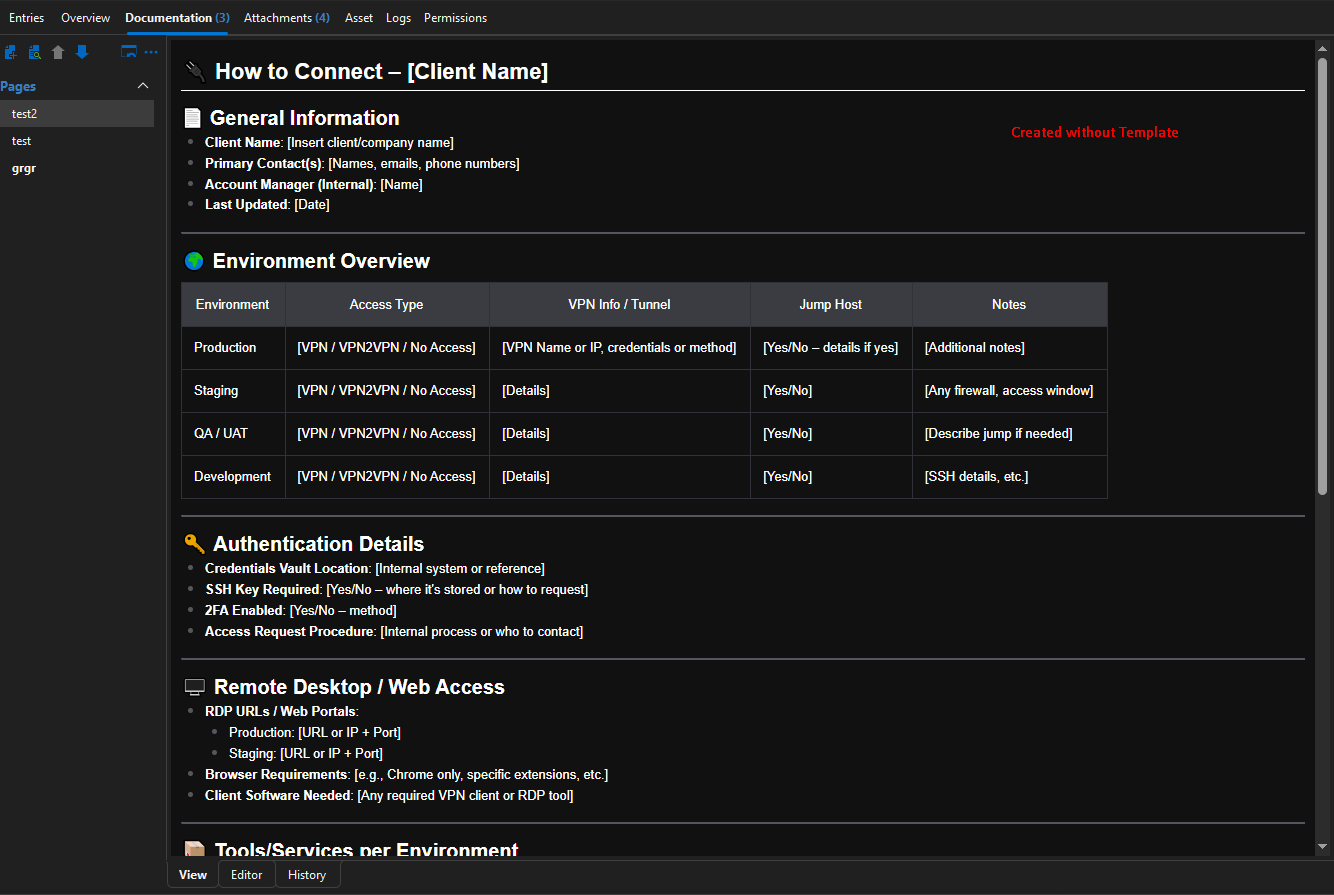
Template setup (Pasting the same content as above):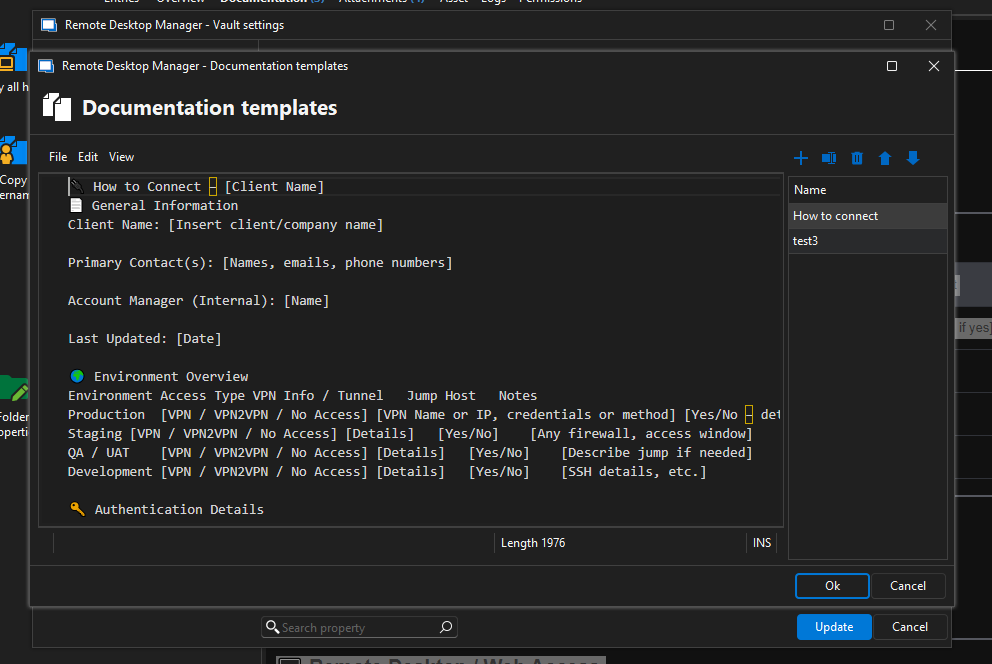
Adding a new page using Template: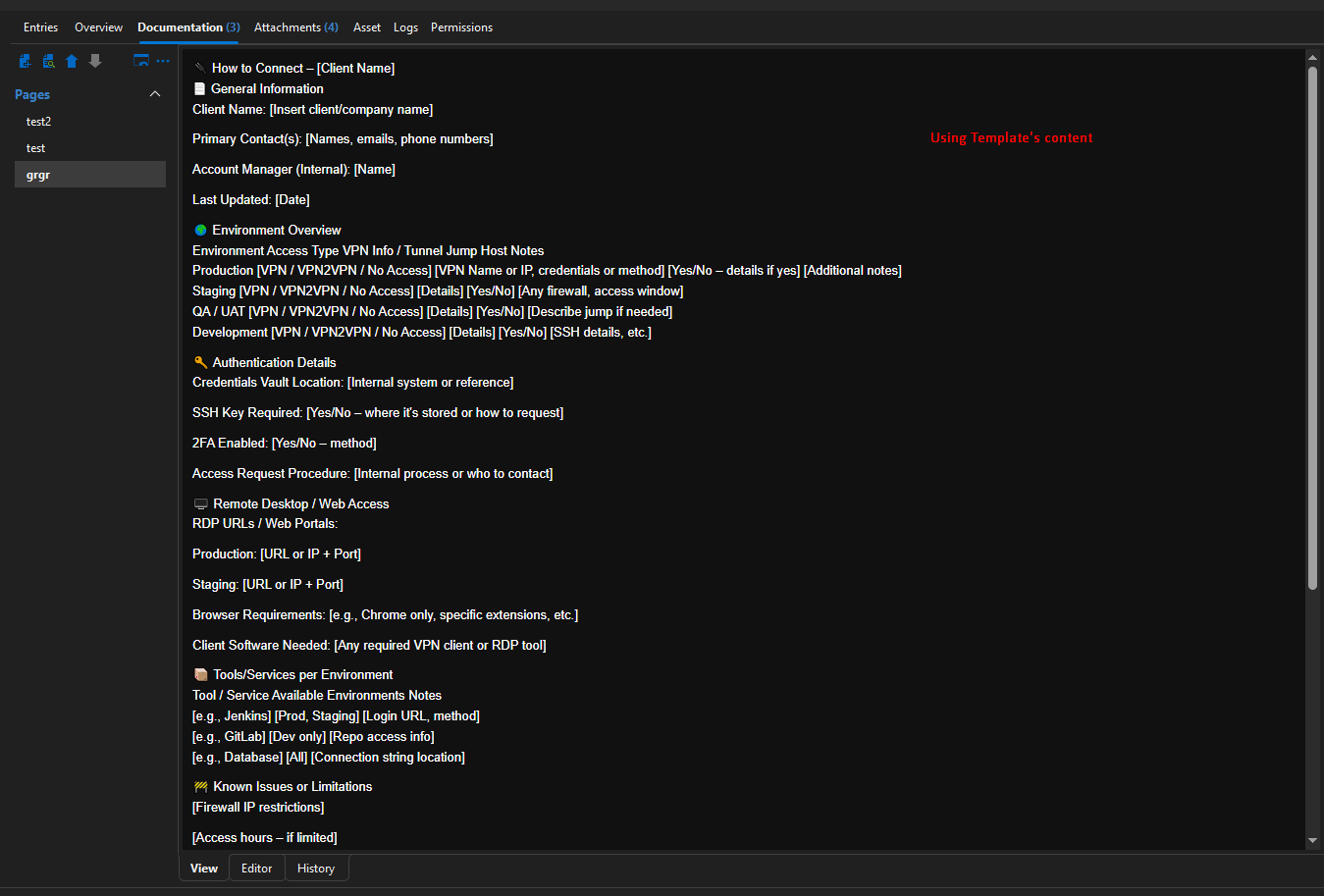
e75b9c81-dab6-4c82-9695-ffc5d8bfb751.png
3c98d1dd-b94d-4209-a3e2-742674e90769.png
7024fee2-af7f-4a0f-85e0-6a6d23a79e4d.png
Recommended Answer
Hi Valantis,
Thanks for the info!
I looked into this on my end and I can see what's happening. When you copy text directly from the Documentation tab, the clipboard picks up a slightly different syntax, which can cause the layout in the Template Editor to appear incorrect.
For instance, in the Template Editor, a horizontal line is created using three asterisks (***), but if you copy it from the documentation view, it might appear as multiple underscores instead. This difference can affect how the template is rendered.
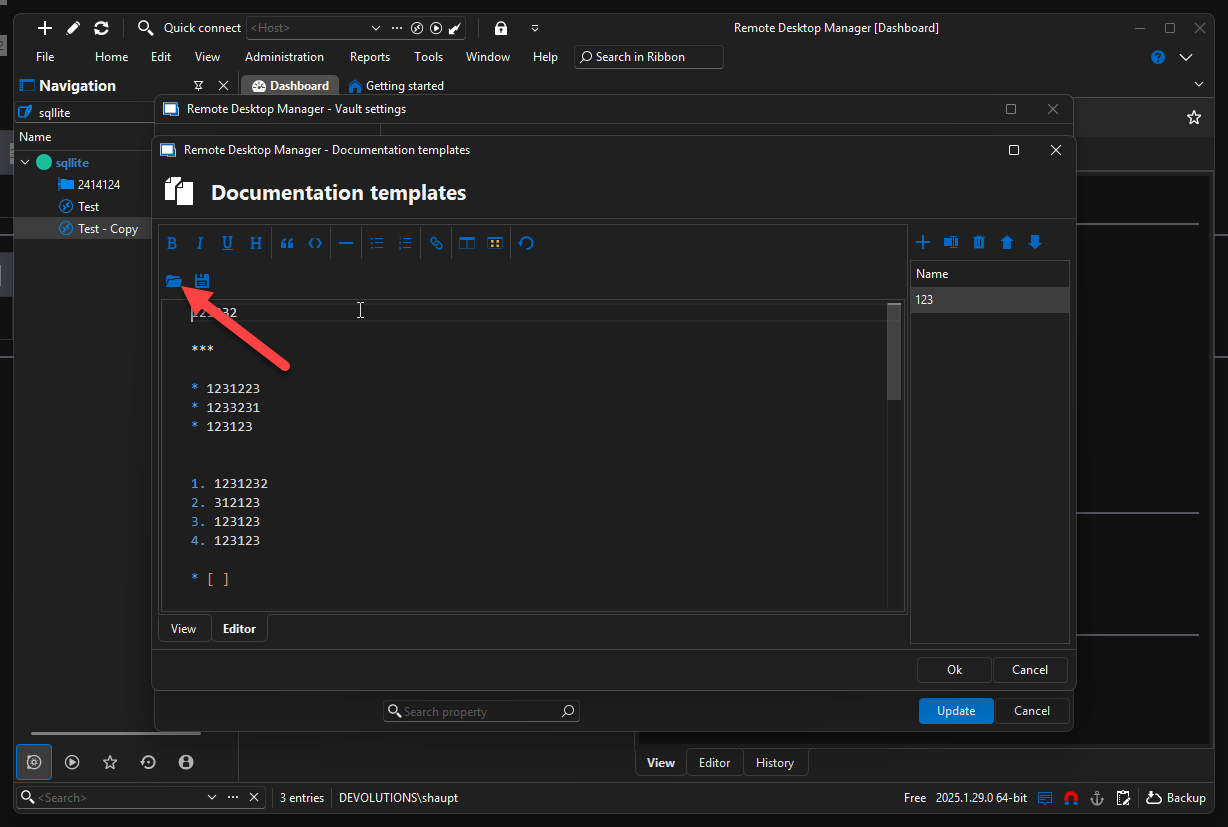
The easiest solution I’ve found, for using a existing documentation as a template, is to export the documentation as a .md (Markdown) file and then open that file in the Template Editor. This way, the content and formatting will match exactly, and any new documentation created from that template will look just like the original.
I’ve included screenshots below—please let me know if that works for you or if you run into any issues.
Best regards,
Stephan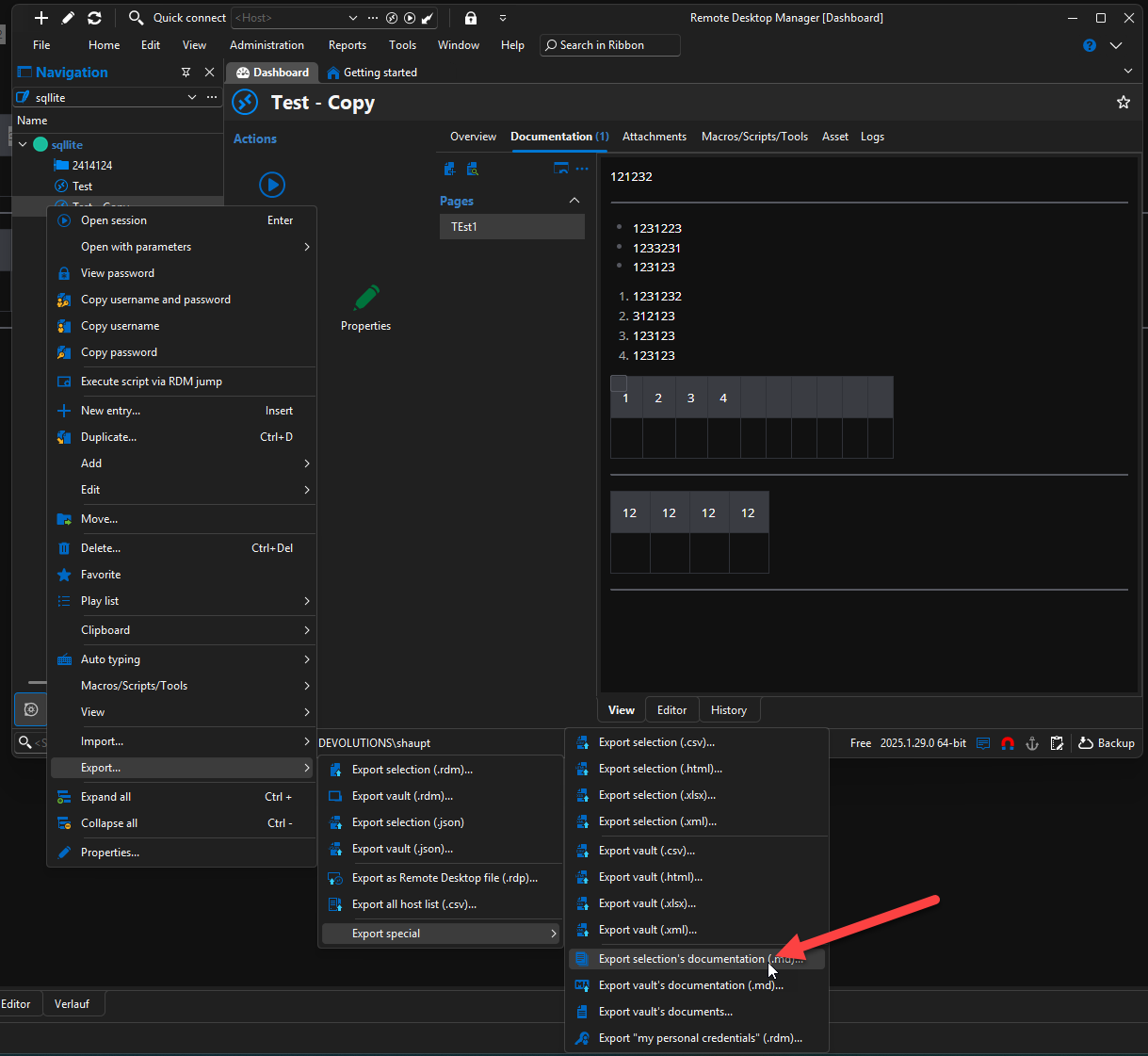
2c3d2598-9596-4b77-9700-843a7ac9ecc6.png
650a0928-b627-4663-8ece-f5f960508815.png
All Comments (4)
Hi,
Thanks for reaching out!
I'll try to reproduce this on my end to determine whether there's a workaround or if this might be a general issue.
Could you please let me know which version of Remote Desktop Manager you're using, as well as the type and version of the data source?
Looking forward to your reply!
Hi Stephan,
Thanks for getting back to me!
I'm currently using Remote Desktop Manager version 2025.1.31.0 64-bit with a Devolutions Hub Business data source (I am unsure how to see the data source version).
Let me know if you need any additional details.
Best regards,
Valantis
Hi Valantis,
Thanks for the info!
I looked into this on my end and I can see what's happening. When you copy text directly from the Documentation tab, the clipboard picks up a slightly different syntax, which can cause the layout in the Template Editor to appear incorrect.
For instance, in the Template Editor, a horizontal line is created using three asterisks (***), but if you copy it from the documentation view, it might appear as multiple underscores instead. This difference can affect how the template is rendered.
The easiest solution I’ve found, for using a existing documentation as a template, is to export the documentation as a .md (Markdown) file and then open that file in the Template Editor. This way, the content and formatting will match exactly, and any new documentation created from that template will look just like the original.
I’ve included screenshots below—please let me know if that works for you or if you run into any issues.
Best regards,
Stephan
2c3d2598-9596-4b77-9700-843a7ac9ecc6.png
650a0928-b627-4663-8ece-f5f960508815.png
Hi Stephan,
Thanks so much — that worked perfectly!