When using Quick Connect and RDP, can I pass saved credentials and keyboard?
When using Quick Connect and RDP, can I pass saved credentials and keyboard?

Hey everyone, as the subject states, when I use quick connect to RDP I have to enter my saved credentials and then the keyboard is not passed to the RDP connections.
I have regular RDP connections configured that way but wonder if possible to configure Quick Connect the same way.
Thanks!
All Comments (4)
Hello,
I would recommend going in File -> Templates -> Entry templates and configuring an RDP template with your Keyboard configuration and other settings. If your credentials are always the same you could also enter your credentials in that template.
Once that is done, you can select your template in the quick connect ribbon at the top by clicking on the icon. This should make it so you open your session with the specified host combined with the configuration in the template.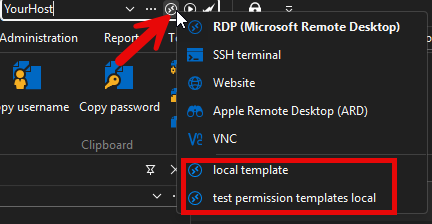
If your credentials change, then only put your other configurations in the template and use the Quick Connect prompt instead. It can be found in the "View" ribbon or by pressing Ctrl + Alt + Q.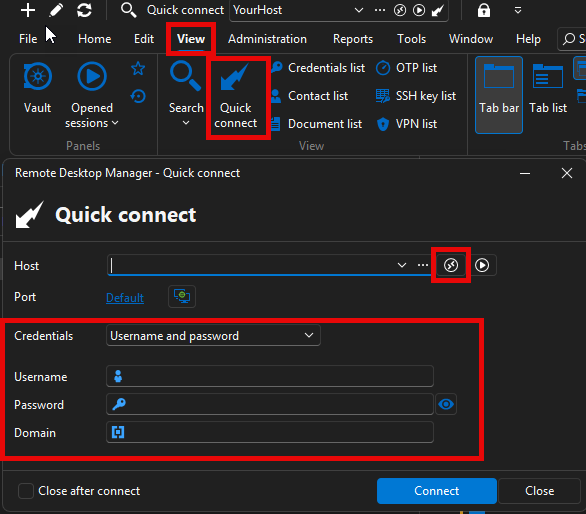
Let me know if this works for you.
Best Regards,
Michaël Beaudin
d4111d5b-9f12-4545-8a2e-a6e9ede36292.png
93ca84a4-b0f9-4f26-a19d-1a371e6ef202.png
Thank Michael, but I am not seeing the same thing.
I created the template File > Templates > Entry templates. Clicked on Add template and entered my user\pass which is always the same, but when I click on the RDP button on the Quick Connect bar I dont have the option to select the template. The last option is VNC: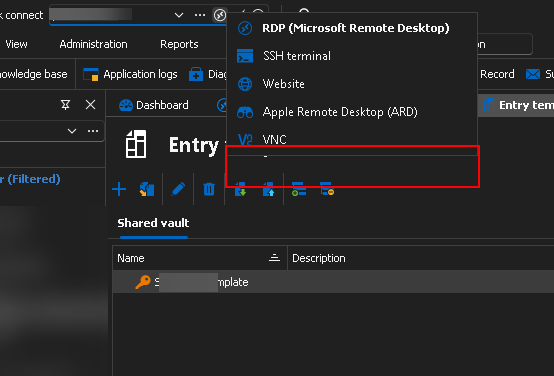
Also is this template saved anywhere where I can see it or do I always have to go to File > Templates > Entry templates in order to get to the window listing the template. And to confirm, no one else but my devolutions logon account can see this?
I would be interested in multiple options in that drop down since there are times where I might need to log in using a different account.
Also does this template override my current configurations on the RDP shortcuts where I go to Edit > Batch Edit > Edit Entries (user specific settings)? Here I enter my saved vault credentials as well as set smart reconnect and keyboard on remote computer.
9bff2819-519c-413e-ada4-eebb44672d2e.png
Hello,
The templates can only be added/edited in File -> Templates -> Entry templates but can be used in many different places in RDM (like Quick Connect, creating new entries from the template, Synchronizers, etc.) .
The File -> Templates -> Entry templates section is only available for administrators or users that have been given the express permission here.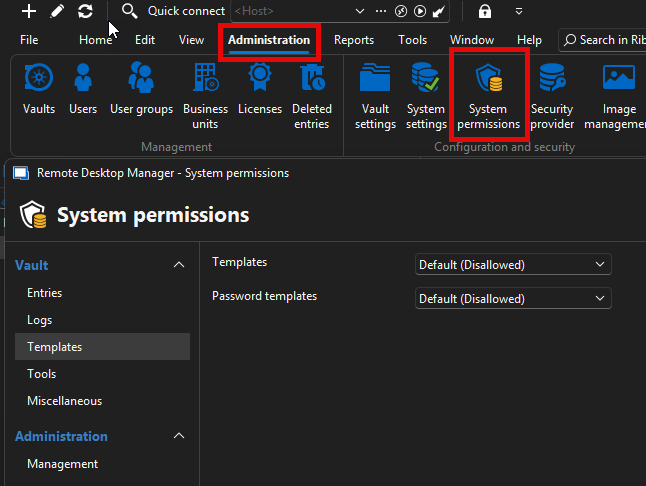
However, other ways to use the templates could be accessed by other users as long as they enough permissions to do certain things in a folder.
In your case what you need to do isn't to create a username/password template but rather an RDP template. You can configure the keyboard settings you were talking about in your original post in that template. This can then be used as a template to open your quick connect or even to create new RDP entries (you will be prompted to select it when adding entries).
When it comes to the credential, if you wish for them to be completely secure from any other users, I would not put them directly in the template. Here are two ways to do it (in your case I believe you might prefer option 2) :
1- Use the RDP template for your keyboard settings and the Quick connect prompt for the credentials.
You can input the credentials by hand as shown in my previous post or even use linked (vault) in the combobox to select a credential entry in your vault. This credential entry could be made to only be visible to administrators and other specific users by setting up the permissions appropriately.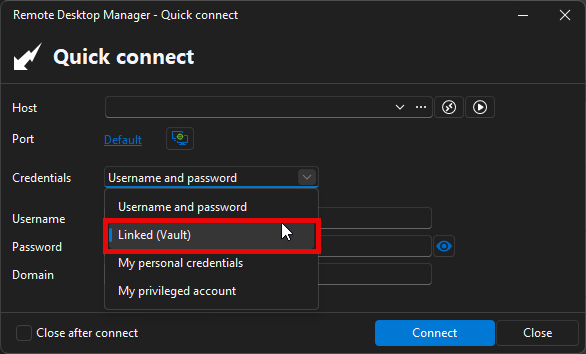
From what I can see, we do not have the "Find by name (user vault)" in the Quick Connect prompt so you cannot link a credential that would be for you only (administrators can always view everything in the shared vault). However, if that is something you need, I believe we could open a feature request to link a credential from the user vault in the Quick connect prompt like we already do in the entry properties.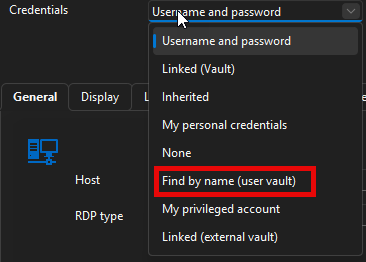
2- Use the RDP template for your keyboard settings and link to a credential in your user vault by name
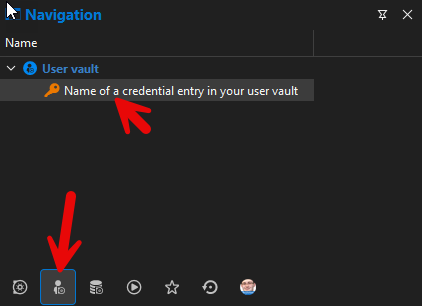
If you select "Find by name (user vault)" and write the name of a credential from your user vault (which is only accessible to you), you will automatically fetch the credentials you wish for from your user vault and no one else will be able to fetch them. If they have a credential with the same name in their own user vault it will use that one but it will never be the one in your user vault as they don't have access to it.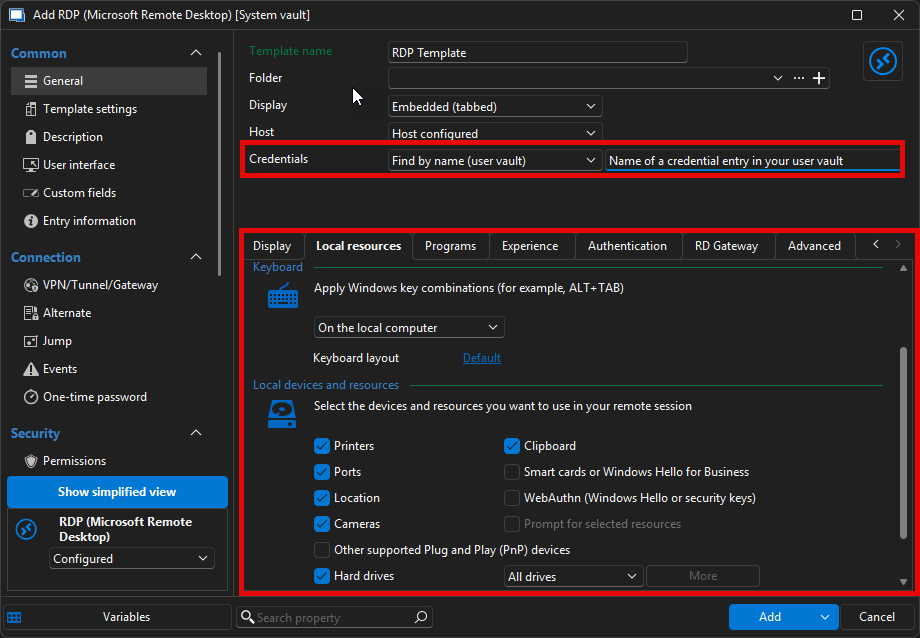
Best Regards,
Michaël Beaudin
2e7bfc20-8266-4e61-9106-c9b710207416.png
ac2ca0ad-96eb-4c53-a51c-948d2fe17dd7.png
2f826fd0-fea4-45c0-a43e-3601616e844f.png
738146cd-f833-4a33-8a50-a16ff4d77597.png
ed942dde-a5d7-41cd-a5e3-2cd59a9a97b3.png
You can also consult the documentation here https://docs.devolutions.net/rdm/commands/view/quick-connect/ as well as here https://docs.devolutions.net/rdm/commands/file/templates/creating-templates/ as it might help with comprehending what I have written.
Michaël Beaudin