Specify fingerprint of key to use for SSH agent

I am using SSH agent (OpenSSH) to configure my SSH authentication. I already have the configuration "working". The issue is that I have multiple SSH keys in my SSH agent as I manage multiple servers and each one of them has a different key. When trying to connect now that I configured multiple connections, I am getting the error "Too many authentication failures", as RDM tries every single SSH key for the SSH agent.
I have managed this for the ssh.exe command by using a config file and specifying the public key for the SSH connection, that way the ssh.exe command just tries the key that matches to the public key configured for the connection.
We need something similar for RDM, as right now I cannot specify the keys, and the thing is I am forwarding the key management (SSH key agent) to 1Password so that the keys remain safe.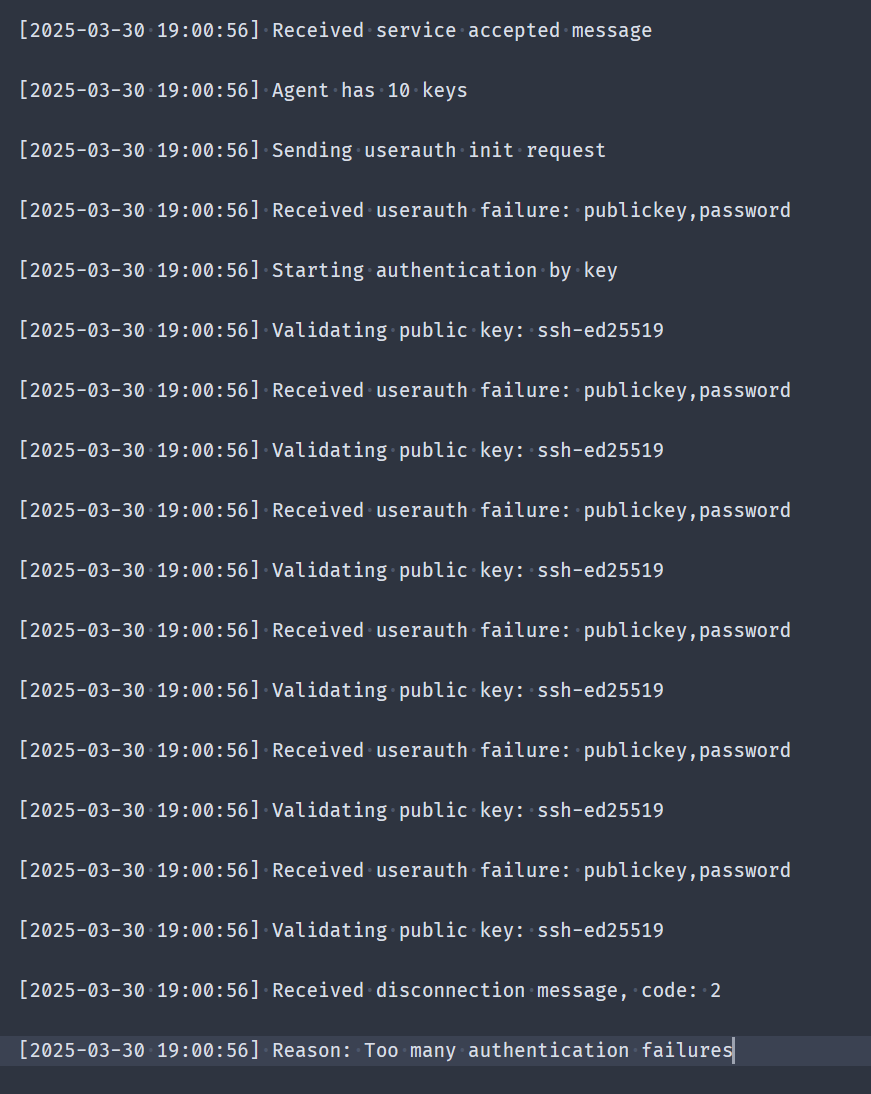
2025-03-30_19h25m07s_sublime_text_XHRzzj5EtE.png
Recommended Answer
Hello,
Thank you for contacting Devolutions Support.
There are multiple ways to configure an SSH key in Remote Desktop Manager.
Option 1: Create an SSH Key Entry in RDM
1. Create a new entry and select SSH Key.
2. Enter your key information in the entry.
3. In your SSH session entry properties, go to SSH Key and set Entry Type to Linked (Vault).
4. Then, select the SSH key entry you just created.
Note: You can also embed the SSH key directly into the entry if you prefer that method.
Option 2: Use a 1Password Entry
If you'd like to continue using the 1Password application, follow the same steps as above, but select a 1Password Entry instead of an SSH Key entry.
When selecting your 1Password entry, you can click Select from List, which allows you to choose the entry once and continue using it for SSH session connections.
If you have any further questions or need additional assistance, please don't hesitate to reach out. I'm happy to help.
Best regards,
Carl Marien
All Comments (3)
Hello,
Thank you for contacting Devolutions Support.
There are multiple ways to configure an SSH key in Remote Desktop Manager.
Option 1: Create an SSH Key Entry in RDM
1. Create a new entry and select SSH Key.
2. Enter your key information in the entry.
3. In your SSH session entry properties, go to SSH Key and set Entry Type to Linked (Vault).
4. Then, select the SSH key entry you just created.
Note: You can also embed the SSH key directly into the entry if you prefer that method.
Option 2: Use a 1Password Entry
If you'd like to continue using the 1Password application, follow the same steps as above, but select a 1Password Entry instead of an SSH Key entry.
When selecting your 1Password entry, you can click Select from List, which allows you to choose the entry once and continue using it for SSH session connections.
If you have any further questions or need additional assistance, please don't hesitate to reach out. I'm happy to help.
Best regards,
Carl Marien
Hi Carl, thanks for your answer. That would work (I would have a copy of the SSH key in RDM, and that certainly works, I tried it). I also did not know (I looked further) that the Free version does not have integration with 1Password (which may have been another option).
I still think it would be a nice feature if we could add which key should the SSH agent use for authentication.
Hello,
You are right To implement a password manager such as 1Password, you unfortunately need the paid version of RDM.
Regarding your other question, you can submit a feature request by visiting our Feature Request forum at the following link:
https://forum.devolutions.net/forums/17/remote-desktop-manager--feature-request
Best regards,
Carl Marien