Disable Active Directory computer browser?
1 vote

In several places in the UI, there is a "meatball" menu (three dots horizontally) that will open a computer browser window. This seems to query Active Directory (AD) for every computer.
In my organization, opening this browser triggers a security warning due to the large number of LDAP queries. It's not a huge deal, but it annoying and wastes time for several people (security folks, me, etc.)
Is there a way to disable this feature? I couldn't find it in the settings but... there are LOT of settings :)
eddb04cb-9585-4ec9-911e-b93fafdaef5a.png
All Comments (6)
Hello,
I looked at the code and I don't think it's possible either.
Would adding a GPO to remove this button work for you?
Regards,
Hubert Mireault
Yes, that would be wonderful! Thank you!
Perfect, I've opened a ticket for this. I'll also move this thread to our Feature Request forum since it's not something that's available at the moment.
Regards,
Hubert Mireault
Hello,
We've added a GPO to hide the browse host button from most contexts.
The GPO's name is HideBrowseHostButton
You can expect this to take effect with the upcoming 2025.1.30 version.
Regards,
Jafran Majeau
Thank you so much for adding this!
It doesn't seem to be working for me, however. Please check below and tell me if I did something wrong?
I installed the 2025.1.30 version. About box: 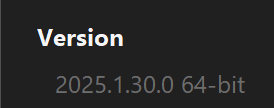
I closed RDM, and used gpedit.msc to apply the GPO for HideBrowseHostButton:
I verified it applied correctly in the registry: C:\WINDOWS\system32> reg query HKLM\SOFTWARE\Policies\Devolutions\RemoteDesktopManagerHKEY_LOCAL_MACHINE\SOFTWARE\Policies\Devolutions\RemoteDesktopManager HideBrowseHostButton REG_DWORD 0x1
I also ran a `gupdate` command. Then I launched RDM again.
However, Quick Connect still shows the browse host button. I didn't try clicking it because I don't want my security folks to yell at me. Did I miss something?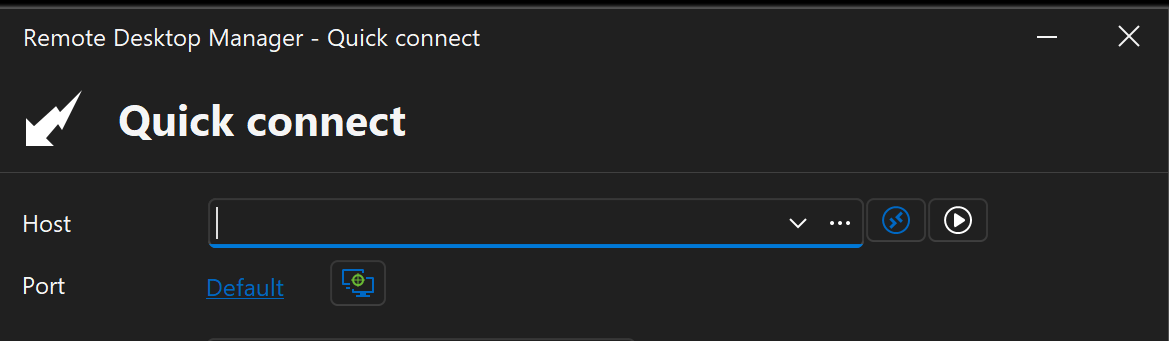
Also, as sort of a related side note, this article needs updating to include the new GPO:
https://docs.devolutions.net/rdm/kb/how-to-articles/group-policies/
In addition, in step 1, instead of:
- Go to your policies subfolder. By default, the path is C:\Program Files\Devolutions\Remote Desktop Manager\Policies\en-US.
It should NOT have the "en-US" as part of the path.
- Go to your policies subfolder. By default, the path is C:\Program Files\Devolutions\Remote Desktop Manager\Policies\
a436f3da-872c-4f42-b500-2cb44842582e.png
73c2e256-591b-42d4-a1b2-8febce9873e3.png
e39b6fc1-f18a-4f5c-849e-e78976d1a48c.png
Hello teridon,
The quick connect bar is handled separately. In fact, it has its own options (File - Settings - User interface - Quick connect). There is even a checkbox to remove the button that is used to browse hosts: Show select host button.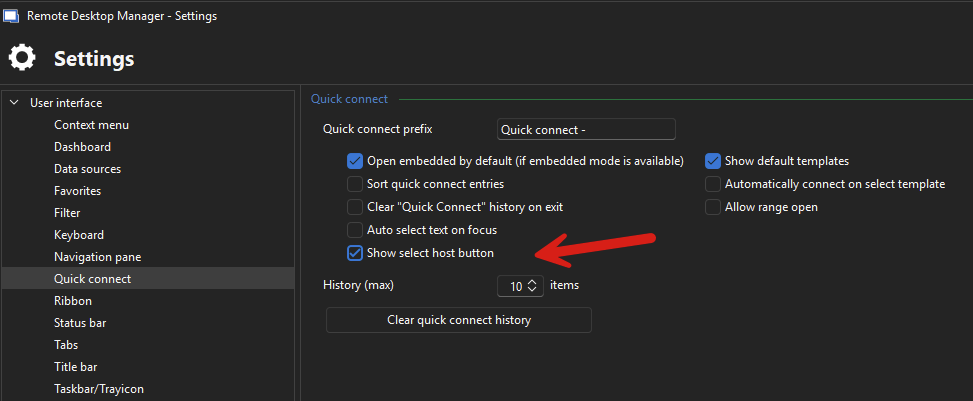
Since your last message seems to imply this is for personal purposes, would this be satisfactory for you? Or would this need to be included in the GPO?
If you'd prefer a GPO that prevents network scanning (which is what browsing for hosts is) to be used as a whole in RDM, there is also the DisableNetworkScan (which hides the browse hosts button, but also goes further and prevent other features that might trigger this "browse host" scan from appearing). This particular GPO also hides the Quick Connect browse host as well.
Let me know if these solutions work for you, or if you'd prefer something else.
Regards,
Jafran Majeau
197192ce-f49a-48fd-8d93-a579c7b957f5.png