RemoteDesktopManager.exe won't run - 2025.1.25.0 (64-bit)

Hey Support,
Encountering an issue with 2025.1.25.0 64-bit. When trying to execute/open C:\Program Files\Devolutions\Remote Desktop Manager\RemoteDesktopManager.exe, the start menu shortcut and the executable file itself both throw a windows path/resource error stating that C:\Program Files\Devolutions\Remote Desktop Manager\RemoteDesktopManager.exe cannot be found. "Make sure you typed the name correctly, and then try again.".
I use PatchMyPC to deploy/upgrade the package for RDM through SCCM, so the installer is based on the 64-bit MSI installation package.
This is happening on Windows 11 (24H2), Windows Server 2019 and Windows Server 2022. I've tried uninstalling the application entirely as well, and manually running the MSI installer -- but the issue remains the same.
Through PatchMyPC, the automatic setup/upgrade of the package is looking at RemoteDesktopManager.exe as one of its specific installation checks, which as a result, causes the upgrades to timeout/abort through SCCM. While the manual installation is working, I do find the same issue with the RemoteDesktopManager.exe -- however, I do find that running RemoteDesktopManager_x64.exehas no problems, and launches just fine. If I update the start menu shortcut created by the installer, and point the target to RemoteDesktopManager_x64.exe, then it works just as expected again.
There is a chance that this is an issue with PatchMyPC rather than RDM, but since I am observing the same behavior on manual installations, I figured I would mention both details.
All Comments (19)
Same problem here. The update process runs normal, but if the updater wants to start the "normal" RemoteDesktopManager.exe, the windows error occurs. We had this issue with also with 2025.1.24.0, so maybe there is a problem with the newest Windows 11 updates... (we have now OS Build 26100.3476)
Hello
That sounds strange. On the face of it, this looks like an installer issue but I'm not quite sure what the problem can be. It's interesting that this was noticed on 2025.1.24 as well, as we did have changes to the installer on 2025.1.25.
Some background: there are three executables deployed: RemoteDesktopManager.exe, RemoteDesktopManager_x64.exe and RemoteDesktopManager_ARM64.exe. These are simple .NET wrappers that just execute RemoteDesktopManager.dll; but the specific architecture lets us run as a platform-native binary on the appropriate architecture. However: RemoteDesktopManager.exe is RemoteDesktopManager_x64.exe; they're the same file as that is 99% of our install base. Only when installing on an ARM system do we swap the ARM64 binary in for the x64 one.
A couple of thoughts:
- To be really clear, when you navigate to C:\program files\... and manually launch RemoteDesktopManager.exe, it doesn't run? What's the error message when double-clicking the file?
- An installer log might reveal some more information. You can open a command prompt, navigate to the directory containing the MSI and run `msiexec /i {remotedesktopmanager.msi} /l*v {path-to-create-log file`. For example. `msiexec /i RemoteDesktopManager.2025.1.25.0.msi /l*v rdm-install.log`. Then run through the installer as normal, and find the log file that was created. You can send this direct to me by PM or to service@devolutions.net mentioning this forum thread in the message.
- @kevz - The other issue with SCCM might be an PatchMyPC problem, or it might be RDM. I'm not familiar with PatchMyPC but perhaps it's possible to invoke the command in a similar way, possibly providing a temp path for the log file, and getting that to us as well. Let me know.
Please, let me know any questions or problems, and I apologize for the inconvenience.
Kind regards,
Richard Markievicz
Hello again
After working through this issue in a support ticket, we see a "Debugger" value present in the registry key "HKLM:\SOFTWARE\Microsoft\Windows NT\CurrentVersion\Image File Execution Options\RemoteDesktopManager.exe". In that case, the value looked like this:
"C:\WINDOWS\IMECache\07897c94-786c-41fa-9b7c-2c8ac91193a9_1\patchmypc-preventstart.exe" /StopProcess /ApplicationName="remotedesktopmanager.exe"
This seems to be value that PatchMyPc adds to prevent the application being launched during an upgrade. It can be safely deleted to unblock this issue.
The question becomes: why did the upgrade fail in PatchMyPc, in a way that prevented it from removing this value itself?
I don't know much about PatchMyPc, but if you can share how you have it configured for RDM I maybe able to spot something. An install log from PatchMyPc would undoubtedly be helpful, but again - I don't know if it's possible to obtain that (i.e. can you modify the msiexec arguments to generate a log file in an accessible location?).
Please, let me know if something isn't clear or you have further questions
Kind regards,
Richard Markievicz
Hi Richard,
Thanks for finding that registry key and getting back to this thread. You appear to be right; furthermore, deleting the key from that registry location allows the application to be launched again.
For reference, attached below is a screenshot of what it looked like when trying to launch RDM either through the start menu shortcut or the .exe file directly.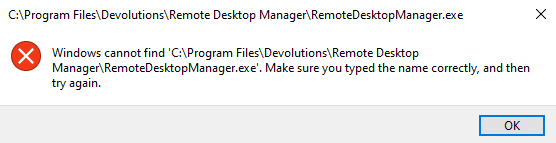
Normally though, there is a different window that displays stating that the executable can't be launched because an upgrade is in progress -- and, when looking at the task manager, it would point back to that patchmypc-preventstart.exe. That clearly hasn't happened here and the Debugger registry key has remained, even after manually installing the application and the SCCM application being detected as installed.
PatchMyPC do a lot of their detection logic via script which gets automatically configured in the SCCM package via the PatchMyPC Publisher agent, so something has possibly changed in that script. I'll raise a case with PatchMyPC support and have them investigate this issue from their side, thanks for your assistance.
0263509a-748d-46d9-9f0e-314bd6e7ef04.png
Hello
If we can help investigate from our side, please let me know. This could be a PatchMyPC problem, or it could be some interaction with the RDM installer; without knowing the PatchMyPC environment it's hard to say. If you can provide any more details on how the installer is invoked, I'm happy to take a look.
Thanks and kind regards
Richard Markievicz
PatchMyPC invokes the installation package using their ScriptRunner engine, more info on that here: https://patchmypc.com/what-is-patch-my-pc-scriptrunner
When the package is synchronized from the catalog and enabled in the Publisher (which integrated into SCCM), the SCCM installation parameters basically just looks like "PatchMyPC-ScriptRunner.exe /InstallPackage".
In the package content directory is the script runner, the installation MSI, a package/content definition XML file, and some other bits and pieces (like DLLs and scripts they use). The installer is pulled from https://cdn.devolutions.net/download/Setup.RemoteDesktopManager.2025.1.25.0.msi. The Package.xml file parses flags that are specific to their scriptrunner as well as handling a bunch of their own parameters -- the only MSI-specific flag this setup passes through is the REBOOT=ReallySuppress flag. The other parameters all look like this:
The <CommandLine> attribute of the Package.xml file (invoked by scriptrunner) looks like:
/MainFile=Setup.RemoteDesktopManager.2025.1.25.0.msi
/MainArg=REBOOT=ReallySuppress
/RecommendedPreScriptPath=PatchMyPC-dotNetCheck.ps1
/RecommendedPreScriptArgument=-Version 9
/RecommendedPreScriptAbortOnFail
/BlockingProcessPolicy=Notify
/UserNotificationTimeout=300
/PreventConflictingProcessRestart
/NotificationPolicy=AutoClose
/FocusAssistPolicy=ShowNotification
/ApplicationName=Remote Desktop Manager (MSI-x64)
/ApplicationID=0d092413-39d9-4420-8a67-9ea0c418909a
/KillProcessList=RDMAgent.exe|RemoteDesktopManager.exe|RemoteDesktopManager64.exe
/registry=Update|SOFTWARE\Policies\Devolutions\RemoteDesktopManager|DisableAutoUpdate|True|DWORD|1
/SdpTitle=Remote Desktop Manager 2025.1.25.0 (MSI-x64)
/UpdateID=7dcb9862-5965-402b-b142-e18fc6442494
And, the PatchMyPC-dotNetCheck.ps1 script looks like:
param (
    [Parameter(Mandatory=$true)]
    [string]$Version
)

# Check to See if .NET Windows Desktop Runtime specified version is installed and if not return Exit Code 1

if ([IntPtr]::Size -eq 4) {
    $Key = 'HKLM:\Software\dotnet\Setup\InstalledVersions\x64\sharedfx\Microsoft.WindowsDesktop.App'
}
else {
    $Key = 'HKLM:\Software\Wow6432Node\dotnet\Setup\InstalledVersions\x64\sharedfx\Microsoft.WindowsDesktop.App'
}

if (!(Test-Path $Key)) {
    Exit 1
}

if ((Get-Item $Key).GetValueNames() -like "$Version.*") {
    Exit 0
}
else {
    Exit 1
}
By the time the scriptrunner invokes the installer, it basically looks as you expect with `msiexec /i C:\Windows\ccmcache\abc123\Setup.RemoteDesktopManager.2025.1.25.0.msi REBOOT=ReallySuppress /qn`. However with this version specifically, SCCM ends up erroring out due to the job timing out. You mention there were installer changes in 2025.1.25 -- this could be related, because if something is preventing the scriptrunner from finishing the processing of the installer (because of a new flag/missing option/something else that is waiting for input), then this would cause the scriptrunner to wait until the semaphore timeout period is reached and SCCM declares the installation as unsuccessful.
Depending on what was changed, this might require PatchMyPC to add in something to the scriptrunner to handle this properly, or maybe we just need to pass-through an additional MSI flag. Could you provide some more details on what changed in 2025.1.25's installer?
Dont know if this is a new topic or if this is related to this problem but I just like to add that the installer for "Setup.RemoteDesktopManager.2025.1.25.0.msi" never finishes!
It hangs at this stage: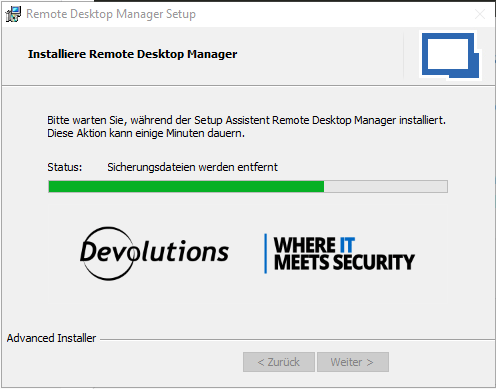
The funny thing is, in that state you can open the application BUT, the msiexec is still running. If you kill the process, something is still present in the system, resulting in any other installation using msiexec to fail stating that "RemoteDesktopManager is in a suspended state, in order to continue changes need to be rolled back"
And when you roll back changes that results in RemoteDesktopManager being completely deinstalled!
I think this was also happening with the 2025.1.24 version. What is going on? Added the install log if it helps.
rdm-install.log
749e24fc-bdf1-421d-b121-e3f5943ab115.png
Hello
This almost certainly seems related to the original thread, thank you for the details. I suspect that in OP's case, the installer gets hung at the same point and this causes PatchMyPC to not properly cleanup it's Debugger.
Thank you also for uploading the logs. I am looking into this currently and I'll post back with my findings.
Kind regards,
Richard Markievicz
Hello kevz
Thanks for all the information, this is very helpful. To my knowledge the only change on .1.25 was a modification to the script that handles ARM64 detection.
I'm assuming that you're hitting the same hang reported above, since the symptoms seem largely the same.
I'm troubleshooting this with all the information given and I'll post back with what I find.
Thanks and kind regards,
Richard Markievicz
Hello
I've been troubleshooting this but haven't come up with anything concrete yet.
The last few lines of the provided install log show this:
MSI (s) (D8:30) [10:53:01:644]: Doing action: InstallFinalize
Aktion 10:53:01: InstallFinalize.
Aktion gestartet um 10:53:01: InstallFinalize.
MSI (s) (D8:30) [10:53:01:651]: Note: 1: 2265 2:  3: -2147287035
MSI (s) (D8:30) [10:53:01:653]: User policy value 'DisableRollback' is 0
MSI (s) (D8:30) [10:53:01:653]: Machine policy value 'DisableRollback' is 0
MSI (s) (D8:30) [10:53:01:661]: Note: 1: 2265 2:  3: -2147287035
Aktion 10:53:01: RollbackCleanup. Sicherungsdateien werden entfernt
MSI (s) (D8:BC) [10:53:01:675]: Invoking remote custom action. DLL: C:\Windows\Installer\MSI1633.tmp, Entrypoint: OnXmlCommit
CustomAction Updater_CustomInstallerDecode_UI returned actual error code -1 but will be translated to success due to continue marking
So it seems like removing the backup files completes successfully; but potentially the installer UI doesn't update past that point.
Next we see a custom action running and failing. This is expected if you aren't using custom installer; and we see that the action failure translates to "success" (not an error).
And then the log ends. The next and final action in the installer is executing the OptimizeRDM script from the install folder, but I'm puzzled why we don't see a corresponding "Invoking remote custom action". Perhaps the log files are not flushed at that point.
I have to wonder if the issue is in this script execution. We've had changes here; this used to be run as a temporary .ps1 but very late in the 2024.3 release cycle (in the final one or two minor updates) I changed this to be called via a .bat wrapper. 2025.1.25 had a further change to the script logic (using Win32 to detect the host machine architecture rather than asking the .NET runtime).
I wonder, did you update through the final 2024.3. versions? Do you recall your last version before updating to 2025.1? Is there anything in your environment that might somehow block .bat or CMD execution?
I'll continue investigating on my side, but this is very strange.
Kind regards,
Richard Markievicz
Hi Richard,
It certainly seems possible that in my case PatchMyPC is getting hung at the same stage, however it is hard for me to know for certain since when I execute the installer to install/upgrade manually, it is working as expected -- though the installer is invoked by PatchMyPC's scriptrunner engine, the msiexec ultimately runs under the system context and is not visible to users or interactive, so I am unsure if this is yet another factor involved with this issue.
To answer your question regarding what version we used previously, we kept the application at version N, so we went from 2024.3.29.0 -> 2025.1.24.0 -> 2025.1.25.0, and so on.
The only other thing that I can think of that might be pertinent information here is that all of the systems involved in my scenario are running the latest versions 8 and 9 of the Microsoft .NET Desktop Runtime. I know RDM now requires .NET 9, which we installed on certain machines for the sake of using RDM, but at present we still have other application dependencies on version 8, so I am unsure if there is maybe some kind of issue pertaining to that.
Hello
Thanks for the input.
I don't think the multiple .NET version is a problem. The installer does call back into Devolutions.Updater.exe to run some tasks, but we explicitly kept the updater as a .NET Framework 4.8.x binary in order to avoid compatibility problems with .NET frameworks at install time.
The changes to the optimization script weren't in 2024.3.x as I thought - it was integrated too late, and came in 2025.1.24. This is my primary suspect for the issue right now; but I can't explain why some users might hit an issue there, and why it might be an issue interactively for some, and through PatchMyPC for others. It's not making a lot of sense.
If I can't put another theory together, I'll start by porting the optimization script back to managed code (i.e. rewrite it in C#) which might fix the issue. The fact that it's a script at all is legacy (it used to run ngen.exe back when the core RDM application was .NET Framework), and porting it back to code would at least remove a headache for me and potentially fix this.
Thanks and kind regards,
Richard Markievicz
Hi,
just throwing in some information on how we got this fixed:
PMC has an open issue for RDM 2025 where they are "looking into it" Devolutions Remote Desktop Manager 2025.1.24.0 require new .NET9
The Solution on our end was to simply preinstall .net desktop runtime 9 on all RDM clients (version 8 is also required as the script PatchMyPC-dotNetCheck.ps1 still checks for it)
PMC creates a file in the package source directory called PatchMyPC-dotNet8Check.ps1, unfortunatly the setup checks for a script called PatchMyPC-dotNetCheck.ps1...
Fixed by changing the filename from PatchMyPC-dotNet8Check.ps1 to PatchMyPC-dotNetCheck.ps1 before distributing via SCCM
If we assume that you are using PMC with SCCM: (Temp fix until PMC refreshes the package or pushes their own fix)
Preinstall dotNet desktop runtime 8 and 9!!
Rename the File PatchMyPC-dotNet8Check.ps1 to PatchMyPC-dotNetCheck.ps1 (get the location from "Content Location" in the Application Entry in SCCM)
Redistribute the content and it should work, good luck :)
Why both dotNet Versions:
As the script is signed we cannot simply edit line 14 from if ((Get-Item $Key).GetValueNames() -like '8.*') to if ((Get-Item $Key).GetValueNames() -like '9.*') (that would have been to easy^^)
If no Version 8 is installed the setup will simply fail.
YMMV, but this is similar to what happend when RDM 2024 came out
Edit: its possible PMC has already made changes as we only sync PMC once per week
Preinstall dotNet desktop runtime 8 and 9!!
Rename the File PatchMyPC-dotNet8Check.ps1 to PatchMyPC-dotNetCheck.ps1 (get the location from "Content Location" in the Application Entry in SCCM)
Redistribute the content and it should work, good luck :)
My RDM package created by PMP Publisher has both the signed scripts for PatchMyPC-dotNetCheck.ps1 and PatchMyPC-dotNet8Check.ps1, where PatchMyPC-dotNetCheck.ps1 is about a year newer than the other, and the new script receives its input as to what the correct .NET Runtime version is based on the parameters passed through via the Package.xml file -- which is correctly set to RecommendedPreScriptArgument=-Version 9 -- so I am not so certain that this is the issue here.
RDM introduced the .NET Runtime 9 requirement with version 2025.1.24.0 release -- prior to the one discussed in this thread. Yes, I was missing it then, and had to go and deploy it after RDM had updated and then couldn't launch because .NET Runtime 9 was missing, but there were no issues after that on that version, and this issue has only crept up with the second release requiring .NET Runtime 9.
Hello
Thanks everyone for their input.
From my side, I still don't understand the issue; the best clue I have to go on is that we modified how we execute the post-installation script in RDM 2025.1.x. I can't explain why that might cause these issues, but it's the best clue I have given it's the only fundamental change on the installer side, and the only install log I've seen essentially breaks at that point.
To be proactive, I'm working on porting that script back to managed code (C#). This is actually beneficial because removing that script clears up some technical debt on our side. I'm afraid these changes were not in time for the upcoming 2025.1.26 but I hope to have them on the subsequent minor update.
I'll post again if I find something else, or when I have an update on that.
Thanks and kind regards,
Richard Markievicz
Hello
Just a short update that I've integrated some changes I hope will fix this. At this point, I don't think the changes are in time for 2025.1.26 but should be in 2025.1.27.
Thanks for your patience. If I think of another solution or workaround in the meantime, I'll be sure to share it here.
Kind regards,
Richard Markievicz
Hello again
RDM 2025.1.27 should have a fix here, please let me know if the problem persists after trying the new version.
Thanks and kind regards,
Richard Markievicz
Hi Richard,
I have synced the update and deployed the updated package to my fleet, and I am no longer seeing the same issues experienced with 2025.1.25.0. It looks like the problem is resolved.
Hello
Excellent! Thank you for the feedback. I'd invite anyone still experiencing issues to post back in this thread.
I still don't understand the issue fully; my belief is that something in the install environment is blocking execution of .bat files (although I don't know exactly how Advanced Installer invokes such files). Since I moved the relevant pieces to the updater itself, there is no more script execution at install time.
Once again, I apologize for the inconvenience and thanks for the troubleshooting help.
Kind regards,
Richard Markievicz