Color Red is Blurry in RDP

Hello, the color red is blurry when connected to a remote desktop. This isn't an issue when using other managers or Microsoft RDP. I've tried every setting I could find, but nothing works. I've attached a picture below, which doesn't quite do it justice to how blurry it actually is..png)
image001 (1).png
All Comments (13)
Hello
What kind of servers are you connecting to? Are the (Azure) virtual machines?
The first thing I'd do, is try disabling AVC444 on a server and see if it makes a difference:
Using the Group Policy Editor (gpedit.msc) and drill down to :
Computer Configuration -> Administrative Templates -> Windows Components -> Remote Desktop Services -> Remote Desktop Session Host -> Remote Session Environment.
Set the following policies to Disabled:
Configure H.264/AVC hardware encoding for Remote Desktop connections
Prioritize H.264/AVC 444 Graphics mode for Remote Desktop connections
You should restart the server after making that change, and see if you notice any difference.
Kind regards,
Richard Markievicz
Hello, these are terminal servers. I'm not going to change anything on the server since the issue only happens when using this application. Using the same device/connection with the default remote desktop program does not have blurry data.
Hello
My apologies - I've misread your OP that this isn't an issue with mstsc.exe.
It's almost certainly codec related, but the question is why it occurs with the RDP ActiveX component. If you open your session in RDM using the "external" option, this will open the connection in mstsc.exe using the settings from RDM. Do you see the same issue?
Kind regards,
Richard Markievicz
Hello
My apologies - I've misread your OP that this isn't an issue with mstsc.exe.
It's almost certainly codec related, but the question is why it occurs with the RDP ActiveX component. If you open your session in RDM using the "external" option, this will open the connection in mstsc.exe using the settings from RDM. Do you see the same issue?
Kind regards,
No problem! Thank you for the replies. Using the external option does not cause the same issue. All text is clear.
Hello
Thanks for the update. There's one more test that would be useful, if you haven't tried this already (I know you said you tried different remote connection clients).
Can you download and try a connection with Microsoft / SysInternals RDCMan? This is a useful comparison point, because RDCMan embeds the Microsoft RDP ActiveX control in basically the same way as RDM. So, this will tell us if the problem lies with the Microsoft RDP ActiveX or some combination of bad client settings in RDM.
Please, let me know if something isn't clear or you have other questions
Kind regards,
Richard Markievicz
Hello
Thanks for the update. There's one more test that would be useful, if you haven't tried this already (I know you said you tried different remote connection clients).
Can you download and try a connection with Microsoft / SysInternals RDCMan? This is a useful comparison point, because RDCMan embeds the Microsoft RDP ActiveX control in basically the same way as RDM. So, this will tell us if the problem lies with the Microsoft RDP ActiveX or some combination of bad client settings in RDM.
Please, let me know if something isn't clear or you have other questions
Kind regards,
Sorry for the late response. I downloaded RDCMan and created a new connection. The color red is crystal clear. I've attached a comparison. The top is with RDM and bottom is RDCMan. In RDM, my display settings are dynamic resolution and default for desktop size. I've tried every combo I can think of and it doesn't clear it up..png)
image001 (2).png
Hello
Thanks for the clarification
By any chance, are you using an ARM-based system? If you're not sure, let me know what it says in the "System" settings panel, under "About > Device Specifications > Processor".
Thanks and kind regards,
Richard Markievicz
Hello
Thanks for the clarification
By any chance, are you using an ARM-based system? If you're not sure, let me know what it says in the "System" settings panel, under "About > Device Specifications > Processor".
Thanks and kind regards,
I have an 11th Gen Intel i5-11400H @2.7 GHz. GPU is a Nvidia T600. HP ZBook G8.
Hello
Thank you
Right now we don't understand why this is happening. We've seen similar problems in the past, but none of the causes line up with your environment.
Just to test something "low hanging", what do you have configured here ("Enable RDP hardware mode)? Does toggling this have any impact?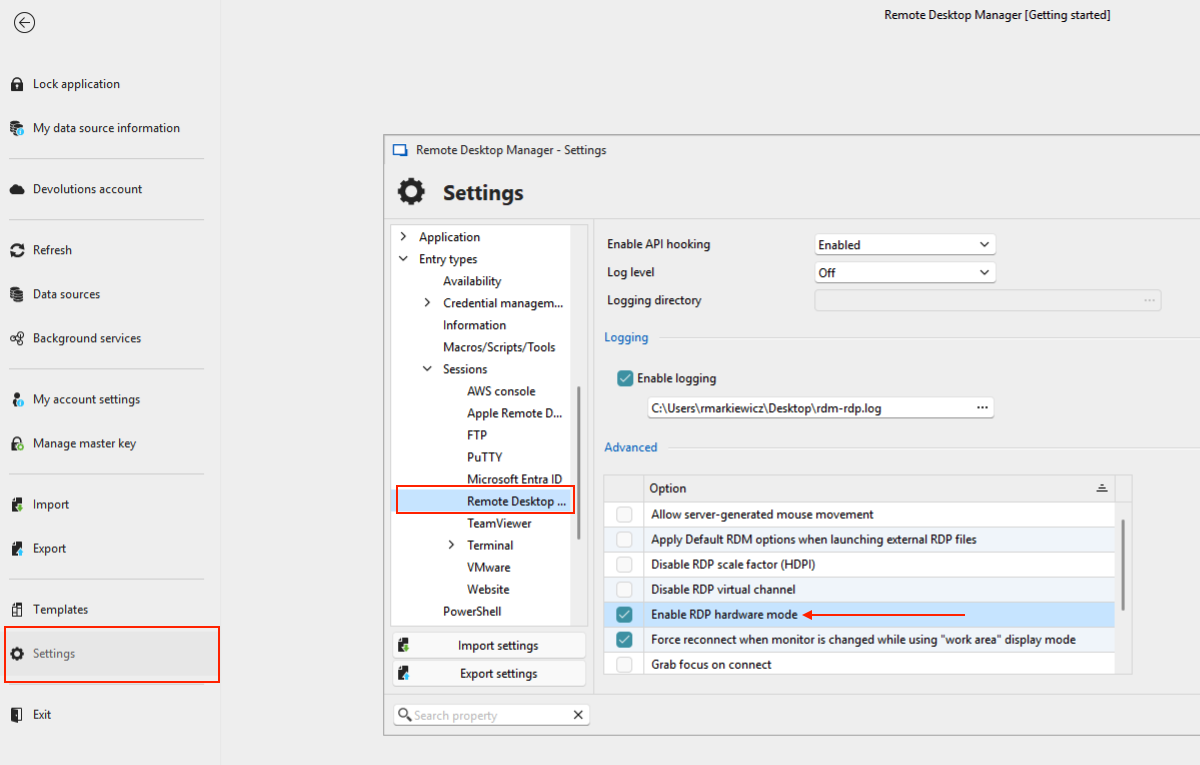
Thanks and kind regards,
Richard Markievicz
Screenshot 2025-02-27 at 13.53.45.png
Hello
Thank you
Right now we don't understand why this is happening. We've seen similar problems in the past, but none of the causes line up with your environment.
Just to test something "low hanging", what do you have configured here ("Enable RDP hardware mode)? Does toggling this have any impact?
Thanks and kind regards,
I tried with this enabled and disable and there was no change.
Other things I've tried:
All options for hardware acceleration
All options for optimize UI performance
All options for display scaling
Persistent bitmap caching
Hello
I still don't understand why this is occurring.
Here's a thought that could help narrow down the issue: can you try alternative RDP applications using embedded mode in RDM?
In the "Advanced" tab of the RDP session, under "RDP Version" please try with both "FreeRDP (Latest)" and "MSRDC". Note that MSRDC requires the "modern" Microsoft Remote Desktop Client to be installed - this knowledge base discusses it and provides a link to install it, if you haven't already.
Please let me know the results.
Thanks and kind regards,
Richard Markievicz
Hello
I still don't understand why this is occurring.
Here's a thought that could help narrow down the issue: can you try alternative RDP applications using embedded mode in RDM?
In the "Advanced" tab of the RDP session, under "RDP Version" please try with both "FreeRDP (Latest)" and "MSRDC". Note that MSRDC requires the "modern" Microsoft Remote Desktop Client to be installed - this knowledge base discusses it and provides a link to install it, if you haven't already.
Please let me know the results.
Thanks and kind regards,
Resolved! Switching to FreeRDP (Latest) cleared up the problem. I didn't try the other version. Thank you for the help!
Hello
Excellent news, I'm glad that FreeRDP is working for you.
This doesn't answer the original problem, so if you'd like to get to the bottom of that we could continue troubleshooting.
I noticed that RDCMan uses a default colour depth of 24bpp, whereas the default in RDM is 32bpp. That may explain the problem, but I'm not sure: modern RDP servers will ignore the colour depth requested by the client and always use 32bpp unless the server is configured otherwise (which I doubt you've changed). Or perhaps you're not connecting to a recent Windows OS version on the server?
Next troubleshooting steps would be:
- With the RDP Version back at "Latest", try setting the colour depth to 24bpp in the display settings and see if a difference is observed
- With the RDP Version at FreeRDP (Latest), go to Settings > Entry Types > Sessions > Remote Desktop (RDP) and under "Logging", enable logging and provide a path to create a log file. Relaunch RDM after saving the changes, try your connection again, and then share the resulting log file with us (either direct by PM on the forum or to service@devolutions.net mentioning this forum thread in the message). Afterwards, disable logging again as it has a non-zero impact on performance.
Otherwise, if you're currently happy with FreeRDP, feel free to simply come back to this thread if you have further issues or questions.
Best regards,
Richard Markievicz