Compatibility with Wallix => missing change password on tree folder or possibility to set secret in password
Compatibility with Wallix => missing change password on tree folder or possibility to set secret in password

I my company we use a Wallix solution to manage servers.
The configuration is possible with Remote Desktop Manager. But it required to have the server name in the user Name. ex:
Host : wallix.global.mycompany
RDP: Normal
User Name : Interactive@serveurName:RDP:A_GROUPADMIN:Login@domain.ad
Password : ********
So if you have 50 servers to joint, the credential couple (user name / Password) change for each server.
And I cannot use the credential manager provide in Remote Desktop Manager with one only user.
So I should replicate the password 50 times in every RDP properties.
It works fine, but every time the password change I have to reapply the password in all the 50 configurations.
It is why I suggest to add one of this 2 fonctionnalities.
=> give the possibility to use a secret key in the password field. It is possible to use a variable in User name (ex Interactive@serveurName:RDP:A_GROUPADMIN:$USER$@domain.ad) but it do not work for the password.
=> or give the possibility to replace the password (and only the password) in all the configurations store in a folder (recursively) or at the Local DataBase level.
Perhaps there is an other simple way to manage it, but I don't find it.
All Comments (6)
Hello Gwen,
Thank you for reaching out to The Devolutions support team.
You can use a variable in the password field; however, due to potential security concerns, this feature is not enabled by default.
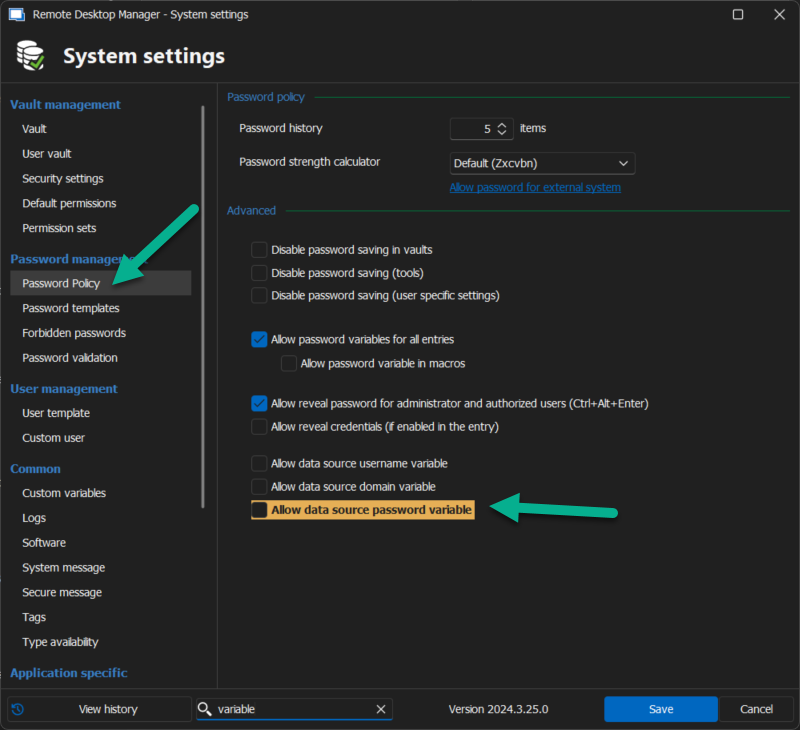
To allow the use of a variable, navigate to Administration -> System Settings -> Password Policy and select "Allow data source password variable." Additionally, you can review the other options available for the password policy.
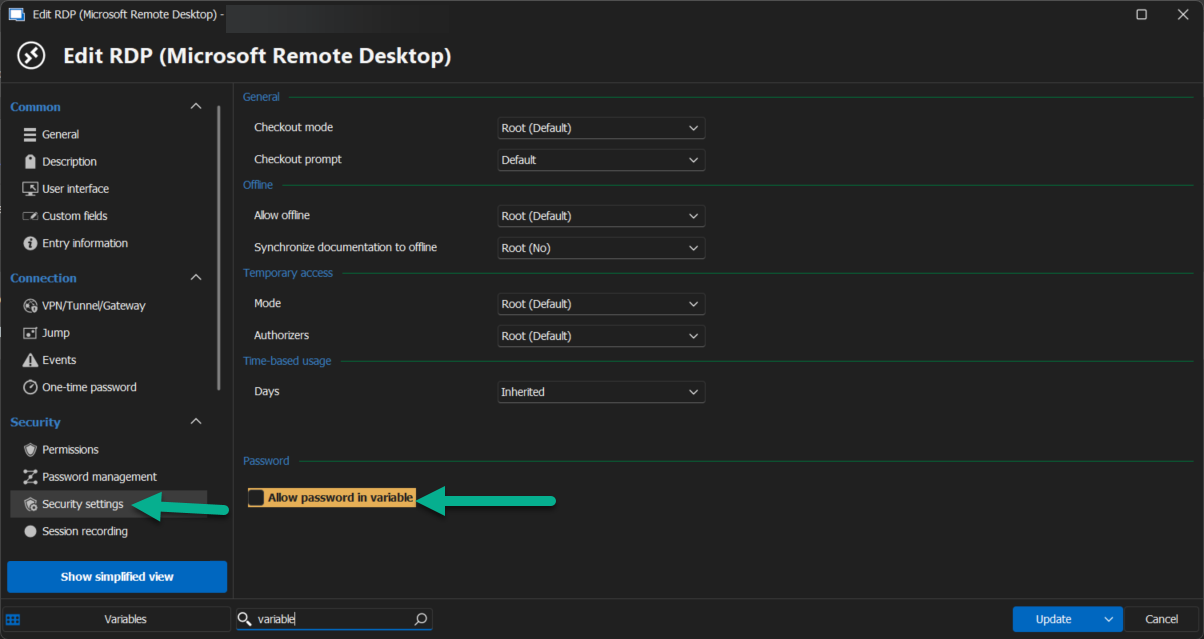
These settings also need to be adjusted under the entry properties. You can find this under Security Settings -> Allow password in a variable.
You can use the built-in variable or create your own custom variable for added convenience. More information on this can be found here: https://docs.devolutions.net/rdm/kb/knowledge-base/manage-custom-variables/.
Please let me know if this solution works for you.
Best regards,
Patrick Ouimet
2025-01-10_11-22-27.png
2025-01-10_11-21-42.png
Hi,
I do not understand because in menu "Administration" I do not have "System settings":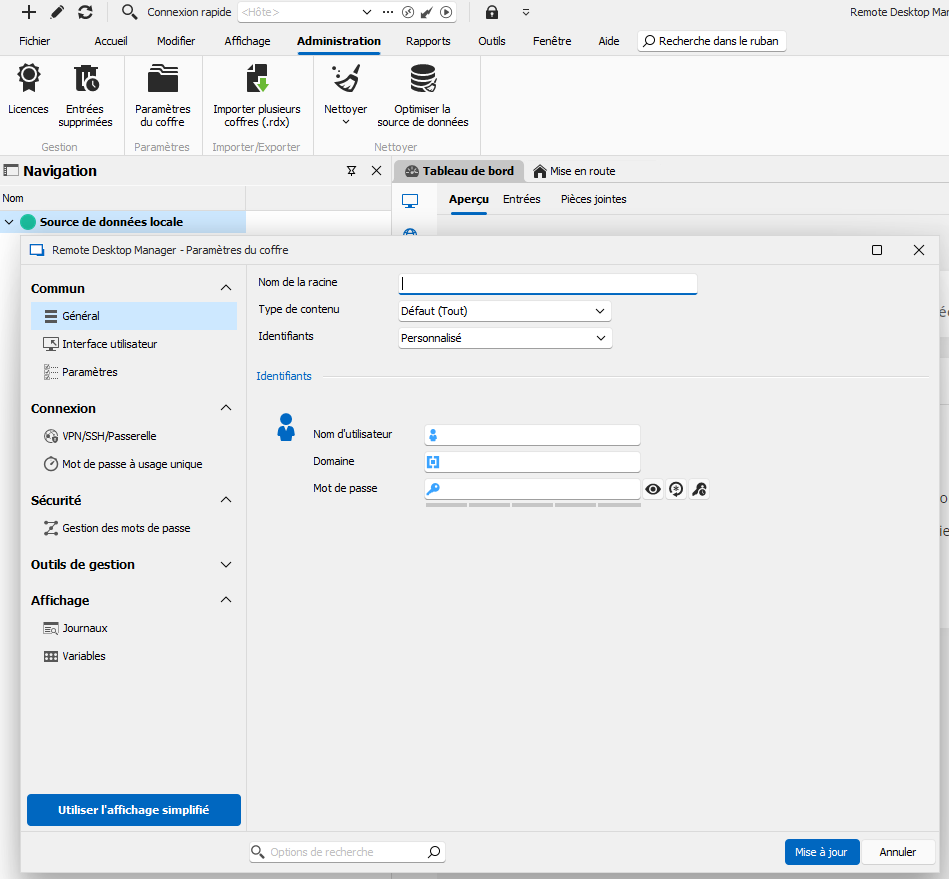 So I cannot enable the option "Allow data source password variable."
I use the version : 2024.3.25.0 64-bit in French
I have test the option "Allow password in a variable" but it do not work, probably because I can't find enable the option "Allow data source password variable."
a56a4344-385c-410c-ba9c-975b146c8df9.png
Hello,
The system settings feature is available when you are connected with an administrator account.
Is it possible that you are not an administrator in RDM?
Best regards,
Jeff Dagenais
Hi,
I ran RDM as administrator with the same account used to install the application, but I have the same problem.
Is there anything specific I need to do to be declared as an administrator in RDM?
Hello Gwen,
Thank you for your feedback.
I wanted to clarify that the administrator -> system settings are not available for local data sources. However, this does not mean that this feature is unsupported for this type of data source.
I am currently investigating this matter further, as I have encountered some behaviour that requires deeper examination.
I will keep you updated and let you know as soon as I have more results.
Best regards,
(Note: We also have a French forum if you would prefer to communicate there.)
Patrick Ouimet
Hi @gwenaelfillon ,
In case you're still looking for a way to manage Wallix RDP entries in RDM, here are the settings I'm using :
A single Credential entry with Username as $CUSTOM_FIELD1$ and password with the real password 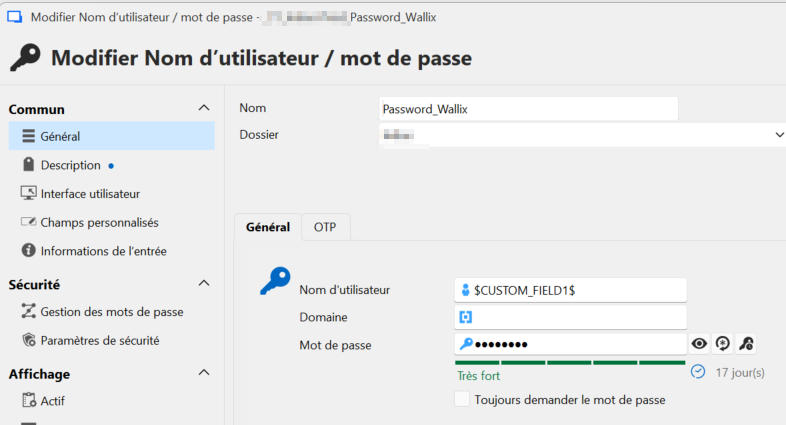
And in the RDP configuration : linked credential and host set as Wallix host FQDN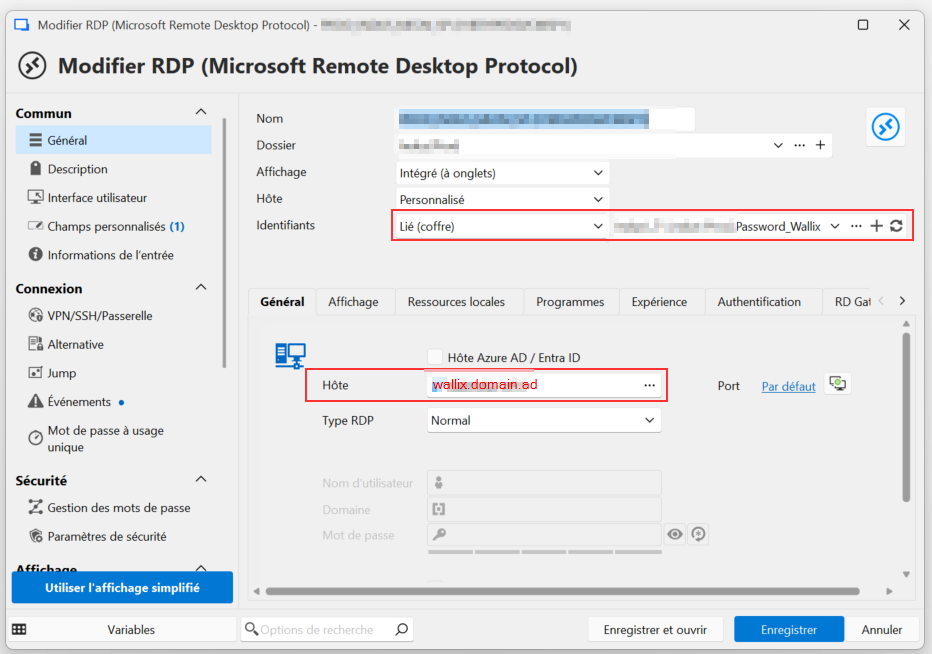
And in custom field 1 : the whole connection string :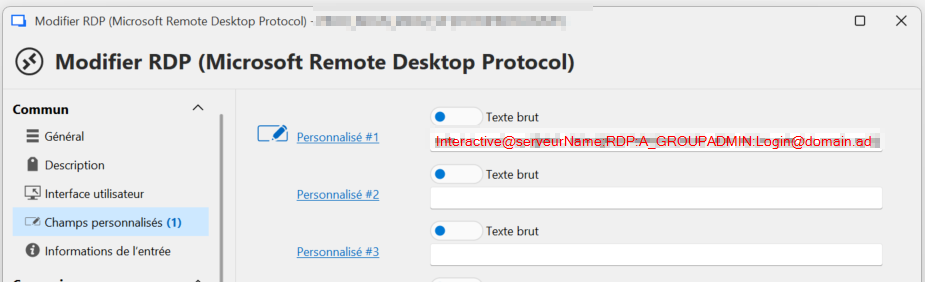
With these settings, you only need to change your password in the Credential entry when needed.
Hope this helps 😉
051a1178-40ca-4705-a590-fa0cae52af76.png
468547e5-2f76-4299-b4bb-3f4e8a96c617.png
969dcc7d-37c4-4cfd-b894-9ec28c39d93e.png