Unable to Remote Desktop into Mac Mini M4 running Sequoia

Well it seems Apple has done it again. I have been reading that they have changed the remote session requirements when in the past I have been able to set up remote management and get right in the Devolutions RDM with a simple VNC connection.
I have tried VNC and Apple connections from within the Dev RDM and instantly received a failed connection message to the configured IP address instantly. I can ping the machine and even SSL into it, but no RDP connection works. it is one the same network, and still nothing. I have tried multiple configuration settings within the Mac Mini M4 and currently have the following set:
Remote Management: On
Always show Remote Management Status is menu bar: On
VNC Viewers may control screen with password: On
Password: Set up
Allow Access for: My usernem with all options on.
Remote Login: On
Allow full disk access for remote users: On
Allow Access for: My username with all options on.
My temporary workaround has been a trial of RealVNC Server but as an instructor, I certainly to not want to have to spend a ton of money to get into one machine remotely.
Any help is appreciated and thank you so much for an amazing product.
All Comments (10)
Hi emagidson,
Are you able to connect to the computer using the Screen Sharing application on your Mac? Also could you please provide the specific error message (text or screenshot) you are getting when attempting to connect with RDM.
Regards,
Sébastien Duquette
Hello
Further to what my colleague wrote, did you update your client (the machine running RDM) to Sequoia?
It might simply be that you need to enable "Local Network Access" for RDM in the system settings > Privacy and Security > Local Network tab: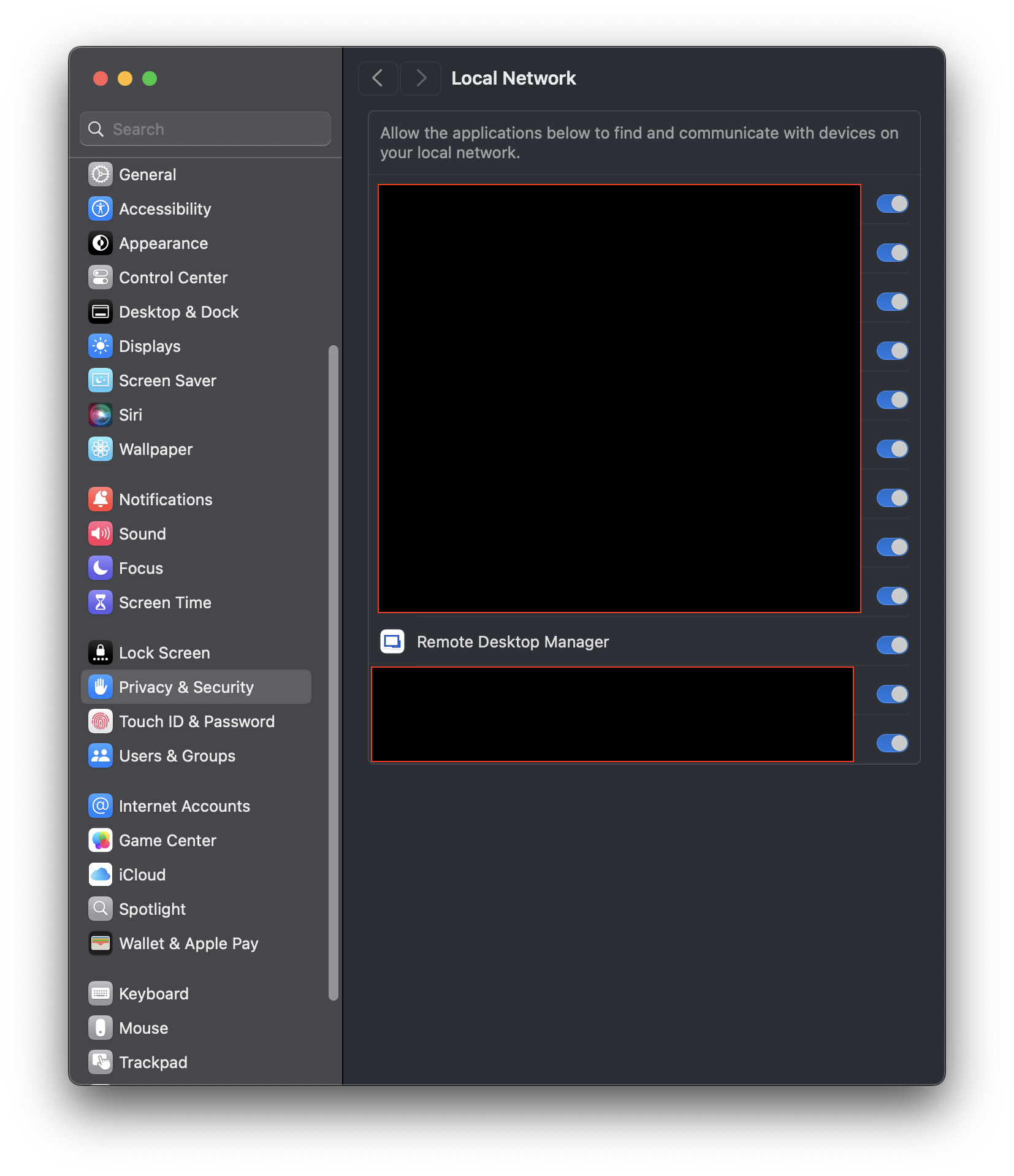 Please, let me know if something isn't clear or you have additional questions
Kind regards,
Richard Markievicz
Screenshot 2024-11-07 at 11.41.01.png
So, I have created a short video showing all the settings on the brand new Mac Mini M4 regarding remote desktop and remote login. Again, I am on a Windows 11 PC on the same network trying to RDP from Windows into the Mac. I also demonstrate that I can ping, traceroute, and ssh successfully into the Mac. However, I am not able to use VNC Viewer or Dev's Remote Desktop Manager Via ARD or VNC, which is also demonstrated. Not sure where log files might be but it you can guide me to them, I will provide log files.
https://app.screencast.com/RpdBM9MppDt8a
Thank you so much for the help.
Hi Eric
Thanks for the great and detailed screencast which really demonstrates the setup and issue very well. Also, shout out to your desktop background - Go bobcats!
So first, my earlier post was a red herring. Since we're on the Mac section of the forum I had thought you were connecting _from_ RDM Mac; apologies for not clarifying this but it's clearly not the case. So you can disregard that.
Let's look at the diagnostics and verify what the error actually is.
In RDM, go to File > Settings > Entry Types > Sessions > Apple Remote Desktop (ARD) / VNC
Under the "Advanced" group, check "Enable logging for ARD and VNC" then provide a path to save the log file (e.g. c:\users\rmarkiewicz\desktop\rdm-ard.log)
Save the changes, close RDM completely and reopen it.
Then go ahead and reproduce the issue. You'll find the log file generated at the given path, which you can send to me by PM on the forum or by email to service@devolutions.net (mention this forum thread in the mail so it gets routed easily).
Afterwards, disable logging again in RDM - it has a non-zero impact on performance and it's better that we don't forget and leave it enabled.
Please, let me know if something isn't clear or you have further questions
Kind regards,
Richard Markievicz
Richard,
I will get back to you as soon as I can to resolve this challenge. I just have too many obligations and deadlines at the college. I just wanted to provide a quick reply. I will try to get to this over Thanksgiving break.
Hello Eric
Thanks for sending the log files through to support. I've had a chance to take a look.
Overall, this is very strange: the initial connection to the server is established, and the first part of the VNC handshake is completed (the server and client exchange their respective VNC versions). The next step is that the server sends it's supported security types, and here we fail trying to read the data from the server. Either the server is dropping the connection, or there's another TCP level error happening; I suspect the first but the logs don't have enough fidelity to tell me.
Since you got the same issue connecting with RealVNC, it doesn't seem like a client issue - but the fact that you _can_ connect with Screen Sharing from another Mac suggests that the server is set up fine. Overall I'm quite confused, this is not something I've seen before.
I'd really appreciate it if you can make a packet capture showing the connection attempt and forward it to me (again, either by PM or to service@devolutions.net mentioning this forum thread).
On your Windows machine, open an elevated terminal (either Windows Terminal, Command Prompt or PowerShell - right-click, "Run as administrator") and run the following commands:
pktmon filter add vnc -p 5900
pktmon start -c
This will start a packet monitor for traffic with a source or destination port of 5900. Keeping your prompt open, switch to RDM and attempt the connection. Once it fails, switch back to your prompt and run
pktmon stop
This will flush the capture and show you where the file was written. Normally it will be the current directory and named "PktMon.etl", e.g. 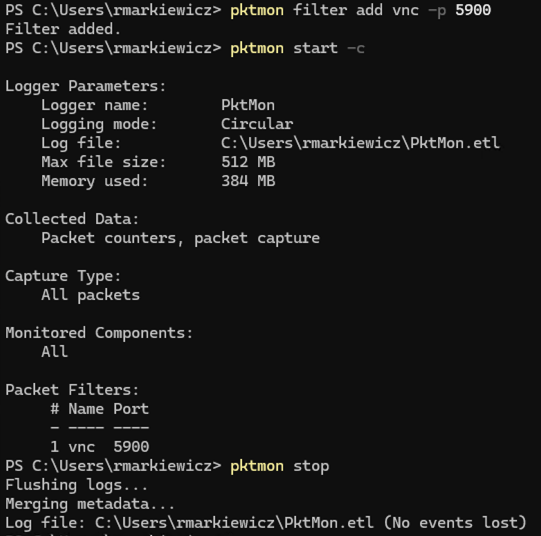
Finally, you can convert the .etl file that was produced into pcapng format
pktmon etl2pcap C:\Users\rmarkiewicz\PktMon.etl
(Obviously replacing the path with the correct one)
This will produce a corresponding file with a .pcapng extension, which you can send to me.
I really appreciate your help here, I'm eager to get to the bottom of this. If you have some questions or something isn't clear, please don't hesitate to get in touch.
Thanks and kind regards,
Richard Markievicz
Screenshot 2024-12-02 at 10.53.59.png
Hello Eric
Thanks for sending the files over. I'll continue to reply on the forum if that's ok for you, as it gives better visibility to other members of the community.
Overall this is extremely strange. I won't post screenshots since I see you're familiar with WireShark, but what we observe is this:
The first part of the VNC handshake looks roughly like this:
- Server sends protocol version (12 bytes)
- Client sends protocol version (12 bytes)
- Server sends number of supported authentication types (1 byte)
- Server sends authentication types (1 byte * number of supported authentication types)
In your case, in the second message (client sending it's protocol version) we see that the packet length is doubled and the protocol version is written twice. The server almost certainly doesn't like this, and drops the connection.
What I'm struggling to understand here is why. In the client code, things are very simple at this point and I would call what we have very robust - this certainly isn't something that's come up before, and both myself and our CTO are really surprised by the contents of the capture file. On our side, we're simply dealing with basic TCP and fixed buffers at this point: open a socket, read 12 bytes, write 12 bytes; that's all.
I of course will not rule out a bug on our side, but the fact that a third party VNC client is also not able to connect is really suspicious and points to something else going on here.
I'm not sure a packet capture from the working machine (another Mac running ScreenSharing.app) will be helpful, since we expect everything to look normal.
What could be helpful are two things:
- Can you try the same connection using another third-party VNC client on your Windows machine (eg. VNC Viewer) and generate a corresponding capture for that? Let's see if the same thing happens, or if it fails for some other reason.
- Can you try using a different network adaptor? Perhaps ethernet if you're currently on Wifi, or vice-versa?
As always, please let me know if something isn't clear or you have further questions.
Kind regards,
Richard Markievicz
Have you turned off file vault encryption? Privacy & Security > Security > File Vault. If file vault is on, you can't connect unless the machine is already logged in.
If it's been rebooted or sitting on initial lock screen, you can't remote in.
I wanted to follow up on this support request to inform everyone that this issue seems to have been resolved with the latest update to the MacOS Sequoia 15.2 (24C101). I am now able to use Remote Desktop Manager. I thought I would note a few things here.
- As @kinglau mentioned, File Vault was off and does need to be off for RDP of any type to work, it appears.
- The settings for Remote Management are as shown here. https://app.screencast.com/Za9VUVVLJ43tl
- Only Remote Management is: On
- None of the other settings need to be on.
- This works for leaving access to Administrators or setting an individual account for Remote Management.
- I am running the Mac Mini M4 in a headless mode, which works fine.
- Set not to allow to sleep.
I hope this might help someone else, but as stated above, this seemed to be a MacOS issue fixed with the last update.
Thank you again for all the help,
Eric
Hello Eric
Good news indeed! It's not uncommon for macOS to have tweaky issues like this in the first iterations of major releases, although this is the first time I've seen something like this.
I'm glad the problem is resolved. Please don't hesitate with further questions or comments.
Kind regards,
Richard Markievicz