Change autocomplete function in browser when using Yubikey
Change autocomplete function in browser when using Yubikey

When you press the yubikey after authenticating with username+password in Edge/Chrome etc. it asks if you want to save the password. Since this is no password it should not ask to save the random string from the physical key.
Change the flag for the field from autocomplete="one-time-code" to autocomplete="off" solves this issue.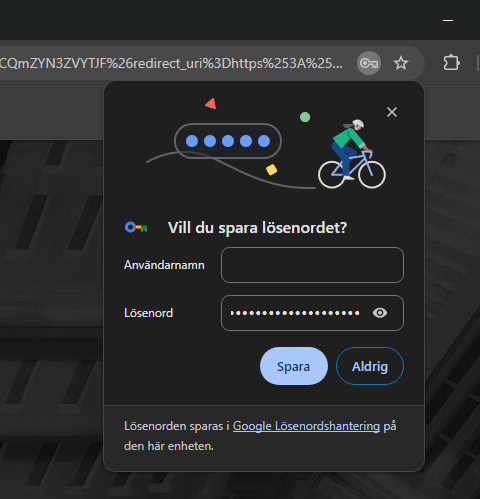
Passwordsave.png
All Comments (5)
Hello Jakob,
Thank you for contacting us on that matter!
Could you provide us with the following information?
- On which website of Devolutions are you connecting when using your Yubikey? Is it a Devolutions Hub, Devolutions Portal, Devolutions Server, etc?
Thank you for letting us know. If you have any other questions, feel free to let us know.
Best regards,
Maxim Robert
Hi!
Devolutions Server :)
Hello Jakob,
Thank you for your response!
The prompt you sent in your first post is related to Edge/Chrome and not related to Devolutions. Unfortunately, to my knowledge, this is more related to the settings of Edge/Chrome than Devolutions Server.
I suggest verifying the settings of your Browser. If you have any other questions, feel free to let us know.
Best regards,
Maxim Robert
Hi!
Yes indeed that flag is a function in Chrome/Edge. However you should be able to change the function of this field: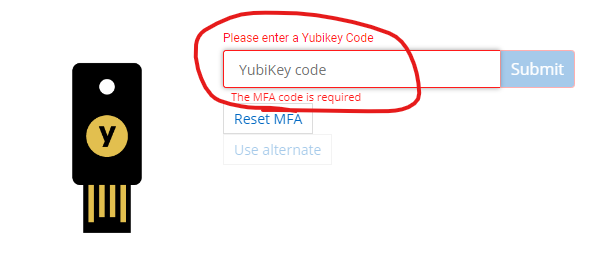
To something that Edge does not recognize as a password. As posted in the first post changing the fieldfunction in the developer tools in Edge solves this issue.
I'm not sure of the solution here, but it should be possible to change that fieldfunction on the webpage config on the site that opens when you authenticate into DVLS.
1ba2bce6-6f2d-4d31-bd1c-fee6b2882806.png
Hi Jakob,
You're right, Google Chrome tends to ignore the autocomplete=off attribute. We'll look into that. In the meantime, you could disable the password save prompt on Devolutions Server using this procedure.
- Open Chrome.
- At the top right, select Profile > Passwords .
- If you can’t find the Passwords icon, at the top right, select More > Passwords and autofill > Google Password Manager.
- On the left, select Settings.
- Turn Offer to save passwords off.
Hope that helps 😉
Matthieu Goulet