Custom Reports and Fields

Hi
What is the easiest way to create custom reports in Remote Desktop Manager?
I found a KB which shows the below screenshot, with what appears to be manually entered field names. If this is the only (easiest) method, how would I obtain a list of all available field names that I can use in the Fields box?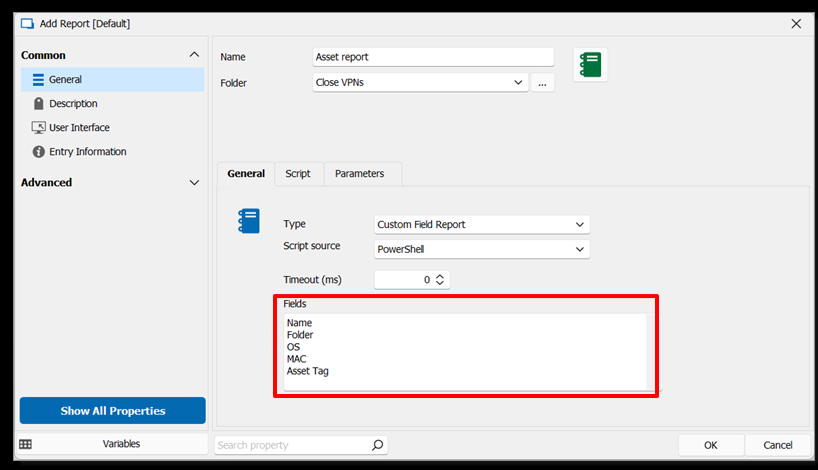
One of the reasons why I need a custom report, is because your built-in reports like Asset Overview doesn't include certain fields, like for example Asset Version. And I'm also assuming that one cannot make any changes to these built-in reports (Nor are we allowed to create a custom report using the built-in ones as a template).
a213092b-c0bd-4162-9d8a-e397b8784d2a.png
All Comments (5)
Update: I've also looked at importing the data from the SQLite database directly into Excel. But similarly, I cant seem to find the asset information in the DB at all. The "Inventory" table is blank. What tables are meant to store the asset information that I enter in RDM?
Hello,
Thank you for reaching out to Devolutions support.
I assume you are following this documentation: https://docs.devolutions.net/rdm/kb/rdm-windows/knowledge-base/configure-report-entry-type/
Could you please share the script you are trying to use? In the meantime, I will work on finding a list of all the items you can include.
Best regards,
Carl Marien
Hi Carl
I'm not really wishing to write complex scripts. I was hoping that I could merely easily cobble together a custom report with the fields I need (particularly asset info fields).
So for example, if I look at your built-in Asset Overview report, it doesnt export all the columns I need (It excludes fields like Asset Type, Asset Version, and several others). Is there perhaps not an easier way to merely add the additional columns to the current report. Or exclude certain columns?
If this is not possible, do you perhaps have a detailed video as to how to apply the information in the KB you mention?
Current Asset Overview report:
706d685e-fe71-41bb-ad20-c37d5da8eccc.png
Hello,
Thank you for your patience.
Regarding your situation, there are two solutions:
• Use the preconfigured asset report: https://docs.devolutions.net/rdm/commands/reports/
• Or Find the necessary values you want to use and build the report manually https://docs.devolutions.net/powershell/rdm-powershell/powershell-scripting/tips-tricks/ https://docs.devolutions.net/powershell/rdm-powershell/create-custom-field-report/
Best regards,
Carl Marien
To create custom reports in Remote Desktop Manager, you can manually enter field names in the report builder. To obtain a list of all available field names, check the documentation or user guide for Remote Desktop Manager, as it often includes detailed information on available fields. Unfortunately, built-in reports like Asset Overview cannot be modified, and they don’t serve as templates for custom reports. Struggling with my coursework led me to domypaper.com and it turned out to be one of the best decisions I’ve made. Their team is incredibly helpful and knowledgeable. My paper was not only well-written but also delivered promptly!