PowerShell script and identifying gateway tunnel local bind point
PowerShell script and identifying gateway tunnel local bind point

Hello,
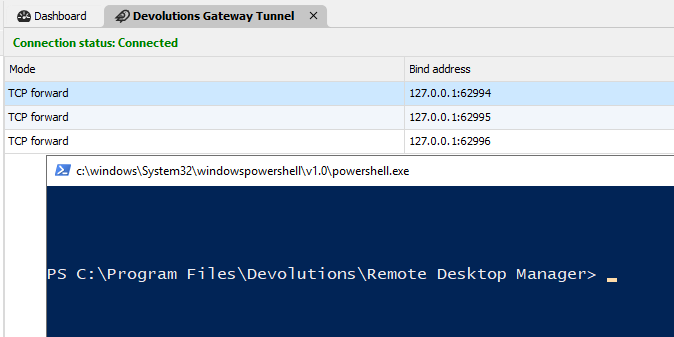
Is there a variable or way to identify the local gateway tunnel bind point/s for a Powershell entry? For example, if a locally launched powershell entry needs to create a PS remote session to a destination via a connected gateway tunnel, how can the powershell script identify the local dynamic port created by the gateway tunnel connection.
The use case is being able run a Powershell script locally that uses a gateway tunnel to create a PS session on a remote system that is only accessible via the gateway. The console output of that PS remoting session would then be accessible to the locally running script, to be saved on the computer where the entry was originally launched with RDM. For example, if RDM is running externally, and it needs to query running processes an internal server via a gateway tunnel, and then save the results to a file on the local/external computer (or maybe present a File Save dialog/form).
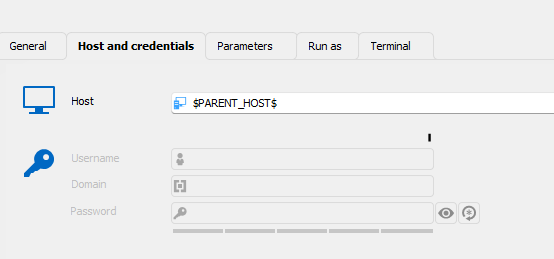
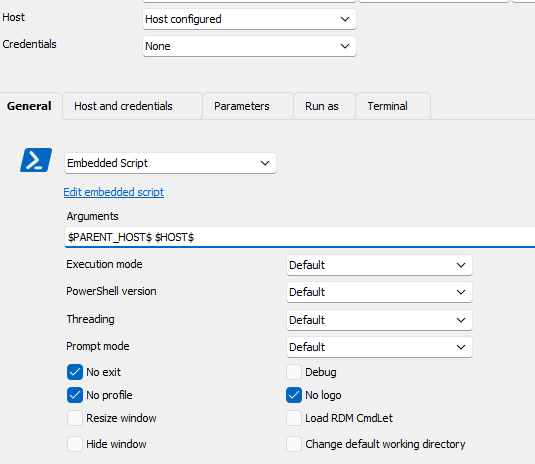
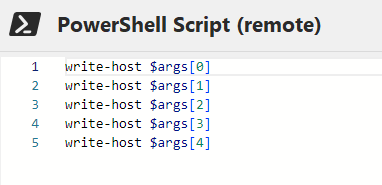
There is an option to override the $PARENT_HOST$ variable in the settings for the gateway tunnel in the properties of the entry, but no data/value is passed into the script if that variable is configured as an argument or as the HOST property. Also, for an entry that uses a gateway tunnel I imagine the host is allways going to be 127.0.01, instead its actually the port number of the tunnel connection that is needed
Please let me know if you woudl like more info.
Thanks
Joe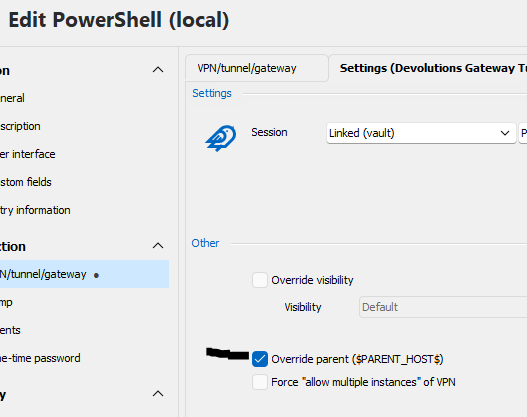
96e14eb2-c010-4321-8d50-f702938db3dc.png
020593dd-f9fd-4e09-ba33-5864473a448b.png
17ba1e8e-72d7-4de6-9929-14527521afde.png
f648270b-3f7b-43ca-a5e5-5f47a9232a33.png
f2da33a0-3e2e-43e4-adbf-5a2058380c16.png
All Comments (10)
Hello,
Thank you for reaching out to us about this matter!
Since the dynamic port is only opened after the connection is launched, it is not possible to retrieve this port from our PowerShell module. We recommend configuring a port manually on the Gateway tunnel instead.
As for saving an output on your local machine, we found this discussion online that might help: https://community.spiceworks.com/t/save-output-from-a-remote-machine-with-invoke-command-to-a-file-on-the-local-pc/958391/3
Best regards,
Hi William,
Thanks for your assistance with this. Using a static port for the bind address will be a succifient workaround for the timebeing, but maybe problematic in cases where the respective port is allready in use on the machine running RDM.
Regarding the option on the Tunnel settings for an entry, what does the 'Override parent ($PARENT_HOST$) do?
Thanks
Joe
Hi William,
Another question, is there any way to access the console output of a script and use it in an event. For example, being able to use a variable called $RESULT$ in a 'before close' event of type powershell for a 'remote powershell script' entry?
Thanks
Joe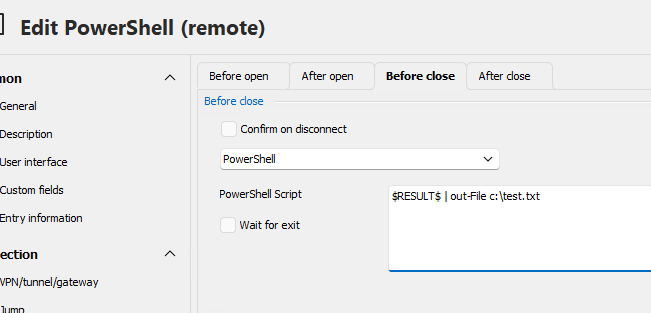
d679bfa1-e03d-4ac2-b840-b7dd3fe94746.png
Hello,
The "Override parent ($PARENT_HOST$)" option is to replace the $PARENT_HOST$ variable if you are using it in your entry.
As for the output, it is not possible to retrieve the output and use it in the Before Close event. You could however modify the script to save the output in a file and use the Before Close script to read that file.
Best regards,
Thanks William.
Re the "Override parent ($PARENT_HOST$)" question, what I'm actually asking is what value is being used for the override? The gateway tunnel type entry doesn't have a host property, so I'm not sure what is provided to an entry that uses the $PARENT_HOST$ variable when it connects via the tunnel.
Re output results saving to file, the challenge is when the script runs on remote host via tunnel, there is no way I'm aware of to save it back to the local machine running RDM.
Joe
Hello,
I've tested it multiple time, and I'm unable to get this working or to find which value is supposed to be used to override the variable, I'll have a chat with our development team and see what it is supposed to use.
Best regards,
Hello,
The value used is supposed to be the Host field of the VPN. Since the Gateway Tunnel doesn't have a Host field, it stays empty.
Best regards,
Hello,
Remote PowerShell can access your local drives, but not in the same way that a shared folder or Remote Desktop Protocol (RDP) would. Here's how it works:
Remote PowerShell Access to Local Drives:
PowerShell Remoting: When you use PowerShell remoting (e.g., via Enter-PSSession or Invoke-Command), you're executing commands on the remote machine. However, you can also access your local drives by creating a session variable or by explicitly referencing the local machine.
Session Variable Method:
In a PowerShell remote session, you can create a session variable that refers to your local session. For example, you could use the following:
$localSession = New-PSSession -ComputerName localhost
This allows you to access your local drives and files from the remote session by referencing $localSession.
Explicit Referencing:
You can use the -FilePath parameter with commands like Copy-Item to copy files from your local machine to the remote machine or vice versa. For example:
Copy-Item -Path C:\LocalFile.txt -Destination C:\RemotePath -ToSession $session
This command copies a file from the local drive to the remote session.
Differences from RDP and Shared Folders:
- RDP: When using RDP, you can directly map local drives to the remote session, making them appear as if they are directly attached to the remote machine. This allows you to browse and interact with local files as if they were on the remote machine.
- Shared Folders: A shared folder is accessible over the network and allows multiple users or systems to access files within the folder, depending on permissions. PowerShell remoting does not provide this functionality by default.
Limitations:
- PowerShell remoting is more about executing commands remotely, rather than providing a direct interface to browse files like you would with a mapped drive in RDP or a shared folder.
- Accessing local drives in a remote session via PowerShell requires more manual setup and commands compared to the seamless access provided by RDP or shared folders.
Security Considerations:
- Ensure that proper security measures are in place when enabling PowerShell remoting, as it can potentially expose your system to risks if not properly configured.
- PowerShell remoting typically uses WinRM (Windows Remote Management), and it's important to manage access control and firewall settings to secure these sessions.
In summary, while Remote PowerShell can access local drives, it does so in a more controlled and command-driven manner compared to the direct access provided by RDP or shared folders.
Best regards,
Hi William,
Thanks for the additional info. Will do some testing and get back to you if I have further questions.
Joe
Hello,
Perfect, let us know if you have any questions.
Best regards,