SQL Database Size

Good afternoon.
I was just curious on some SQL size stuff and thought I would ask this while I'm thinking about it.
Yesterday afternoon, I had to upgrade my Teams instance from SQLExpress to SQL 2022 Standard. The DB was just under the 10GB limit with SQLExpress.
After upgrading yesterday, I went through and had to re-apply User Specific Settings, due to the fact some kept getting lost / deleted due to maintenance I had to run on the DB to keep it under the 10GB limit:
delete
FROM UserInfoHistory
WHERE DATEDIFF(day, ModifiedDate, GetDate()) >= 3
If I deleted anything less than three days, the DB was still huge and too close to the threshold.
After just applying the User Specific settings to approx. 2600 entries, the DB wen from right at 10GB, to just a little over 31GB just for the UserInfoHistory table:
Is it normal for the DB to grow almost 10MB per entry when making a change to the User Specific Settings?
Is there a way to trim down un-needed things in there like maybe stale transaction logs or something?
Or is this perfectly normal?
Thank you and have a great evening!
--- Chuck
Overgaard, AZ (-7 MST / Zulu Year-Round)
RDM Version: 2026.3.2.0 64-Bit - Free
e2618e79-0c4b-436d-b955-3d9609dc88b3.png
All Comments (16)
This issue can be resolved in two ways:
- Batch save the batch edit of User specific settings - we've created an enhancement request for this.
- Currently we save after each causing a UserInfoHisotory row to be created for each save. Say an average of 1024 bytes per override x 2600 saves = approx 3.3 GB of history data. Once batch this you would only have 1 history row of 2.6MB
- Note: 1024 bytes was for a simple credential override with username = a & password = a, so depending on how much data your override contains these numbers could be much bigger.
- Don't create 2600 overrides but instead set your entries to be inherited and only override at the parent/folder level.
- This might not be possible with your data structure.
As for cleaning up your current situation, in theory you only need to keep 1 (or a few) userinfohistory rows per day (not all 2600 rows).
First let's get some stats. Can you please run the following SQL to gets stats from the table
SELECT
    uh.UserInfoID
    ,u.Name
    ,COUNT(*) AS [Row Count]
    ,MAX(LEN(uh.ConnectionOverridesSafe)/1024) AS [Max Size (KB)]
    ,MIN(LEN(uh.ConnectionOverridesSafe)/1024) AS [Min Size (KB)]
    ,AVG(LEN(uh.ConnectionOverridesSafe)/1024) AS [AVG Size (KB)]
    ,SUM(LEN(uh.ConnectionOverridesSafe))/1024 AS [Total Size (KB)]
FROM dbo.UserInfoHistory uh
    LEFT OUTER JOIN dbo.UserSecurity u ON u.ID = uh.UserInfoID
GROUP BY
    uh.UserInfoID
    ,u.Name
Best regards,
Stéfane Lavergne
This issue can be resolved in two ways:
- Batch save the batch edit of User specific settings - we've created an enhancement request for this.
Would you mind elaborating just a bit as to what you mean by the above sentence?
- Currently we save after each causing a UserInfoHisotory row to be created for each save. Say an average of 1024 bytes per override x 2600 saves = approx 3.3 GB of history data. Once batch this you would only have 1 history row of 2.6MB
- Note: 1024 bytes was for a simple credential override with username = a & password = a, so depending on how much data your override contains these numbers could be much bigger.
- Don't create 2600 overrides but instead set your entries to be inherited and only override at the parent/folder level.
- This might not be possible with your data structure.
So what I have instructed everyone to do, is Batch Edit the main parent folder such as Batch Edit User Specific settings on the folder circled, which would then follow each of the servers below it, correct?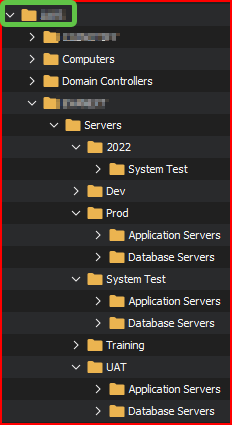
However, come to think of it, I have the entries listed as such: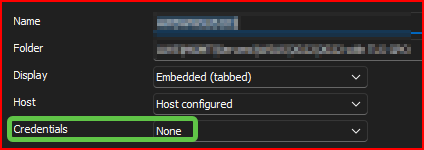
So should I change all the entries to Inherited instead of None? I was doing that so it would use the Linked Credentials in the User Settings, and never thought about the inherited affect.
As for cleaning up your current situation, in theory you only need to keep 1 (or a few) userinfohistory rows per day (not all 2600 rows).
First let's get some stats. Can you please run the following SQL to gets stats from the table
SELECT
uh.UserInfoID
,u.Name
,COUNT(*) AS [Row Count]
,MAX(LEN(uh.ConnectionOverridesSafe)/1024) AS [Max Size (KB)]
,MIN(LEN(uh.ConnectionOverridesSafe)/1024) AS [Min Size (KB)]
,AVG(LEN(uh.ConnectionOverridesSafe)/1024) AS [AVG Size (KB)]
,SUM(LEN(uh.ConnectionOverridesSafe))/1024 AS [Total Size (KB)]
FROM dbo.UserInfoHistory uh
LEFT OUTER JOIN dbo.UserSecurity u ON u.ID = uh.UserInfoID
GROUP BY
uh.UserInfoID
,u.Name

Also, just out of curiousity. Now that this is a SQL Standard DB instead of SQLExpress, do you recommend the Shrink DB command, or stay far away from it for RDM?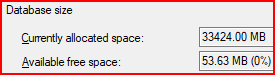
Best regards,
Thank you!
--- Chuck
Overgaard, AZ (-7 MST / Zulu Year-Round)
RDM Version: 2026.3.2.0 64-Bit - Free
9e931582-8101-497b-b4cb-eda60404a1cc.png
8917e267-7dd4-420b-a23c-f6bfeef99165.png
ef8a71cf-a6bb-4539-9863-38bfcfbb904d.png
47a09ab5-80bd-49e5-af1b-f3f9441b4c07.png
| 1. Batch save the batch edit of User specific settings - we've created an enhancement request for this.
Would you mind elaborating just a bit as to what you mean by the above sentence?
It means we could do better, that is the we way save the data is not optimal and is causing a large about of history rows for no reason. We can and will fix this.
So should I change all the entries to Inherited instead of None? I was doing that so it would use the Linked Credentials in the User Settings, and never thought about the inherited affect
Correct, if they are Inherited RDM will go down the chain of folders until it finds a credential or override. So in your case you could save the user override at the top-level folder (in green) and have other set to inherited and all should resolve properly.
From the output we can see your profile has 13+ GB of history data caused by the issue above. I'm thinking if you delete all but one 1 row per minute per user that should be enough history to keep for now (until we can fix the issue). The SQL below will do exactly that. Before you run make sure you have a backup of the database.
WITH cte AS
(
    SELECT
        uh.ID
        ,uh.UserInfoID
        ,ROW_NUMBER() OVER(PARTITION BY uh.UserInfoID, CAST(uh.ModifiedDate as smalldatetime) ORDER BY uh.ModifiedDate DESC) AS Num
    FROM dbo.UserInfoHistory uh
)
DELETE uh
FROM dbo.UserInfoHistory uh
    INNER JOIN cte c ON c.ID = uh.ID
WHERE c.Num > 1
You can now re-run the query from the other reply and the "total size" and "row count" should be down.
Note: if you do the inherited suggestion above you will need to rerun this query as it will create more history rows.
Also, just out of curiousity. Now that this is a SQL Standard DB instead of SQLExpress, do you recommend the Shrink DB command, or stay far away from it for RDM?
The generic answer to the "should I shrink the database" is always "it depends".
Unless you know why the file size got big in the first place then it's not a good idea. Think a nightly job that does work and requires a larger amount of space to process. Now imagine every night before (or after) the job runs you shrink the database. This would be useless as the next time the job runs you will need reallocate the space again. You get the idea.
So, in this case, yes you can shrink the database but unless you resolve this issue by doing Inherited and only have a single (or a few) overrides and not 2600 or until we can fix the code on our end to not generate 2600 save you will need to shrink the database regularly to keep under a respectable size.
Best regards,
Stéfane Lavergne
I always enjoy your replies, sir. They are thorough, but yet quick and to the point!
Thank you for that explanation as it makes complete sense now, and I understand everything a bit better.
Just want to make sure I am editing all the entries correct before I run the command you listed above.
So I am going to one of the Parent folders on the left Navigation Pane, and on the right where it shows the Entries under that Parent Folder, I am doing an Edit > Batch Edit > Edit Saved Credentials like this screenshot: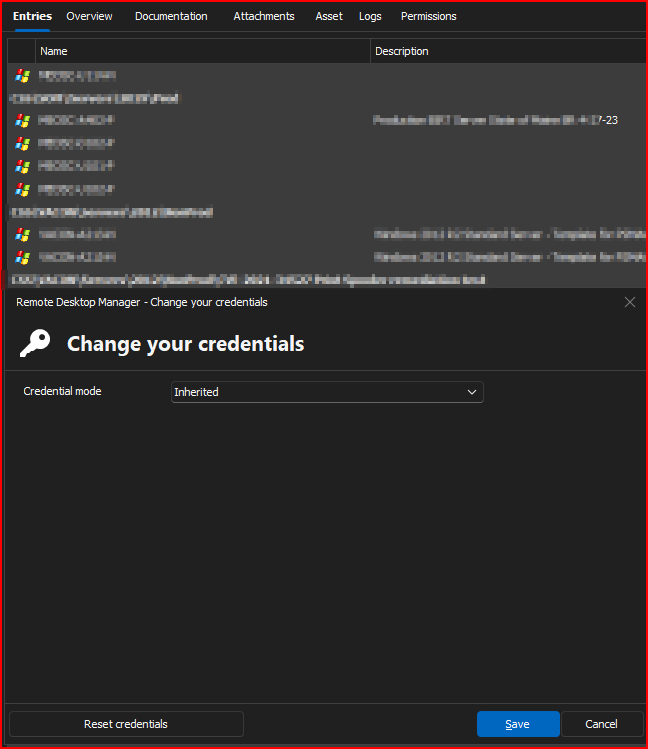
That is the correct way for me to do it, where it will change it in the DB correctly, but will not override any of the User Specific settings that are already set up for each user, correct?
Or will they have to re-do their User Specific Settings once again?
Thank you!
--- Chuck
Overgaard, AZ (-7 MST / Zulu Year-Round)
RDM Version: 2026.3.2.0 64-Bit - Free
97fe89a7-8952-41a1-994f-658df459db6c.png
I always enjoy your replies, sir. They are thorough, but yet quick and to the point!
Thank you, I do my best.
It looks like you also have to set the folders to inherited, see video example.
The user overrides already defined will remain and still work. They way the creds are resolved is we first look for an override if it exists we apply it we are done. If not, we look at the entry cred setting, in this case Inherited, so we go down one level and start again. First look for an override, then configuration and we do this until we find credentials.
You can always test it in a new vault and see if this would work for you.
Have a good weekend, best regards,
Stéfane Lavergne
2024-07-26_16-19-02.mp4
I always enjoy your replies, sir. They are thorough, but yet quick and to the point!
Thank you, I do my best.
It looks like you also have to set the folders to inherited, see video example.
The user overrides already defined will remain and still work. They way the creds are resolved is we first look for an override if it exists we apply it we are done. If not, we look at the entry cred setting, in this case Inherited, so we go down one level and start again. First look for an override, then configuration and we do this until we find credentials.
You can always test it in a new vault and see if this would work for you.
Have a good weekend, best regards,
OK, so I did a Batch Edit on all the saved credentials under the Root: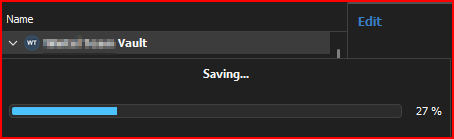
So now, straight off the root, everything is "Inherited", and there are not any "None" entries left.
I also noticed, while watching the progress bar move, there have been no changes in the UserInfoHistory table in SQL when doing any of the changes to Inherited.
So, I will run the command here in just a bit and see what happens.
--- Chuck
Overgaard, AZ (-7 MST / Zulu Year-Round)
RDM Version: 2026.3.2.0 64-Bit - Free
c75d2a40-d52f-4777-892e-68af57a634df.png
So after completing a SQL Backup, here are the results:
Query Command:
Results of the command execution:
Query Command after:
Database Shrink Results:
From: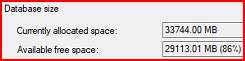
To: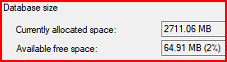
--- Chuck
Overgaard, AZ (-7 MST / Zulu Year-Round)
RDM Version: 2026.3.2.0 64-Bit - Free
c43d6023-e86b-4cc6-891f-e35bd5c93037.png
29965109-7400-4e18-a622-b1fb44f3b524.png
dd390645-a887-4d7c-a68b-1608496e2706.png
a09e7b76-9e1f-4e67-ab5e-5db043d255cb.png
e409e95c-2aa1-46b0-bd9b-c6a0e63a4f51.png
Now that this seems to be nice and low in size, is there a way within a SQL command, to delete any and all Batch Edit > User Specific Settings from within a DB?
Now that everything is working correctly as it should, there's no reason for me to have any "sa" User Specific settings saved.
Every time I do a Batch Edit > USS, it creates more tables in the DB.
Thanks!
--- Chuck
Overgaard, AZ (-7 MST / Zulu Year-Round)
RDM Version: 2026.3.2.0 64-Bit - Free
Chuck,
I will send you the SQL via private message, this is not something we want everyone to start doing as it causes data lost if done wrong or correctly as this is the intended behavior, deleting data.
I will also modify the bug report to improve the File > My account settings > User specific settings > multi-select > delete, so that it deletes in batch. If you were to delete using this screen, you will create a history row for each and every delete. The same is when you created them. Not good.
Best regards,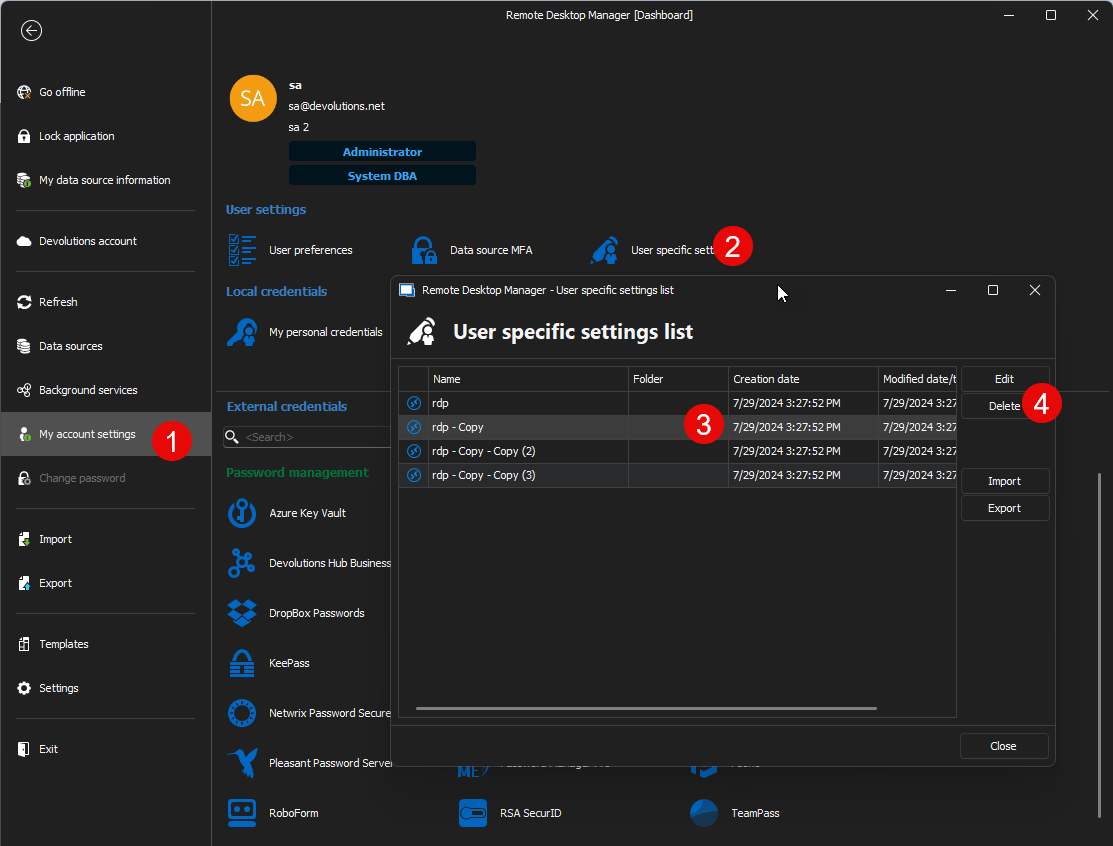
Stéfane Lavergne
15b90871-5236-408f-97a5-39fc1363b7cf.png
Sent results in direct message back to you.
I did, however, forget to include the screen above which shows the end results wanted / needed: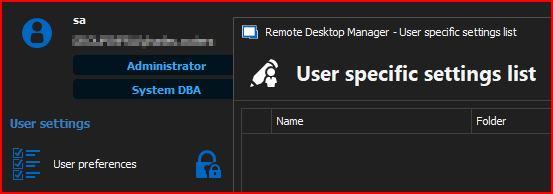
--- Chuck
Overgaard, AZ (-7 MST / Zulu Year-Round)
RDM Version: 2026.3.2.0 64-Bit - Free
dd673f9e-65a9-409d-ba82-be78b559e0ef.png
Hello,
I wanted to let you know that the improvement to the logging when performing a batch edition of the user specific settings will be available in our next major release, 2024.3.
Regards,
Hubert Mireault
Good morning folks. I was re-reading this post, and wanted to ask Stéfane Lavergne a question regarding the Folder Properties...
I have over 2,000 folders in the vault that my team shares. Is there a way to do a Batch Edit style fix for "Folder Properties"?
When I do a Batch Edit for the User settings, it looks like it just affects the entries themselves and not the folders. Currently, I am doing "Folder Properties" and changing to Inherited one-by-one.
Thanks!
--- Chuck
Overgaard, AZ (-7 MST / Zulu Year-Round)
RDM Version: 2026.3.2.0 64-Bit - Free
f42e8bee-e559-4e14-89d5-700e0f28a6da.png
@Chuck,
Your best bet is a batch action PowerShell.
https://docs.devolutions.net/powershell/rdm-powershell/batch-edit-folders-custom-powershell-commands/
Let us know if you need help writing the PowerShell command
Example here: https://docs.devolutions.net/powershell/rdm-powershell/ssh-algorithm-support/#custom-powershell-command-script
Stéfane Lavergne
Stefane,
I haven't ever used (or even knew it was there) the Advanced Search feature.
So I selected just the folders and did an Edit > Batch Edit > Edit saved credentials...":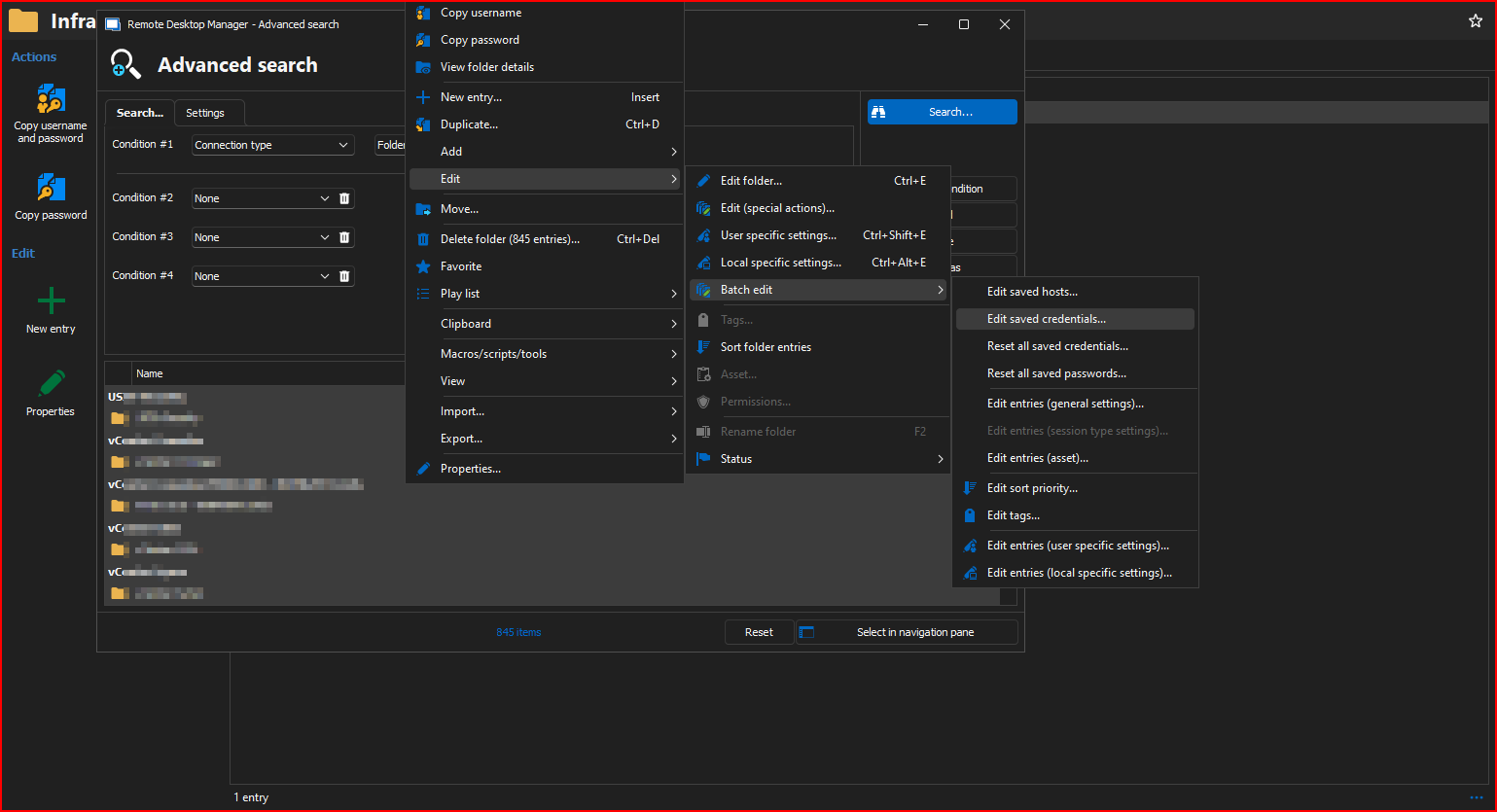
I selected the option I wanted as suggested by your team: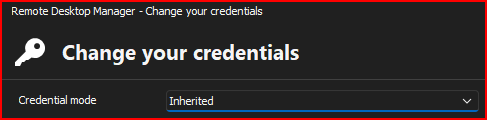
Now, every single folder I have shows "Inherited" from what I can tell. The results below are from a folder that is well nested under my main vault. Probably eight or nine parent structures deep, and it shows the change:
So thank you, sir!
--- Chuck
Overgaard, AZ (-7 MST / Zulu Year-Round)
RDM Version: 2026.3.2.0 64-Bit - Free
a46b80df-8984-4f03-9241-7d9e4f428c94.png
d54388b4-c63a-4e72-9d20-f912963d9eb1.png
9a2d7bd1-495f-47e4-af23-2a44de023ffe.png
Chuck,
Always happy to help, RDM is indeed full of surprising features.
Best regards,
Stéfane Lavergne
If anyone needs to have cleaned up the credentials-setting on the RDPsessions, then this Powershell script can be used.
(Script come without warranty - test it before is executed in production :) )
$moduleTest = Get-Module RemoteDesktopManager -ListAvailable
if ([string]::IsNullOrEmpty($moduleTest)) {
    Write-Output "Installing RDM"
    Install-Module -Name RemoteDesktopManager -Scope CurrentUser -Force
    Import-Module RemoteDesktopManager
} else {
    Import-Module RemoteDesktopManager
}


$credentialsInheritedId = "1310CF82-6FAB-4B7A-9EEA-3E2E451CA2CF"


$sessions = Get-RDMSession | where {$_.ConnectionType -eq 'RDPConfigured'}
foreach ($session in $sessions) {
    Write-Output "###################### $($session.Name) #####################"
    $updateSession = $false

    if ($session.CredentialConnectionID -ne $credentialsInheritedId) {
        Write-Output "Update credentials inherited setting"
        $session.CredentialConnectionID = $credentialsInheritedId
        $updateSession = $true
    }

    if ($updateSession) {
        Set-RDMSession -Session $session -Refresh
    }
}
Other thing can be updated at the same time, if there's a need for more cleanup.
Example of some of the other things I did at the same time:
if ($session.RDP.ScreenSizingMode -ne 'DynamicResolution') {
    Write-Status "Updating screen resolution mode"
    $session.RDP.ScreenSizingMode = 'DynamicResolution'
    $updateSession = $true
}

if ($session.RDP.UsesHardDrives -eq $true) {
    Write-Status "Updating harddrive map"
    $session.RDP.UsesHardDrives = $false
    $updateSession = $true
}

if ($session.KeyboardHook -ne 'OnTheRemoteComputer') {
    Write-Status "Updating keyboard hook"
    $session.KeyboardHook = 'OnTheRemoteComputer'
    $updateSession = $true
}
Br,
Anders