Pixelated Apple Remote Desktop display when remoting into M1 Mac Mini (2020) with Scaled enabeled
Pixelated Apple Remote Desktop display when remoting into M1 Mac Mini (2020) with Scaled enabeled

When I remote into my M1 Mac Mini running macOS Sonoma from Remote Desktop Manager on Windows 10 x64, with Properties -> General -> Settings -> Scaled checked, the display is pixelated to the point of being unreadable: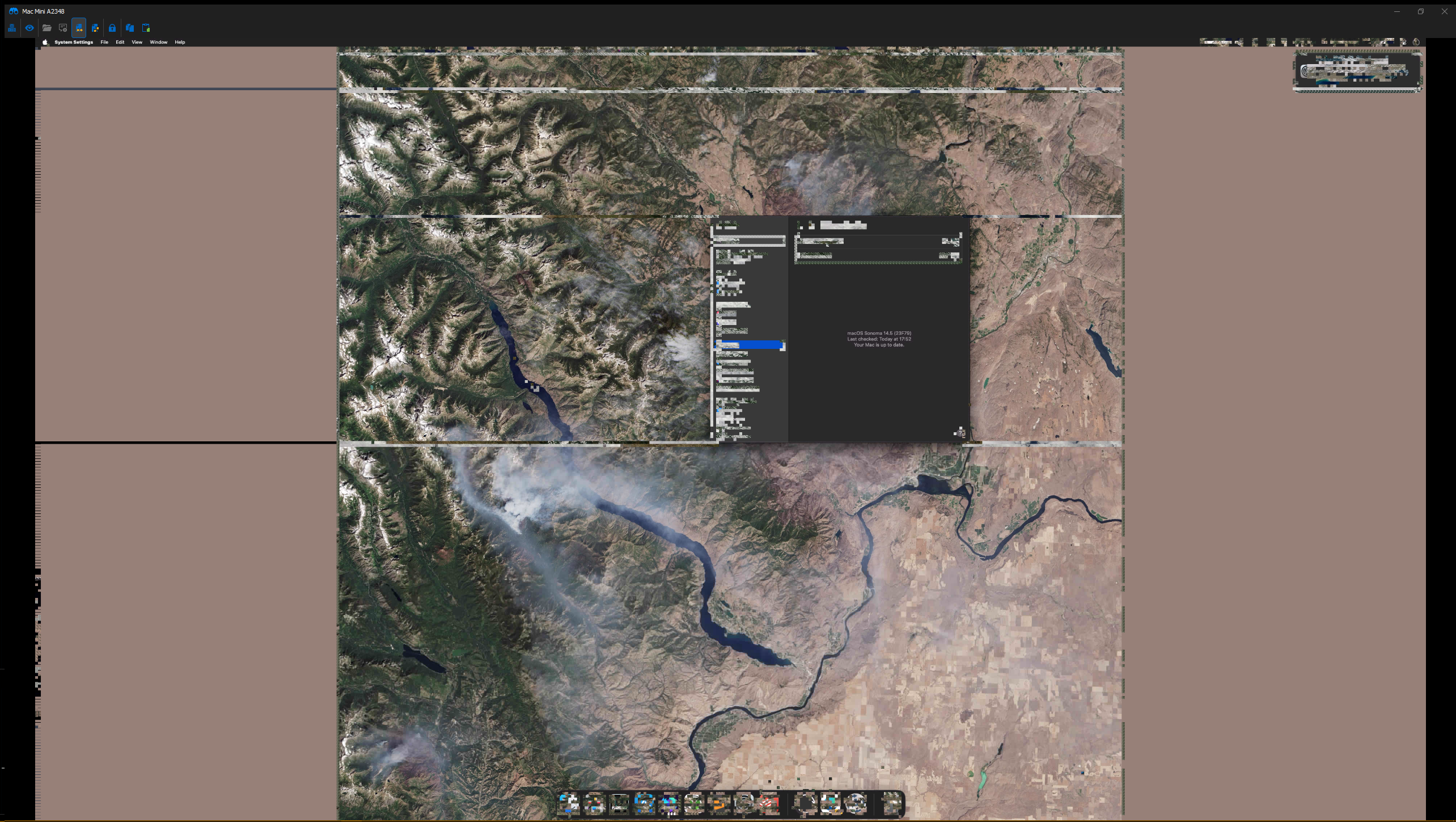
Unchecking Scaled resolves the issue.
Any ideas?
Capture.PNG
All Comments (8)
Hello
That's very strange, is your screenshot completely unedited? You didn't obfuscate any of it? It's strange because large parts of the display are corrupted, but not all (part of the menu bar, the placeholder text in the settings dialog).
In the "Settings" tab of your ARD session, what do you have for performance and resolution quality?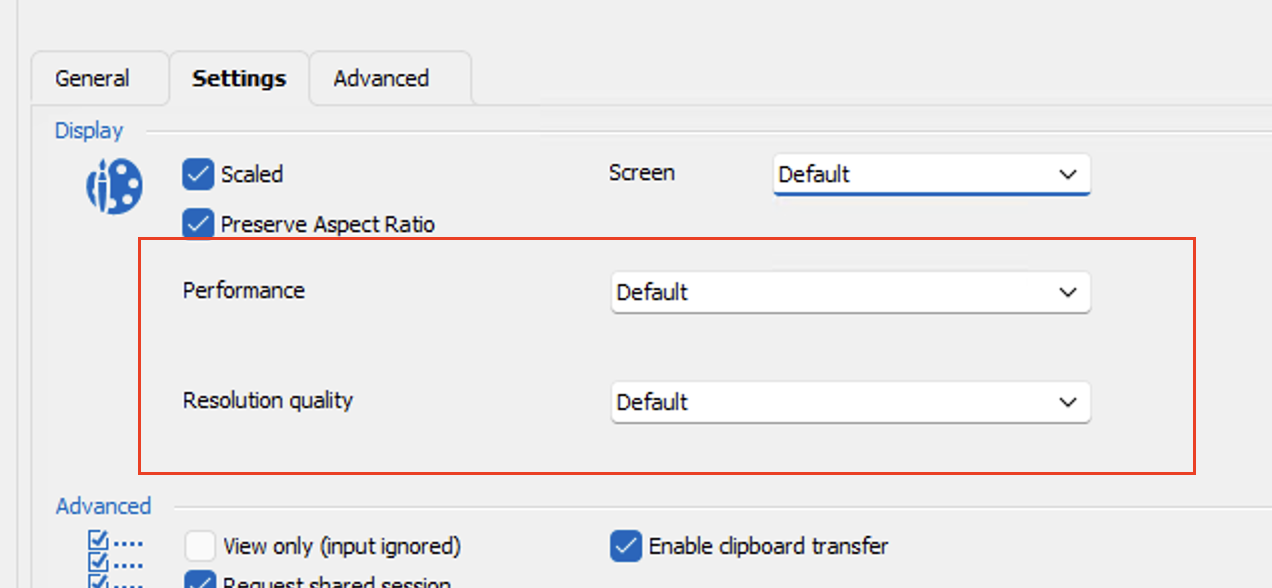
Thanks and kind regards,
Richard Markievicz
Screenshot 2024-07-05 at 19.49.51.png
Hello
That's very strange, is your screenshot completely unedited? You didn't obfuscate any of it? It's strange because large parts of the display are corrupted, but not all (part of the menu bar, the placeholder text in the settings dialog).
Correct, no editing or obfuscating. That's literally what the ARD display looks like.
In the "Settings" tab of your ARD session, what do you have for performance and resolution quality?
Both are set to Default as shown in the screenshot.
Thanks and kind regards,
UPDATE
Figured out a workaround:
- Uncheck Scaled in the Settings dialog above
- Start the ARD session
- In the ARD window menu at the top left, click the Smart sizing option
The display will now scale appropriately without corruption.
Hello again
Thanks for the info and the update. I was going to ask if enabling scaling at runtime instead of in the session options changes something.
Overall, I'm really confused. The "scaling" is not something handled in the protocol, it's totally client side. The bitmap(s) we decode from the server are rendered directly into a WPF surface; whether they are stretched or not is simply a property toggle on that surface. The final rendering is done completely in .NET based on the options we give it.
The rendering is hardware accelerated, and something is "blooming" the renderer in this case, on your machine. I haven't seen any other report of the same thing.
If you're interested in troubleshooting further, you can try temporarily disabling hardware rendering for WPF using this registry key. The usual caveats apply when editing the registry - it's a good idea to take a backup first, as there is a non-zero risk of breaking something on your system if you make a mistake. After setting the registry key, I'd recommend rebooting your computer and then try to reproduce the problem.
Please, let me know if something isn't clear or you have other questions
Kind regards,
Richard Markievicz
Hello again
Thanks for the info and the update. I was going to ask if enabling scaling at runtime instead of in the session options changes something.
Overall, I'm really confused. The "scaling" is not something handled in the protocol, it's totally client side. The bitmap(s) we decode from the server are rendered directly into a WPF surface; whether they are stretched or not is simply a property toggle on that surface. The final rendering is done completely in .NET based on the options we give it.
The rendering is hardware accelerated, and something is "blooming" the renderer in this case, on your machine.
Ah, yes. This might be due to my GPU having been EOLed for several years now.
I haven't seen any other report of the same thing.
If you're interested in troubleshooting further, you can try temporarily disabling hardware rendering for WPF using this registry key. The usual caveats apply when editing the registry - it's a good idea to take a backup first, as there is a non-zero risk of breaking something on your system if you make a mistake. After setting the registry key, I'd recommend rebooting your computer and then try to reproduce the problem.
Thanks, but no further troubleshooting needed at this time, especially since what I think is the core problem can't be fixed without a new GPU.
Please, let me know if something isn't clear or you have other questions
Kind regards,
Hello again
It's an old GPU but I wouldn't expect that to be a problem, really. I'd think it's more likely that you're bumping into a weird driver issue / incompatibility. If the workaround becomes annoying and you get some time - see if that registry setting changes something. It is something we can expose internally, at the session level rather than system wide via the registry - but we don't currently.
As always, let us know any further questions or comments
Kind regards,
Richard Markievicz
Hello again
It's an old GPU but I wouldn't expect that to be a problem, really. I'd think it's more likely that you're bumping into a weird driver issue / incompatibility.
Yep, unfortunately my GPU hasn't gotten driver updates since 2020 or 2021. Or maybe earlier than that. Which is why I'm pessimistic about being able to resolve that issue.
If the workaround becomes annoying and you get some time - see if that registry setting changes something. It is something we can expose internally, at the session level rather than system wide via the registry - but we don't currently.
OK. I don't think I'd rant to disable hardware rendering as I use 2 4K + 1440p displays, and so my performance would be too negatively affected. I appreciate the suggestion and quick replies nonetheless :)
As always, let us know any further questions or comments
Kind regards,
Update on this: I recently upgraded to a Windows 11 24H2 PC with an RTX 4070 Ti Super and all works perfectly now with no artifacts or corruption. So yeah, must have been a GPU issue. Thanks again for your help.
Hello
Good news! Thanks for following up and enjoy your new computer.
Best regards,
Richard Markievicz