Install latest version

Hi,
I had version 2024.1.25.0. I wanted to install the latest version 2024.2.13.0. I installed the latest version, it uninstalled the previous version but now I can't install the latest version. I get an error: the file devolutions.updater.exe is not marked for installation.
When I want to install a previous version of RDM (for exemple 2024.1.25.0) I get an error that a newer version is already installed.
I can't use RDM at the moment.
Please help.
Best regards,
Hannes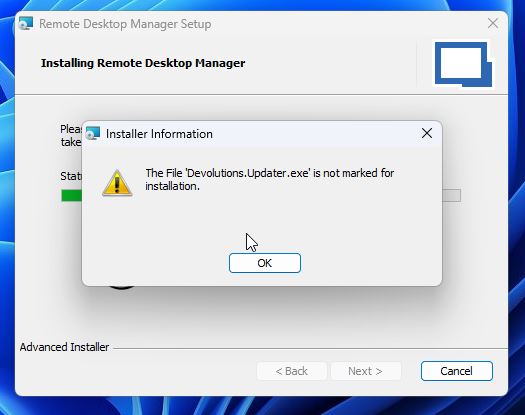
2024-07-04 16_11_09-Remote Desktop Manager Setup.jpg
All Comments (7)
How can I completely uninstall RDM? Also all the reg keys. Please help
I have the exact same problem. The devolution.update.exe is nowhere to be found. The old version has completely been removed.
I found a registry key in : [HKEY_CLASSES_ROOT\Installer\Products\C0D789EFB2038464299CC1DC40E36717]. Made a backup and removed it and I was able to install the last version. The key contains:
Windows Registry Editor Version 5.00
[HKEY_CLASSES_ROOT\Installer\Products\C0D789EFB2038464299CC1DC40E36717]
"Clients"=hex(7):3a,00,00,00,00,00
"ProductName"="Remote Desktop Manager"
"PackageCode"="A76E8A59438EC7B498B7ED16D7DF5EC6"
"Language"=dword:00000409
"Version"=dword:e7030024
"Assignment"=dword:00000001
"AdvertiseFlags"=dword:00000000
"ProductIcon"="C:\\WINDOWS\\Installer\\{FE987D0C-302B-4648-92C9-1CCD043E7671}\\Application.exe"
"InstanceType"=dword:00000000
"AuthorizedLUAApp"=dword:00000000
"DeploymentFlags"=dword:00000001
[HKEY_CLASSES_ROOT\Installer\Products\C0D789EFB2038464299CC1DC40E36717\SourceList]
"PackageName"="Setup.RemoteDesktopManager.2023.3.36.0.msi"
[HKEY_CLASSES_ROOT\Installer\Products\C0D789EFB2038464299CC1DC40E36717\SourceList\Media]
"DiskPrompt"="[1]"
"1"=";"
[HKEY_CLASSES_ROOT\Installer\Products\C0D789EFB2038464299CC1DC40E36717\SourceList\Net]
"1"=hex(2):5c,00,5c,00,73,00,6f,00,66,00,74,00,74,00,65,00,63,00,68,00,2e,00,\
6c,00,6f,00,63,00,61,00,6c,00,5c,00,53,00,68,00,61,00,72,00,65,00,73,00,5c,\
00,52,00,44,00,4d,00,5c,00,00,00
Thanks @jim-roy.
I had multiple entries in my register and I deleted all of them. Now I could install the latest version.
Hello
I'm not sure why this happened, but I'm glad you were able to resolve it.
For future reference, Microsoft publishes a troubleshooter that is excellent at resolving these kind of problem (corrupted install database): Program Install and Uninstall troubleshooter.
Please don't hesitate to post back with further questions or comments
Kind regards,
Richard Markievicz
I have the exact same problem. The situation is frequent and regular. A devolution solution is urgently needed.
Hello
I'm sorry to hear that this is causing an issue.
The problem seems to be that something is going wrong with the removal of the existing product (an update in RDM is always a "major" update, meaning the previous version of the product is completely removed and then the new version installed). I'm not sure why only a handful of users seem to experience this.
It would be really helpful if we can see a log file of the failed upgrade, since we don't seem able to reproduce the problem on our side.
You can follow the steps:
- Download the latest RDM .msi from our website instead of going through the automatic updater
- Open Command Prompt (cmd.exe) as administrator (right click > Run as administrator)
- Change to the directory containing the updated MSI (e.g.
cd c:\users\rmarkiewicz\desktop) - Trigger the install from the command line with logging enabled
msiexec /I RemoteDesktopManager.msi /l*v rdm-install.log
- The installer will open and you can run through it as normal
- Note that you need to replace the name of the .msi with how it actually appears on disk
Once the installation is done (failed), you'll find the rdm-install.log file in the directory alongside the .msi. You can send this to us, either direct to myself by PM or to service@devolutions.net (please mentioning this forum thread so the file is routed properly).
Further, if you're blocked on this issue and finding the Microsoft program install troubleshooter to not be useful (it's very slow to run), you can contact the support team who can give you access to a script that will properly purge the prior install before installing the update. This is much faster and more convenient (although obviously doesn't solve the root problem).
If you have any questions or something isn't clear, please don't hesitate to write back
Kind regards,
Richard Markievicz