RDM unable to get system proxy setting

RDM version: 2024.1.32.0 64-bit
OS version: Windows server 2022 datacenter edition
RDM cannot get system proxy setting after upgrade to 2024.1.32.0. I dont record what was the RDM version before the upgrade. The previous version was installed/upgraded like 6 or 8 months ago and that version works well until upgraded to 2024.1.32.
The web proxy doesnt require user authentication.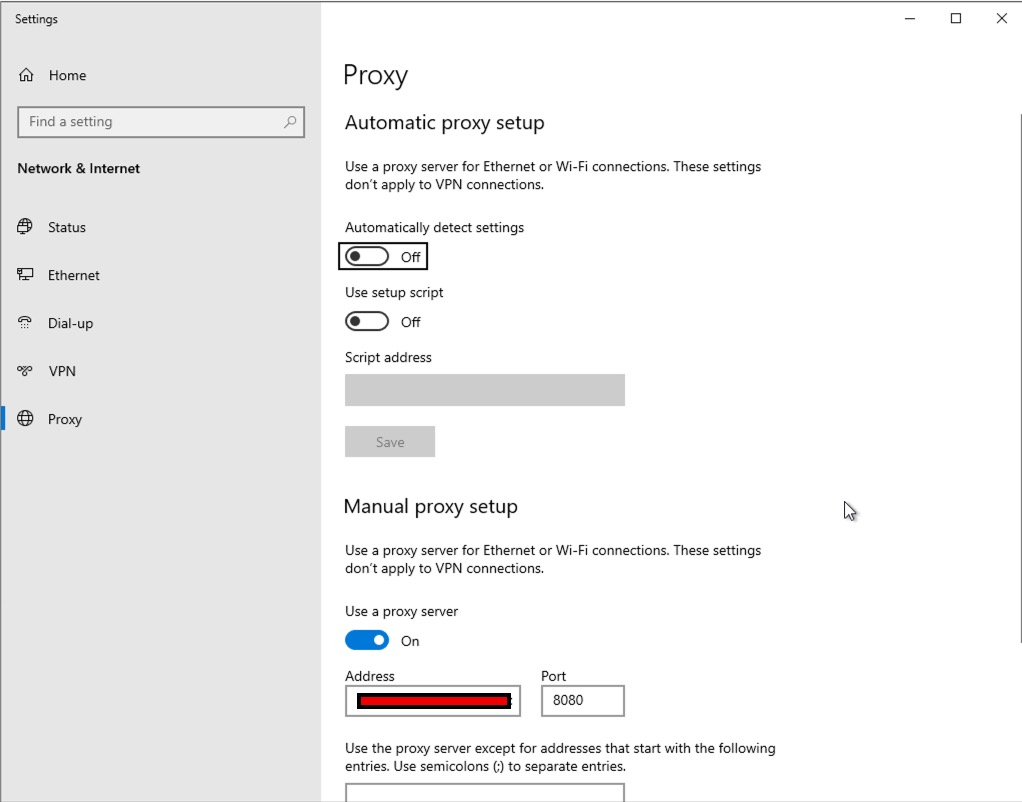
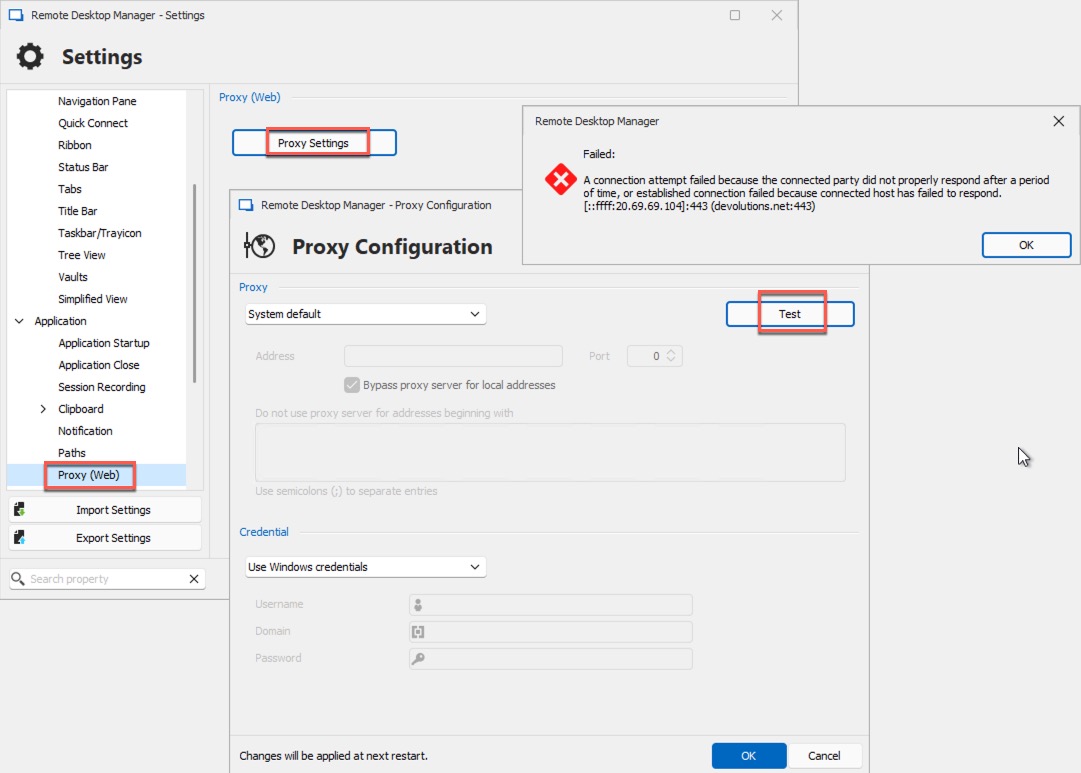
2024-06-17_14-40-06.jpg
2024-06-17_14-38-33.jpg
All Comments (5)
rollback to 2023.3.35.0 64-bit to fix the issue
Hello pirate585,
Thank you for contacting the Devolutions support team
I'm glad to hear that you found a workaround for this issue.
Note that we raised this to the development team.
Could you install a portable version of RDM 2024.1.32.0 and provide the application logs when this error occurs?
To do so, you will need to do the following:
(Close RDM)
1- Download the .zip file below:
https://cdn.devolutions.net/download/Devolutions.RemoteDesktopManager.Bin.2024.1.32.0.zip
2- Create a new folder on your Desktop
3- Extract the content of the .zip file into the folder created at #2
4- Go to this folder once the .zip file has been extracted and run remotedesktopmanager.exe
5- Connect to your data source
For the application logs:
https://docs.devolutions.net/rdm/commands/help/support/application-logs/
Best regards,
Patrick Ouimet
Hi Patrick,
here's what I did
- close RDM
- run portable RDM....RDM is not responding for couple of minutes
- check the proxy settings is "System default", collect application log (name it to system-default-webproxy-RemoteDesktopManager.log.db)
- change the proxy setting to "custom", close portable RDM
- run portable RDM...wait for RDM to response, collect application log (name it to custom-webproxy-RemoteDesktopManager.log.db)
system-default-webproxy-RemoteDesktopManager.log.db
custom-webproxy-RemoteDesktopManager.log.db
Hello,
I am not able to reproduce your issue, but I think this prompt is just a catch from the proxy output on the failed attempt and is returned to you.
I myself got a "refused" response in that prompt due to our GPO but on my VM it is an instant "success"
Yours seems to be a timeout response so my closest guess is that your firewall might be blocking this RDM version.
Might be due to the RDM executable needing some permission in that firewall in order to run. It's possibly that the executable changed after updating.
Other thing you could try is maybe running the application in elevated mode.
Give us some news if it helps.
Regards,
Alexandre Roy
I guess this problem is related to my another case https://forum.devolutions.net/topics/42196/data-source-validating-google-drive-is-not-working-when-using-web-prox.
what I can tell now is RDM 2023.3.35.0 works fine, but 2024.1.x or 2024.2.x dont work
windows firewall is disabled since the day OS installed. I've test http proxy connection by telnet to http proxy server and use browser to surf Internet via the http proxy server. The results are good.
elevated mode didnt make any difference
on the other hand, same config file on RDM 2023.3.35 works fine, but not on 2024.1.x and 2024.2.x