System Information Report Powershell capabilities
0 vote

Hello,
Would it be possible for the following features to be accomodated for System Information Report type entries please:
1) Initiate the report generation via powershell, including handling the prompt for opening an existing report or generating a new one
2) Enable the report contents to be referenced via PowerShell, and custom reports in RDM (for example being able to generate a report on all the software items detected and corresponding details such as version, install date etc)
3) Enable historical reports to be cleaned up via powershell
4) A Powershell script to generate an inventory file on an offline computer, that can manually uploaded into RDM
Pls let me know if you would like any additional info.
Thanks
Joe
All Comments (32)
Hello Joe,
Your request has been added to our to-do list. Please note, however, that we will not be able to start working on it immediately due to current priorities and commitments. We will keep you informed of our progress.
Best regards,
Maxime
Hello Joe,
A set of new cmdlets is available in version 2024.2.1 of the module for managing system information reports:
- New-RDMSystemInformationReport: Generates a new report. You can store the result in a file directly using the ExportPath parameter.
- Get-RDMSystemInformationReport: Retrieves all inventory reports for the entry. You can filter them by their creation date with the After and Before parameters. The Last parameter returns only the most recent one.
- Export-RDMSystemInformationReport: Generates an .inv or .html file of the inventory.
- Remove-RDMSystemInformation: Cleans up the history.
If you need anything else, please let us know.
Best regards,
Maxime
Hi Maxime,
This is great. I tested it out out, an while the 'Get-RDMSystemInformationReport' seems to work well, I encountered to the following issues:
1) 'Get-RDMSystemInformationReport -ID <GUID> | Remove-RDMSystemInformation' returns error 'You need to be an administrator to use this command'. It doesnt make sense that a user has permission to delete the entry entirely, but not remove the contained individual historical reports
2) Missing an 'Import-RDMSystemInformationReport' cmdlet, there isnt much use for the 'ExportPath' parameter of New-RDMSystemInformationReport if the file cannot be imported. Alternetively, maybe the Get-RDMSystemInformationReport could have an 'ImportPath' parameter
Please let me know if you would like any additional info.
Thanks
Joe
Hello Joe,
Both points are valid. I will rework the rights required for the cmdlet Remove-RDMSystemInformationReport and add the new cmdlet Import-RDMSystemInformationReport.
Best regards,
Maxime
Thank you Maxime, appreciate your efforts on adding these features.
Hello Joe,
Here are the changes that will be included in the next version:
- Remove-RDMSystemInformationReport: The delete right will be required.
- Import-RDMSystemInformationReport: This new feature will read the .inv file and generate an InventorySystemInformation object, identical to the output of the New-RDMSystemInformationReport cmdlet.
Please let us know if this meets your needs. I will keep you informed when the next version is released.
Best regards,
Maxime
sounds perfect, thanks Maxime.
Joe
Hello,
The version 2024.2.2 has been released.It includes the changes mentioned in the previous message.
If you have any questions or need further details, please feel free to reach out.
Best regards,
Maxime
Thanks Maxime. Here are the results of my testing:
1) Remove-RDMSystemInformationReport works perfectly without user requiring administrative rights
2) New-RDMSystemInformationReport -ID <GUID> results in error: 'Unable to access system information report'. Both for regular and administrative users. Subsequently I wasnt able to test the ExportPath Parameter. Running Get-RDMSystemInformationReport -ID <GUID> for the same GUID retrieves all the existing reports as expected.
3) Running Import-RDMSystemInformationReport -Path <path to inv> | New-RDMSystemInformationReport -ID <GUID> results in error 'New-RDMSystemInformationReport: The input object cannot be bound to any parameters for the command either because the command does not take pipeline input or the input and its properties do not match any of the parameters that take pipeline input.'
4) The Import-RDMSystemInformationReport doesnt have an '-ID' parameter, which I assume means a second step is required to get the data into an existing RDM entry
Thanks
Joe
Hello,
I will add an InputObject parameter to New-RDMSystemInformationReport so it can be saved into an existing RDM entry. For your second point, I need additional information:
- Does it work in RDM?
- What is the target OS?
A possible cause is that the wrong OS is associated with the entry. To check if this is the case, set the OS like this:
$entry.MetaInformation.OS = 'MAC'
# OR
$entry.MetaInformation.OS = 'Linux'
After that, rerun New-RDMSystemInformationReport. If it works, I will investigate further to ensure the correct OS is used. Else, I will keep looking what might cause this.
Best regards,
Maxime
Hi Maxime,
Yes I can generate a report for the respective entry using the RDM GUI.
The OS property is set to 'Windows Server 2022', previously it was empty. This didnt fix the issue with New-RDMSystemInformationReport reporting 'Unable to access system information report'.
Joe
069b9993-121b-4a2c-afb1-531bca7c8ae8.png
Hello,
Are you executing PowerShell as an administrator? This could cause the command to fail.
Regardless, I will release a new version either this week or next, which will allow you to see which steps fail. This should help isolate the cause of the difference in behavior with RDM.
Best regards,
Maxime
Hi Maxime,
Yes New-RDMSystemInformationReport still fails when the Powershell session is running as an administrator. Ideally this wouldnt be required, as a non administrative user may need to generate an inventory of a remote host using the credentials configured on the respective entry, same as can be done via the RDM GUI.
Please let me know if you would like more info.
Joe
Hello Joe,
In version 2024.2.3, it is now possible to save the imported inventory to an entry. You can either use the InputObject parameter of Import-RDMSystemInformationReport to pass the entry, or you can use the Inventory parameter of New-RDMSystemInformationReport to pass the imported inventory.
To identify where an error occurs, you can use the cmdlet Start-RDMProfiler with RemoteTools as the level. Here’s how:
# $inv contains the entry
Start-RDMProfiler -Level RemoteTools
$rep = New-RDMSystemInformationReport -InputObject $inv
Stop-RDMProfiler
Here is an example of the output:
Local command batch executed - 17 commands - 11517 ms
  Command 1 - RemoteBios-Get - Success - 6308 ms
  Command 2 - RemoteAntiVirus-Get - Success - 1028 ms
  Command 3 - RemoteTpm-Get - Error - 1267 ms
  Command 4 - RemoteOperatingSystem-Get - Success - 678 ms
  Command 5 - RemoteTimeZone-Get - Success - 49 ms
  Command 6 - RemoteComputerSystem-Get - Success - 70 ms
  Command 7 - RemoteDevice-GetList - Success - 189 ms
  Command 8 - RemoteMotherboard-GetList - Success - 61 ms
  Command 9 - RemoteMonitor-GetList - Success - 57 ms
  Command 10 - RemoteCDRom-GetList - Success - 30 ms
  Command 11 - RemoteMemory-GetList - Success - 65 ms
  Command 12 - RemoteProcessor-GetList - Success - 1182 ms
  Command 13 - RemoteLogicalDisk-GetList - Success - 63 ms
  Command 14 - RemoteNetworkAdapter-GetList - Success - 86 ms
  Command 15 - RemoteSound-GetList - Success - 52 ms
  Command 16 - RemoteVideo-GetList - Success - 60 ms
  Command 17 - RemoteAccount-GetList - Success - 268 ms
In this example, only the RemoteTpm-Get command fails. If the user is not an administrator, it should still work, which is why I asked if you were an administrator. It is not required to use the command.
If you can tell me where it fails for you, that would be of great help.
Best regards,
Maxime
Hi Maxime,
Thanks for the update. Tried the new version and:
'You can either use the InputObject parameter of Import-RDMSystemInformationReport to pass the entry, or you can use the Inventory parameter of New-RDMSystemInformationReport to pass the imported inventory' - This seems to work perfectly
New-RDMSystemInformationReport is partially working, but still getting 'Unable to access system information report' error whenever one of the commands fails: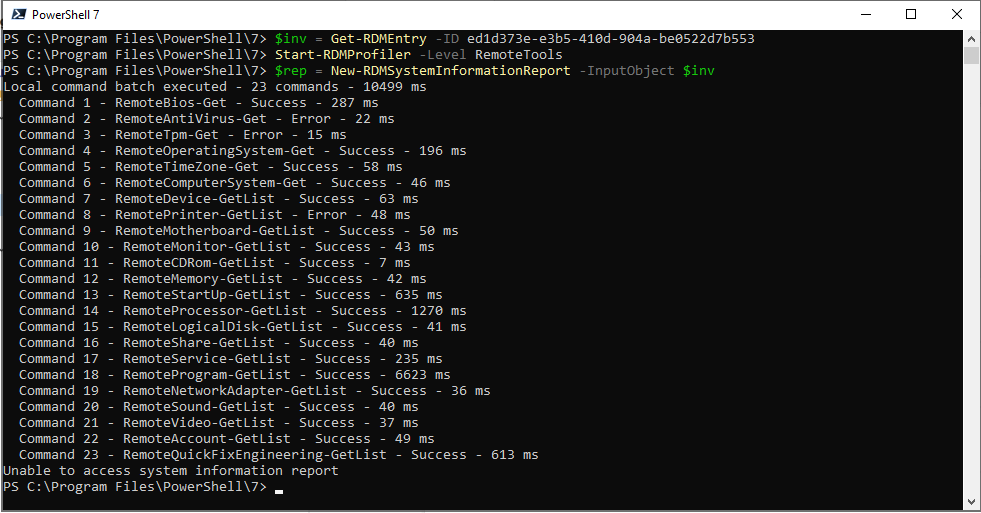
If I limit the items on the RDM entry to collect only 'Local Accounts', and no command fails, then it does work.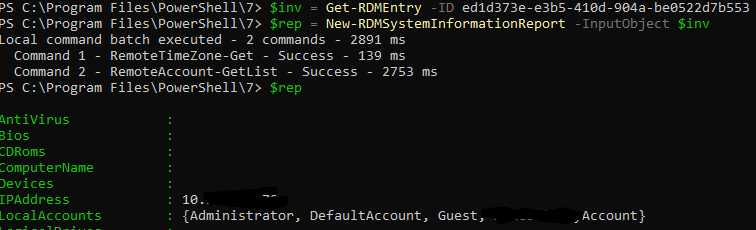
The account configured on the entry, is an administrator of the system being inventoried, target system is Windows Server 2022 VM running on Hyper-V, no secure boot enabled.
RDM datasource is DVLS, not sure if that matters.
Also noticed that using a variable (i.e. $NAME$.domain.local) in the hostname field doesnt seem to work.
Please let me know if you would like more info.
Thanks
Joe
3d8368cc-93ca-4d37-a302-84091aa69499.png
1250e535-3b10-4d0d-ba8c-6ef2f635b07a.png
Hello,
The issue seems to be with the RemotePrinter-GetList command. Excluding Printers from the required information should resolve it.
Could you please inform me how many printers are present in the target environment? This will help me reproduce the situation as closely as possible.
I have noted the unresolved variables issue.
Best regards,
Maxime
Hello Joe,
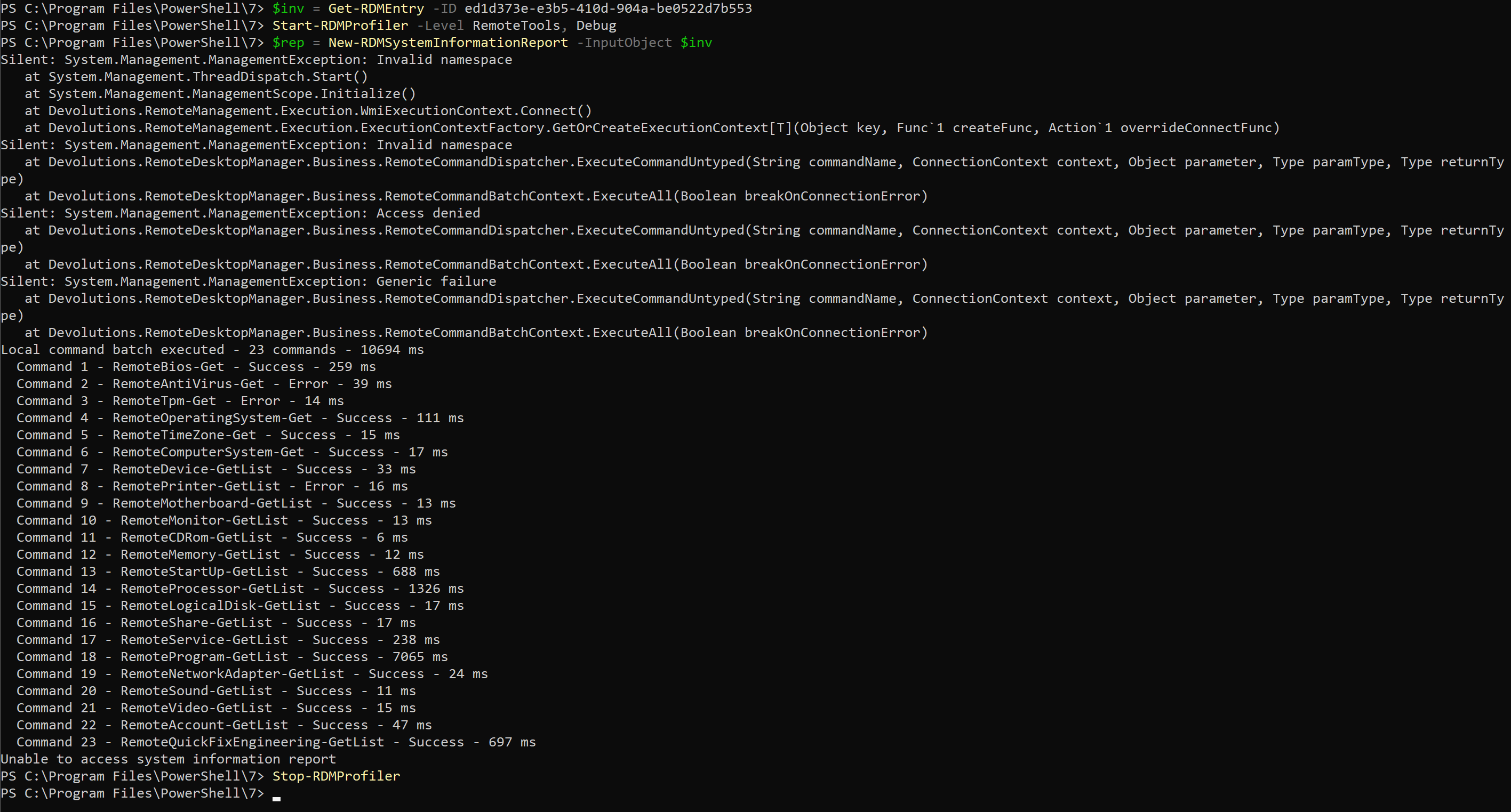
To help us identify the exact cause of the issue, could you please execute the profiler with the debug level? This will provide us with more detailed information.
# $inv contains the entry
Start-RDMProfiler -Level RemoteTools, Debug
$rep = New-RDMSystemInformationReport -InputObject $inv
Stop-RDMProfiler
Thank you for your assistance.
Best regards,
Maxime
Hi Maxime,
Output with debug enabled is below. Also there are only 2 default windows printers on the target system.
Joe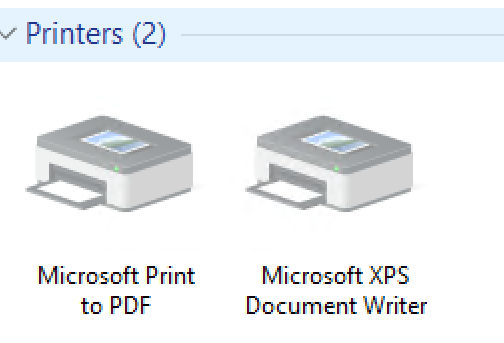
caefd138-d90d-43fe-a5f8-3a846afdbc59.png
4b24dfea-af73-4324-a596-0506c79d945f.png
Hi Maxime,
Circling back on this one to see if there has been any update?
Thanks
Joe
Hi Joe,
Regarding the RemoteTpm and antivirus failures, a similar issue was raised in another forum, and I’ve been waiting on the outcome of the ongoing analysis there. I’ll follow up and see if there’s been any progress on that front.
As for the printers, I haven’t been able to reproduce the error yet. Since it’s possible that the cause might be related to the other issues, I’ve been holding off on further troubleshooting until I have more information.
I will keep updated.
Best regards,
Maxime
sounds good, thanks Maxime
Hi Joe,
A fix has been released in version 2024.3.4 of the module. The issue was caused by the antivirus failing to be fetched on a Windows Server, so it will now be ignored in this situation. If you encounter any issues, please don't hesitate to reach out.
Best regards,
Maxime
HI Maxime,
Thanks for your continued work on this. I tested out the new PowerShell module version and it successfully generated an inventory report including the 'System' category of information. A couple of observations I noticed while testing:
1) Using the RDM GUI to generate the report fails when the 'system' category is selected, all other categories work fine, but 'system' only works via PowerShell
2) When the Host and/or Credentials attributes are set to Inherited, the report works via RDM GUI, but in PowerShell it fails with response 'Unable to access system information report'
The current setup is a Host entry, with the System Information Report as a sub entry.
Please let me know if you woudl like any additional info.
Joe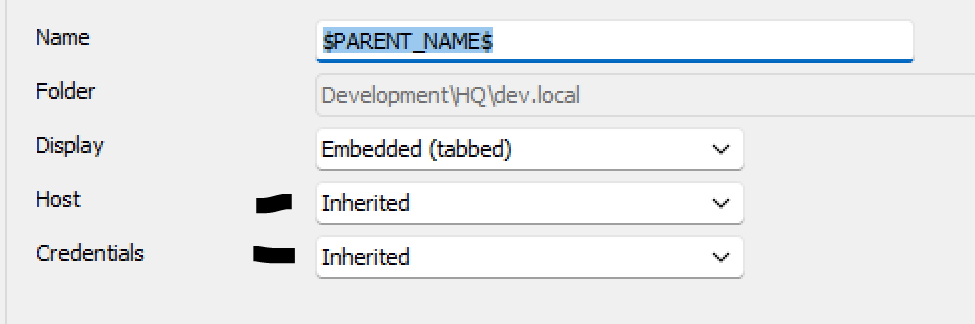
3a0f2d30-0be9-4231-b7a1-493e5b98546d.png
Hi Maxime,
Also noticed the PowerShell module only seems to work with the credential explicitly defined on on the inventory entry. If the credential is set to a linked username/password entry or inherited, then PowerShell returns 'Unable to access system information report'.
Ultimately we are looking to use an inherited DVLS PAM entry as the credential, which currently works fine via RDM GUI. Not sure how powershell will handle the checkout prompt for a PAM account, but hopefully there will be a way to accept silently.
Thanks
Joe
Hello Joe,
I’ll make sure the fix is included in the RDM GUI.
For the PowerShell module, I’ll ensure that the additional credential modes are supported and will manage the DVLS PAM Entry as needed. However, I can’t guarantee that the checkout prompt will be skippable.
Best regards,
Maxime
Thanks Maxime, that will be great.
Re the checkout prompt, it might be possible within a script to retrieve the PAM credential id from the entry and do an automated checkout via seperate cmdlet, but would be nice if it was builtin. Can revisit that once explicitly defined credentials arent necessary on the entry and it can at least use an allready checked out credential for the inventory connection.
Hello Joe,
Apologies for the delay. Below are the updates for module version 2024.3.8:
- Credential Resolution:
- Credentials should now resolve in all cases, including inheritance scenarios.
- DVLS PAM Entry: A temporary solution has been implemented for the checkout by using default information:
- If possible, it will be self-approved. Otherwise, it will be assigned to a random approver.
- The checkout duration is two hours. This approach will fail in cases where the maximum checkout time is less than two hours.
I plan to allow manual entry of the checkout information. I am currently evaluating the best method to implement this, such as adding a new cmdlet, parameters, or other approaches.
The fix has not been yet included in the RDM GUI, but I have not forgotten it.
Please let me know if you have any feedback or additional requirements.
Best regards,
Maxime
Hi Maxime,
Thank you very much for working on this. So far the testing has been successful using inherited PAM credentials.
I'd like to now automate the process of generating inventory reports as new sub entries under existing host entries. When using the code below, I'm receiving an access denied message, could you tell me how to create a new sub entry that I can then run the New-RDMSystemInformationReport cmdlet against pls?
Much appreciated
Joe
$NewSubEntry = New-RDMSession -Type InventoryReport -Name "$PARENT_NAME$"
$NewSubEntry.ParentID = $ParentEntry.id
Set-RDMSession $NewSubEntry -Refresh
$Report = New-RDMSystemInformationReport -InputObject $NewSubEntry
fd20fc60-3bdc-4022-84cb-69103773cec2.png
Hello Joe,
Apologies for the late reply. To accomplish this, both the host and credential should be inherited. Below is an example of how to proceed with setting up and using the InventoryReport sub entry:
$NewSubEntry = New-RDMSession -Type InventoryReport -Name "$PARENT_NAME$"
$NewSubEntry.ParentID = $ParentEntry.id
$NewSubEntry.HostSourceMode = 'Inherited'
$NewSubEntry.CredentialConnectionID = '1310CF82-6FAB-4B7A-9EEA-3E2E451CA2CF'

# Specify what is included or excluded. Some are by default set to true
$NewSubEntry.InventoryReport.ShowNetworkAdapters = $true

Set-RDMSession $NewSubEntry -Refresh
$Report = New-RDMSystemInformationReport -InputObject $NewSubEntry
To find a specific field, refer to this documentation page. This is how the CredentialConnectionID value was identified. Alternatively, you can set this value with the following command:
Set-RDMSessionCredentials -CredentialsType Inherited -PSConnection $NewSubEntry
Let me know if you have any questions or need further assistance.
Best regards,
Maxime
Hi Maxime,
Thanks for the suggestions. Unfortunately, they haven't prevented the error from occurring when attempting to save/refresh the new sub entry. Any other ideas? Using module v2024.3.8 with DVLS 2024.3.9.0, and creating the same entry using RDM GUI works fine.
Joe
write-host $ParentEntry.id.Guid
$NewSubEntry = New-RDMSession -Type InventoryReport -Name "`$PARENT_NAME`$"
$NewSubEntry.ParentID = $ParentEntry.id.Guid
$NewSubEntry.HostSourceMode = 'Inherited'
$NewSubEntry.CredentialConnectionID = $ParentEntry.CredentialConnectionID
$NewSubEntry.InventoryReport.ShowNetworkAdapters = $true
Set-RDMSession $NewSubEntry -Refresh
Set-RDMSessionCredentials -CredentialsType Inherited -PSConnection $NewSubEntry
$Report = New-RDMSystemInformationReport -InputObject $NewSubEntry
c26ecd85-83b0-4868-a676-5925dfeab092.png
Hello Joe,
After investigating the issue, it appears that setting only the ParentID is not sufficient. This is likely the cause of the "Object reference" error. Below is a revised script to address this:
# Create the entry
$NewSubEntry = New-RDMSession -Type InventoryReport -Name '$PARENT_NAME$'
$NewSubEntry.HostSourceMode = 'Inherited'
$NewSubEntry.CredentialConnectionID = '1310CF82-6FAB-4B7A-9EEA-3E2E451CA2CF'

# Specify what is included or excluded. Some are by default set to true
$NewSubEntry.InventoryReport.ShowNetworkAdapters = $true

Set-RDMSession $NewSubEntry -Refresh

# Move it as a sub-entry
Invoke-RDMParentSession -ParentSession $ParentEntry -Session $NewSubEntry -Refresh
The message "Unable to save the entry; access denied" indicates that you do not have the rights to add the entry. Ensure you have the necessary permissions to add an entry. The script initially creates the entry at the root level, which could potentially cause this error.
Best regards,
Maxime
Thanks Maxime, that helped. Was able to work around the root folder security permission, by setting the 'Group' attribute of the $NewEntry before running Set-RDMSession.
However ran into another access denied message when running Invoke-RDMParentSession as a non-administrative user, but that one seems to be broader issue not specifically related to this feature request. Tracking that via https://forum.devolutions.net/topics/43847/powershell-allow-invokerdmparentsession-as-nonadministrator-user-not-a
$NewSubEntry = New-RDMSession -Type InventoryReport -Name "`$PARENT_NAME`$" | ForEach-Object {
$_.Group = $ParentEntry.Group
$_.HostSourceMode = 'Inherited'
$_.CredentialConnectionID = $ParentEntry.CredentialConnectionID
$_.InventoryReport.ShowNetworkAdapters = $true
Set-RDMSession $_ -Refresh
Set-RDMSessionCredentials -CredentialsType Inherited -PSConnection $_
Invoke-RDMParentSession -ParentSession $ParentEntry -Session $_ -Refresh
}
Appreciate all your help.
Joe