Request for Sample CSV file for Generic CSV Wizard

windows 2024.1.17.0 64-bit
Again the online docs are very lacking.
https://docs.devolutions.net/rdm/commands/file/import/generic-csv-wizard/strategies-file-format/#file-content
What is the format for the 4 different types of CSV
- Session
- Credential
- Information
- Template
Absolutely zero detail is given in the docs.
I want to import ip's with hostname, using the default SSH template to apply my custom settings. From my testing importing ssh shell entries via network scan doesn't apply the default SSH shell template.
Why would I want to split them up? what is the format for the 4, certainly not the same csv values?
What is "It is best to use the Clipboard – Copy " for connection type? will "SSH Shell" work, or does it have to be sshshell no space?
Thanks!
All Comments (30)
+1
Hello,
Thank you for reaching out to us regarding this matter. We have opened an internal ticket with our documentation team to enhance the article by incorporating relevant examples.
In the meantime, I hope that the following information will answer your questions:
1- What is the format for the 4 different types of CSV?
- Session: The content of your CSV file will be imported as entries of the "Session" type in RDM. Unless a ConnectionType is mentioned in your CSV or a template is used, your entries will be imported as RDP entries by default.
- Credential: This means that the content of your CSV file will be imported as "Credential" type entries in RDM such as "Username/Password", "Password list", 1Password", etc.
- Information: This means that the content of your CSV file will be imported as "Information" type entries in RDM such as "Credit Card", "Bank Account", "Alarm Codes" etc.
- Template: This means that the content of your CSV file will be imported as "Templates" in RDM.
2- Why would I want to split them up? what is the format for the 4, certainly not the same csv values?
We recommend separating the content of your CSV file if it contains multiple types of entries to ensure that they are imported in RDM correctly and reduce the number of actions required after the importation.
3- What is "It is best to use the Clipboard – Copy " for connection type? will "SSH Shell" work, or does it have to be sshshell no space?
You are correct, adding "SSH Shell" as a column in your CSV file will allow you to import your connections as SSH Shell entries in RDM.
Rest assured, we will keep you updated on the progress and notify you once the article has been enriched with the requested examples.
Best regards,
James Lafleur
So are you saying my CSV headings need to be:
Session,Credential,Information,Template
Where does my IP and name go?
Seems to me i need to specify "ssh" in session, ssh in "credential" and ssh into template, otherwise I get an RDP template
Can you guys provide a sample CSV for all to use and see. I want to import SSH hosts .
What would this csv look like?
Thanks
Hello,
Sorry for the confusion. Since your goal is only to import SSH hosts as SSH Shell entries in RDM, you can use the following format:
I took the liberty of adding a CSV sample in the attachment, let me know if you have more questions on that matter!
Best regards,
James Lafleur
beaa4e3d-8edc-4233-adef-0d3d81993915.png
EntryList.csv
Stupid question.
Would you expect the credentials listed above (3 columns) to be applied to a sudo prompt?
Can the same csv file contain windows entries and if so, how would that look?
Hello,
Sorry for the confusion. Since your goal is only to import SSH hosts as SSH Shell entries in RDM, you can use the following format:
I took the liberty of adding a CSV sample in the attachment, let me know if you have more questions on that matter!
Best regards,
@joebruns,
To apply the credentials listed above to a sudo prompt, you must configure it under the "Post Login" section of your SSH Shell entry. Please note that your command would need to include the following variables: $USERNAME$ and $PASSWORD$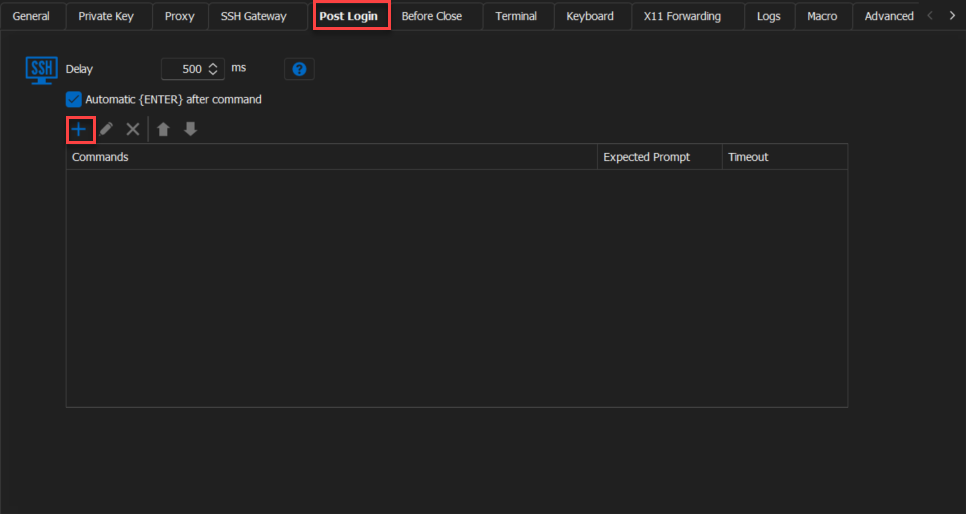
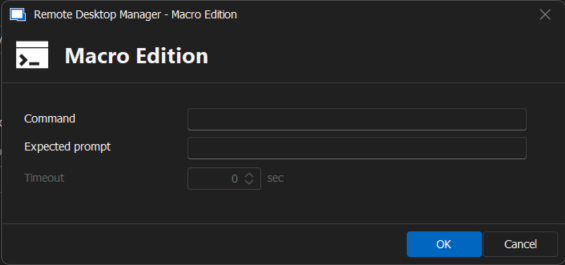
As for your second question, listing more than one type of connection in the same CSV file is not recommended.
James Lafleur
23eb7c90-8a91-4a82-86de-b3bd547b55be.png
3918e0d2-fa40-4c3b-be46-6e60884f6804.png
Got any sudo examples?
How do I make the username and userpassword "inherit". by default the are username/password.
don't see this as an option in the many fields that follow the initial csv import screen in RDM, or am I just missing it?
Hello,
Sorry for the confusion. Since your goal is only to import SSH hosts as SSH Shell entries in RDM, you can use the following format:
I took the liberty of adding a CSV sample in the attachment, let me know if you have more questions on that matter!
Best regards,
Can we simplify this?
Can a single CSV be used to import Windows AND Linux entries?
How can a CSV be used for:
Windows
WindowsParent1
WindowsSession1
Linux
LinuxParent1
LinuxSession1
Then we set the credentials on the WindowsParent1 and LinuxParent1 and all of the windows and linux sessions would inherit the credentials specified on the parent folders.
Doug,
I was able to get this format to work for both Windows and Linux in a single CSV.
Sample CSV
ConnectionType,Name,Group,Host,Port,Description,Display Name,CredentialUserName,CredentialDomain
SSH Shell,SSH Shell,Linux,linux1.mydomain.com,22,Linux Box,linux1,adacctname,addomain
RDP (Microsoft Remote Desktop),RDP (Microsoft Remote Desktop),Windows,windows1.mydomain.com,3389,General Purpose Scripts,windows1,adacctname,addomain
My folder names are Linux and Windows. You can make yours anything you want. Just set column 3 to the name you want.
I also went into file > templates and set some defaults.
Folder needs to be customized.
Open File > Templates > Default Folder Settings
Open up the Folder entry
Set Credentials to inherited
Open File > Templates > Local Default Settings - Session
In General section, set RDP to credentials inherited and I set local resources, keyboard on remote computer (you may not want that)
In Terminal section, set SSH Shell to credentials inherited
On Local Data Source top left, set your domain, account and password.
Then create your CSV with format above and import it.
Ah, that makes sense. having to set the Template for default folders/creds and "local default settings" setting to inherited. Though since my folder already had those settings, the CSV import would inherit it. Sure beats doing a batch update. than you for the solution!
Hello,
Thank you for your replies,
Is it now working as expected for both of you?
Feel free to let me know if you have any additional questions.
Best regards,
Samuel Dery
Would be nice if the steps I detailed could be made into a proper KB article to benefit everyone or is this forum entry enough?
Hello Joe,
I will discuss this with our documentation team,
I see there is already some improvement relating to this knowledge base article that are planned:
https://docs.devolutions.net/rdm/commands/file/import/generic-csv-wizard/strategies-file-format
I will keep you updated regarding this,
Best regards,
Samuel Dery
I saw that doc and was more confused than ever! :)
your above explanation with the screen shots and the csv is what needs to be part of that doc.
Got any sudo examples that would use the post login tab and after getting authtenticated to the linux machine, it would run some type of "sudo -s" command and pull in the password that is inherited from the parent folder or vault?
Trying to get this to work but it keeps prompting me for password.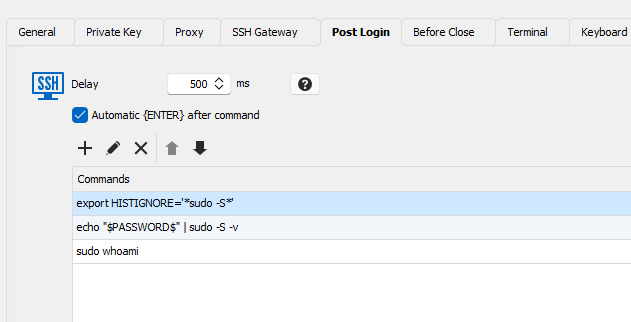
e235ab7d-4840-4555-aac1-563f06436cc1.png
Hello Joe,
Thank you for your reply,
Could you provide me with a screenshot of this prompt?
From looking at your configuration, it looks like you have the variable $PASSWORD$ is it being replaced in the terminal with the Password as expected?
Let me know,
Best regards,
Samuel Dery
myacct@myserver:~> export HISTIGNORE='*sudo -S*'
myacct@myserver:~> echo $PASSWORD$ | sudo -S -k "whoami"
[sudo] password for myacct: Sorry, try again.
[sudo] password for myacct:
sudo: no password was provided
sudo: 1 incorrect password attempt
Is $PASSWORD$ the right variable to use to contain the inherited password?
Hello Joe,
Thank you for your reply,
The variable is correct, can you confirm that the option Allow Password in variable is enabled in both the SSH Entry Properties and the Parent entry? You can find this under the "Security Settings" section.
Let me know,
Best regards,
Samuel Dery
I was able to set it on the entry but the folder it was grayed out.
This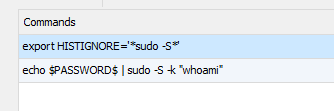
Resulted in
myacct@myserver:~> export HISTIGNORE='*sudo -S*'
myacct@myserver:~> echo myacctpassword | sudo -S -k "whoami"
[sudo] password for myacct: root
myacct@c004fkw:~>
473d9e24-a066-4cc0-8bc0-6b0584fe82af.png
Hello Joe,
Thank you for your reply,
That is good it seems the variable is now being resolved, is this working as expected for you?
Let me know,
Best regards,
Samuel Dery
Clearly it appears that it still fails.
Resulted in
myacct@myserver:~> export HISTIGNORE='*sudo -S*'
myacct@myserver:~> echo myacctpassword | sudo -S -k "whoami"
[sudo] password for myacct: root
myacct@c004fkw:~>
You can see the password of "root" is being passed which is wrong.
Whoami is not running either
Hello Joe,
Thank you for your reply,
If you perform a "Right-click" -> "View" password on your entry in the "Navigation Pane" is the password displayed in this section the same as what you're expecting to be used in your command?
Let me know,
Best regards,
Samuel Dery
For obvious reasons, I can divulge the real account, server name or password being used but are substituted below:
macct@server:~> export HISTIGNORE='*sudo -S*'
macct@server:~> echo password | sudo -S -k "whoami"
[sudo] password for macct: root
macct@server:~>
The actual password is corrrect, the account is correct and the server name is correct.
You can see the string 'root' is being passed on 3rd line.
Hello Joe,
Maybe I'm missing something in your screenshot, you have the following commands being sent from RDM:
export HISTIGNORE='*sudo -S*'
echo $PASSWORD$ | sudo -S -k "whoami"
In this case, from my understanding, if the value "$PASSWORD$" is being changed from the variable to your session password in the terminal, then the command would be working as expected, perhaps the issue is with the commands being used?
Would you be interested in a remote session so I can better understand the issue?
Let me know,
Best regards,
Samuel Dery
At this point I think I am doing to drop it and count what I have as a win. Thanks for the help up to this point.
Hello Joe,
Thank you for your reply,
No problem, If you wish to look into this further, feel free to let me know,
Best regards,
Samuel Dery