Having some problems with login field autofill for the Wazuh-Dashboard in RDM
Having some problems with login field autofill for the Wazuh-Dashboard in RDM

Hello everyone,
I'm having issues creating and setting up a website entry in RDM for the Wazuh Dashboard. The autofill doesn't work, and when I click on "Insert login credentials," it writes into the fields, but apparently not correctly. When I press the login button, it seems like nothing has been written into the login fields. If you select the apparently filled fields, they are also "emptied."
I have tested it with both Chrome and Edge browsers, each without success, the automatic detection of the HTML control element IDs can't find any elements.
Maybe I'm referencing the wrong Username-ID and Password-ID.
I'm using [UserName] as Username-ID and [Password] as Password-ID. My Formular-ID is euiForm, but I'm not shure what to use here, the source code of the webpage does not provide me with enough information to be sure.
Has anyone experienced similar issues and found a solution?
Thank you in advance.
Best regards.
All Comments (15)
Hello,
Thank you for getting in touch with us. To better assist you, could you kindly provide us with the following information:
- Did you update rdm recently? If yes, do you recall which version you were on?
- Your current RDM version.
- The operating system you are using and is version.
- The data source you are utilizing.
- Any additional information you believe might be relevant.
Once we have this information, we will be better equipped to diagnose and resolve the issue.
Best regards,
Maxim Robert
Hello,
I am experiencing the same problem like here https://forum.devolutions.net/topics/40046/unifi-controller-integration#180033, except I have the same problem for Wazuh Dashboard
To answer your questions:
- We upgraded one week ago from 2023.2
- 2023.3.39
- Windows 10 22H2 Build 19045.4046
- MySQL DB
Hello Jeustachi,
Thank you for your response!
Could you kindly follow the steps for this help topic:
https://docs.devolutions.net/kb/workspace-browser-extension/how-to-articles/website-authentication/
If you follow Method 2 and inspect the textbox, does the "id" information correspond with the one you entered?
Please let us know if the problem persists. If you have any other questions, feel free to let us know.
Best regards,
Maxim Robert
Unfortunately, a dynamic ID is used for the username and password. Is there still a way to reference the fields?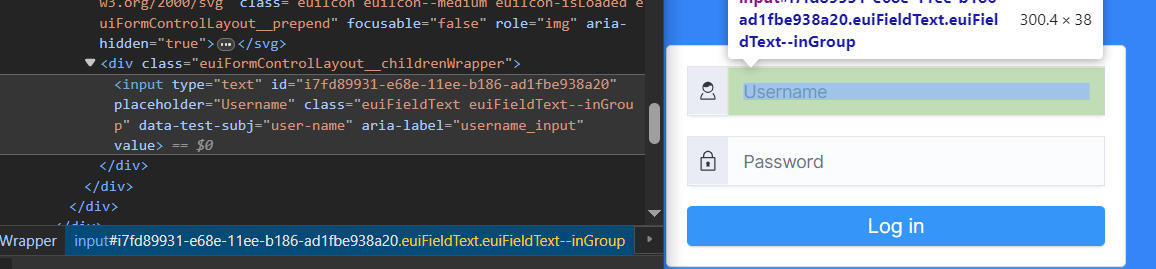
Thank you in advance.
774e2249-de7a-49ae-81ba-6edb3c76a14b.png
Hello Jeustachi,
Thank you for your response!
In RDM, could you try to use the buttons "Automatic" and "Discover" to see if RDM autocompletes the information of the "Username" and "Password"?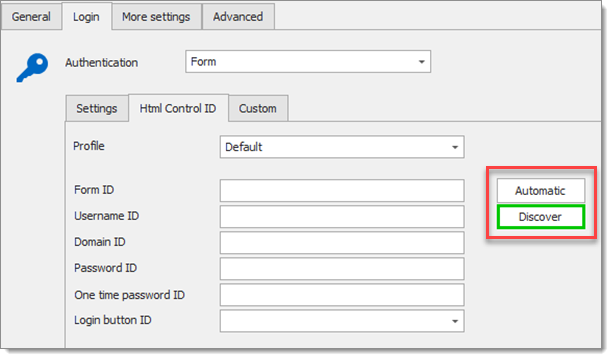
If the textbox is completed with [UserName] and [Password], could you try to see if it works?
Thank you for your collaboration. If you have any other questions, feel free to let us know.
Best regards,
Maxim Robert
docs_en_kb_KB4608.png
"Automatic" does nothing for me and "Discover" just hands me an error code saying, that there is no controll element for username or password.
Same result if i do the same with filled in username-id and password-id 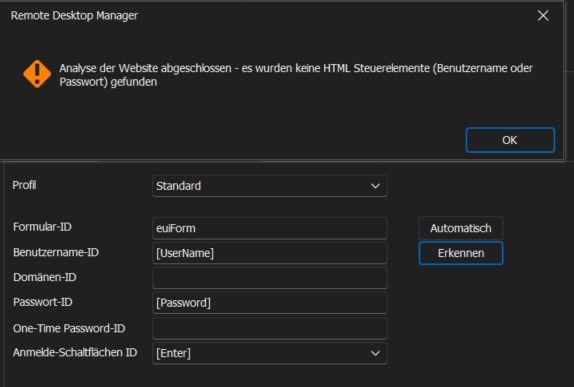
1d561430-60c0-471f-80d7-906920aa0e57.png
Hello Jeustachi,
In that case, would it be possible for you to create a portable installation of the latest version of RDM and see if this issue still occurs? To do so, you will need to do the following:
(Close RDM)
1- Download the .zip file below:
https://remotedesktopmanager.com/home/thankyou/rdmbin
2- Create a new folder on your Desktop
3- Extract the content of the .zip file into the folder created at #2
4- Go to this folder once the .zip file has been extracted and run remotedesktopmanager.exe
5- Connect to your data source
This test will allow us to rule out your local installation of RDM as a possible cause for this issue.
Please note that if you are using an Advanced Data Source, I would recommend skipping step #5 and using the default data source created by the portable installation of RDM instead.
Best regards,
Maxim Robert
Thank you for your input.
I followed your advice and tried the portal version, with the default data source and also the Advance Data Source, neither works for me.
Hello Jeustachi,
Thank you for your response!
After some testing, I was able to reproduce the issue. It seems that the Dynamic ID is a security measure taken by their web developers. But, when opening the website externally and using the Devolutions Workspace extension, I was able to choose the credentials from there, and then it entered.
Do you open your web entry externally or embed it?
Thank you for letting us know. If you have any other questions, feel free to let us know.
Best regards,
Maxim Robert
Hi,
I have the same issue with FortiGate login page, shown below for reference. They're also using password input without ID or name, for whatever reasons.
It is, however, easily possible to select the password input box using CSS selectors, as follows:document.querySelector("input[type='password']").
I would like you to add the functionality to select the password box not just using ID or Name (what's available today), but also using CSS selectors, similar to the above. I could then enter input[type='password'], what would solve the issue of the original poster and mine, and many others on a lot of strange login pages.
Note that there might be multiple password inputs on a login page (for example "sign up" and "sign in", with "sign up" permanently hidden), so sometimes a more complex selector is needed, such as input[type='password']:nth-of-type(2).
Giving us the raw power of selectors would allow to find form elements using their various attributes or combination of attributes, on even more awkward login pages.
Or maybe it is possible to use the "Script" tab? I am unable to find documentation on it. How does it work? What can I do with it?
Thank you in advance.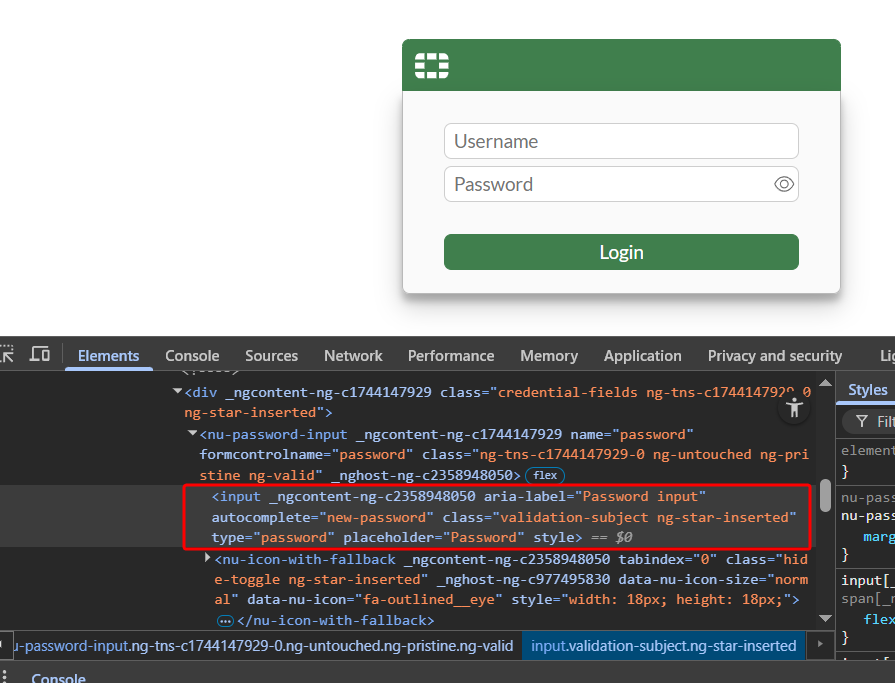
This is my feature request: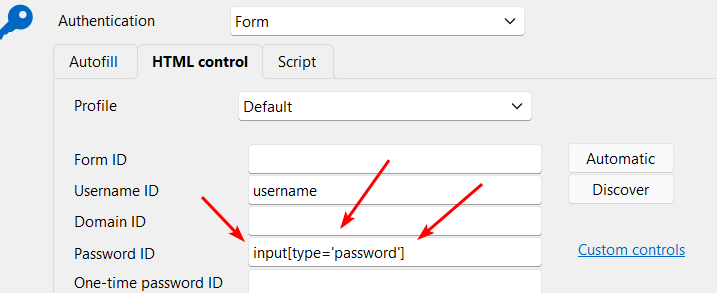
This looks promising but I can't find the documentation: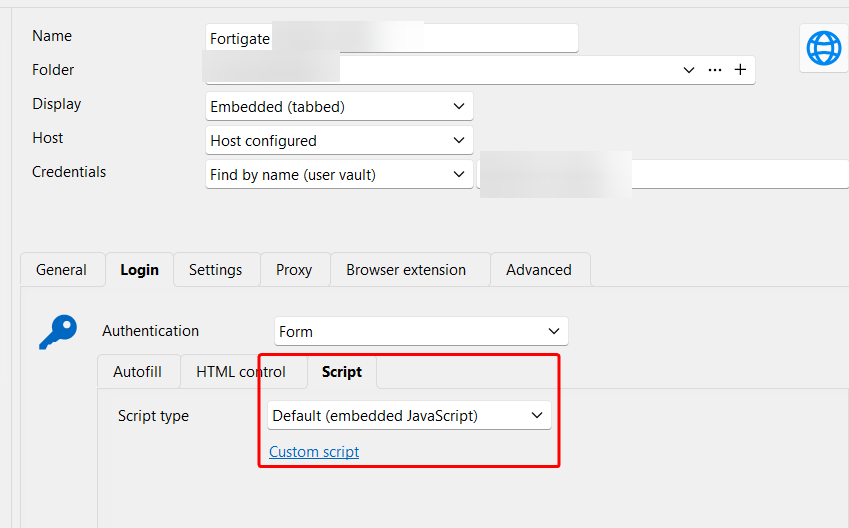
917045aa-4e56-438d-a224-53c08e6276d2.png
9d41b50b-e783-455f-9d6c-8d2ff3082594.png
ea171317-b8bb-4f14-953f-3f8ba6881e0e.png
Hi,
You can enter [Password] in the Password ID field. It will automatically attempt to locate password inputs dynamically, even if the field does not have an id or name attribute.
The Script tab allows you to write a JavaScript script that will be injected to the website. This custom script, written by the user, will be executed once the navigation to the website is completed.
Best regards,
Olivier Désalliers
Hi,
You can enter [Password] in the Password ID field. It will automatically attempt to locate password inputs dynamically, even if the field does not have an id or name attribute.
Thank you! That helped with FortiGate login! I still think CSS selectors are worthy adding to your backlog in order to get implemented one day. :-)
The Script tab allows you to write a JavaScript script that will be injected to the website. This custom script, written by the user, will be executed once the navigation to the website is completed.
Thanks! Are there some variables that can be used with this JS script? Such as $username or $password string that is replaced by the actual data taken from the RDM entry?
Hi,
We will open a ticket to explore additional ways for users to help RDM identify input fields, including the option to use CSS selectors.
You can use variables from RDM, such as $USERNAME$, in your custom script. For example, the following line will log the entry’s username to the console:
console.log("$USERNAME$");
Best regards,
Olivier Désalliers
Thank you for clarifications! Maybe you can also add a tiny help in the Custom script dialog window so that it's immediately known that variables can be used and in what way. Or maybe you can add the Variable selector dialog which is already used in the main entry edit window?
Thanks!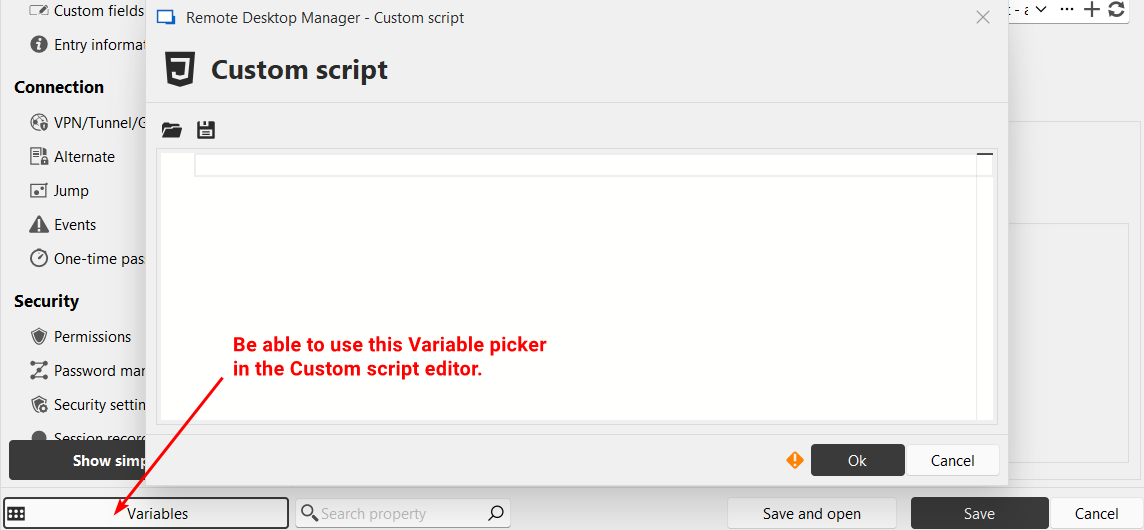
5d655b2c-74d6-4cc0-ad87-518cb58b543d.png
Hi,
Thank you for your feedback. We’ve opened a ticket to address potential UI/UX improvements for the Custom Script window.
Best regards,
Olivier Désalliers