Save Button missing for "My Pleasant Password Server Account" in certain conditions
Save Button missing for "My Pleasant Password Server Account" in certain conditions

Hello,
I have encountered a small error in RDM for Windows 2023.3.36.0 64-bit.
We use a pleasant Password Server and enroll the Account information to access the password server locally in each workstation: 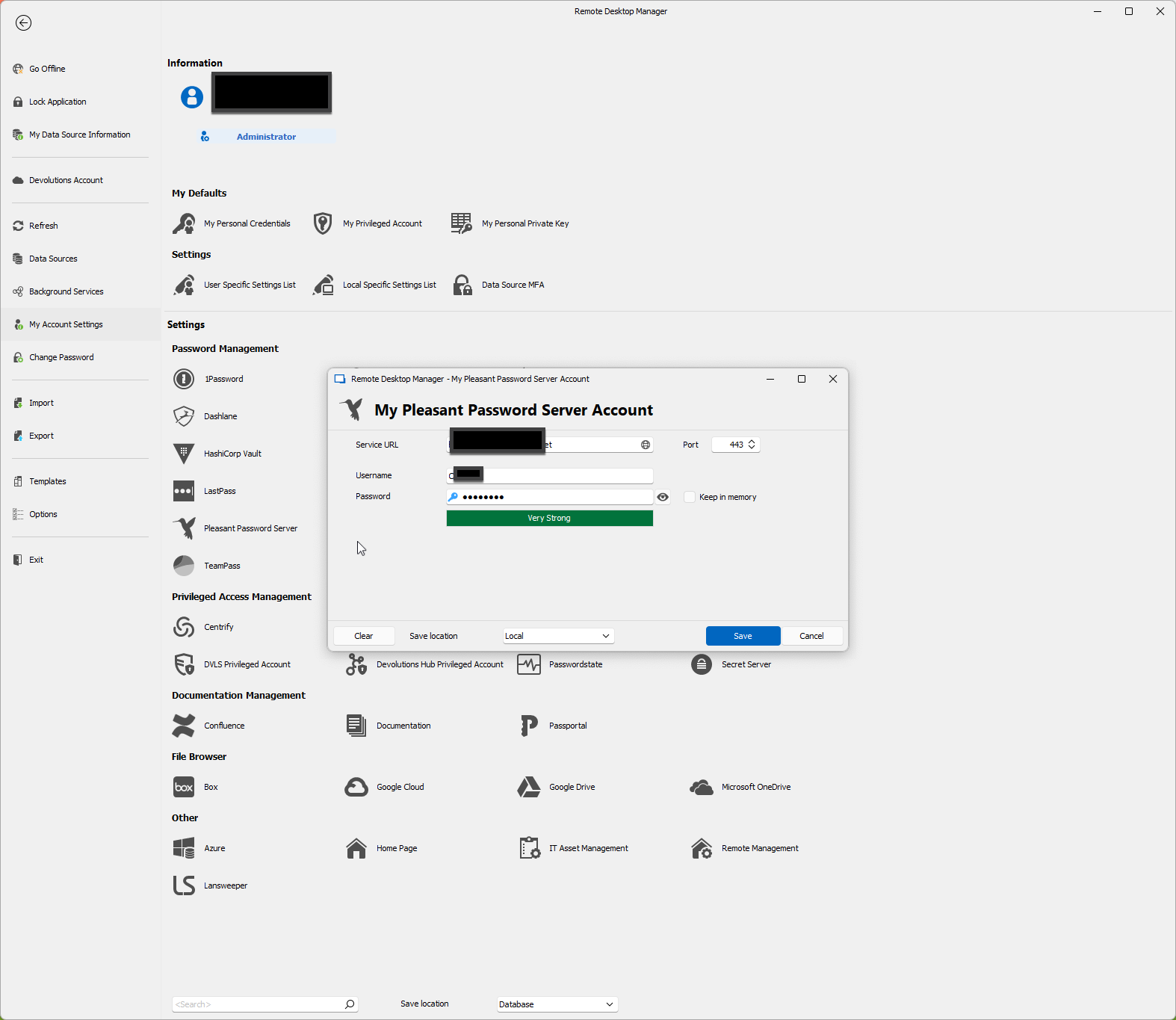
Setting these in "File" - "My Account Settings" - "Pleasant..." works fine.
I now installed RDM on a new Virtual Machine with Windows and forgot to enter them: 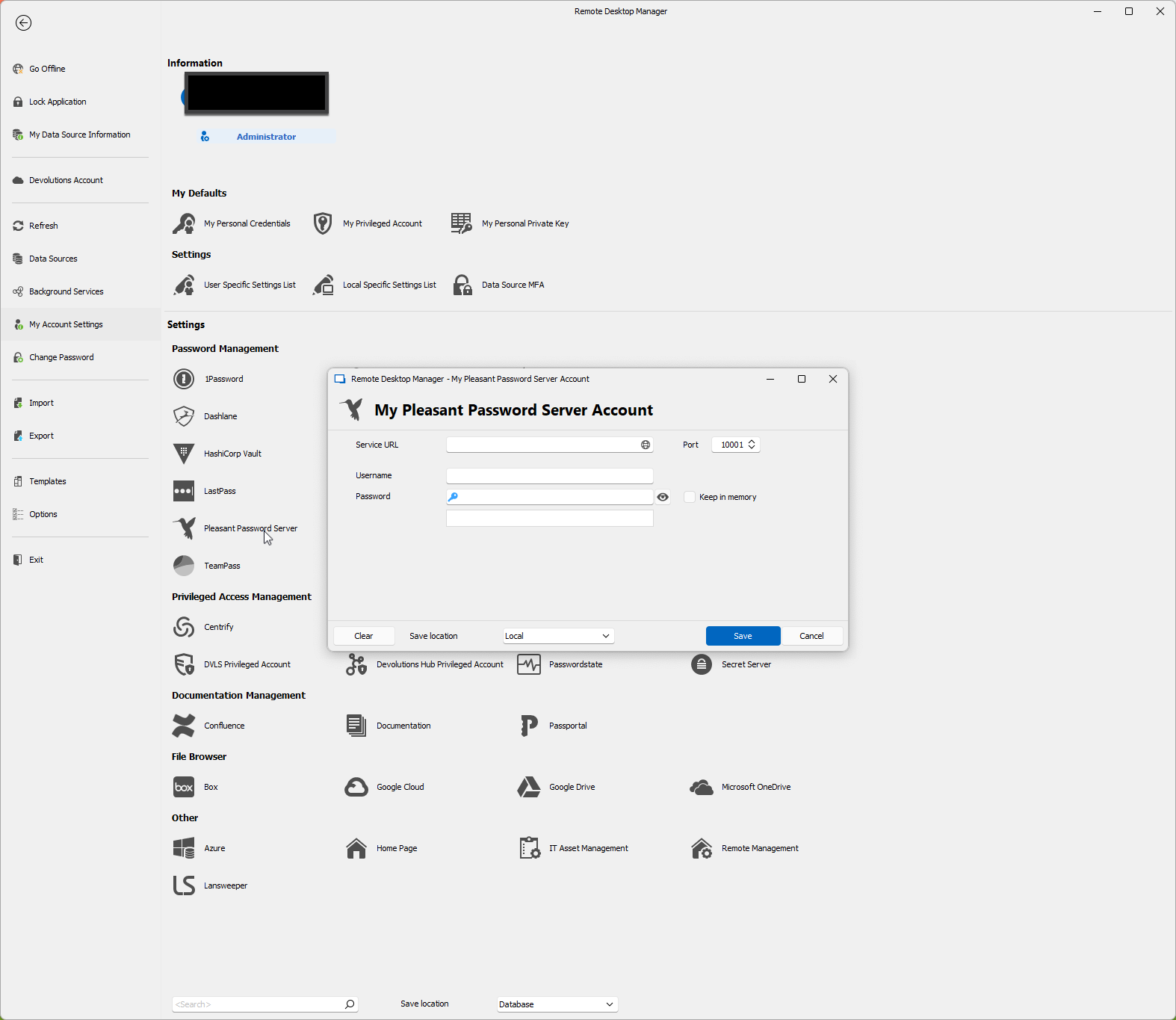
Clicking on an entry that links to an account in the Pleasant Server opens the dialog to enter the URL and the Credentials for the Pleasant Server, but: The Save button is missing here: 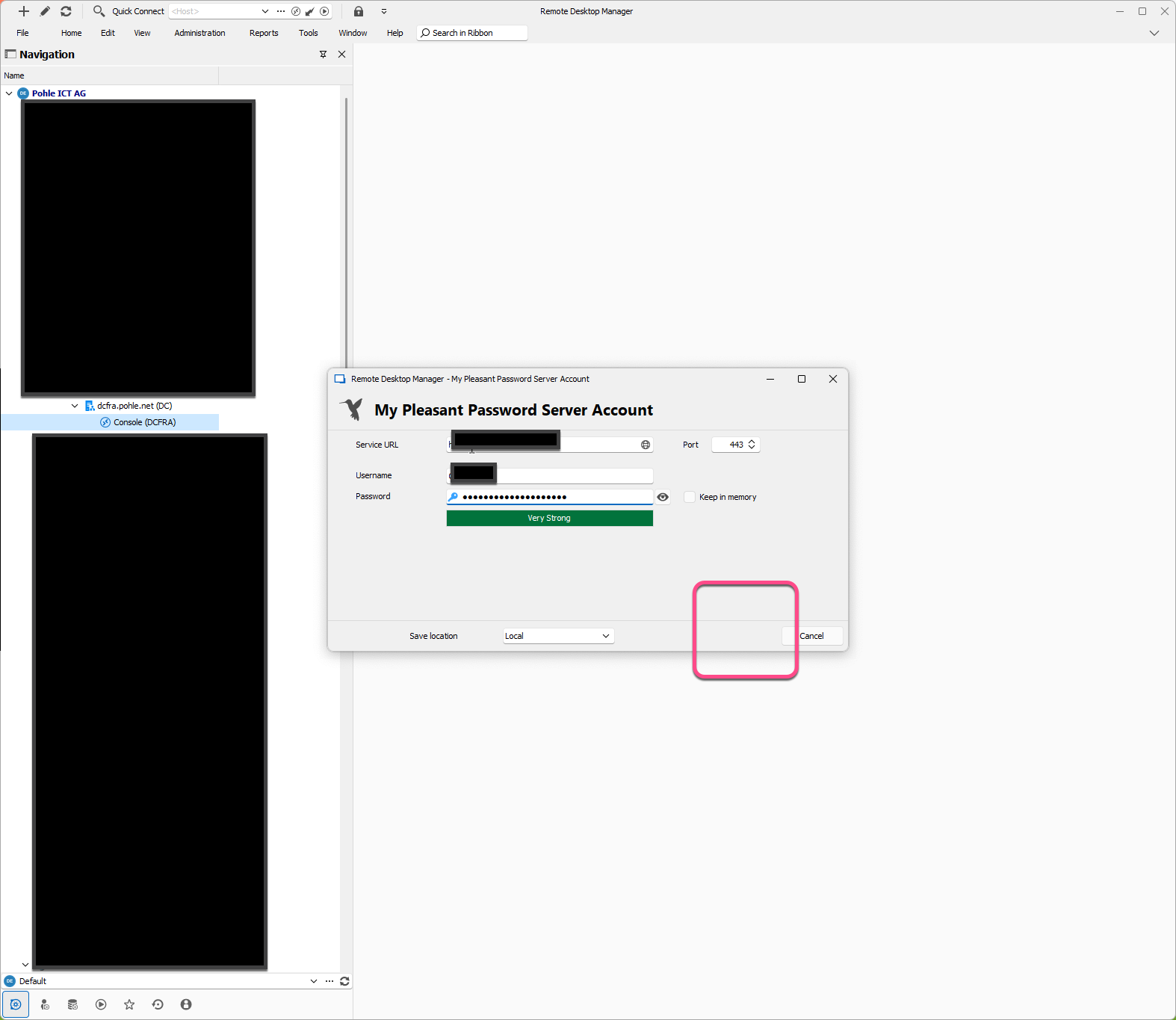
Not a big issue but maybe you are interested in this information.
Kind Regards
Christian
2024-01-18_18-37-30.png
2024-01-18_18-36-4245.png
2024-01-18_18-38-23.png
All Comments (4)
Hello,
I'm unable to view the image you sent. Could you please try resending it?
Also, I suspect that the newest installation of RDM in the VM might not have a license. Could you check this and confirm if that's the case?
Best regards,
Carl Marien
I have now created the screenshots again and embedded into the original Post with the "Image" Button, one by one. Seems to work, they are now displayed.
As far as I can see, the Workstation has a License, isn't it? 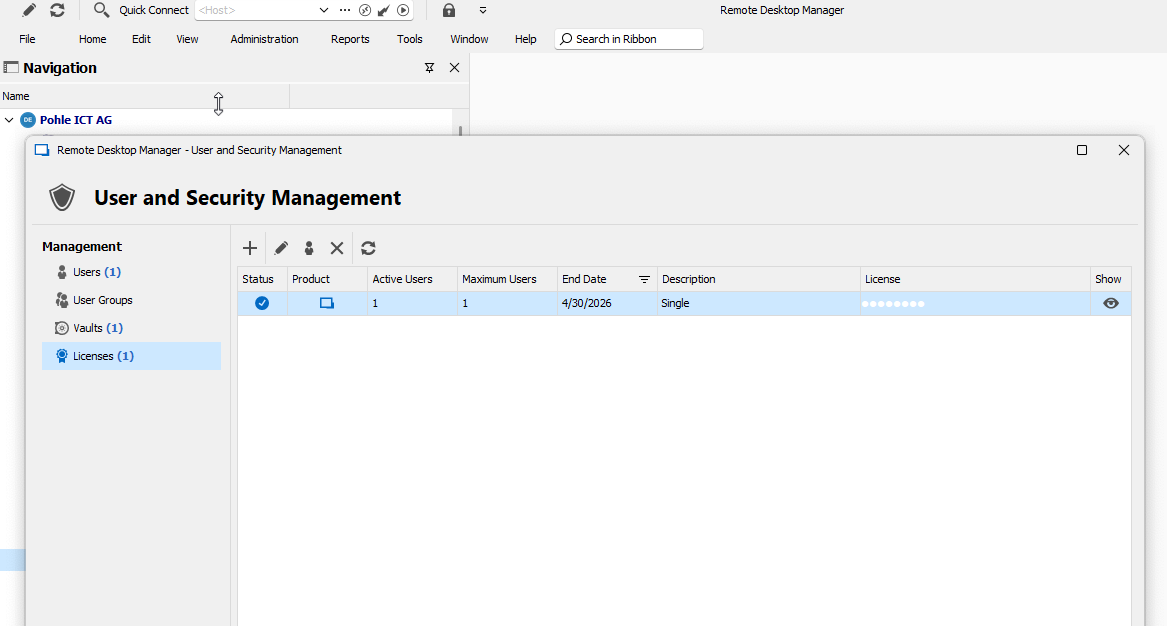
Kind Regards
Christian
2024-01-18_18-43-31.png
Hello Christian,
Regarding the issue you've reported, I've attempted to replicate it without success. To better understand and address this, would it be possible for us to have a remote session where you could demonstrate the problem? This way, we can also explore some potential workarounds together.
Regarding your second question, the easiest way to check if your RDM is licensed is by looking at the bottom right corner, next to the application version.
Best regards,
Carl Marien
Hi Carl,
solved the issue, that the license wasn't displayed. I had " <ShowStatusBar>false</ShowStatusBar>" set in the .cfg File. Now RDM displays "Licensed" in the Status Bar.
But, the Issue still persists, but I am a little bit farther:
I have emptied the %appdata%/Devolutions/RemoteDesktopManager Directory, called RDM and entered the Credentials for the MS SQL Datasource.
Then I double clicked one of the entries that references to the Pleasant Password Server and got the Window to enter my Pleasant Data with no save button: 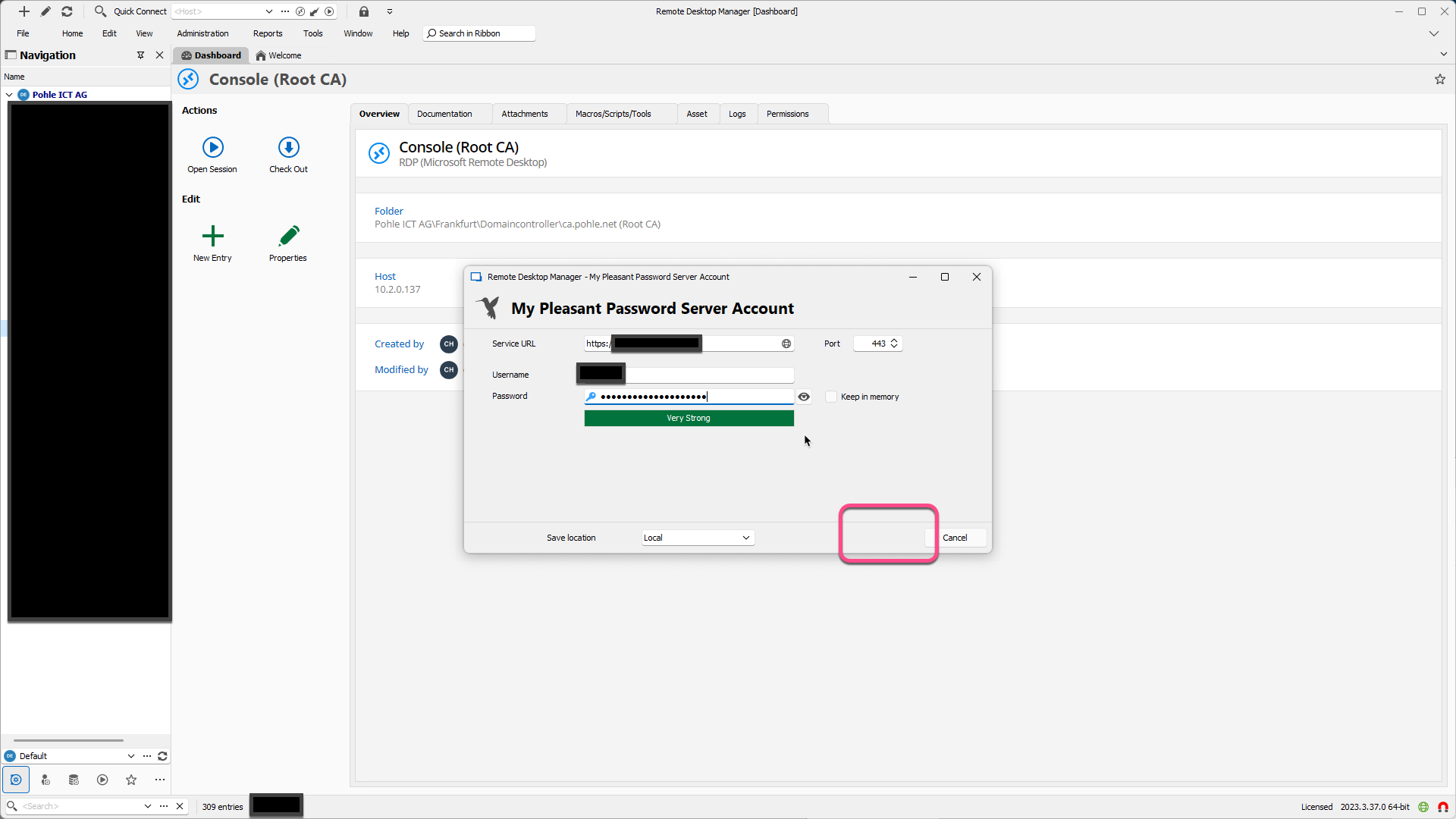
I played around a bit with the different controls and after clicking "Keep in Memory" the Save button was there as expected: 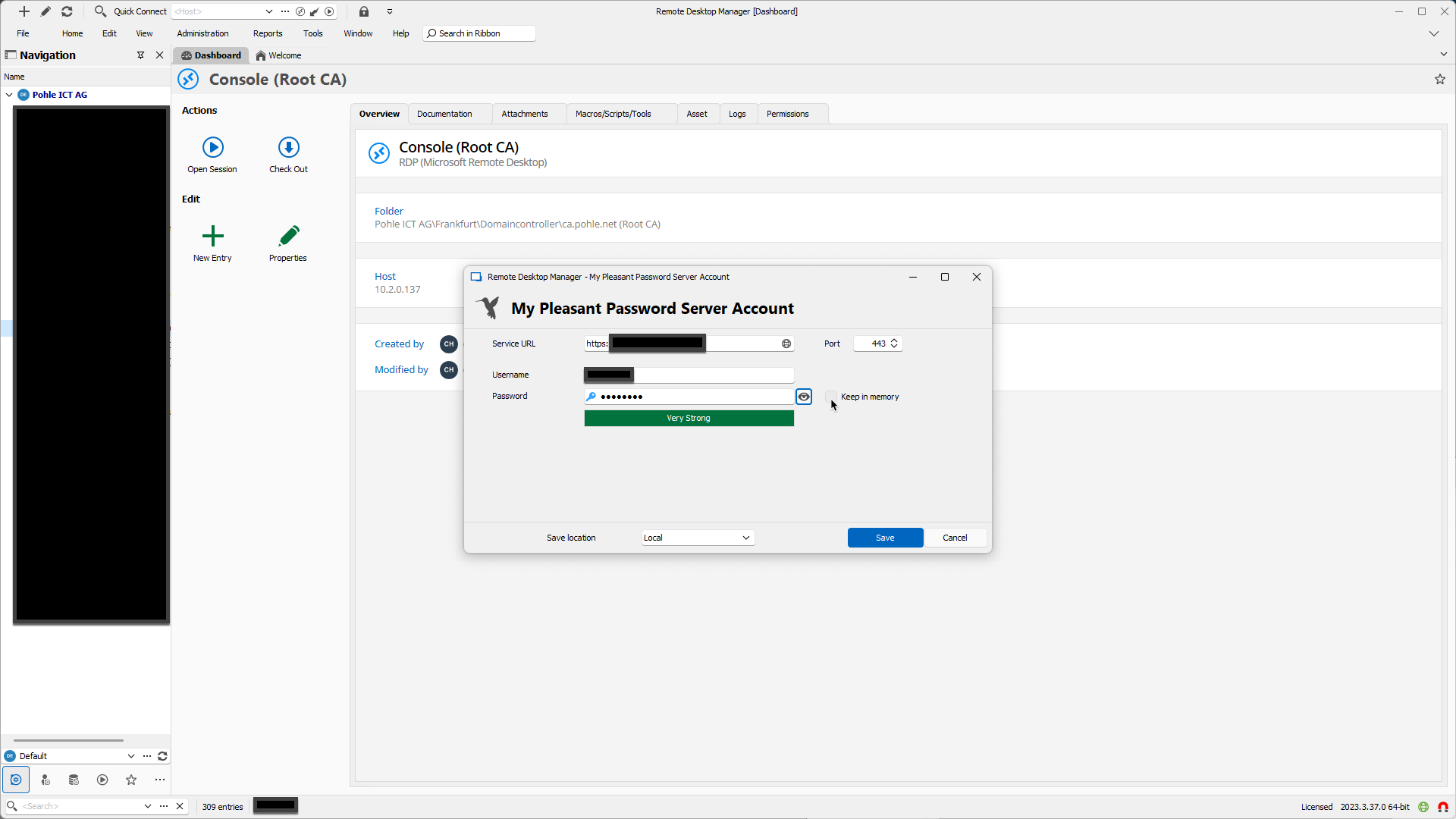
As I wrote, this is not a big issue as there is a second Workaround now, so if you do not encounter this (which wonders me, as I had it with an empty config Directory) it maybe does not need to be fixed.
And if someone else encounters this error he:she finds this Topic and can apply one of the Workarounds mentioned.
Kind Regards
Christian
Pleasant AFTER.png
Pleasant BEFORE.png