Update User Specific Settings with Powershell Script

Hello,
I am trying to update the User Specific Settings for a session but I'm not able to update the "Override custom fields" setting to be selected. The script does the following:
$session = Get-RDMSession -Name mySessName
$NEWussSSH = New-Object Devolutions.RemoteDesktopManager.Business.BaseConnectionOverride
$NEWussSSH.CustomField1Value = "username1"
$NEWussSSH.CustomField2Value = "username2"
$NEWussSSH.OverrideCredential = $true
Set-RDMUserSpecificSettings -Session $session -UserSpecificSettings $NEWussSSH
Update-RDMUI
But it results in this: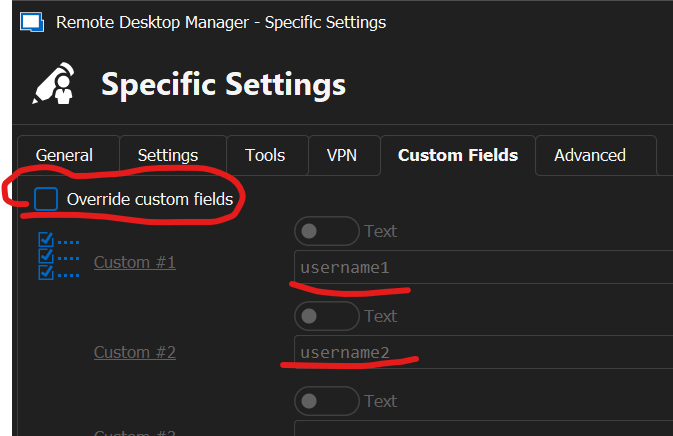
So I then tried:
$NEWussSSH.OverrideCustomFields = $true
But it results in the error:
'OverrideCustomFields' is a ReadOnly property.
Version is 2023.3.25.0 64-bit.
Can you please help?
Thanks,
Marco.
12846078-d46d-4d28-bd1f-95e94621bae8.png
All Comments (17)
Hello,
What version of the Devolutions.PowerShell module are you using? You can get it with the Get-RDMInstance cmdlet.
What data source type are you connected to?
I tried the following script without any problem. Could you please try it and see if that works?
$s = Get-RDMSession -Name "MyTestEntry"
$NEWussSSH = New-Object Devolutions.RemoteDesktopManager.Business.BaseConnectionOverride
$NEWussSSH.OverrideCustomFields = $true
$NEWussSSH.CustomField1Value = "TestScript"
Set-RDMUserSpecificSettings -Session $s -UserSpecificSettings $NEWussSSH
Update-RDMUI
The only difference from your script is the OverrideCustomFields I used instead of the OverrideCredential property.
Best regards,
Érica Poirier
Hi Érica,
Thanks for the reply.
The Devolutions.PowerShell module version is 2022.3.1.0 and the data source is a SQL Server database.
I've run your script, but get the same error:
$s = Get-RDMSession -Name mysessname
$NEWussSSH = New-Object Devolutions.RemoteDesktopManager.Business.BaseConnectionOverride
$NEWussSSH.OverrideCustomFields = $true
'OverrideCustomFields' is a ReadOnly property.
At line:1 char:1
+ $NEWussSSH.OverrideCustomFields = $true
+ ~~~~~~~~~~~~~~~~~~~~~~~~~~~~~~~~~~~~~~~
    + CategoryInfo          : InvalidOperation: (:) [], RuntimeException
    + FullyQualifiedErrorId : PropertyAssignmentException

$NEWussSSH.CustomField1Value = "TestScript"
Set-RDMUserSpecificSettings -Session $s -UserSpecificSettings $NEWussSSH
Update-RDMUI
On restarting RDM, I also just noticed some errors when loading the PowerShell module. Seems this might be an issue:
PackageManagement\Install-Package : The following commands are already available on this system:'Add-HubGroupUser,

<snip - long list of commands>'.

This module 'Devolutions.PowerShell' may override the existing commands. If you still want
to install this module 'Devolutions.PowerShell', use -AllowClobber parameter.
At C:\Program Files\WindowsPowerShell\Modules\PowerShellGet\1.0.0.1\PSModule.psm1:1809 char:21
+ ...          $null = PackageManagement\Install-Package @PSBoundParameters
+                      ~~~~~~~~~~~~~~~~~~~~~~~~~~~~~~~~~~~~~~~~~~~~~~~~~~~~
    + CategoryInfo          : InvalidOperation: (Microsoft.Power....InstallPackage:InstallPackage) [Install-Package], Exception
    + FullyQualifiedErrorId : CommandAlreadyAvailable,Validate-ModuleCommandAlreadyAvailable,Microsoft.PowerShell.PackageManagement.Cmdlets.InstallPackage

Import-Module : The specified module 'Devolutions.PowerShell' was not loaded because no valid module file was found in any module directory.
At line:7 char:57
+ ... Devolutions.PowerShell")) { Import-Module "Devolutions.PowerShell" };
+                                 ~~~~~~~~~~~~~~~~~~~~~~~~~~~~~~~~~~~~~~
    + CategoryInfo          : ResourceUnavailable: (Devolutions.PowerShell:String) [Import-Module], FileNotFoundException
    + FullyQualifiedErrorId : Modules_ModuleNotFound,Microsoft.PowerShell.Commands.ImportModuleCommand
Thanks,
Marco.
Hello,
Thank you for your feedback.
Even on a SQL data source, I cannot reproduce your issue.
Could you please check if you have more than one module installed on your machine?
You can use the Get-Module -ListAvailable command to verify if these modules are installed on your computer:
- Devolutions.PowerShell
- RemoteDesktopManager
- Devolutions.Server
- Devolutions.Hub
- SecretManagement.Hub
- SecretManagement.DevolutionsServer
Only the Devolutions.PowerShell must be installed. You have to uninstall all the others, as we have merged all of them into one.
Best regards,
Érica Poirier
Hello,
I had RemoteDesktopManager module installed, and have now uninstalled it. However, now I get an error about the PowerShell version when starting it within RDM:
Loading RDM CmdLet (Module)
Installing Devolutions.PowerShell module from PowerShell Gallery...
Import-Module : The version of Windows PowerShell on this computer is '5.1.19041.3570'. The module 'C:\xxxWindowsPowerShell\Modules\Devolutions.PowerShell\2023.3.1\Devolutions.PowerShell.psd1' requires a minimum Windows PowerShell version of '7.2' to run. Verify that you have
the minimum required version of Windows PowerShell installed, and then try again.
I do have PowerShell 7.4 installed on my system, but RDM is loading version 5.1. I checked on how to have RDM run version 7, and found this KB article:
https://docs.devolutions.net/kb/devolutions-powershell/remote-desktop-manager/change-default-powershell-version/
But I don't have that option available:
I also tried directly from a PowerShell 7 shell outside of RDM, but it also does not work:
Get-RDMDataSource -Name "MYDSNAME"
ID          : x-x-x-x
$mypassword = ConvertTo-SecureString "mypassword" -Force -AsPlainText
Set-RDMCurrentDataSource -ID "x-x-x-x" -Username "myusername" -Password $mypassword
Connection Timeout Expired.  The timeout period elapsed while attempting to consume the pre-login handshake acknowledgement.  This could be because the pre-login handshake failed or the server was unable to respond back in time.  The duration spent while attempting to connect to this server was - [Pre-Login] initialization=21054; handshake=0;
I would need help setting the PowerShell version inside RDM, or connecting to the DataSource outside RDM.
Thanks,
Marco.
opt.png
Hello Marco,
Thank you for your feedback.
The option is now under File - Options - Types - Sessions - PowerShell. We will update our documentation.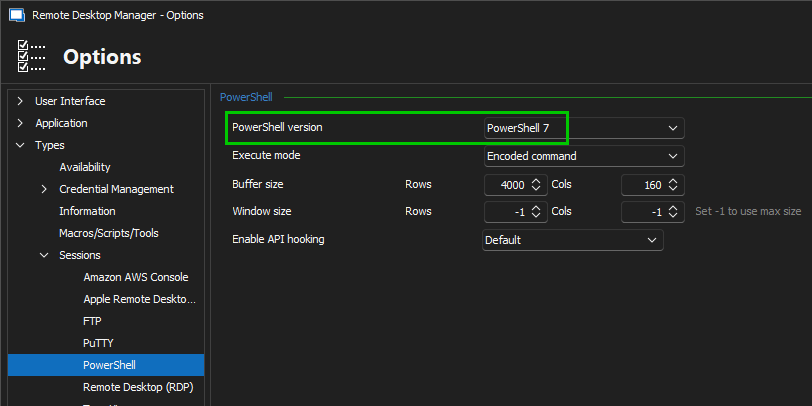
What authentication method are you using with your SQL data source?
You can use the following command to set the data source in PowerShell outside RDM. Please put your data source name between the double quotes.
Set-RDMCurrentDataSource (Get-RDMDataSource -Name "<Name of your SQL Data Source here>")
Let us know if that helps.
Best regards,
Érica Poirier
d9fb89c2-ab4c-400a-a0c7-b3f40c662dfb.png
Thanks Érica, there is some progress....I am able to load PowerShell 7 in RDM now, however, the connection to the data source is timing out. So it seems it's related to the PowerShell version since it worked fine for PS 5.1 with the old RemoteDesktopManager module.
Resize PowerShell buffer and window size
Loading RDM CmdLet (Module)
Connection Timeout Expired.  The timeout period elapsed while attempting to consume the pre-login handshake acknowledgement.  This could be because the pre-login handshake failed or the server was unable to respond back in time.  The duration spent while attempting to connect to this server was - [Pre-Login] initialization=63145; handshake=0;
I cannot connect manually with the command you provided either:
PS C:\Program Files\Devolutions\Remote Desktop Manager> Set-RDMCurrentDataSource (Get-RDMDataSource -Name "<Name of your SQL Data Source here>")
Connection Timeout Expired.  The timeout period elapsed while attempting to consume the pre-login handshake acknowledgement.  This could be because the pre-login handshake failed or the server was unable to respond back in time.  The duration spent while attempting to connect to this server was - [Pre-Login] initialization=63081; handshake=0;
I am using the "<Name of your SQL Data Source here>" from here: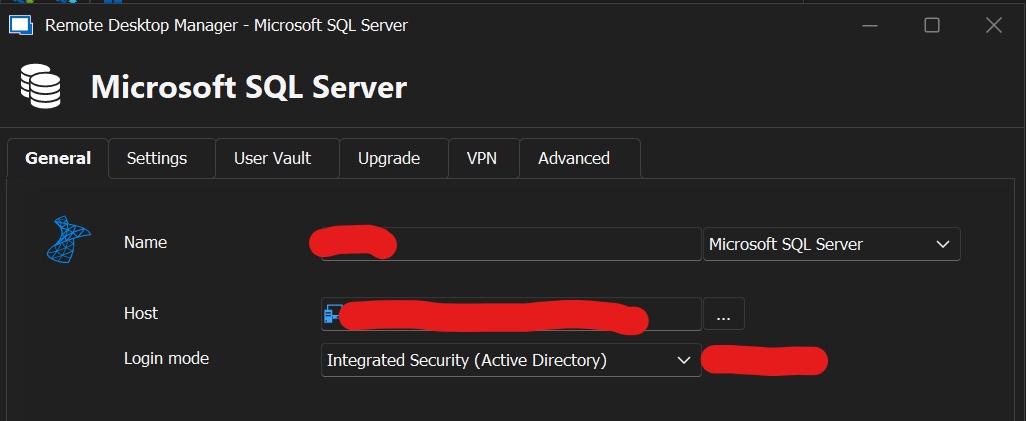
Any idea why the connection worked in PS 5 but not PS 7?
Thanks,
Marco.
5a64abe5-c7b1-4f83-ac81-f23b6c9253e9.png
Hello Marco,
Per your screenshot, completing the pre-login takes between 21 and 63 seconds. Does it take a long time to connect to the date source in RDM outside of the PowerShell module? Are you using a VPN, perhaps?
Best regards,
Richard Boisvert
Hi,
Yes I am connected to a VPN, I am connecting remotelu to the office network. It takes roughly 30 seconds from starting RDM until the windows appears with the data source sessions available.
Regards,
Marco.
Hello Marco,
Thank you for your feedback.
Then, it would be best if you increased the data source's Connection timeout parameter to prevent such a problem.
If you want to do it using PowerShell, you can use the following method:
$ds = Get-RDMDataSource -Name "<YourDataSourceName>"
Set-RDMDataSourceProperty -Datasource $ds -Property "Timeout" -Value 45
Set-RDMDataSource -DataSource $ds
Set-RDMCurrentDataSource -DataSource $ds
Let us know if that helps.
Best regards,
Érica Poirier
Hi Érica,
Trying it with an increase timeout still fails. It is still failing after roughly 20 seconds, it seems the timeout has not changed. Please also note that I happen to be in the office today, so am testing directly without VPN.
PS C:\Users\travaglini> $ds = Get-RDMDataSource -Name "ICCRDM"
PS C:\Users\travaglini> Set-RDMDataSourceProperty -Datasource $ds -Property "Timeout" -Value 45
PS C:\Users\travaglini> Set-RDMDataSource -DataSource $ds
Connection Timeout Expired.  The timeout period elapsed while attempting to consume the pre-login handshake acknowledgement.  This could be because the pre-login handshake failed or the server was unable to respond back in time.  The duration spent while attempting to connect to this server was - [Pre-Login] initialization=21031; handshake=0;
Connection Timeout Expired.  The timeout period elapsed while attempting to consume the pre-login handshake acknowledgement.  This could be because the pre-login handshake failed or the server was unable to respond back in time.  The duration spent while attempting to connect to this server was - [Pre-Login] initialization=21061; handshake=0;
[Error] The operation has timed out.
Regards,
Marco.
Hi Marco,
Thank you for your feedback.
The default Connection timeout value is set to 15 seconds. It's surely related to the failed attempt you get.
Do you get the same behavior in RDM while you're at the office?
If you use the same data source in RDM and in PowerShell, then please update it in the Advanced tab of your SQL data source, and let us know if that helps.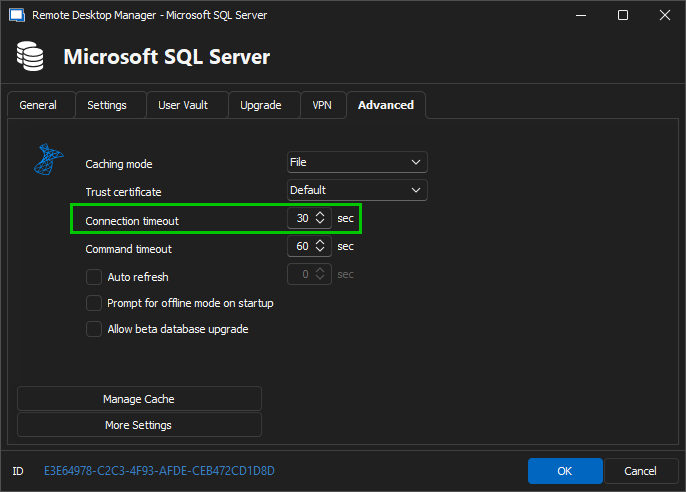
Best regards,
Érica Poirier
04f52e56-f104-4069-a938-2f42ae95bdeb.png
Hi Érica,
In RDM, the data source comes up fine, both via VPN or in the office. I'm using the same data source in RDM and PowerShell.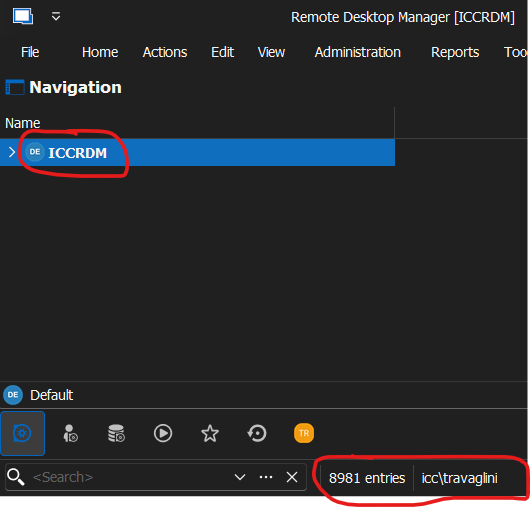
Also, the timeout was already set to 145 seconds so not sure that is the issue: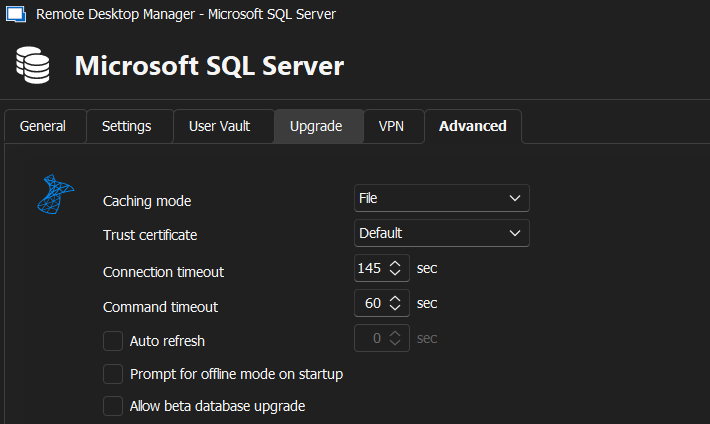
Best regards,
Marco.
f525f649-84d2-44f4-b293-0158236d9300.png
6d3e5e0f-83f1-457f-bdc4-f20db26501a5.png
Hi Marco,
Thank you for your feedback.
The number of entries definitely impacts the overall performance. We strongly recommend keeping the number below 4K entries per vault. The following documentation provides more information about vaults.
https://docs.devolutions.net/rdm/windows/concepts/basic-concepts/vaults/
Best regards,
Érica Poirier
Hi Érica,
Understood about number of entries, we'll see what we can do about that. But please note this was all working fine with PowerShell 5 even with this number of entries. I trust this is not the end of our troubleshooting for this issue?
Regards,
Marco.
Hi Marco,
We can investigate this problem in a support session. Please send an email to service@devolutions.net with a reference to this thread, and we will send a link to book the session.
Best regards,
Érica Poirier
Hi,
I just tested again today and it is working! We recently updated to version 2023.3.31.0 64-bit (was 2023.3.25.0 at beginning of this post).
I can confirm it works now from PowerShell 7 inside RDM or outside RDM to update the User Specific Settings. Here is the final version of the script that I tested:
Set-RDMCurrentDataSource (Get-RDMDataSource -Name "<My-DATASOURCE-Name")
$session = Get-RDMSession -Name "<My-SESSION-Name>"
$NEWussSSH = New-Object Devolutions.RemoteDesktopManager.Business.BaseConnectionOverride
$NEWussSSH.CustomField1Value = "<User1>"
$NEWussSSH.CustomField2Value = "<User2>"
$NEWussSSH.OverrideCustomFields = $true
Set-RDMUserSpecificSettings -Session $session -UserSpecificSettings $NEWussSSH
Update-RDMUI
Regards,
Marc.
Hello,
Thank you for your feedback. That's good news it's now working as expected!
Best regards,
Érica Poirier