RDP Secure Connection

Hi guys, quick question, do you have any similar option on RDM (RDP session) to "Ignore Certificate Errors" (as you can see in the image)?
My question is because at this time I'm facing a weird behavior, let me explain you:
- Using RDM to connect to Windows Server by RDP is not posible in some cases, majority with Windows Server 2012.
- The errors when I tried the connection are: "ERRCONNECT_CONNECT_TRANSPORT_FAILED (0x0000000D)" and "Unknown error (0x0000001C)" as you can see in the next images.
- Here comes the weird thing, after the errors, I have tried the same connection to the same server(s) but with a different application (Jump Desktop).
- After creating the same RDP session (with default configuration) on Jump Desktop app I have tried the connection and I got the same errors.
- Next step, go to edit the RDP session on Jump Desktop app and activated/deactivated the "Ignore Certificate Errors" (Because I think the errors are related to the connection security) option, tried the connection again with Jump Desktop app, the RDP connection was established successfully.
- Next, close the Jump Desktop RDP Connection and close Jump Desktop App.
- Go to RDM app, tried the RDP connection to the same remote server, now the connection was established successfully.
Why my post is weird, because I have to open the RDP connection with a third party app first to be able to open the same connection with RDM, obviously I tried the same procedure after rebooting my MAC Computer, the result is the same, I need to open the RDP connection with a third party app first to be able to open the same RDP connection with RDM.
Based on the errors, I think the error is related to the way RDM manage the security layer on the RDP connection, based on that I'm here asking you about any option similar to "Ignore certificate errors" on RDM.
Thanks in advanced.
QUICK UPDATE
I downloaded the RDM app on mi iPAD and iPhone, tried the same connection, both attempts were completed successfully, the RDP connection is working as expected, but still failing on my MAC (M1 - SONOMA)
.
.
.
.
.
.
.
.
.
.
Here an image of my post, this is because I noticed the images on the original post (body) were lost.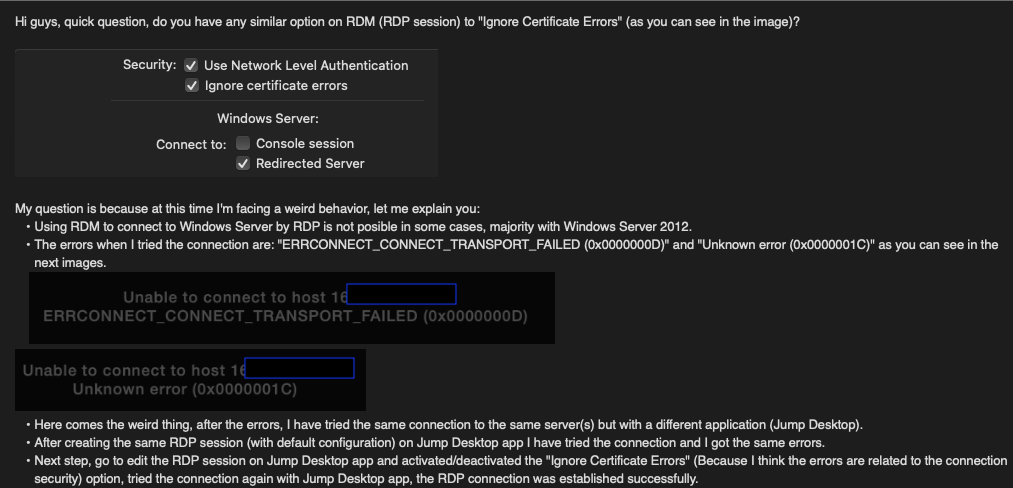
.
Error2.png
All Comments (12)
Hello
Thanks for the issue report. That is strange indeed. I'm not familiar with the internals of Jump Desktop, but if the connection works in RDM only after "ignoring certificate errors" in Jump Desktop, I have to assume they're using the same basic RDP component (FreeRDP) as us, and that setting is allowing an exception to some security question.
Normally, if the remote server certificate is not able to be validated, you would see a popup dialog at connection time asking you to trust the certificate. Does that happen in RDM?
I think the best way to start troubleshooting this is to ask you to generate a session log that will give more detailed diagnostic information. You can enable session logging as described here. Then try your connection again, and after reproducing the issue send the log to us (either send it to me in a PM or to support@devolutions.net, mentioning this forum thread). It would be best if you can perform this on a "fresh" server (i.e. one that you didn't connect with Jump Desktop and therefore won't work in RDM).
Please let me know if something isn't clear or you have further questions. I apologize for the inconvenience.
Thanks and kind regards,
Richard Markievicz
Hi Richard, I already sent you a direct message with the logs.
Thanks in advanced.
Hello
Thanks for the detailed logs. The issue isn't related to security and I have a clue what's happening, but I'm not currently sure what the interaction is with Jump Desktop. I'm still researching the problem.
In the meantime, can you confirm what settings you have under your RDP session(s) "Experience" tab?
If "Detect network automatically" is checked, can you try unchecking it and let me know if it changes something?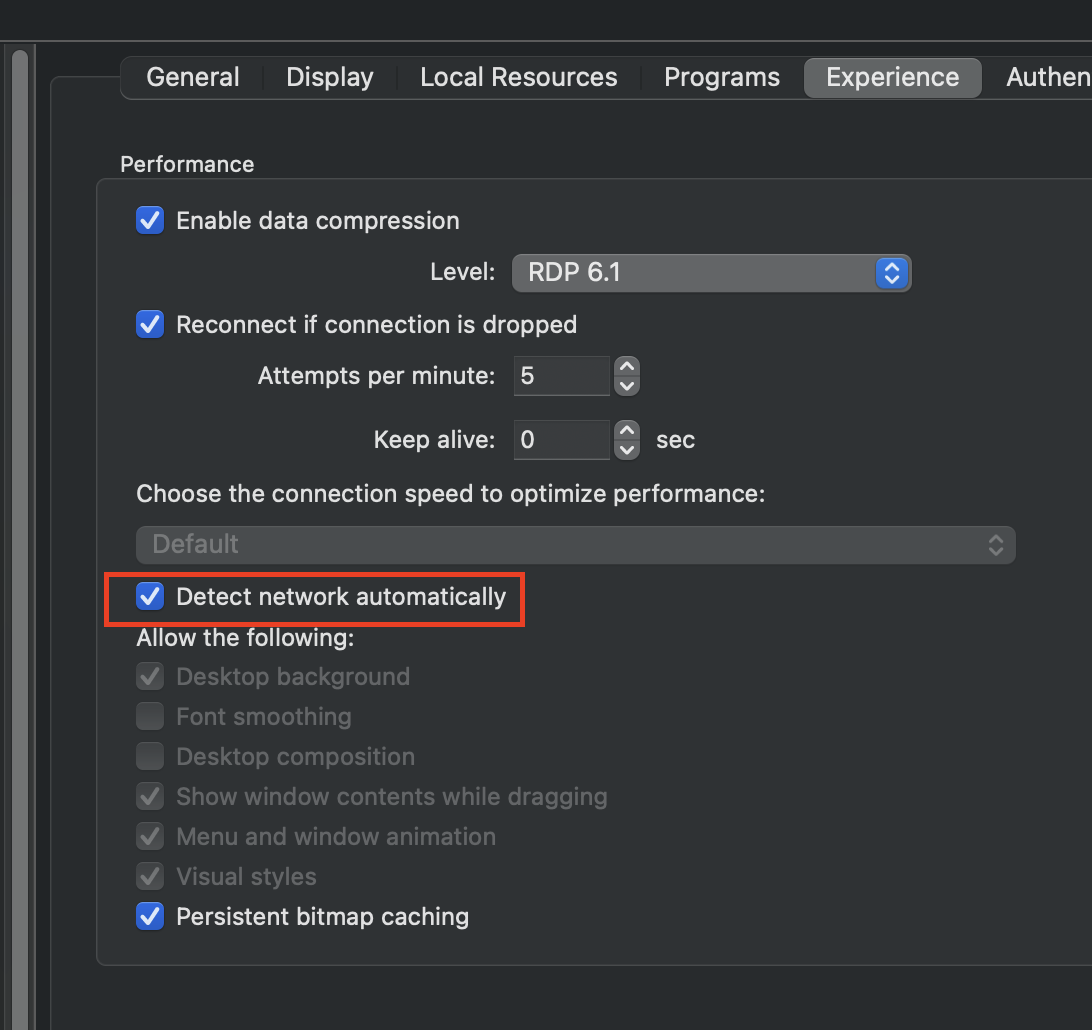
Please let me know if you have some questions or something isn't clear. Once again, I apologize for any inconvenience.
Thanks and kind regards,
Richard Markievicz
Screenshot 2023-10-23 at 10.50.44.png
Hi Richard, I had tried many options.
- TAB Experience: Check/Uncheck "Detect network automatically" and different options with "Level" on "Enable data compression"
- TAB Authentication: Check(Uncheck "NLA", "Enable Transport Layer Security", "Enable Remote Desktop Protocol Security (RDP)"
- TAB Advanced: tried different values on "Codec Level" option.
Even after the modifications the connection issue still the same
Thanks a lot for your help.
Hello again
Thanks for the information. If possible, can you generate a further session log of the failed connection scenario ensuring that "Detect network automatically" is unchecked?
Please let me know if something isn't clear or you have further questions
Kind regards,
Richard Markievicz
Welcome to the Mini community! It's great to hear you're exploring your new ride. Enjoy your journey on the road! So, I was on the lookout for some writing help, and Ultius caught my eye. They claim to have top-notch tools for writers and I hopped over to https://letsgradeit.com/review/ultius/ to see what others had to say. Ultius offers free essay samples, which seemed cool. But here's the hitch – my actual order didn't match up. Despite their claim of "American Quality," the English in my paper was far from impressive. Long story short, based on my experience, I'd say give Ultius a pass if you want to dodge plagiarism and not risk a weak essay. Check out the full scoop on letsgradeit to decide for yourself.
Hi Richard I sent you a new DM with the logs, I'm sorry for the delay.
Some "weird" updates:
I have temporary fixed the error, my workaround was to use a Windows PC (Forwarding Windows PC) like a "Man in the middle":
- On this new Windows PC I had configured windows Port Forwarding "netsh interface portproxy add v4tov4 listenaddress=localaddress listenport=localport connectaddress=destaddress connectport=destport"
- On RDM I have created a new RDP session, changed the RDP port and pointed to the IP of the new Windows PC instead of the Server real IP Address to start using the forwarding configuration.
- It works, RDP session stablished successfully.
- I had applied this new "Alternative solution" based on that from another windows computer I have no errors connecting to the servers.
I think something is happening at the level of TCP Connection negotiation (timeout, handshake, etc), not sure if it is related to security (SSL, NLA, etc). As I mentioned at the beginning, this behavior is happening with some of the servers, majority Windows Server 2012. Please remember I also have RDM installed on my iPhone and iPad and I have not issues with the connection to the same servers (Win2012) using these devices, everything works as expected.
Thanks for your help.
Hello again
Thank you for sending over the updated logs. Unfortunately, I'm still confused.
The problem doesn't relate to security or certificates. When connecting from RDM, the secure connection is established and authentication is done, then the RDP connection sequence proceeds. In the "non-working" case, we get as far as the point where we expect the sever to send RDP licensing information - but the message never arrives, and the connection is timed out after a few seconds of waiting.
For some reason, in the "working" case, the server sends license information and the connection sequence continues.
I believe the "ignore certificate errors" is a red herring here. It allows your connection to proceed on Jump Desktop (although - when I tried using Jump, with an untrusted server certificate, the connection worked whether I checked that box or not....). RDM doesn't have a corresponding setting but will prompt at connection time if it finds an untrusted certificate (and at that point, you can choose to "Always trust"). In every case, RDM trusts the server certificate and TLS isn't the problem.
I''ve played a bit with Jump Desktop (for the first time) and didn't encounter any issue; can I ask some more detailed of your setup?
- Do you have Jump Desktop Connect installed on the target server? Are you using its "RDP" or "Fluid" options, if so? Or - are you just using the Jump Desktop application as an RDP client?
- Can it be somehow related to the user session on the remote system? For example: if you reboot a server "fresh" and then try to connect from RDM, does it work? What about if you login locally to the server, lock your session (leaving it logged in) and then try to connect from RDM (using the same user account)?
Please let me know if something isn't clear
Thanks and kind regards,
Richard Markievicz
Hi
Here my comments:
- On my MAC computer I have RDM and Jump Desktop applications installed.
- On my iPhone and iPad I have only the RDM application installed.
- On the remote Windows 2012 servers I do not have any kind of application installed (No RDM, No Jump Desktop, etc)
- Using RDM app: on MAC, iPhone and iPAD I have created a new RDP session to the same Windows Server 2012 Remote server.
- The RDM RDP session on MAC, iPhone and iPad was created with the default configuration (No changes on "Detect network automatically" for example)
- I tried the RDP connection to the Windows Server 2012 remote server using my MAC, the connection fails, certificate warning did not arrive.
- I tried the RDP connection to the Windows Server 2012 remote server using the iPhone and iPAD, the connection was established successfully, but the certificate warning did not arrive.
- On my MAC, using the jump desktop app, I have created the RDP connection (default configuration) to the same Windows server 2012 remote server (The same that was created on MAC, iPhone and iPAD).
- I tried the connection to the Windows 2012 remote server from Jump Desktop app, the connection fails.
- I modified/edited the configuration of the RDP connection on Jump Desktop App, on advanced options, section security, I unchecked "Ignore certificate errors" and tried the connection again, the RDP connection works successfully, certificate warning did not arrive.
- I closed the RDP session on Jump Desktop app (Windows session still open, I did not "log off" on windows directly).
- Go back to RDM application, tried the connection to the remote windows server, the connection works, but the certificate warning did not arrive.
- At this point:
- I'm using the same user account on all the RDP connections, either RDM or Jump Desktop.
- I'm using Jump Desktop app as a RDP client only, I mean jump desktop is not installed on the remote windows 2012 server.
My Workaround:
- I have a Windows 10 computer (imagine its IP is 10.20.30.40).
- I made a fresh installation of RDM on this Windows 10 Computer, created the RDP session (using default options) to the same windows server 2012 remote server (imagine its IP is 10.20.30.50). As you can notice, PC and Server are in the same subnet.
- Tried the connection to the Windows Server remote server, the connection works, but the certificate warning did not arrive. I tried the same connection using the Windows 10 native RDP client, the connection works and the certificate warning arrives.
- At this point I noticed no RDP errors through Windows 10 computer using RDM or Windows Native RDP Client.
- Next, on my Windows 10 computer enabled the Port Forwarding as I mentioned on my previous message. As you know Windows Port Forwarding allows you use the computer as a "bridge" to redirect the input connection requests to the final destination through the port forwarding configuration.
- The port forwarding configuration is awaiting for an input connection request on the 1515 TCP port (PC is waiting on 10.20.30.40:1515) to be redirected to the remote windows server 3389 TCP port (Windows10 awaiting to redirect traffic from 10.20.30.40:1515 to 10.20.30.50:3389).
- Go back to RDM on MAC (Imagine my MAC IP is 10.20.30.60, I mean same subnet), created a new RDP default session, on the target IP/Host section I added the 10.20.30.40 ip address (Windows 10 Computer), on the port configuration section I changed from 3389 to 1515.
- I tried the connection, the connection works successfully, but the certificate warning did not arrive.
- At this point in the time I was using the Windows 10 computer (port forwarding) to connect to all the servers I cannot connect using my MAC.
- A couple days later, I removed the port forwarding configuration, I'm not using this workaround on my MAC, I used it like a test just to try to get more information related to this "weird" MAC RDM RDP behavior.
At the end:
- I'm using RDM on Windows 10 to connect all those servers I cannot connect using RDM for MAC.
- I'm also using iPhone and iPad with RDM to connect to the servers I cannot connect using RDM for MAC.
Hello again
Thank you for the detailed information. I'm still not understanding why this happens, but it somewhat reminds me of an old state machine bug in FreeRDP.
I realize I never checked - is your RDM Mac up-to-date? If not, can you tell me the version (Remote Desktop Manager > About)?
Thanks and kind regards,
Richard Markievicz
Here the info.
MacBook Pro M1
MAC OS: Sonoma 14.1
RDM: Version 2023.3..8.0 (I have also tried with the two previous versions)
Hello
There are two things I'd like to check:
First, in RDM RDP > Authentication; "If the actual verification does not meet minimum policy requirements"; what do you have selected? Assuming it's left at "Default", if you switch this to "Warn me" - do you get the certificate prompt when you open your connection?
Second, in the most recent set of logs you sent me, where "detect network automatically" was disabled, the client is still sending the capability flag "RNS_UD_CS_SUPPORT_NETCHAR_AUTODETECT" - this implies that automatic network detection was enabled. I can't see a case in the code where that flag can be sent if the option is not enabled. Are you able to double-check there wasn't a mistake on your side when generating that log file?
Please let me know if something isn't clear or you have further questions.
Thanks and kind regards,
Richard Markievicz