Force RDP to Always Open in Native Full Screen View on Windows
Force RDP to Always Open in Native Full Screen View on Windows

I have RDM installed on my machine as well as a jumpbox for connecting to a hosting server. Some years ago when I started using RDM for RDP sessions I got it configured to always open RDP session in the full screen UN-windowed mode. It seems that I can export all my settings from one application to the other and the same settings will go into effect, this is fine for me. I recently told a buddy about RDM and that he should try it out, fast forward a few months and he loves the app but hates that every new RDP session opens in the windowed mode within RDM. Now neither of us can find the setting to make every session open in the Windows native full-screen option. I know there are hotkeys (I don't care about these and know I can easily find them later if I need to) as well as settings when creating/saving a single brand new RDP connection to tell it how it should open, but I honestly do not need to do this on my machine (each RDP connection is saved as tabbed (embedded)) and Im looking to find the global setting for this as this just makes the process tedious for us to always make sure each new session is set properly when you can just have a global setting that does this for you. On top of my machine being able to do this and I'm able to share my config settings between devices is great and all but I don't want to force all my settings onto another person and the already configured version of RDM.
Anyone know where this setting is?
All Comments (2)
Hello Nathaniel,
The default settings are under File > Options > Types in RDM. You would need to go under Remote Desktop and then the Display mode for the RDP sessions. In your case, you seem to be using "External":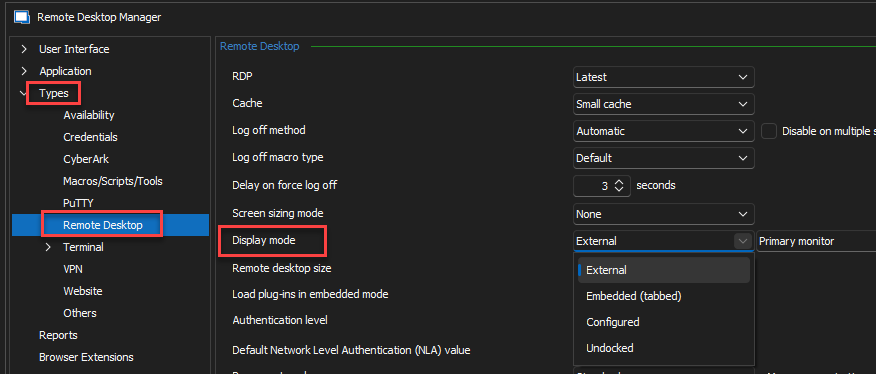
Best regards,
Richard Boisvert
de2a4b6a-4897-4d84-9092-c33ba957407d.png
I was looking for this setting and in the new UI, the setting have moved just a little bit:
File->Settings and then Entry Types->Sessions->Remote Desktop (RDP)
Then you can change to "External" and then in the "Monitor" dropdown you can choose what monitor to open on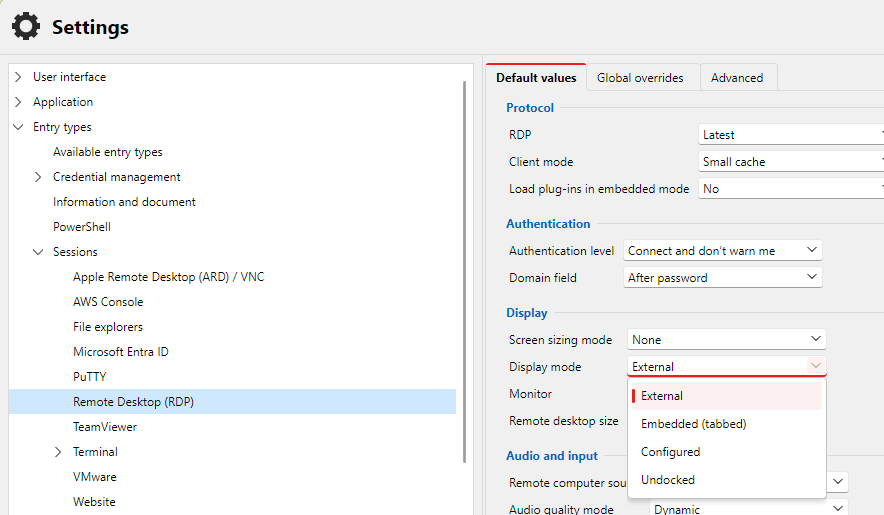
f639c370-1d65-4f04-9adc-8203d4dd573c.png