Second (blank) Window on Session Connect

Hello,
1st time here...
Every time I connect to an RDP session, a 2nd (blank/white) window appears in the background, behind the full screen RDP session.
Is there a way to change so this does not happen?
Current default connection action is set to "Fullscreen".
Thanks in advance for any help!
All Comments (5)
Hello,
Thank you for reaching out to us. To better assist you, could you please provide us with the following information:
· A screenshot of your RDM dashboard
· A screenshot of your problem, if possible
· Your RDM version
· The data source you are using.
· Since when this problem persists
· Any other information you think could be coherent.
Once we receive this information, we will be better equipped to diagnose and resolve the issue.
Would it also be possible for you to create a portable installation of RDM and see if this issue still occurs? To do so, you will need to do the following:
1. Download the .zip file below: https://remotedesktopmanager.com/home/thankyou/rdmbin
2. Create a new folder on your Desktop.
3. Extract the content of the .zip file into the folder created at #2
4. Go to this folder once the .zip file has been extracted and run remotedesktopmanager64.exe
5. Connect to your data source.
This will tell us if the issue is tied to the local installation of RDM.
Thank you in advance for your help, and please don't hesitate to reach out if you have any questions or concerns.
Best regards,
Carl Marien
Hello Carl,
Thanks for your reply.
Just to be clear: I believe this is occurring due to the fact that I changed a setting so that new RDP sessions will connect and appear full screen.
Here is my RDM dashboard: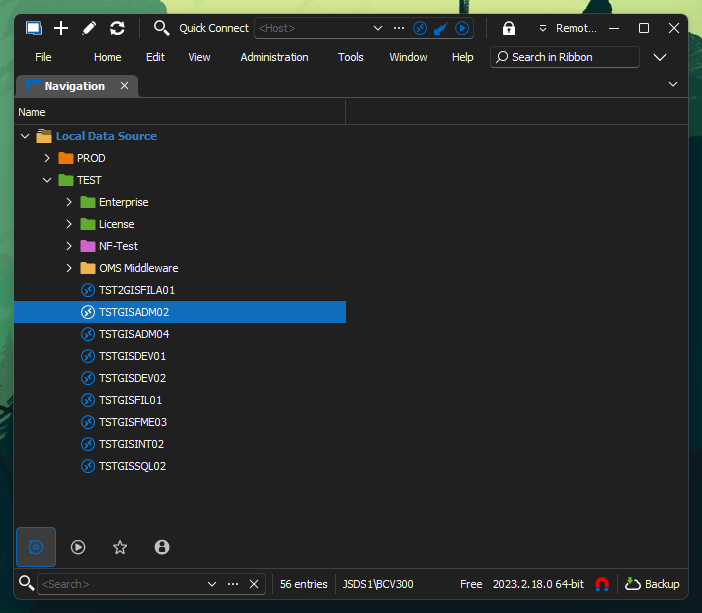
Screenshot of my problem: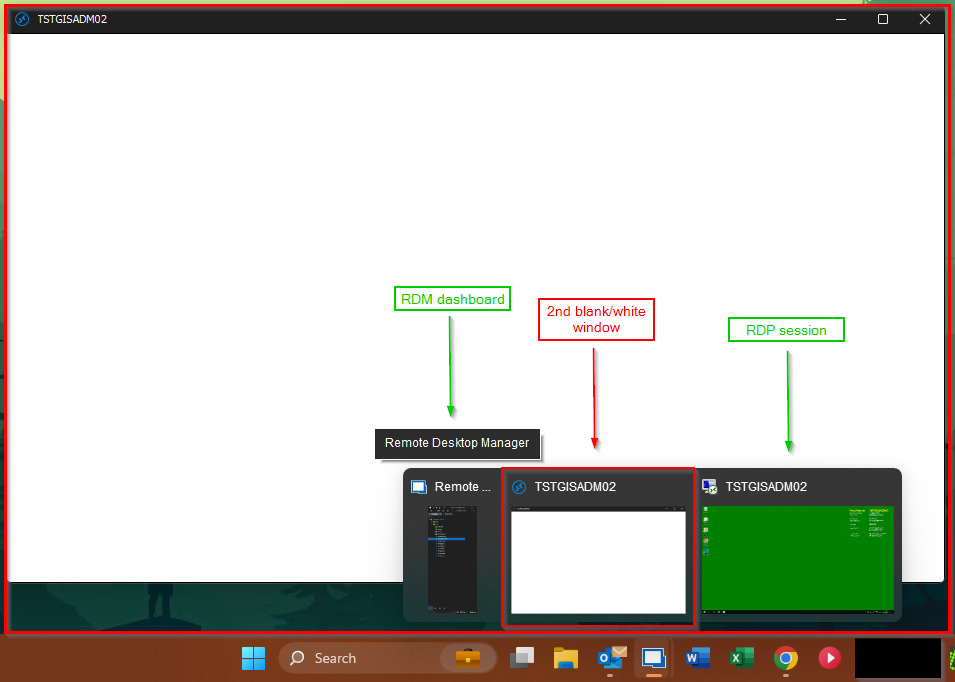
RDM version: 2023.2.18.6 (64-bit)
Data source: not sure where to find this info. If you are referring to the RDP connection info, then in my case, this issue occurs with every RDP connection.
This problem has been occurring since I changed the settings so that a new session will appear full screen - I don't when, sorry.
I prefer a new session to connect with full screen.
Here is the result of running from a portable installation on my desktop.
You will see there is no 2nd blank/white session window, as the settings are now so that the session appears in the tab window - NOT full screen how I had changed it to. 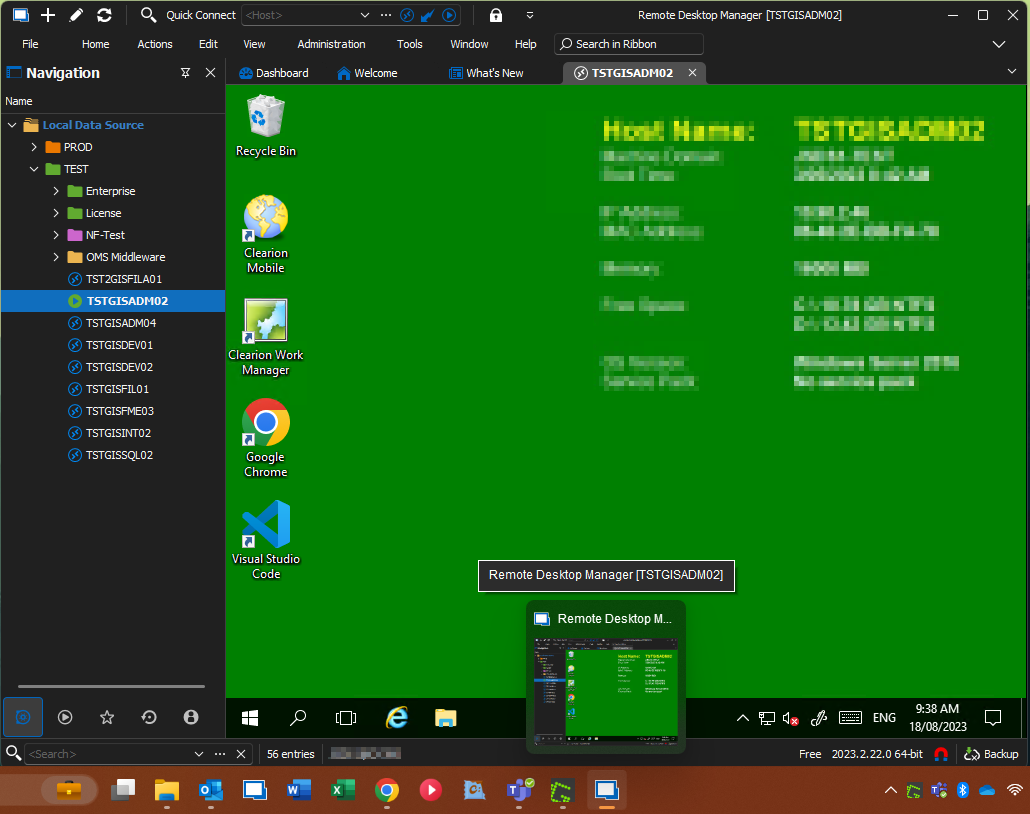
So, possibly to fix this, I could change all settings back to default -- How?
Then, look to change the session connection so it connects on full screen again - but without the 2nd blank/white window.
Hope this helps.
41fd1aba-b0dc-48ba-aa6e-667d591ad365.png
01c4ec79-0c9b-4b39-b61d-8cb0a96f9950.png
08dcf0b3-281e-473b-a697-de4cff625f02.png
Hello,
Thank you for your response.
It appears that your RDM configuration might be misconfigured. The simplest solution to resolve this issue is to rename the "remotedesktopmanager" file to "remotedesktopmanager.old," in “C:\Users\%USERNAME% \AppData\Local\Devolutions” By performing this action, you will reset the RDM installation to its default state.
As you have a local data source, you must take the file-named connection.db (where your entry is stored) from the old file, then paste it into the new file.
In the default state, RDP sessions will open in tabbed mode. If you wish to modify this behaviour, you can do so by navigating to File -> Options -> Type -> Display Mode,
I will share a video with you via a private message that demonstrates how to follow these instructions.
Should you have any additional questions, concerns or require further support, please do not hesitate to inform me.
Best regards.
Carl Marien
remotedesktopmanager.old and change default connection mode rdp.mp4
Hello Carl,
This solution worked perfectly.
Really appreciate your help in this matter!!
Cheers,
Benjamin
I'm glad to hear that your issue has been resolved! If you have any further questions or need assistance in the future, please don't hesitate to ask. Have a wonderful day!
Carl Marien