New Install of RDM on fresh Windows 11 Pro Installation - Blank screen on first launch
New Install of RDM on fresh Windows 11 Pro Installation - Blank screen on first launch

I have a brand new installation of Windows 11 Pro with the current version of RDM installed. Upon opening it for the first time, where there should be a welcome screen, it's just completely blank. There is no way to get around it but force ending the app in task manager. I tried uninstalling and reinstalling, installing and opening it as administrator, install the previous version, all of this as both the EXE and MSI versions. I can't get into the app without getting rid of that blank popup. Any assistance would be greatly appreciated.
Thank you.
All Comments (11)
Hi,
This is very odd and uncommon, are you on a "windows beta insider preview" build?
Also could you provide a screenshot of the issue, I believe that you're talking about the onboarding wizard instead of the welcome page in this case.
If that's the wizard like I'm thinking of, ill do some test on my side to reproduce your issue because I have a slight idea of what it could be.
Best regards,
Alexandre Roy
Thank you for your reply. I'm not on a preview build, and it is the onboarding wizard. Here is my Windows info:
Edition Windows 11 Enterprise
Version 22H2
Installed on 7/20/2023
OS build 22621.1992
Experience Windows Feature Experience Pack 1000.22644.1000.0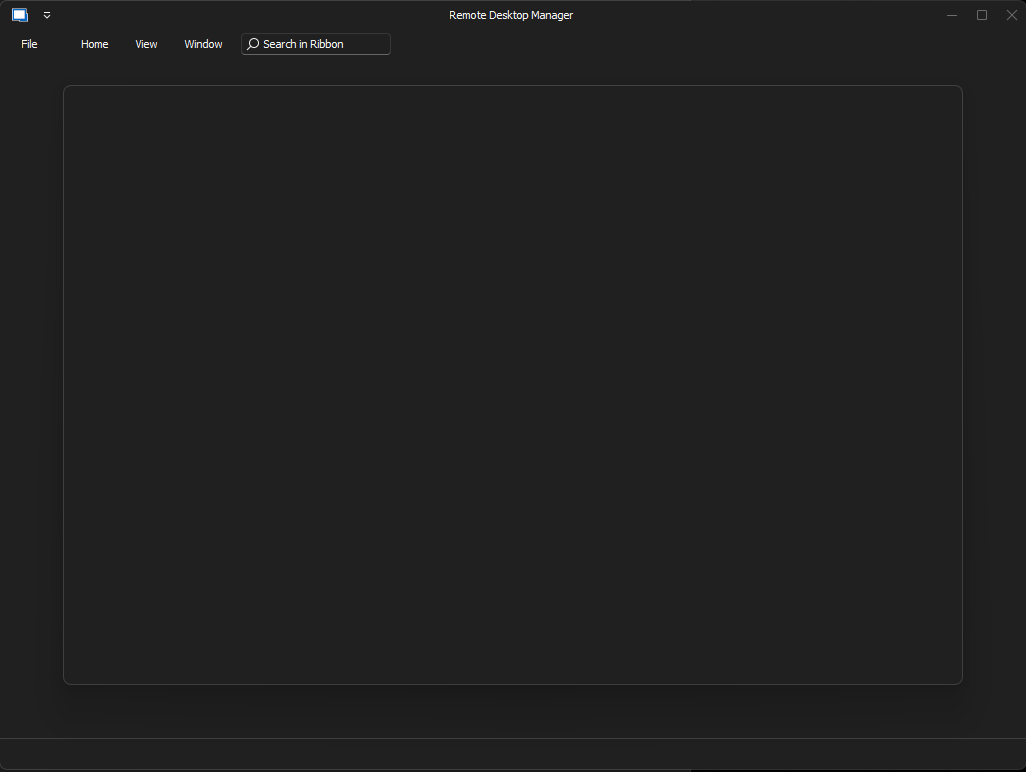 Attached is the screenshot of the issue.
Thank you for helping.
BlankWizard.png
Yep, that's defenetly the wizard, UI has the same structure, same ribbon menu. Im going to investigate what could possibly block the content from being visible, I have an idea.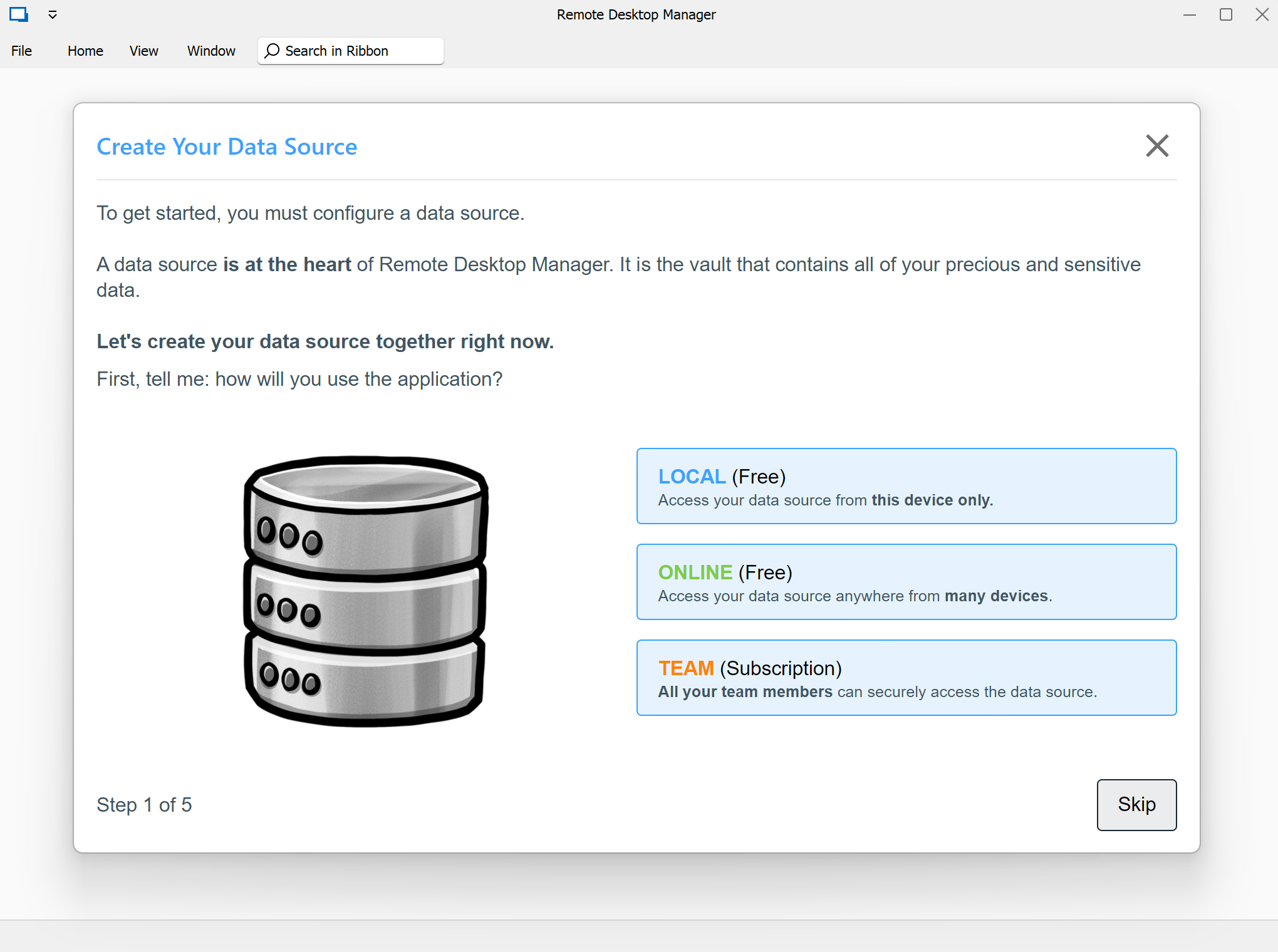
Regards.
Alexandre Roy
72c26cd3-ddcb-4c77-8ada-620713b46209.png
Hello, again.
We potentially have found the culprit, we think that it would make sense that you're missing webview 2.
It's one of the component we use for the onboarding wizard process.
I'm going to post the direct link to the download, here.
Give us some new If It did the trick.
Regards,
Alexandre Roy
Thank you, Alexandre. Because I have to have my computer up and running, I ended up installing Windows 10 back on it the very same day. Thus, I don't have my Windows 11 machine to test this on. I do hope this helps someone else with this strange problem.
Thank you, again.
Chuck
Hi there
Having the same issue and the webview2 is already installed on my system. Brand new installed Windows 11 Pro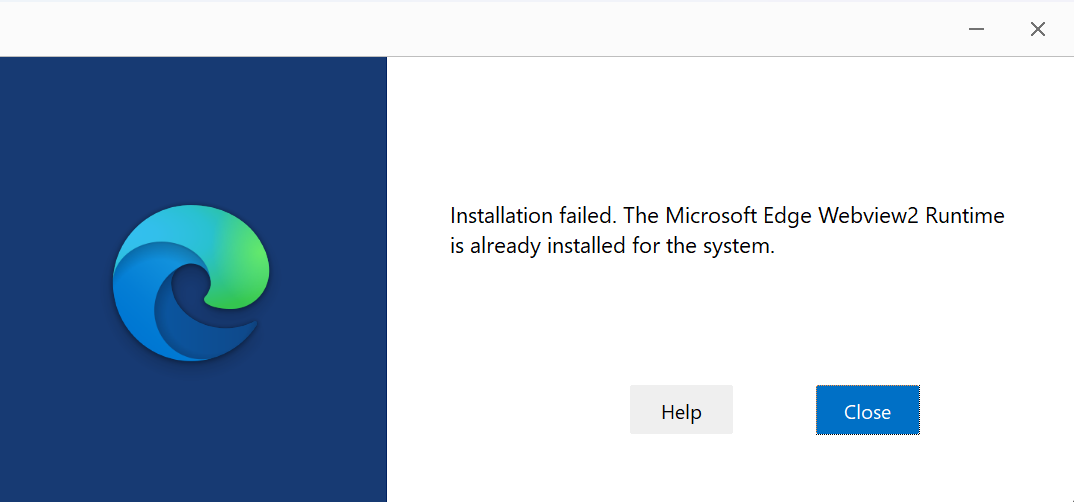
Build info:
Edition Windows 11 Pro
Version 22H2
Installed on 9/1/2023
OS build 22621.2134
Experience Windows Feature Experience Pack 1000.22659.1000.0
Just repaired it, uninstalled and reinstalled, no change.
Note: I have a Data Source/config that I have from a previous system since this is a new build for me. If a bandaid is to copy over config/data source files from the previous system I'm game.
940d4a7a-02bd-4d36-9254-bc740424ed49.png
And suddenly this morning it started to work!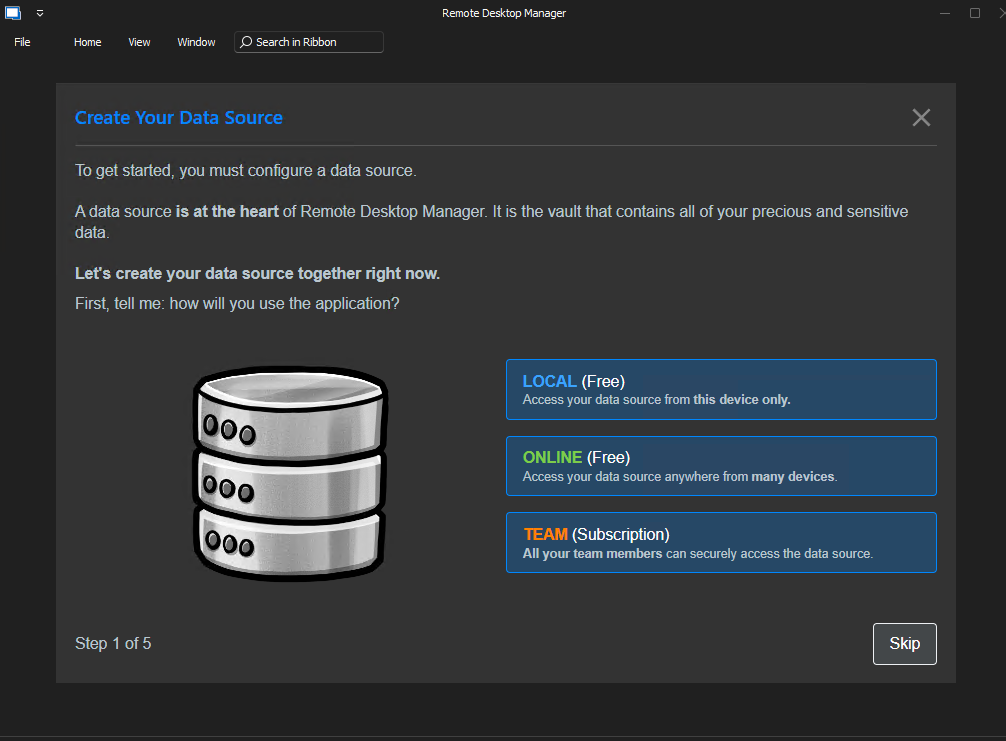
e632bbce-3153-466a-b1e9-4e5d0d1184c6.png
I think I'm having the same problem, fresh/clean install of Windows 11, Webview2 is already installed. Same blank interface, tried to reinstall and repair. Any tips appreciated. 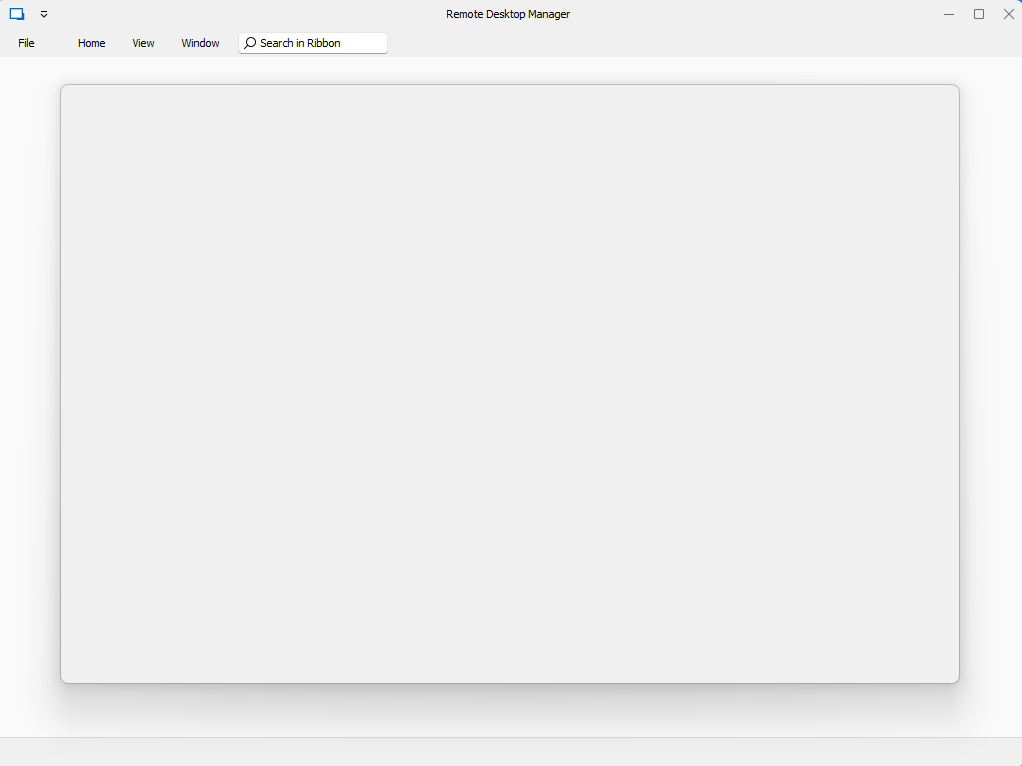
5786a06a-4dfd-4c96-8726-04c2278d7260.png
Hello,
Could you please try to delete the mentioned files from this KB article (while RDM is closed):
https://docs.devolutions.net/kb/remote-desktop-manager/troubleshooting-articles/disappearing-navigation-pane
Regards,
Min
Hello joeldefferding, min-destens,
I have exactly the same issue with the RDM but even after deleting the files from the KB article mentioned I still have the same issue.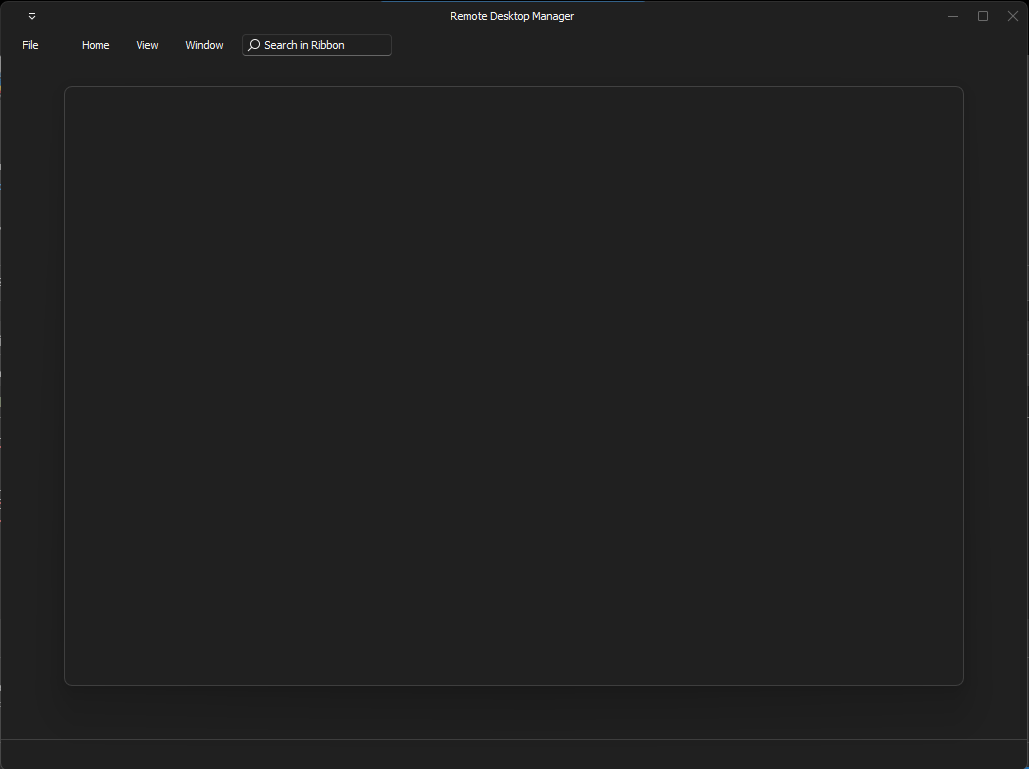
Did someone else find another solution?
Thank you in advance :)
bffe11c9-cb16-4099-bfc2-0a120444f168.png
Hello guys,
After many other tries, I finally did a right-click on the icon from the taskbar to exit the app and I got the message if I want to exit the wizard process.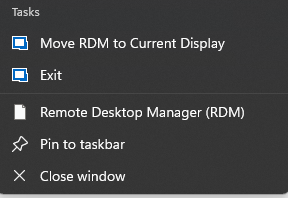
After this it worked.
Hope it helps others.
bd0c807a-6a64-42f7-a8e9-85d41c022ecb.png