Devolutions Web Login "issues"...

Hello,
We use Web Login for Chrome and Edge and I wonder if it is possible to control the settings by GPO? I was not able to find settings in the current GPO you provide, but maybe there is something I did not find. If not - would it be possible to add this possibility?
And for some sites I notice, that autofill is not working as expected. We use M365 and wehen I need to change my user account to my admin, I open portal.microsoft.com. Then I click on my user icon, select use different user and select the admin account from the list provided. Then I am at https://login.microsoftonline.com/common/..., but the password is not filled. There is also no star in the field that indicates, that Web Login has detected that this field can be filled. But the Plugin knows it: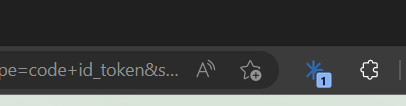
I have to click on the Web Login, select the M365 credential, then I get the star in the password field, but no autofill and I must click again on the star to select the credential to have it filled.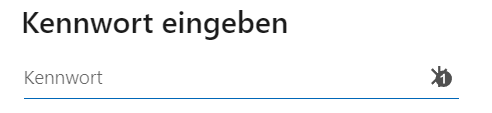
Any idea why? The extension is up to date.
Brgds Andreas
b611a124-dd7d-430c-80a5-c43877d2fb0a.png
7dc44801-c7d7-4f74-862f-20a35822deb0.png
All Comments (16)
Hello Andreas,
Could you please try the Inspect method described in the following article?
https://docs.devolutions.net/kb/devolutions-web-login/how-to-articles/website-authentication/#method-2
That should help to fill in the password on O365 authentication page and identify the field with the DWL star icon.
About the GPOs with DWL, you will find all the information in this article. But these GPOs cannot control what we are saving in single Website entry's settings.
https://docs.devolutions.net/kb/devolutions-web-login/how-to-articles/deploy-dwl-chrome-gpo/
Let us know if that helps.
Best regards,
Érica Poirier
Hello Erica,
I know how to find out the HTML control IDs as I did this for nearly all web entries I created. I checked now if Microsoft changed them - no, they did not.
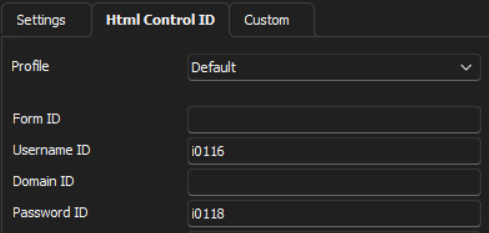
But I just found out something strange. I deleted the ID from the password field in RDM, and now DWL fills the password field, after I select the entry from the DWL icon in the menu. If I change it back to "i0118" I see for the fraction of a second the "points" of a password in the field, and then it is empty again. I use Edge. WTF?!?
About the DWL GPOs - thanks, didn´t know this. Does this also work for Edge? I don´t want to control what you are saving, I want to control the settings.
Brgds Andreas
cb79f446-42b2-4fcd-bedc-741440931c33.png
a4074d1d-23e3-422e-ba3f-88322cb1db81.png
Hello Andreas,
Thank you for your feedback. That is a very strange behaviour you are experiencing!
In Edge, is DWL bound with RDM?
I tested DWL bound to RDM, DVLS and Hub personal without any issues and without having to set any of the HTML control IDs. And even with the HTML control IDs for the username and password, DWL detects the required entry and fill in the proper values.
Could you please confirm that it's working on your end without any HTML control IDs?
About the GPOs, you can set them in Edge using this path instead of the one for Chrome in step 9 of the article.
\SOFTWARE\Policies\Microsoft\Edge\3rdparty\extensions\ddloeodolhdfbohkokiflfbacbfpjahp\policy
Best regards,
Érica Poirier
Hello Erica,
If DWL is not bound with RDM, I would not see the blue star icon right to the address bar. Correct? It is zero because this screenshot is from your forum page.
About the HTML control IDs - I removed them now and now it gets filled. What I say is, that if "i0118" is set as control ID for the password, DWL does not fill the field for login.microsoftonlin.com. Or it fills it only for a fraction of a second and then the field is empty again.
If you like, we can make a short remote session to show you what I mean and if this is "normal" or not.
About the HTML control IDs - do I need to fill them, or not? Normally I use the embedded browser in RDM and there I think I must use them. I didn´t know that for DWL this is not necessary.
About the GPO - thanks, I will try that!
Brgds Andreas
34d2ec42-ca6a-4ecc-9b55-ab655cc996a4.png
Hello Andreas,
In fact, DWL should properly detect the fields and if it's not working, then we use the HTML Control IDs to get them filled in.
For the login.microsoft.com authentication page, normally it should works without using the HTML control IDs. Our engineering team did a lot of improvements to get this login page working along the different DWL versions. So no need to do a support session. Please just use this website without the HTML control IDs.
Best regards,
Érica Poirier
Hello Erica,
I removed the Control IDs and it is working better. The only thing I still notice is that I have to select the credential first with the star icon in the address bar. Without this action it shows a "1" so it knows that it has a credential, but it does not do autofill, even if I have enabled it.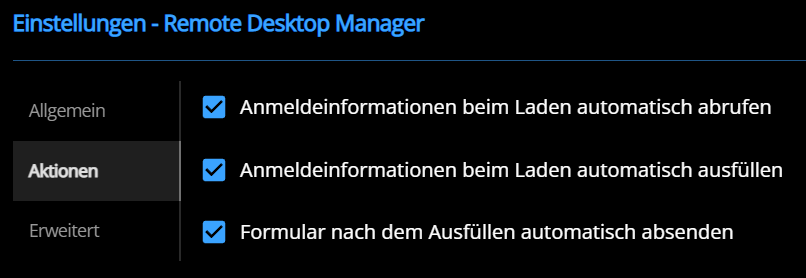
Because when I open portal.microsoft.com I am logged in automatically with my regular user account. Then I need to click on login with a different user which switches to login.microsoftonline.com and I need to select my admin account. After the click I see the password field, but DWL does not automatically fill it.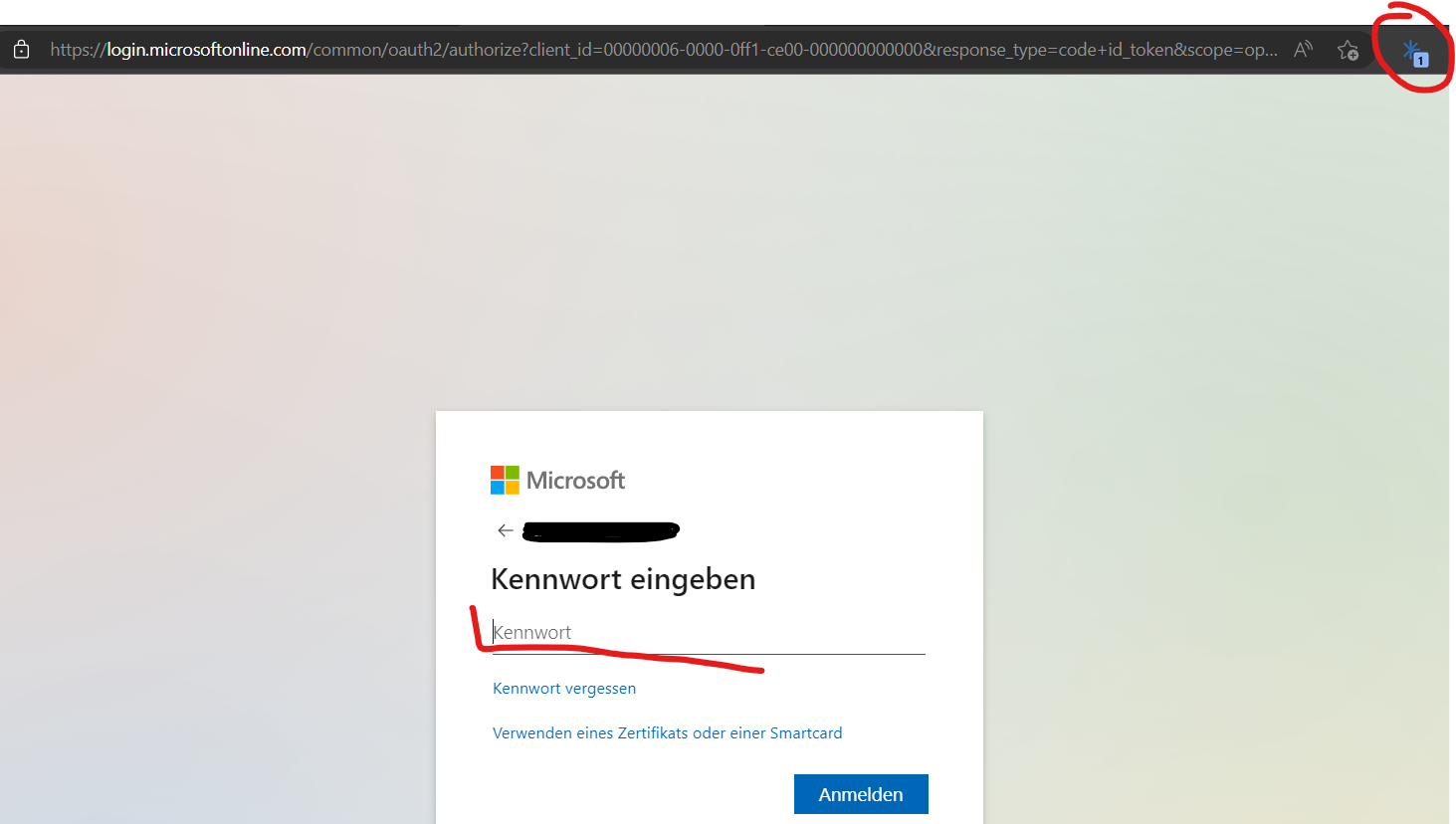
Brgds Andreas
34b81dca-5df7-4a62-9102-c17b2c9774f8.png
4090ec6c-5730-4a28-b351-1508e2bacbcf.png
Hello Erica,
I tried the GPO thing now, but it is not working. Not for Edge and Chrome. Maybe I do something wrong, but I don´t know what...
Chrome:
Edge:
The string is for both the same:
{ "activateBeta": false, "disableAnalytics": true, "dvlsActivated": false, "hubActivated": false, "rdmActivated": true, "rdmAutoFillEntryOnLoad": true, "rdmAutoRetrieveCredentials": true, "rdmAutoSubmitFormOnFill": true, "rdmAutofillBasicAuthentication": false, "rdmDefaultDestinationVaultIsPrivate": true, "rdmDefaultPortUsage": true, "rdmDestinationFolder": "Devolutions Web Login", "rdmEnableNativeMessaging": false, "rdmPort": 19443, "rdmShowFavicon": false, "rdmUseLegacyApi": false, "shouldColorFilledFields": false, "showIconInFields": true, "showSaveSiteDialog": false, "theme": 0, "useLegacyApi": false}{"adminSettings": {"disableSettingsPage": false, "setGPOSettings": "AlwaysOverride"}}
I think I just found the problem, but this is related to the documentation you provide. That´s why I leave what I wrote so far...
I copied the default settings and the default admin settings from the link you provide, combined them and deleted what I don´t need. But only when you look at the example you provide below, you know how it really should look like. I did this, but didn´t saw the difference as the string I have now is quite long...
On the default settings, " "settings": { " at the beginning is missing and when you combine both parts, you must include both in one global bracket. My string in the end then looks like this:
{"settings": {"activateBeta": false, "disableAnalytics": true, "dvlsActivated": false, "hubActivated": false, "rdmActivated": true, "rdmAutoFillEntryOnLoad": true, "rdmAutoRetrieveCredentials": true, "rdmAutoSubmitFormOnFill": true, "rdmAutofillBasicAuthentication": false, "rdmDefaultDestinationVaultIsPrivate": true, "rdmDefaultPortUsage": true, "rdmDestinationFolder": "Devolutions Web Login", "rdmEnableNativeMessaging": false, "rdmPort": 19443, "rdmShowFavicon": false, "rdmUseLegacyApi": false, "shouldColorFilledFields": false, "showIconInFields": true, "showSaveSiteDialog": false, "theme": 0, "useLegacyApi": false}, "adminSettings": {"disableSettingsPage": false, "setGPOSettings": "AlwaysOverride"}}
Hopefully you can make the documentation better with this information.
Another thing - is it possible to make the things I don´t have/need hidden?
I only use RDM, I want to hide the rest to not confuse my users.
Thanks a lot for your help!
Brgds Andreas
5c8aba66-1b3b-449f-b33f-f778bc9ea7b0.png
ffe8a4da-7610-48b6-9514-5e29276b707a.png
3e77c65c-0fad-4976-9ebc-1947399b0ed0.png
Hello Andreas,
Thank you for your feedback.
About the article for the GPO settings, it should be updated later today.
For the behaviour on the Microsoft login page, let me check with my team and I will get back to you.
Thank you for your patience.
Best regards,
Érica Poirier
Hello Erica,
I just checked the article - it is better now, thanks for changing this!
Brgds Andreas
Hello Andreas,
Thank you for your feedback.
About the online documentation and knowledge base article, it's now possible to suggest modifications using the Edit button on top!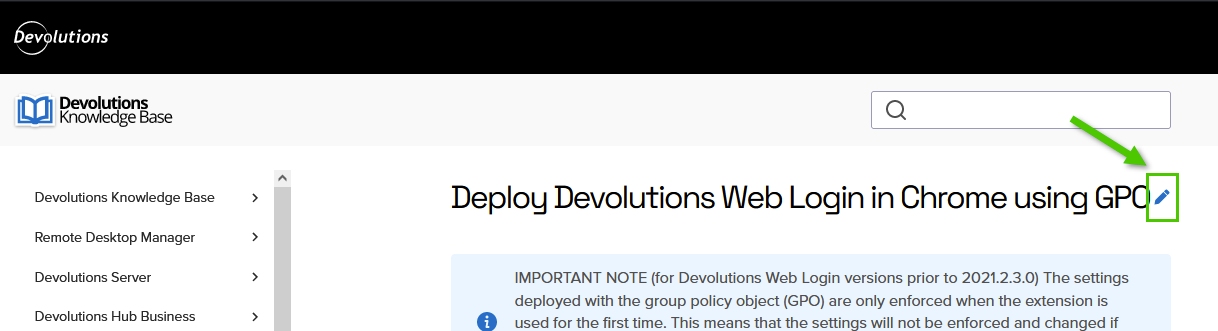
For the Office365 authentication behaviour, we will soon get back to you about it.
Best regards,
Érica Poirier
72ac82be-f112-4a90-aaa8-0c166c4a403b.png
Hello,
thanks for this possibility in the knowledge base!
Brgds Andreas
Hello Andreas,
I've done some testing on my end and was able to reproduce the behavior you described with the autofilling for this specific website.
From my tests changing the "Compare Type" in the entry "Properties" in RDM to "Start With" seems to resolve the problem, perhaps you could give this a try and let me know if the problem persists for you,
Best regards,
Samuel Dery
Hello Samuel,
thanks for this hint - I will give it a try tomorrow!
Brgds Andreas
Hello Andreas,
Thank you for your reply,
Perfect, let me know the results!
Best regards,
Samuel Dery
Hello Samuel,
sorry - this is not working for me...
Maybe I am doing something wrong, how did you manage to fix it? My settings are: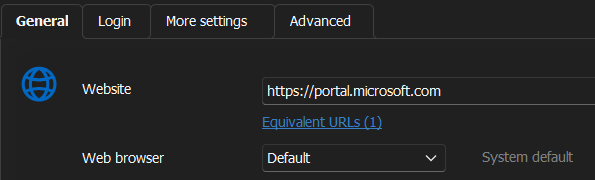
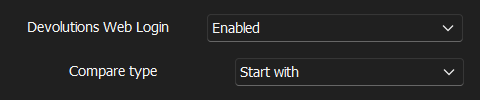


I also tried other compare types - but I always have to click in the address bar on the star icon to get the password filled...
We have Edge as default browser.
Brgds Andreas
b72292ef-58cf-45c0-a6a6-dacbafb032d1.png
f33684dd-560f-40e1-8213-bd5ad2622126.png
27038a69-4a7c-49f7-b6e0-92028ebc8de5.png
11de66cf-8016-4ce2-bba6-01568e7f4ca5.png
Hello Andreas,
I see, the password is not being filled automatically, I'm wondering if with this configuration the Username is working for you as expected?
Let me know,
Best regards,
Samuel Dery