Can't seem to get the Screen Size settings to work

I have the sidebar opened and mostly use tabbed view.
My default connection settings are this: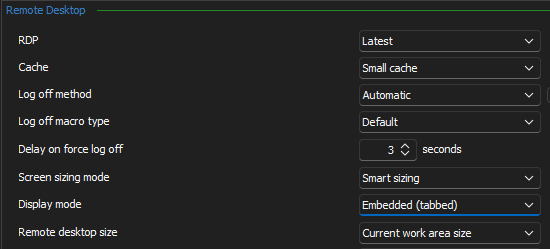
Now, the first issue is this - whenever I import and RDP connection file, it ends up having Display Mode: External and both Remote desktop size and Screen sizing mode set to Default.
That's annoying, especially if I have to import 60 connections...
But even after I go through all of them and change settings to match the "default" in the screenshot, it's not perfect.
Here's what I use for all my connections: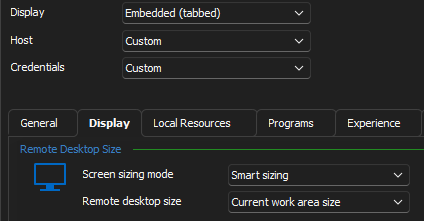
I want to be able to dynamically resize the work area because I sometimes work with external screens and sometimes only on my laptop.
Problem here is that most of the time the connection will still dfeault to scroll bars... And even if it doesn't and I can actually see the whole screen, the resolution is off and everything is very small and hard to read. I have to always go to Right-click the tab -> settings -> Smart reconnect, which fixes the resolution issue.
I tried setting the connection details to "Smart reconnect" from the get go, but that ALWAYS results in scroll bars instead.
Is this fixable? Any advice welcome.
3f235cc2-6aa9-4dfe-bd99-fe12d88267ba.png
6eaca124-1a2c-4387-aa32-746eb46f0a41.png
All Comments (10)
Hello,
Thank you for contacting us regarding this !
Have you tried using our Batch Edit options ?
If you haven't, this would greatly save you time rather than having to edit each entry one-by-one.
Here's an article regarding this: https://docs.devolutions.net/rdm/windows/commands/edit/batch/batch-edit/
As for the way your sessions are being preconfigured when importing, I'd like to know how your sessions are being exported and imported into RDM.
I'd also like to know the file extension of the file being used for the import.
Best regards,
Hi Zachary! Thanks for a quick reply!
I actually didn't know about Batch Edit, will look into that!
As for the rest:
I'd like to know how your sessions are being exported and imported into RDM.
I'd also like to know the file extension of the file being used for the import.
These are various RDP files. Some are downloads from a Microsoft RemoteApp & Desktop session host (so: only the particular application window would be visible), but some are bog-standard remote connections to various virtual machines.
Actually, I just realised I wasn't precise in my OP - the issue with the screen size not really working happens regardless whether or not the session is from an imported rdp file or if it's set up manually within RDM - behaviour is pretty consistent in that regard.
Here's a screenshot of the Display tab from when I'm manually creating a brand new RDP connection within the software: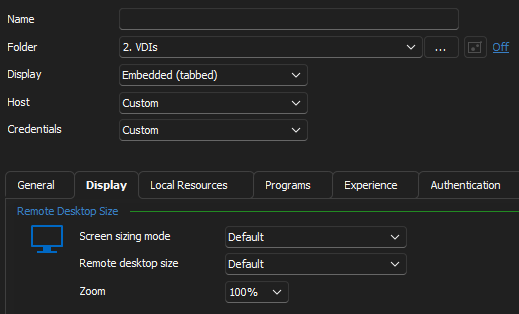
As you can see, even that ignores my default Display settings. And then, even when I manually switch all that to what I want, there's still the issue of the resolution. Not sure if it'll be easily visible on screenshots, but here's what it looks like when I connect to my VM (again - the display settings are: Screen sizing mode - Smart Sizing; Remote desktop size - Current work area size):
And this is when I do right-click the connection tab -> Settings... -> Smart reconnect:
I think it should be visible, that the second image is not "zoomed out".
Now, if I switch the Screen sizing mode to "Smart reconnect" in the connection's properties, I'll end up with the screen size being too large for my work area size and having to use scroll bars.
Let me know if you need any more information!
c911ff5c-9d5c-49eb-ad48-97c5273b24a0.png
5e9d2792-201e-4ab4-8b40-c69deda3ee14.png
1cd4ae5e-440b-4eef-b72d-9eff90e021fe.png
Hello,
In order for the RDP entry to have it's "Screen sizing mode" and "Remote desktop size" be configured as it is under File > Options > Types > Remote Desktop, the entry actually has to have those options set to "Default'. As the "Default" option simply means whatever was set within File > Options.
Secondly, if you're using RemoteApp, this will only work in External mode within RDM. So just know that if they do not work in Embedded (Tabbed) mode, it's normal.
Finally, I'd like to know if you have a 4K monitor ? As it seems the resolution and scrollbar issue may be due to the HDPI, in which case there's 2 options that I can think of that we can configure to help with this.
Let me know if you have further questions, or need clarification on something !
Best regards,
Finally, I'd like to know if you have a 4K monitor ? As it seems the resolution and scrollbar issue may be due to the HDPI, in which case there's 2 options that I can think of that we can configure to help with this.
No, the issues are happening on 1080p resolution screens.
As the "Default" option simply means whatever was set within File > Options.
I just tried that with my VM remote connection and got the scrollbars again. That's the reason I assumed the "Default" setting ignores my RDP settings because it never worked for me.
Hello,
Would you allow me to open up a case ?
I would then email you a link that will allow you to schedule a remote session with me at your convenience.
This would allow me to look closely into your visual issues with RDM.
Best regards,
Sure, that sounds good!
Hello,
Perfect !
I've sent you the email, it should be in your inbox shortly.
Best regards,
Just filled out the form and got the meeting invite. Thanks!
Hello,
Perfect !
I look forward to our meeting !
Best regards,
Hello,
I'm glad we managed to resolve this issue by changing your Screen Sizing mode and Remote Desktop Size under File > Options to "Smart Reconnect" and "Automatic" respectively.
Best regards,