Client Upgrade from 2022 to 2023

Is there a way to upgrade from version 2022 to 2023?
If we install 2023 via SCCM old client 2022 still present in Add/Remove programs and user get a message at 1st use of 2023: Data Source has Version Management restriction configured. (Do you want to modify the restriction now? (Automatic/Yes/No)
Basically, is there a way to pass from 2022 to 2023 whiteout involving the client user as much as possible; like a simple update inside the same versioning.
Thanks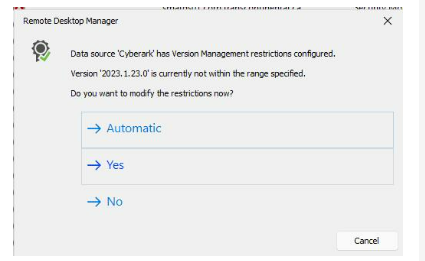
image_2023-04-27_092542334.png
All Comments (4)
Hello,
Usually installing a newer RDM version should replace the older one.
What RDM 2022 version was isntalled? Is it 2022.1, 2022.2 or 2022.3?
About the prompt the users are getting, it's because the Version Management options have been configured in Administration - System Settings. If you update the Maximum version parameter, the users won't get this version prompt anymore.
https://help.remotedesktopmanager.com/datasourcesettings_versionmanagement.html
Best regards,
Érica Poirier
Merci Érica nous allons tester le tout.
Bonne journée
/Steve
Hello,
Usually installing a newer RDM version should replace the older one.
What RDM 2022 version was isntalled? Is it 2022.1, 2022.2 or 2022.3?
About the prompt the users are getting, it's because the Version Management options have been configured in Administration - System Settings. If you update the Maximum version parameter, the users won't get this version prompt anymore.
https://help.remotedesktopmanager.com/datasourcesettings_versionmanagement.html
Best regards,
Thanks, it work. Still, one last question related to this - the 1st message is now gone (related to the version) but my client still get this pop-up after the upgrade. Any settings can force Ignore the new config file so users not have to deal with this pop-up?
Thanks
image_2023-05-05_080813698.png
Hello Steve,
You can force load the configuration of the file with a GPO - Force the loading of the current configuration file - https://docs.devolutions.net/kb/remote-desktop-manager/how-to-articles/group-policies/
You cannot force ignore it, however. You would need to use the default RDM installer if you always want to ignore it, so that file is not present.
Best regards,
Richard Boisvert