How to create a powershell session with a specific configuration context
How to create a powershell session with a specific configuration context

PowerShell Virtual Account leverages Just Enough Administration (JEA) to work around Windows Update API restrictions that prevent calling updates from remote sessions.
https://learn.microsoft.com/en-us/powershell/scripting/learn/remoting/jea/session-configurations?view=powershell-7.2
We run the following commands on the server to create a "VirtualAccount" configuration context.
New-PSSessionConfigurationFile -RunAsVirtualAccount -Path .\VirtualAccount.pssc
Register-PSSessionConfiguration -Name 'VirtualAccount' -Path .\VirtualAccount.pssc -Force
This creates a persistent virtualaccount session context. We then use the following command to connect to that specific session from our workstations.
Enter-PSSession -ComputerName <hostname> -Credential <domain\username> -ConfigurationName 'VirtualAccount'
The question I have for the devs is, how would we leverage RDM to connect to a remote server being able to specify the ConfigurationName ?
All Comments (9)
Hell hazen,
The configuration name could be saved in the custom fields, and then referenced with the variable $CUSTOM_FIELD#$ in your PowerShell script of RDM: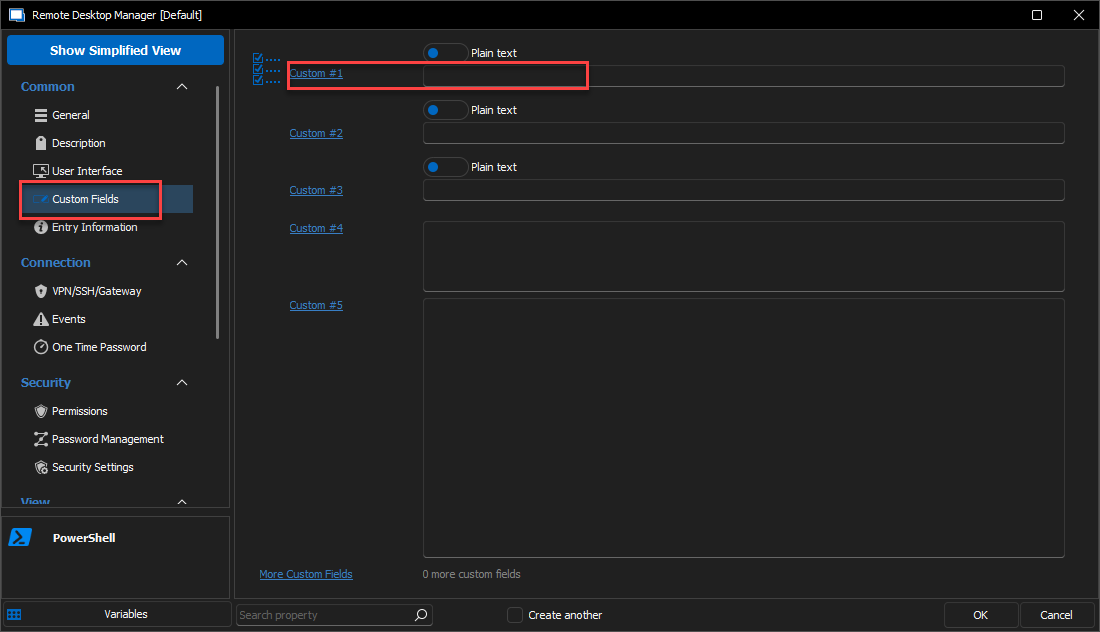
It could also be saved at a folder level, and the referenced with $FOLDER_CUSTOM_FIELD1$. To view all the possible variables, you can click on the "Variables" button in the bottom left corner of any entry: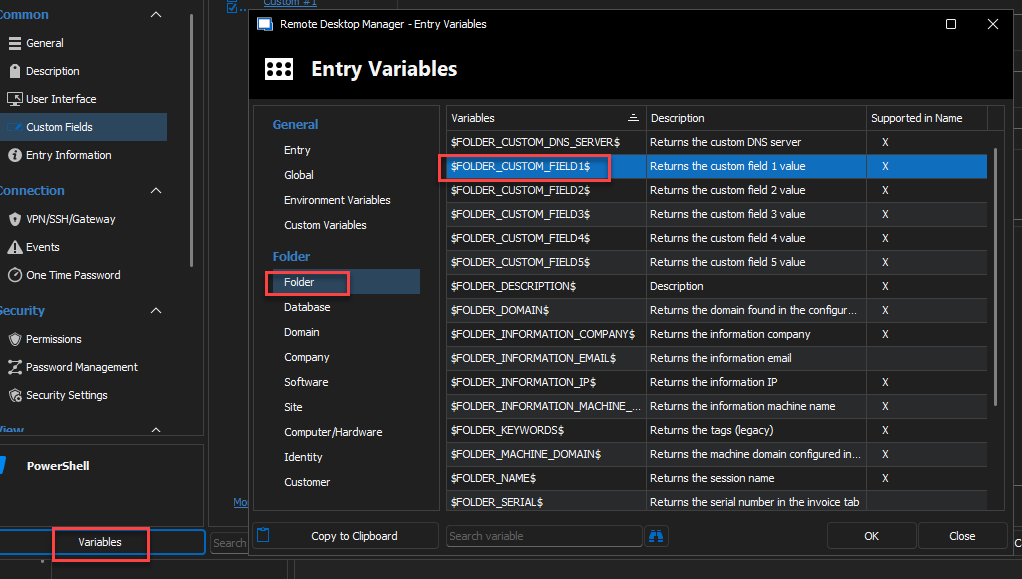
Best regards,
Richard Boisvert
9d777b88-637b-4e4d-baae-3f8614ad9fe6.png
cef285f1-a715-4942-82ab-919055e0dc00.png
where are you accessing the above settings? You aren't clear how you're getting to whatever menu's are in the screenshots.
Hello,
In the properties of any entries in RDM, you can access the custom fields, and the variables (bottom left corner).
Best regards,
Richard Boisvert
c7948ecf-8c4b-4b24-abd4-aebdbb084ea6.png
Hi Richard, please assume I'm unfamiliar with how to create powershell sessions to remote hosts in RDM.
How would I replicate the commands I gave in my original post to connect to a remote server with powershell using the "-ConfigurationName 'VirtualAccount'" arguments.
Hello hazen,
You can use a PowerShell Remote Console session:
You can then put the hostname and the configuration name directly there. If, for example, the configuration name was saved in the custom field 1 of the parent folder, you can reference it with the variable $FOLDER_CUSTOM_FIELD1$. You can also reference the credential in the credentials field above or enter it manually below by using Custom.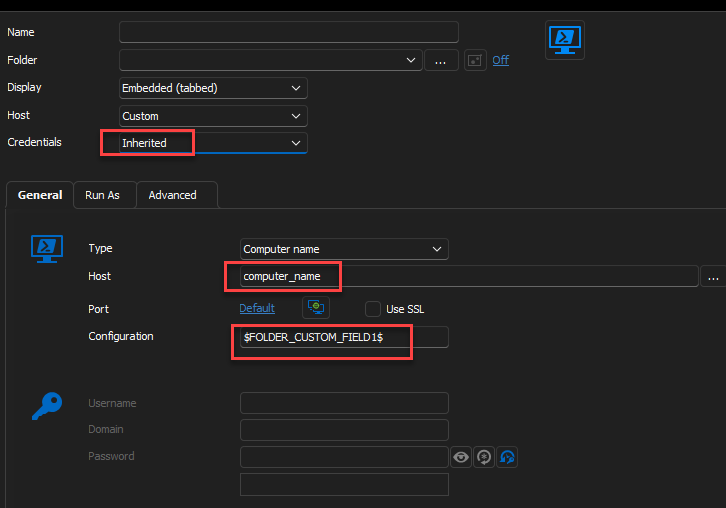
Best regards,
Richard Boisvert
ae93990b-82a5-4904-9bcb-a9029eb63914.png
d6a2ffb8-6674-463a-9ce2-1e39b82aaae0.png
Got it. I successfully connected using your instructions. 2 problems I'm seeing.
1) When first launching the powershell session, a powershell window pops up for a split second that is outside of RDM, then the powershell window is loaded in RDM. How do I prevent this behavior? I don't want this jarring GUI experience.
2) When the powershell window does load into RDM, it is not taking on the correct window size of RDM. How do I correct this?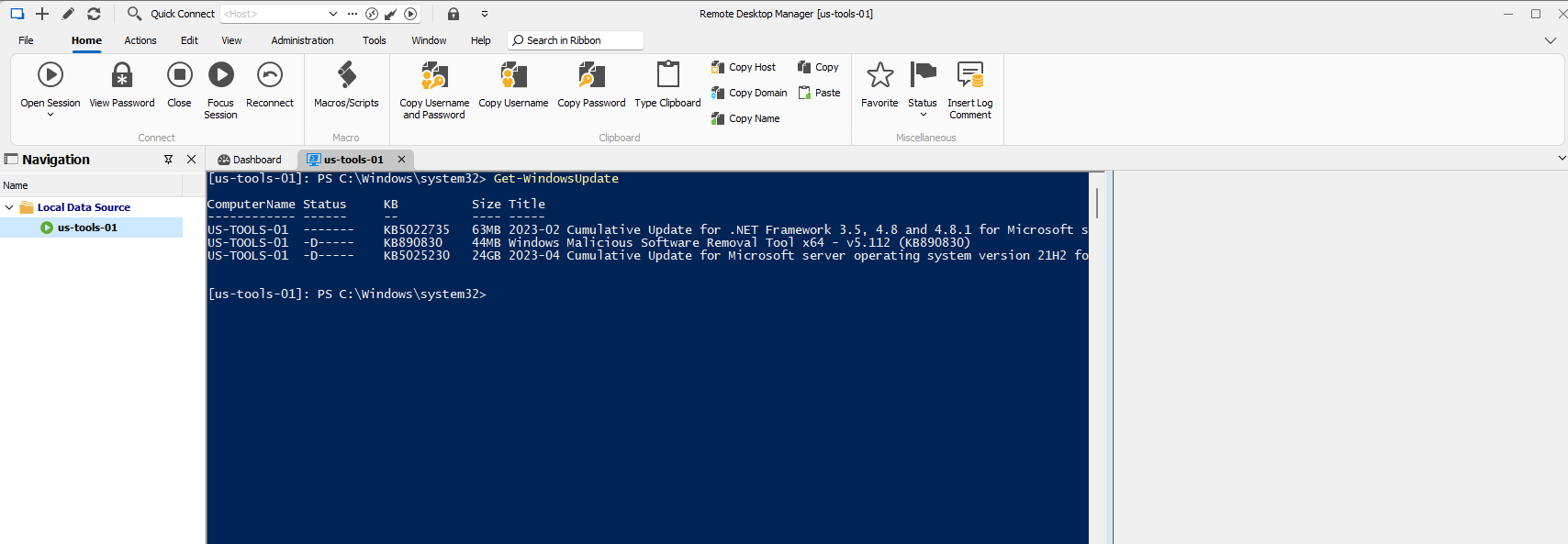
e04609da-4ff2-4fac-b39e-94ab5e843db1.png
Hello Hazen,
Glad the PowerShell Remote Console session works for you.
For the first point, it is unfortunately not possible to have it embedded right away, it needs to open first, and then we can make it embedded.
For the second point, could you go to File > Options > Types > Others, in the PowerShell section, can you make sure the Window size is set to -1/-1?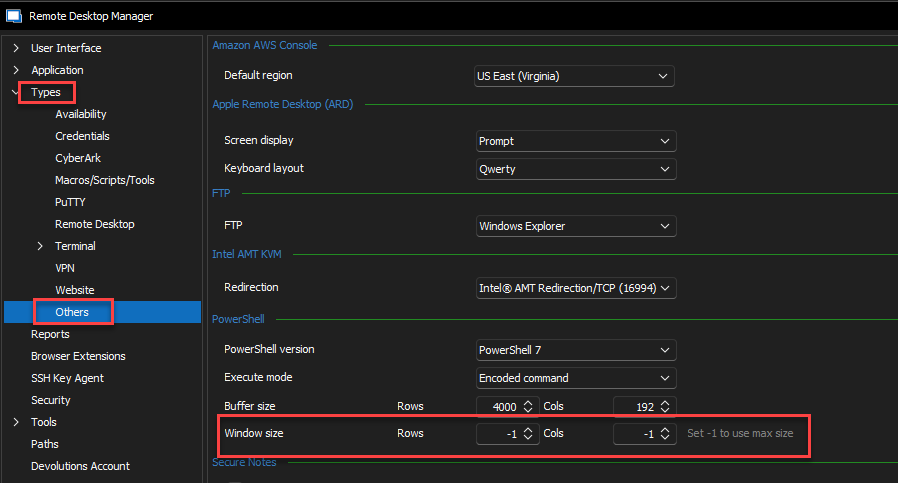
Best regards,
Richard Boisvert
082ea0a0-9b47-4377-aad9-80eadc4c4b58.png
Why is it not possible? My SecureCRT does not behave this way. Opening powershell sessions within SecureCRT opens the window directly in my session window without having this strange powershell behavior.
Hi,
I can't speak for SecureCRT, but they are probably using a custom terminal interface, rather than the built-in Windows console host like we currently do. The reason why you see the terminal appear temporarily outside of RDM is because we create the regular console host and then reparent it back into RDM - there is not way to create a new console host with RDM as a parent to skip that step. This is a limitation that's been around since the beginning of RDM, and while slightly annoying, it has never been a deal breaker for our users.
This being said, we have introduced initial support for Windows Terminal in RDM 2022.3, with a new "Windows Terminal" entry type. Unfortunately, we didn't manage to modify the PowerShell Remote Console entry to leverage Windows Terminal in time for the release, but we've got it on our to-do list. The main advantage of Windows Terminal, besides the nicer look and feel, is that we've patched it to accept an initial parent window, such that we can launch it with RDM as a parent, without having to reparent it like the old console host.
Best regards,
Marc-André Moreau