Pulse Secure, combined with incomplete password
0 vote

I'm setting my first steps in Remote Desktop Manager, and I would like to add a Pulse Secure VPN session with incomplete password.
As I've understood from some posts here, I need to add the add-on "Juniper Junos Pulse VPN", I have done that.
Now I'm trying to fill in the needed information, but there's a catch: the customer is not using a full password, but a combination of a fixed four-digit number and a "one-time-password", generated by a smartphone app, called "Authenticator-ES".
This would mean that, in the Remote Desktop Manager, I need to have the possibility to fill in the password when I open the VPN, but I don't know how to do this: I have just tried leaving the password field empty but even this does not force the password to be asked.
In attachment there are two screenshots. I would like the "Open VPN" action to ask for the password, showing the four digits (4096) as shown in the second screenshot, if possible.
Does anybody know how to do this?
Thanks in advance
First screenshot, containing the basic information: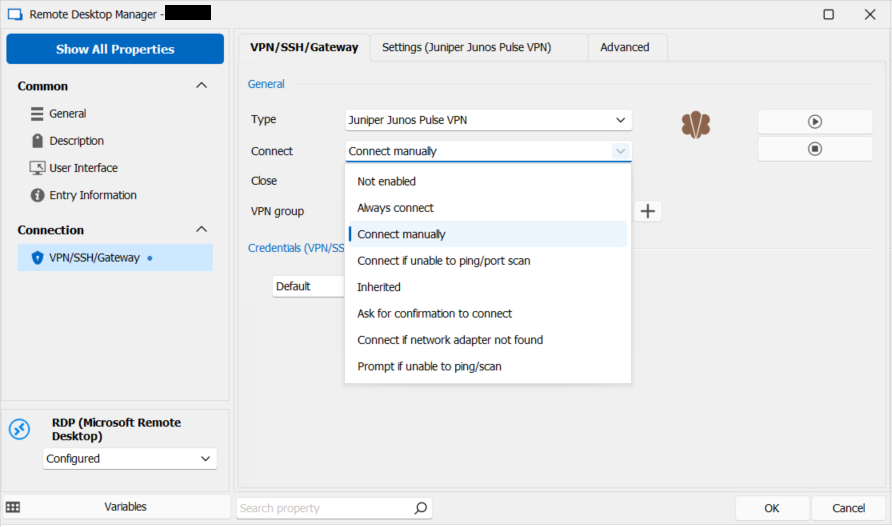
Second screenshot, showing the VPN specific information: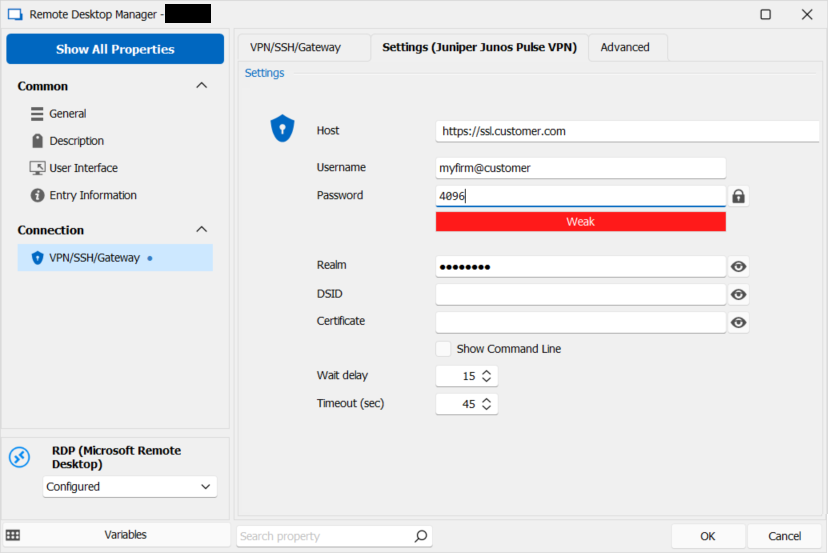
Remote_Desktop_Manager_Basic_configuration.png
Remote_Desktop_Manager_VPN_configuration.png
All Comments (10)
Hello,
This should already be achievable with what RDM offers.
First you would need to create a credential entry of type "RSA SecurID". It's a credential that allows you to have a username and PIN. The "PIN" is the static part of the password. When resolving that password, RDM will prompt for the code, which is appended after the PIN. This combination is used as the password, which from what I understand, is your goal.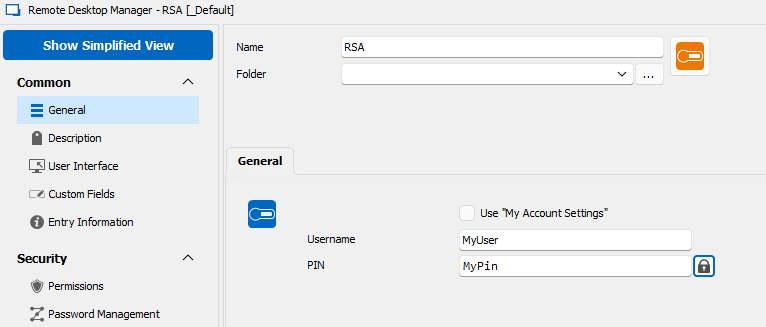
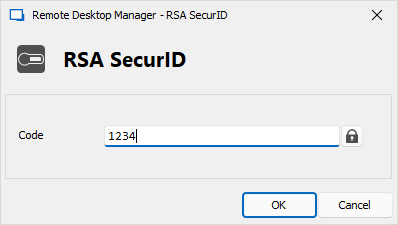
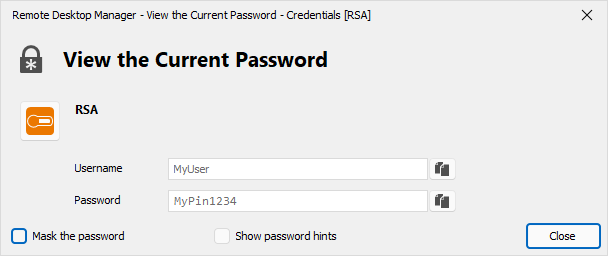
Then in your RDP entry, in the VPN/SSH/Gateway tab, you can configure the credentials to link to your newly created RSA SecurID entry.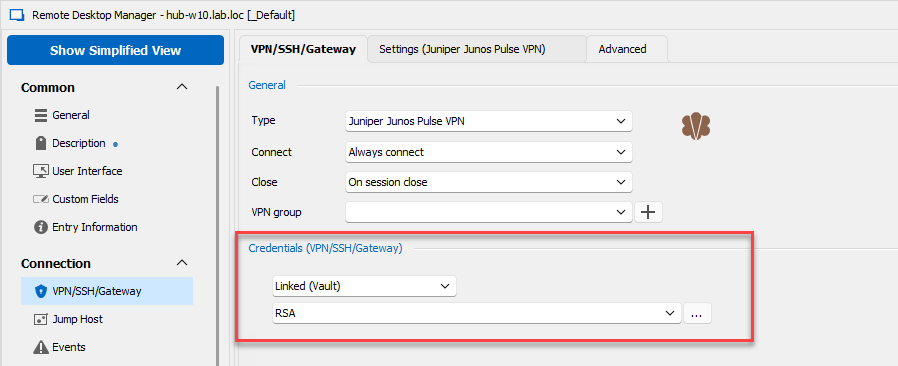
Let me know if this helps or if there is any issue with this solution.
Regards,
Hubert Mireault
Image1.png
Image2.png
Image3.png
Image4.png
I still don't know how to proceed: in order to create that RSA SecureID entry: when I click on the "Credentials" combobox, choose "My personal credentials", and start the dialogbox, this is what I see: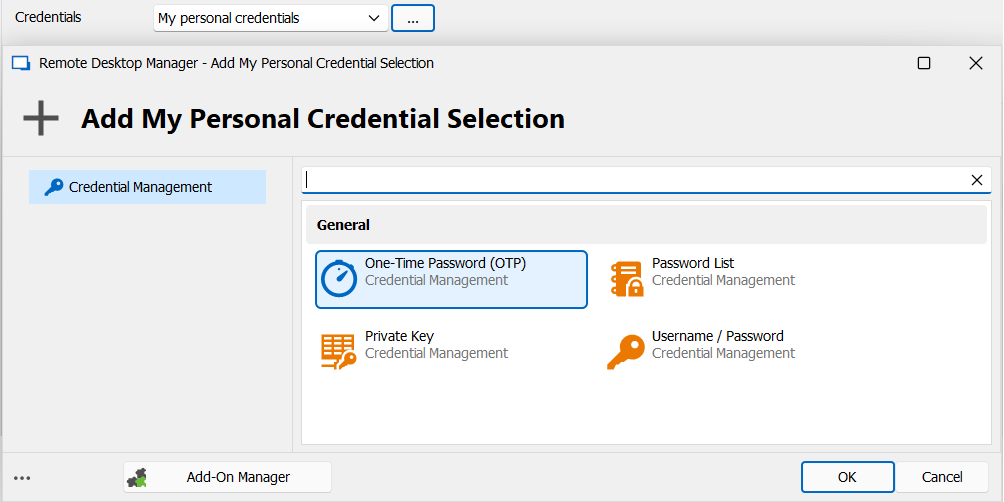
As you see, there's no item with an icon like yours:  .
.
I also had a look in the Add-On manager, but also there I did not find an entry with that icon.
Can you give me some more information on how to create that RSA SecureID?
For your information, I'm working with version "2023.1.15.0 64-bit" (as mentioned in Help, About).
Thanks
Dominique
94c40878-06b2-4f87-add3-9c867cee661c.png
81f6fcef-b54d-421b-9834-fe482ec1d54b.png
Hello,
That is because most of the credential entries are only available when your RDM is licensed. You can request a 30 day trial to try out these features. For more information you can look at our help topic here: https://help.remotedesktopmanager.com/installation_trialrequest.html
Regards,
Hubert Mireault
Progressing, but not there yet. I have purchased the 30-day trial license, but in order to get it working, I needed to define the RSA SecureID as "My Personal credentials" instead of "Linked (vault)", that latter seems not to work.
The question is asked for a code, but when I enter this the connection is not established, so I'd like to know what's going on? Is the password, which is used, indeed the concatenation of the RSA SecureID, followed by the code, or is something else happening?
I had a look in the logs, but that information is not there.
Hereby a screenshot of the situation: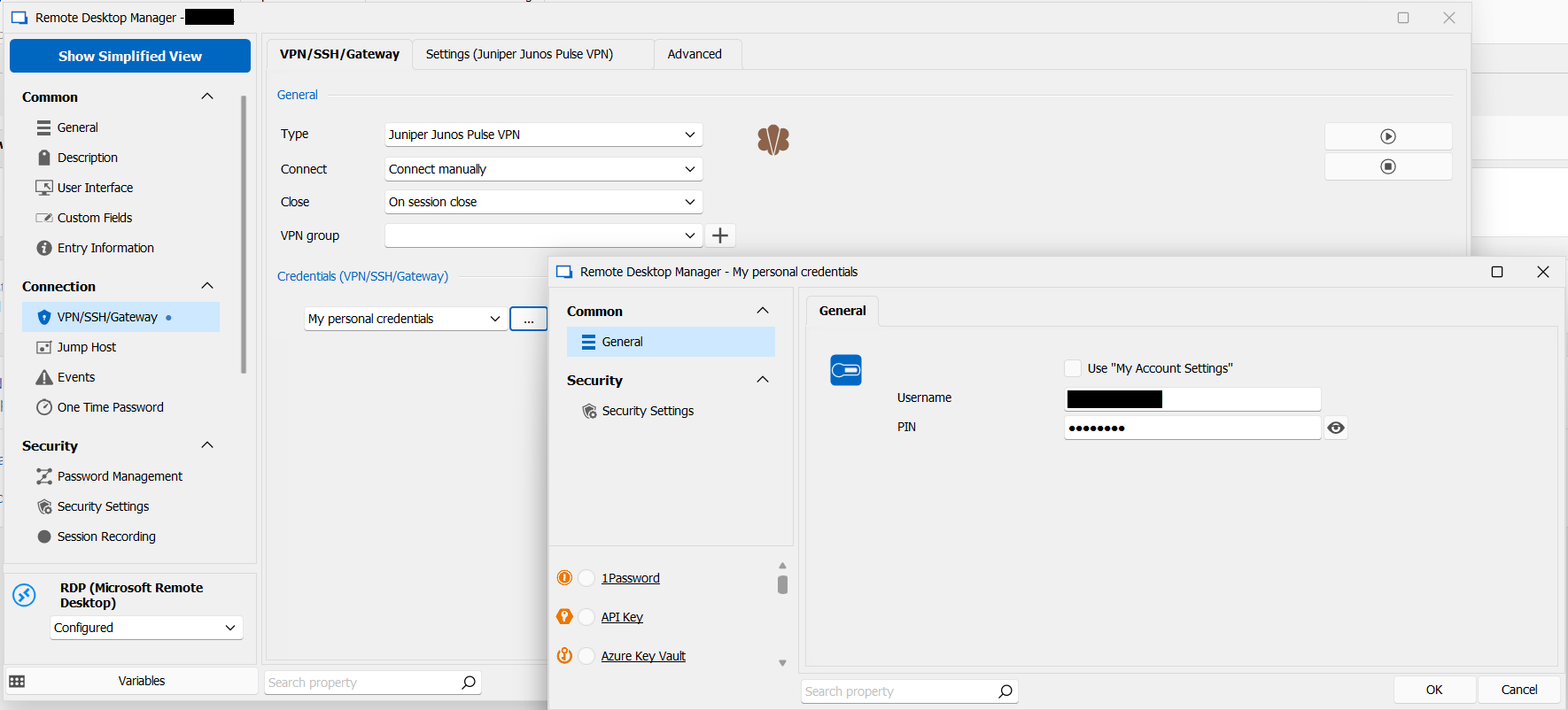
Hereby the logs: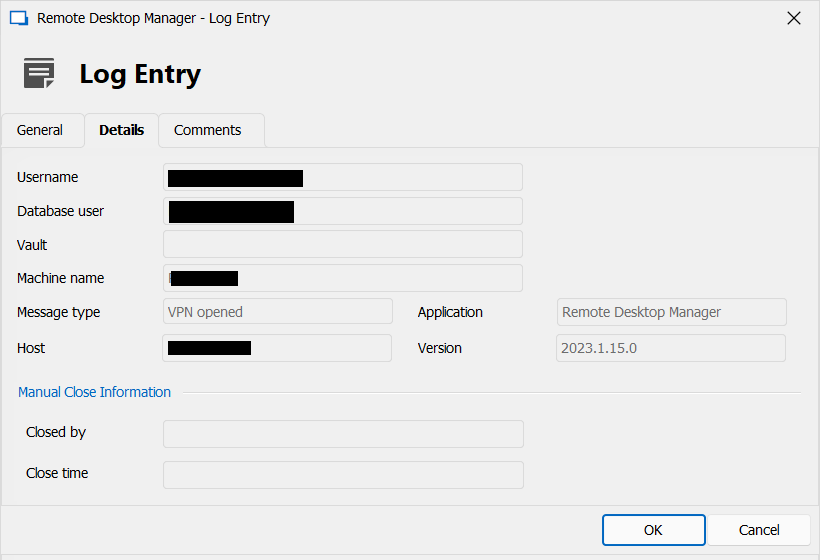
Best regards
41f8cd59-3a92-4fe1-8032-ef6a2a312dd2.png
0d9093be-c5f1-4229-964f-2ba0d277ca35.png
Could you check the box "show command line" in the Pulse Secure configuration in RDM?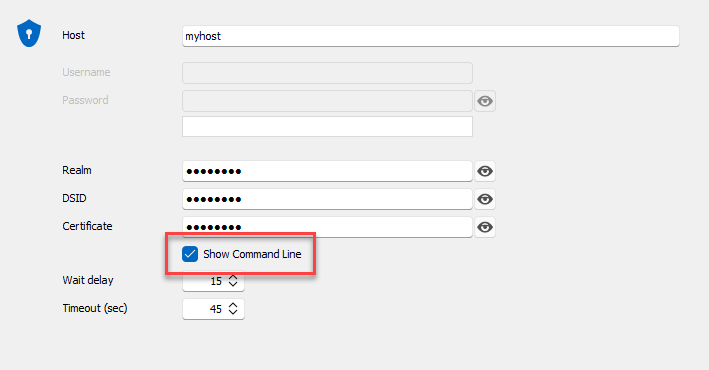
When you then execute the VPN, it should show the command RDM is executing. Please note that this will show the credentials and sensitive information, so this should only be checked for debugging issues and confirming the parameters are correct.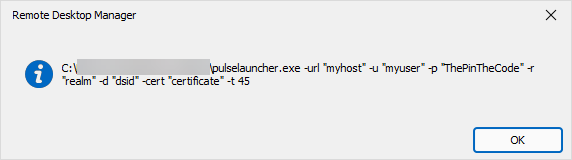
I configured in My Personal Credentials the RSA SecurID like you did, with the pin's value as "ThePin". I was prompted for the code and wrote "TheCode". You can see in the screen capture that RDM is passing the concatenation of the two values as the password.
Regards,
Hubert Mireault
728c784b-8a8c-4cfb-8864-871ed5d917ca.png
62e1466d-fe19-472e-9fb4-b460b5341ca7.png
Ok, thanks, it's behaving much better now, but still we're not there yet:
I see in the commandline the correct RSA SecureID (the two logins/codes being concatenated, one after the other, in the correct order), but now the credentials from the general tab and the one from the VPN/SSH/Gateway tab are equal, which makes completely no sense!
How can I tell RDM to use two different credentials, one for the Remote Desktop and one for the VPN/SSH/Gateway?
Thanks
Dominique
By the way, how do I close a VPN connection? There's a "Close VPN" button, but when I click that, it asks for the credentials (???) and finally when checking "IpConfig" in the command prompt I see that the VPN connection does not get closed. I have tried this, using "Manually later" and the default "on session close" in the VPN/SSH/Gateway tab but none is working fine: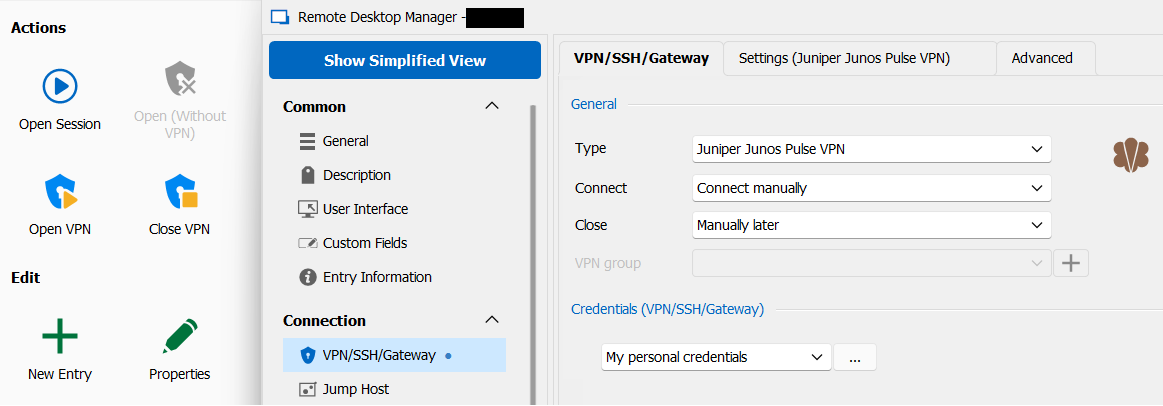
e7c94ed5-d2b1-4f27-a46c-356028288335.png
For your first point about using the same credentials, did you also configure "my personal credentials" as the value for the credentials in the main section? If so, that's normal. The "my personal credentials" are one set of credentials that are configured and usable throughout the application. Usually, our users enter their domain credentials in there.
If you want to configure unique credentials for the entry, you can simply leave the mode to "custom" and enter the credentials directly in the entry. You could also create a separate credential entry in the tree (for example, a Username/Password entry), and then link to it by using the "Linked (vault)" mode.
For the prompt when closing the VPN, when you're closing the VPN, are you doing it through the dashboard, or through the properties of the entry? Do you have the credential prompt with both methods? There might be a bug with one of them.
The close button in this case calls the following: <Path to the executable>\pulselauncher.exe -signout -url <host>
You could try running this command line externally to see if it works. If this does not work, it's not impossible that Pulse Secure changed the command line required to close the VPN. We would need to know what the new command to close is, if it changed.
Regards,
Hubert Mireault
I have done a test in order to close the VPN connection: in the VPN/SSH/Gateway main form I pressed the square button, while in the Settings form the checkbox "Show Command Line" was still checked. The following things went wrong:
- The RSA Secure ID was asked again (twice) while this should not be needed during connection closing.
- The VPN connection was not closed.
- The commandline was not shown (although I can confirm it is shown while opening the VPN connection).
I have tried the commandline you mentioned, and the result is weird:
Commmandline ipconfig command starts following output:
C:\>ipconfig
Windows IP Configuration
Ethernet adapter Ethernet 7:
   Connection-specific DNS Suffix  . : BM.CUSTOMERGROUP.BE
   Link-local IPv6 Address . . . . . : ff88::22ff:ea18:3f6:91bc%29
   IPv4 Address. . . . . . . . . . . : 10.241.5.26
   Subnet Mask . . . . . . . . . . . : 255.255.255.255
   Default Gateway . . . . . . . . . :
The commandline command you mentioned seems to be correct but it does not yield the desired result:
"C:\Program Files (x86)\Common Files\Pulse Secure\Integration"\pulselauncher.exe -signout -url  https://ssl.customer_URL.com
Already disconnected.
An extra ipconfig yields the same result as before.
For your information, I'm running the command prompt as administrator.
If the close command does not work, maybe PulseLauncher changed something or there is a bug with their application? Maybe you could contact their team to see if anything changed on that end. We could then make the necessary changes if there is indeed a different command to be used to close the VPN.
We will have to investigate for the open/close VPN buttons in the VPN/SSH/Gateway settings, for now I would recommend opening and closing the VPN through the dashboard (or automatically when linked to another entry), rather than through that window.
Regards,
Hubert Mireault