Getting logged out of windows when closing RDM

Hey all
Not sure if I accidentally toggled some setting in RDM that caused this, or what, but I have 2 RDP windows open in RDM (both are Win 10 machines) and RDM is running on a Win 11 machine. All of them are logged into the same Windows outlook account for synching settings.
I have a "Log off" icon on the desktop of both RDP machines that I click to log the user out of them (lock the screen). The command line for that is just:C:\Windows\System32\rundll32.exe User32.dll,LockWorkStation
After I log the user out of both, I then click the "X" (close) button on RDM, and here's where it all goes kablooey; suddenly my Win 11 screen goes all black with "logging out" showing in the middle, and after a minute, I get logged out on my Win 11 machine; I don't want that.
I'm just trying to "lock/logout" of the 2 RDP's and then close RDM. I don't want to logout of my main machine.
What is happening here? lol
All Comments (18)
Hello,
This is certainly an odd behavior, would you mind telling me which version of RDM you're using ?
Best Regards,
Hi
2022.3.35.0 64-bit
Hello,
In either of the entries properties, do you have any events stored in the "After Close" tab of the "Events" section?
Best Regards,
I just checked and both remote machines have those exact same settings.
Could this be it?
There are so many settings all over the place, it gets hard to tell what affects what, lol.
Hello,
The option you highlighted is from the "Remote Desktop" section, and should only affect the RDP entries on your local installation, should only make it so that you log off from your remote computer when closing the session, it shouldn't make you log out from your actual OS.
To my knowledge, there isn't even an option to log out of your personal computer after closing RDM.
This is why I'd like to know if you have anything in the "Events" section of your RDP entry under the "After Close" tab.
Otherwise , I want to know if you can reproduce the issue without opening your RDP sessions. Simply launch RDM, and then close it.
If the issue persists, then we'll know it's the application, if it doesn't we'll know that the RDP entries are likely at fault for the behaviour.
Best Regards,
I think I might've found out why, though not sure why it would happen.
I've been waiting to see if any patterns showed up when it happens and it's very unpredictable, so that's why I haven't responded sooner. It happened again last night when I had an issue where locking the screen in one open guest RDP locked it but didn't show the usual login type stuff on the screen again so that I can log back into it; there's nothing really that can be done then other than reboot that machine so I can get back into it, so I tried clicking the "force Logoff" button in the RDM Actions menu, to see if it would just send the "logoff" command directly to that guest machine only (it offers no hint to where it's sent in it's tooltip, if it's sent to the host pc as well), and then I immediately got the black logoff screen on my host pc and got logged out.
I was under the impression that any action taken by RDM was only done to that active remote guest connection; never to the host pc running actual RDM?
So then when I happened to click the "Run" command on the host pc for an unrelated reason I noticed this:
I have never, ever typed "logoff" on any of my windows machines, so it has to be getting sent there by other means. I don't really know why RDM would also send that logoff command to the host pc when clicking it's close (X) button either?
One thought might be that since I have all 3 pc's (2 guests and the host) logged into the same Microsoft user email and somehow that's "synching" the logout across all machines? I have no idea, I'll leave that to you gurus. :)
I had an issue where locking the screen in one open guest RDP locked it but didn't show the usual login type stuff on the screen again so that I can log back into it; there's nothing really that can be done then other than reboot that machine so I can get back into it
Just for the record this is what I meant by that. It only happens on this Win 10 guest, but not another Win 10 guest, and they both use the same exact method of locking the screen (I posted that shortcut code earlier):
There's no way to log back in. Even trying to use the RDM "send alt+ctrl+del" des nothing to it.
compared to the usual lock screen where you can log back in (this is my other win 10 guest):
Hello,
Thank you for all the information,
Our engineers were able to look into this and believe that perhaps changing your logoff method from Macro to something else may resolve your issue.
We believe that somehow RDM may not be able to get the focus in your RDP entry and that's what causes the issue.
Best regards,
perhaps changing your logoff method from Macro to something else may resolve your issue.
Hi
Can you clarify what you mean by "from macro" to something else? I don't use any macros to logoff.
Hello,
Would you be open to having a remote session with me ?
I would open up a seperate case, and send you a link by email to schedule one.
This would allow me to have a closer look at your issue.
Best regards,
Thank you for the offer, I appreciate it, but I've never really been one to allow others to do remote sessions. :)
Hello,
I understand, in that case, please allow me some time to look into your RDM issue further with our engineers.
I will update you once I receive word from them.
Best regards,
Thanks Zach.
I've got a bit of coding experience under my belt as well, would you mind telling me what the method of sending the logoff to the guest machine is? Does it somehow send the literal "logoff" command to the machine via some form of SendKeys? I'm wondering how that's getting "typed" into my host's run field. It might also help me to see if I have some 3rd party app stealing focus at that exact moment somehow, so that it's getting "typed" into the host.
Hello,
The engineers have asked me to see what your Log off mode setting is set to ?
The option will be located here: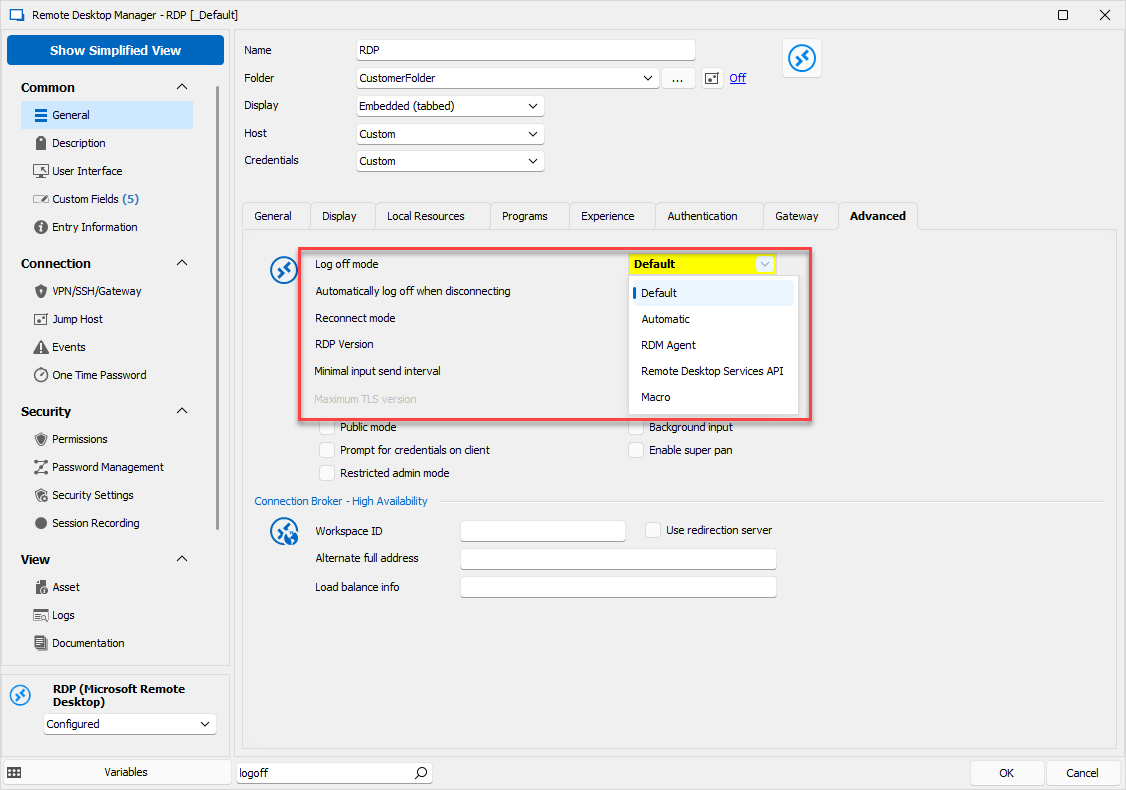
I see it's set to "Automatic" within File > Options from past screenshots, so I'd like to see how it's set within the entry.
As for you other questions, that's what we're trying to figure out internally.
Do you have any third-party apps running when this happens ?
If so, could you try closing them and seeing if you can reproduce ?
Best regards,
image_2023-03-21_134118442.png
image.png
Here are the current setting for the 2 RDP in question: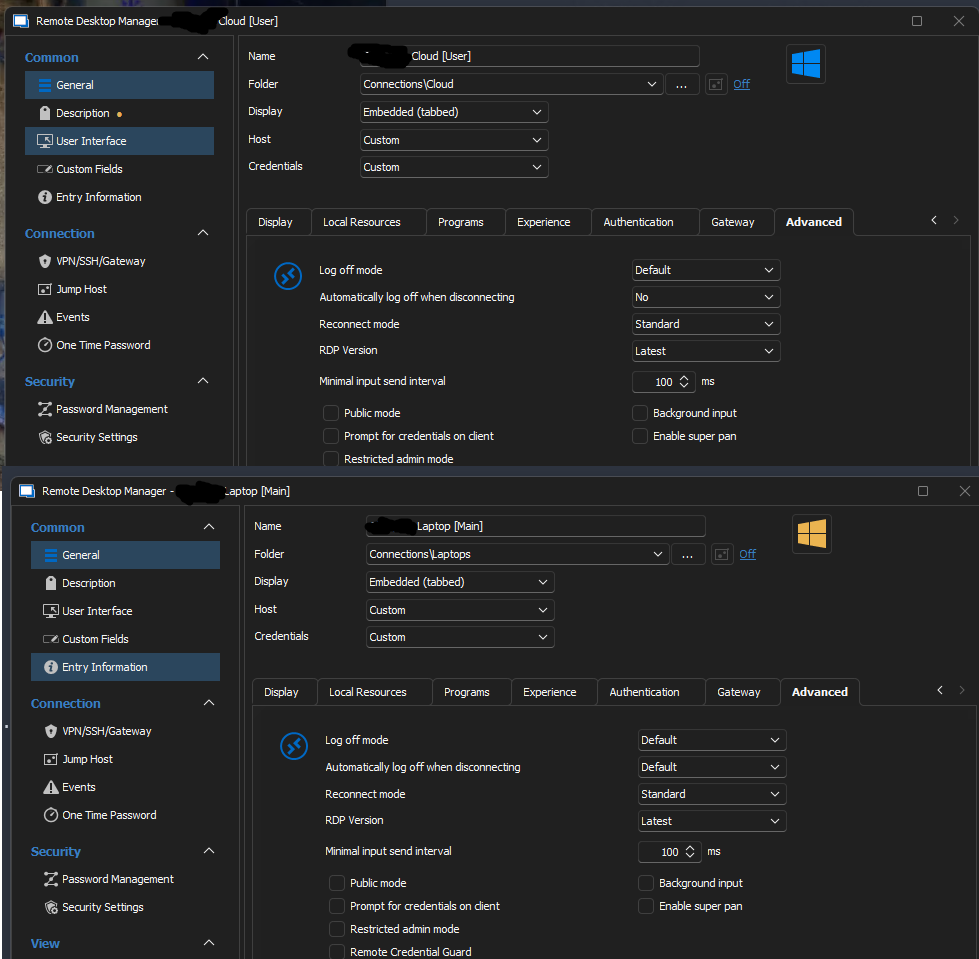
I don't really have any other programs that I can think of that should be stealing focus from RDM, but I have a couple of tools that log foreground window switches that I can give a try.
image.png
Hello,
So I can confirm that RDM is likely the reason you're getting "logoff" typed into Win Run.
The "Log off mode" option actually does this.
Other than that, I'd like for you to test something for me, as suggested by our engineers.
We believe that the way you're logging off on top of how the log off settings are set within your installation of RDM may, weirdly enough, be causing multiple log offs.
For this reason, I'll need you to go under File > Options > Types > Remote Desktop, and set your "Log off mode" and "Automatically log off when disconnecting" to "Default".
Once this is done, go into one of your RDP's properties and under the "Advanced" tab, set your "Log off mode" and "Automatically log off when disconnecting" to "Default".
After this, open the session, and log off as you normally would.
If the issue persists, try the other "Log off mode" options in the entry's properties.
Let me know your results !
Best regards,
Ahh, good. At least it seem to no longer be a mystery, lol.
Ok, in the Main RDM settings they aren't labeled exactly as you mentioned, so I tried to set them to the seemingly closest thing:
This is marked as "method" rather than "mode" and there's no "default" option, so I left it on Automatic (it's previous setting).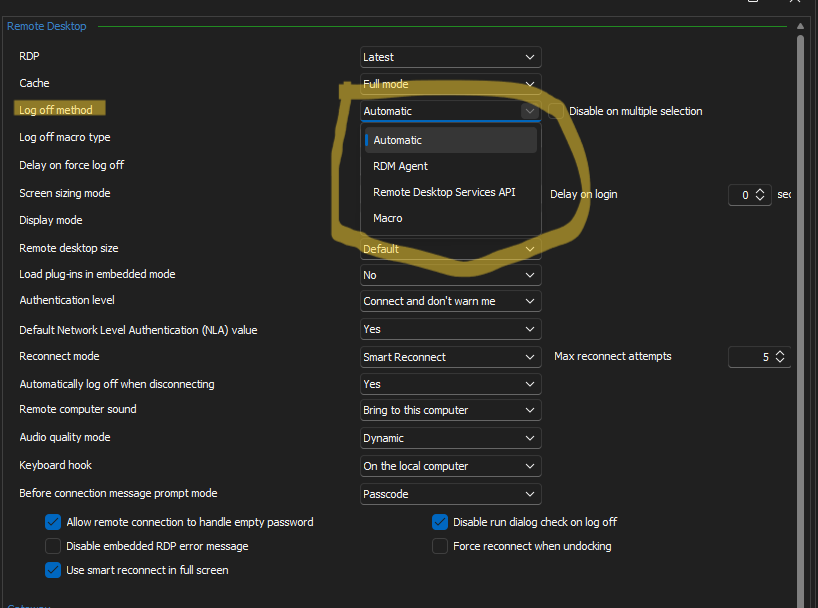
And this one also has no "default", But it was previously set to Yes, so I'm setting it to No: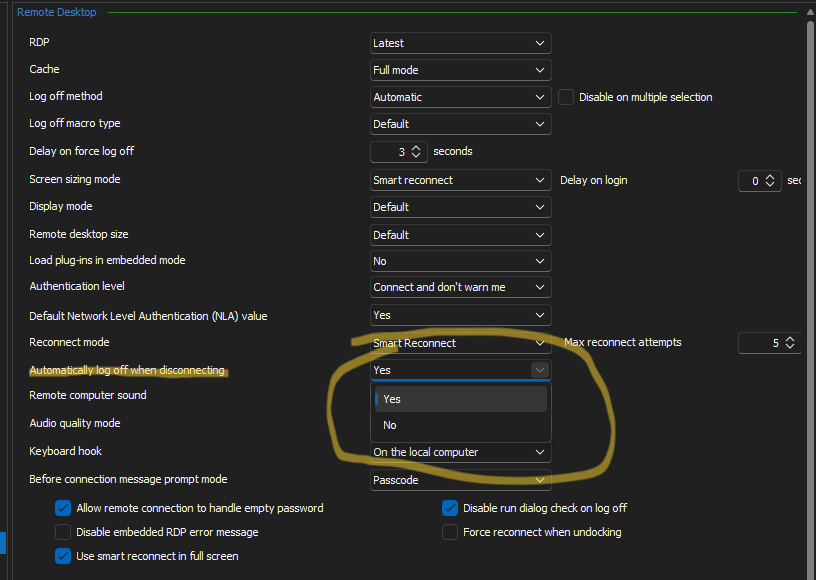
The other 2 individual RDP's were already set to default except for one of them which had the "Automatically {..}" set to No. I set it back to Default.
I never could pick out a pattern on specific, reliable steps to reproduce it, so I'll give these settings a go for a little while and report back my findings. :)
p.s. If I can offer a little bit of user feedback, there are a mind boggling number of options/settings, many of which interweave with each other in potentially unpredictable ways for a regular user who doesn't know the inner workings like a Dev on the team does; adding descriptive tooltips to every option would help out a lot.
Screenshot 2023-03-22 225628.png
Screenshot 2023-03-22 225326.png
Hello,
Perfect, we will await your results !
Also I will let our engineers know about your suggestions.
Best regards,